How to Read a Heatmap: A Practical Guide With Examples (2026)
Learn how to read a heatmap to improve your website's UX and conversions. Covers click maps, scroll maps, and move maps with real interpretation examples.

Most websites have at least one page where the main CTA gets almost zero clicks - while some random footer link or decorative element gets hammered. According to Contentsquare’s 2025 Digital Experience Benchmarks, 40% of all online visits are plagued by user frustration - from dead clicks to rage clicks to slow-loading elements. You wouldn’t know this from Google Analytics alone. But a heatmap shows it in seconds.
Knowing how to read a heatmap is one of the fastest ways to diagnose UX problems, improve conversions, and stop guessing about what visitors actually do on your pages. The data is visual, intuitive, and immediately actionable - once you understand what you’re looking at.
This guide covers the three main heatmap types, how to interpret each one, and common mistakes that lead to wrong conclusions.
What Is a Heatmap?
A heatmap is a data visualization that uses color to represent user behavior on a webpage. Areas with high activity appear in warm colors (red, orange, yellow), while areas with low activity appear in cool colors (blue, green).
Heatmaps aggregate data from hundreds or thousands of visitors into a single overlay, so you can see behavioral patterns at a glance. Instead of watching individual session recordings one by one, a heatmap gives you the big picture.
There are three main types - click maps, scroll maps, and move maps - and each answers a different question about how users interact with your page.
How to Read a Heatmap: Understanding the Color Scale
Every heatmap uses the same basic color spectrum, borrowed from thermal imaging. Understanding this scale is the foundation of heatmap analysis.
The Warm-to-Cool Spectrum
The color mapping works like this:
- Red - Highest activity. The most clicked, most viewed, or most scrolled-to area
- Orange - High activity. Strong engagement, just below the peak
- Yellow - Moderate activity. Average level of interaction
- Green - Low activity. Below-average engagement
- Blue - Lowest activity. Very few users interact with this area
Colors are relative, not absolute. A red zone on a low-traffic page might represent 50 clicks, while a red zone on a high-traffic page might represent 5,000. The heatmap shows you where attention concentrates compared to the rest of the page - not raw numbers. This matters because the average visitor only scrolls through about 50% of a page - 50.5% on desktop and 45.2% on mobile, according to Contentsquare’s 2026 Digital Experience Benchmark. That means roughly half your page content may never be seen, making it critical to understand where attention actually lands.
What “Hot” and “Cold” Zones Mean
Hot zones (red/orange) tell you where users focus their attention and interaction. This isn’t always good news. A hot zone on a non-clickable image means users are confused - they expect it to be a link. A hot zone on your CTA button means your design is working.
Cold zones (blue/green) indicate areas users ignore. Again, context matters. A cold CTA button is a problem. A cold footer on a page where users convert above the fold is perfectly fine.
The key principle: always interpret heatmap colors against your page goals. A heatmap doesn’t tell you what’s “good” or “bad” - it tells you where attention goes, and you decide whether that aligns with what you want users to do.
Types of Heatmaps and How to Read Each One
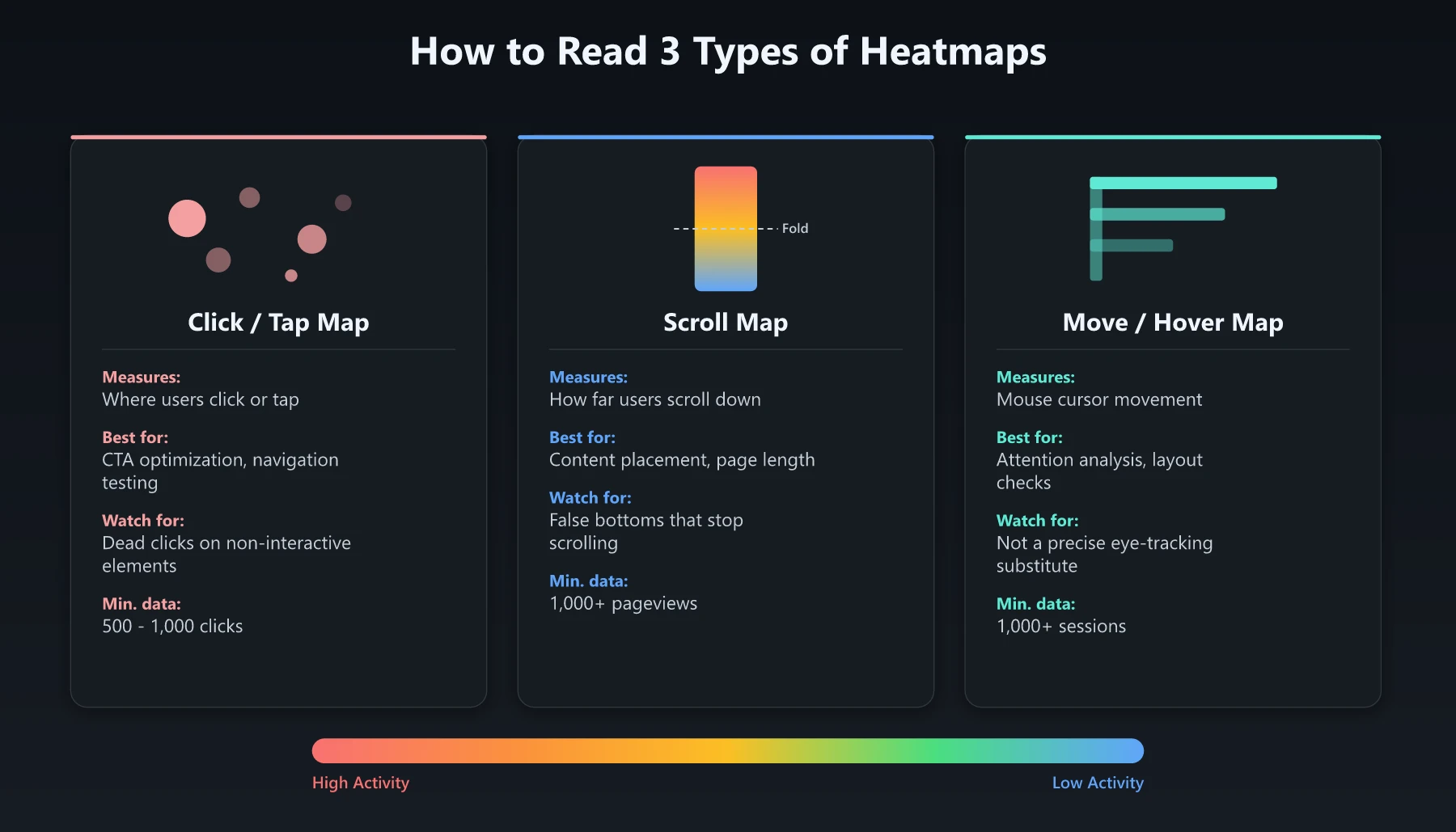
Each heatmap type reveals a different dimension of user behavior. Using all three together gives you the most complete picture.
Click/Tap Maps
Click maps show where users click (desktop) or tap (mobile). Every click is recorded as a data point, and the aggregated result shows clusters of interaction.
How to read a click map:
- Look for click clusters on non-interactive elements. If users click on images, headings, or plain text, they expect those elements to be links or buttons. These are called “dead clicks” and signal a UX problem. Contentsquare’s research found that slow-loading or unresponsive content causes 53% of users to exit after viewing just a single page - and dead clicks are often the first sign of that friction
- Check if your primary CTA gets the most clicks. If navigation links or secondary elements get more clicks than your main CTA, your visual hierarchy needs work
- Compare desktop vs. mobile click maps. Tap targets that work on desktop often fail on mobile because elements are too small or too close together
Scroll Maps
Scroll maps show how far down the page users scroll. The color shifts from warm to cool as you move down the page, with a sharp drop-off point where most users stop.
How to read a scroll map:
- Find the fold line. This is where the heatmap transitions from warm to cool colors. Content above this line gets seen by nearly everyone; content below it gets seen by fewer and fewer visitors
- Identify the average scroll depth. Most tools show a percentage marker - for example, “50% of visitors reach this point.” Benchmark data from Contentsquare’s 2026 report shows the average scroll rate is just 50.5% on desktop and 45.2% on mobile, so if your CTA sits in the bottom half of a long page, the majority of visitors will never see it
- Look for “false bottoms.” If users stop scrolling at a point where the page appears to end (large whitespace, a full-width banner), they might think they’ve seen everything. Redesign that section to signal that more content exists below
Move/Hover Maps
Move maps (also called hover maps or attention maps) track where users move their mouse cursor. Research suggests a moderate correlation between mouse position and eye gaze, making this a rough proxy for visual attention.
How to read a move map:
- Treat it as directional, not precise. Mouse movement broadly indicates where users look, but it’s not a perfect eye-tracking substitute. Use it to identify general attention areas, not pixel-level focus
- Look for F-pattern or Z-pattern reading. Nielsen Norman Group’s eye-tracking research - which tracked 232 users across thousands of web pages - found that F-shaped scanning is the dominant reading pattern on the web. If your heatmap confirms this pattern, place key information along those scan paths
- Identify ignored sections. If a large content block shows zero hover activity, users are scrolling past it entirely. Consider whether that content adds value or creates unnecessary page length
Comparing Heatmap Types
| Feature | Click/Tap Map | Scroll Map | Move/Hover Map |
|---|---|---|---|
| What it measures | Click and tap locations | How far users scroll | Mouse cursor movement |
| Best for | CTA optimization, navigation testing | Content placement, page length decisions | Attention analysis, layout validation |
| Key question it answers | ”Where do users click?" | "How much of my page do users actually see?" | "Where does user attention focus?” |
| Works on mobile? | Yes (tap data) | Yes | No (no mouse cursor on touch devices) |
| Minimum data needed | 500-1,000 clicks | 1,000+ pageviews | 1,000+ sessions |
| Common misread | Assuming more clicks = good (dead clicks exist) | Ignoring that scroll depth varies by device | Over-indexing on cursor position as “eye tracking” |
How to Read a Heatmap for Specific Goals
Raw heatmap data is only useful when you connect it to specific optimization goals. Here’s how to apply heatmap analysis to the most common UX and conversion challenges.
Improving CTA Placement
Pull up your click map and scroll map side by side. First, check whether your primary CTA is in a hot zone on the click map. If it’s cold, the problem is either visibility (users don’t notice it) or positioning (it’s below the scroll depth where most users drop off). The stakes are real: Contentsquare’s data shows that websites that increased session depth by 10% or more saw an average 5.4% boost in conversions - so getting users to engage deeper with your page has a direct revenue impact.
Next, check the scroll map. If fewer than 40% of users reach your CTA, move it higher on the page or add a secondary CTA above the fold. Sticky CTAs (buttons that follow the user as they scroll) are another effective fix for pages with deep content. HubSpot’s analysis of over 330,000 CTAs found that personalized CTAs convert 202% better than default versions - so combining better placement with targeted messaging can multiply your results.
Reducing Bounce Rates
Scroll maps are your primary tool here. If users barely scroll past the first viewport, your above-the-fold content isn’t compelling enough to keep them engaged. Look for sharp color transitions near the top of the page - that’s your bounce point. This is a widespread problem: Contentsquare’s 2025 benchmarks show that conversion rates dropped 6.1% year-over-year even as brands spent 13.2% more on digital advertising, which means the issue is often on-page experience rather than traffic volume.
Common fixes: rewrite the headline to be more specific, add a clear value proposition above the fold, or remove distracting elements (like autoplay videos or aggressive pop-ups) that push visitors away before they engage. For a deeper look at auditing page performance, see our guide on how to conduct a technical SEO site audit.
Optimizing Above-the-Fold Content
The first viewport is the most valuable real estate on any page. Use all three heatmap types together to evaluate it:
- Click map: Is the primary action getting clicks, or is attention scattered across navigation, logos, and other low-value elements?
- Scroll map: How quickly does engagement drop? If the warm-to-cool transition happens within the first 20% of the page, your above-the-fold design is strong
- Move map: Does cursor movement follow the visual hierarchy you designed, or are users scanning randomly?
Finding Dead Clicks and Rage Clicks
Dead clicks happen when users click on non-interactive elements. Common culprits: images that look like buttons, underlined text that isn’t a link, and cards that look clickable but aren’t.
Rage clicks are rapid repeated clicks on the same element - a clear signal of user frustration. They typically occur on buttons that appear broken, links that load slowly, or interactive elements that don’t respond as expected. Contentsquare’s 2025 benchmark found that organizations that actively minimized rage clicks reduced them by nearly 5% and were 4.5x more effective at reducing friction than their peers.
Both show up as high-density hot spots in click maps. Filter your heatmap by “dead clicks” or “rage clicks” if your tool supports it (Microsoft Clarity and Hotjar both do). Fixing these friction points often produces quick conversion wins.
Best Heatmap Tools Compared
Choosing the right tool depends on your budget and the depth of analysis you need. Here’s how the major options compare:
| Tool | Price | Click Maps | Scroll Maps | Move Maps | Session Recording | Standout Feature |
|---|---|---|---|---|---|---|
| Microsoft Clarity | Free (no limits) | Yes | Yes | No | Yes | Rage click and dead click detection, unlimited traffic |
| Hotjar (now Contentsquare) | Free tier + paid from $49/mo | Yes | Yes | Yes | Yes | Feedback polls, form analytics |
| Mouseflow | Free tier + paid from $25/mo | Yes | Yes | Yes | Yes | Form analytics, funnel tracking |
| Crazy Egg | From $29/mo | Yes | Yes | Yes | Yes (limited) | A/B testing built in, confetti report |
| Lucky Orange | Free tier + paid from $32/mo | Yes | Yes | Yes | Yes | Live visitor view, dynamic heatmaps |
For most teams, Microsoft Clarity is the best starting point. It’s completely free with no traffic caps, includes session recordings alongside heatmaps, and automatically flags rage clicks and dead clicks. If you need move maps, form analytics, or built-in surveys, Hotjar or Mouseflow are strong paid upgrades.
Heatmap data pairs well with automation workflows. Once you identify which page elements drive the most engagement, you can use those insights to refine marketing automation strategy - for example, personalizing landing pages based on the content sections that generate the most clicks.
Common Heatmap Reading Mistakes
Even experienced marketers misinterpret heatmap data. Avoid these pitfalls:
Drawing Conclusions from Too Little Data
A heatmap built from 100 sessions tells you almost nothing. You need at least 1,000-2,000 pageviews on a specific page before the patterns are statistically reliable. With sparse data, a few outlier users can create misleading hot spots.
Ignoring Device Segmentation
Desktop and mobile heatmaps look completely different for the same page. The fold line is in a different place, tap targets behave differently than click targets, and move maps don’t work on mobile at all. Always segment your heatmaps by device type. Mixing desktop and mobile data into one view hides critical differences. To illustrate the gap: desktop converts at 3.4% on average while mobile converts at just 2.0% - a 75% difference, according to Contentsquare’s 2026 benchmark. The UX issues on each device are fundamentally different.
Treating Clicks as Conversions
A hot zone doesn’t automatically mean success. If users are clicking a decorative banner instead of your “Buy Now” button, that’s a problem, not a win. Always cross-reference click map data with actual conversion metrics in your analytics platform.
Analyzing Without a Hypothesis
Opening a heatmap and looking for “interesting patterns” is a recipe for confirmation bias. Start with a specific question: “Are users seeing the CTA?” or “Why is the form completion rate so low?” Then use the heatmap to answer that question. This approach also supports broader B2C marketing automation efforts by connecting behavioral data to specific funnel stages.
Forgetting About Dynamic Content
Heatmaps capture a static snapshot, but many pages have dynamic elements - carousels, tabs, accordions, modals. Clicks on a carousel’s third slide might show up at the same coordinates as clicks on the first slide, creating misleading data. Check whether your tool handles dynamic content, and filter accordingly.
Conclusion: Start Reading Heatmaps This Week
Learning how to read a heatmap doesn’t require a statistics degree or expensive tools. Install Microsoft Clarity on your highest-traffic page today, collect data for a week or two, and start with the basics: Where do users click? How far do they scroll? Are they engaging with your CTA or clicking on dead elements?
The pattern is simple: generate the heatmap, compare hot zones against your page goals, form a hypothesis, and test a fix. Repeat this cycle on your top 5-10 pages, and you’ll uncover UX issues and conversion opportunities that analytics dashboards alone will never reveal.
Your next step: pick one landing page that underperforms, install a free heatmap tool, and run your first analysis using the framework in this guide. The insights will pay for themselves immediately.
Frequently Asked Questions
How to read a heatmap?
Heatmaps use a warm-to-cool color spectrum. Red and orange areas show high activity (most clicks, attention, or scrolling), yellow shows moderate activity, and blue or green shows low activity. Compare hot zones against your page goals to find UX issues.
What is a good heatmap tool for beginners?
Microsoft Clarity is the best free heatmap tool. It offers click maps, scroll maps, and session recordings with no traffic limits. For paid options, Hotjar and Mouseflow offer more advanced features like rage click detection and form analytics.
How much traffic do I need for a useful heatmap?
You need at least 1,000-2,000 pageviews on a specific page to generate a statistically meaningful heatmap. With fewer visits, the data will be too sparse to draw reliable conclusions.