How to Delete Threads Account and Keep Your Instagram
How to delete Threads account with Meta's two current menu paths, what it does to your Instagram, and the 30-day and 90-day clocks that follow your request.
Deleting a Threads profile removes your Threads posts, likes and followers and leaves the Instagram account behind it in place. Meta’s help article Delete your Threads profile says so in one line: “Deleting your Threads profile won’t also delete your Instagram or Facebook profile.” The reverse does not hold. The Threads Supplemental Privacy Policy, effective 3 June 2025, says “Your Threads profile may be deleted at any time by deleting the account that you used to sign up with Threads.” So if you want to know how to delete Threads account access without losing Instagram, start inside the Threads app and leave Instagram’s deletion page alone.
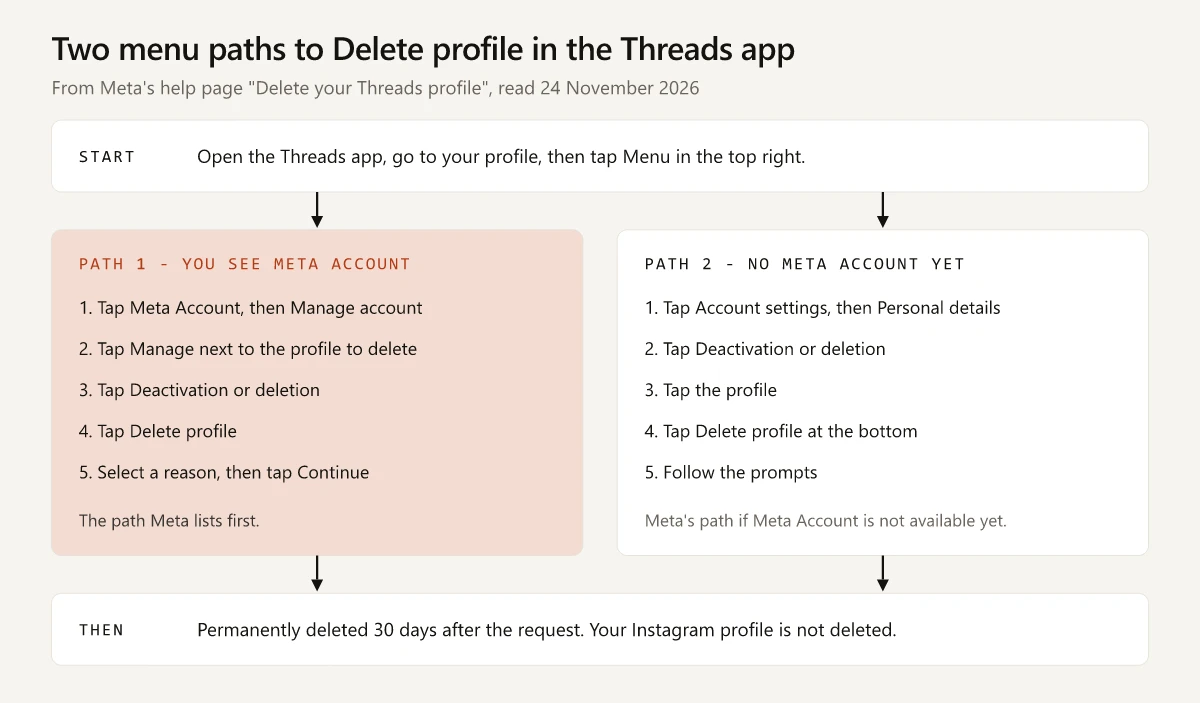
To delete your Threads account in the app, follow the path Meta lists first:
- Open the Threads app.
- Tap Profile or your profile picture in the bottom right.
- Tap Menu in the top right.
- Tap Meta Account, then Manage account.
- Tap Manage next to the profile you want to delete.
- Tap Deactivation or deletion, then Delete profile.
- Select a reason, then tap Continue.
If Meta Account is missing from that menu, Meta gives a second route through Account settings, set out below. The profile is permanently deleted 30 days after the request; logging back in and tapping Log in before then cancels it, though Meta says the cancel window varies by region.
Meta says “Threads in Meta Account isn’t available everywhere”, and its article carries two menu paths, one for people who have Meta Account in Threads and one for people who do not yet. A guide that prints only one of them will be wrong for some readers. Meta’s Instagram help also says it is “gradually updating people to Meta Accounts”, the same rollout the Instagram character limit post flags for name and username changes. The order I would follow from Meta’s pages, read from India on 24 November 2026: request a copy of your data, wait for the link, delete from the Threads app, and treat the cancel window (30 days, varying by region) as the only undo you get.
What Deleting a Threads Profile Does to Your Instagram
Each row is sourced to a Meta help page or policy as I read it on 24 November 2026.
| What you do | Your Threads profile | The Instagram or Facebook account | Meta’s source |
|---|---|---|---|
| Delete the Threads profile | Content, likes and followers “permanently removed”, final 30 days after the request | Stays: deleting Threads “won’t also delete your Instagram or Facebook profile” | Delete your Threads profile |
| Deactivate the Threads profile | Hidden until you reactivate it | Untouched: deactivating “won’t delete your Threads data or affect your Instagram profile” | Temporarily deactivate your Threads profile |
| Delete the Instagram account you signed up with | ”may be deleted” with it | Deleted | Threads Supplemental Privacy Policy |
| Signed up with Facebook, then delete Threads | Deleted | Stays: “This will not delete your Facebook account.” | About signing up to Threads with your Facebook account |
Meta’s own Instagram article, Permanently delete or deactivate your Instagram profile, does not say in its body what happens to a Threads profile when the Instagram account goes; Threads appears on that page only in the related-article links. The privacy policy line is the only Meta statement on that direction I found, and “may be deleted” is enough reason not to treat an Instagram deletion as safe for Threads.
How to Delete Threads Account in the App: Two Menu Paths
Which path you follow depends on whether your menu shows Meta Account.
Path 1: You See Meta Account in the Menu
Follow the seven steps at the top of this post. The labels to look for, in order, are Meta Account, Manage account, Manage, Deactivation or deletion and Delete profile.
Path 2: Meta Account Is Not There Yet
Meta’s delete article heads this one “If you don’t have Threads in Meta Account available yet”:
- Tap Profile or your profile picture in the bottom right.
- Tap Menu in the top right.
- Tap Account settings, then Personal details.
- Tap Deactivation or deletion.
- Tap the profile. Meta’s wording here is “Tap the profile you’d like to deactivate”, even though this is the delete flow.
- Tap Delete profile at the bottom.
- Follow the prompts.
Meta’s Two Articles Use Different Labels
The delete and deactivate articles do not name the same screens the same way:
| Screen | Delete article | Deactivate article |
|---|---|---|
| Meta Account path | Meta Account, then Manage account | Meta Account, then Manage profile |
| Path without Meta Account | Account settings, then Personal details, then Deactivation or deletion | Profile, then Deactivate or delete profile |
| Top-right button, iPhone tab | Menu | Settings |
The label both articles share is Deactivation or deletion. If a guide sends you to Account, then Deactivate or delete profile, it is close to the no-Meta-Account path in Meta’s deactivation article (Profile, then Deactivate or delete profile) and matches neither path in the delete article. In both of Meta’s paths, Delete profile is on the Deactivation or deletion screen or one tap after it.
Can You Delete a Threads Account on a Computer?
Meta’s delete article gives no computer steps: on 24 November 2026 its Computer and Mobile Browser tabs showed the same text as the app tabs, starting with “Open the Threads app.”
Its deactivation article does give a Threads.com route on its Computer tab:
- Open Threads.com from a computer.
- Click More on the left, then Settings.
- Click Meta Account, then Manage profile.
- Click Manage next to the Threads profile, then Deactivation or deletion.
- Click Deactivate profile, then Continue, and select a reason.
From a mobile browser, the same article starts at Threads.com with Menu on the left, then Settings. Both routes reach a Deactivation or deletion screen, but Meta’s pages do not say whether Delete profile appears there on the web. To delete, use the Threads app on your phone, where Meta documents every step.
Export Your Threads Data Before Deleting
Meta’s delete article says “Before deleting your profile, you may want to download a copy of your information”, and after day 30 “you’ll no longer be able to retrieve your information.” The export steps, from the Android tab of Review and export your Threads information:
- Tap Profile or your profile picture in the bottom right.
- Tap Menu in the top right.
- Tap Meta Account, then Your information and permissions.
- Tap Export your information, then Create export.
- Select the Threads profile, then tap Next.
- Choose Export to device, where you can pick the information, date range, format, notification email and media quality.
- Tap Start export.
Choosing Export to external service instead adds three steps before Start export: pick the service and tap Next, connect to it, then enter your Threads password and tap Next.
Meta adds: “It may take up to 30 days for us to email you when a link is ready.” Request the export first and delete after the link arrives. I give the same export-first advice before deleting a ChatGPT account, and LinkedIn’s help page suggests downloading your data before closing a LinkedIn account.
What Happens After You Request Deletion
The delete article sets several clocks, and they are easy to mix up:
| Clock | What Meta says | Counted from |
|---|---|---|
| 30 days | Profile, content, likes and followers “permanently deleted 30 days after your request is submitted” | The request |
| During those 30 days | Your content “is not visible to other people using Threads” | The request |
| Cancel window | Cancel “before the 30-day deadline”; the number of days “varies by region” | The request |
| Up to 90 days | ”It may take up to 90 days to complete the deletion process after it begins”; copies may stay in backup storage after that, and Meta may keep information for legal issues, terms violations or harm prevention | When the process begins (Meta does not say whether that is the request or day 30) |
| 90 days | Wait “before you can sign up again with the same Instagram profile” | After the profile is deleted |
| Removal for violations | You “may not be able to sign up again with the same Instagram or Facebook profile” | Removal |
| Fediverse | Meta turns off sharing and asks other fediverse servers to delete your profile and content, but “We cannot guarantee that they will delete your information” | The request |
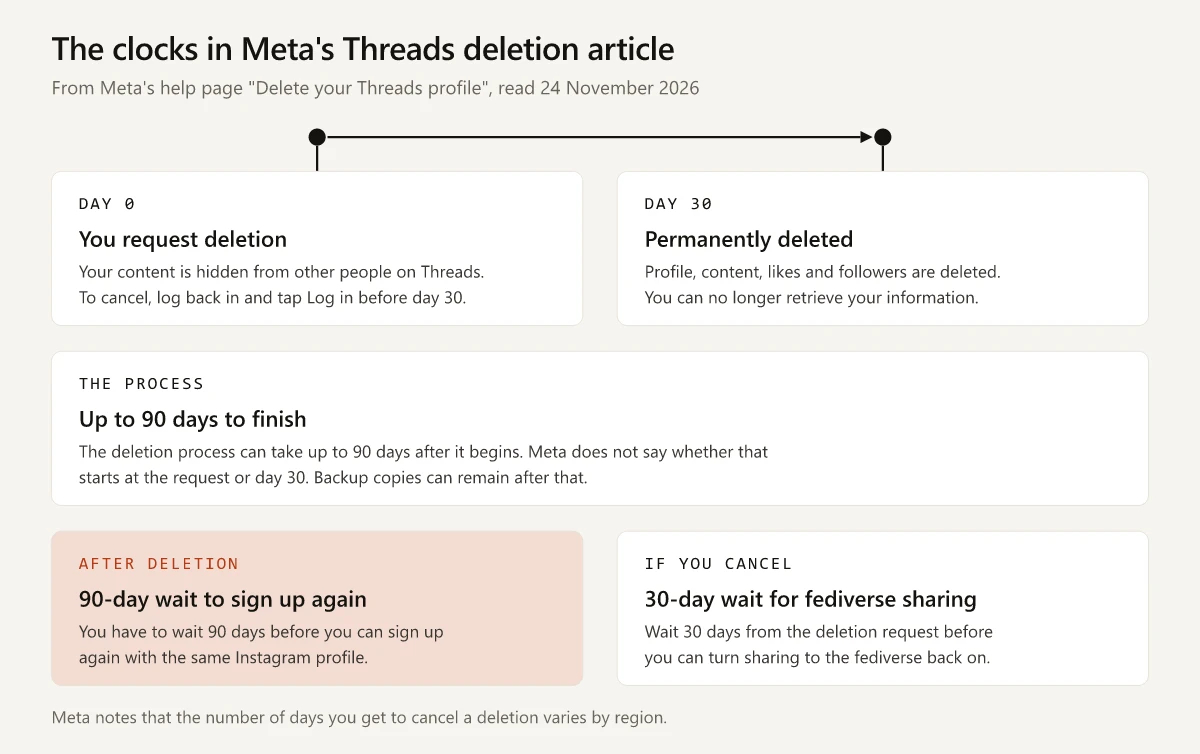
If you have seen 30 days in one place and 90 in another, both are on Meta’s page and they measure different things. A worked example, as my own date arithmetic: a request on 24 November 2026 becomes permanent on 24 December 2026. If the profile counts as deleted that day, the same Instagram profile can sign up for Threads again from 24 March 2027.
How to Cancel a Threads Deletion Request
Meta’s steps, from the delete article: “You can cancel your Threads profile deletion request before the 30-day deadline by logging back into your Threads profile and then tapping Log in to confirm the cancellation.” Your profile and its content then become visible on Threads again. X runs a similar 30-day window where one login restores the account, so if you are leaving both apps, the X account deletion steps cover staying logged out there too.
Two conditions:
- The cancel window can differ where you live: Meta says the number of days “varies by region”, without listing regions.
- If you had turned on sharing to the fediverse, you have to wait 30 days from the date of the deletion request before you can turn it on again.
Deactivate Instead If You Might Come Back
Meta’s delete article points the undecided here: “If you’d just like to take a break, you can temporarily deactivate your profile instead.” Deactivation hides your content and your interactions with other people’s posts until you reactivate, and keeps the data.
In the app, with Meta Account (Android tab of the deactivation article):
- Tap Profile or your profile picture in the bottom right.
- Tap Menu in the top right (the iPhone tab says Settings).
- Tap Meta Account, then Manage profile.
- Tap Manage next to the Threads profile, then Deactivation or deletion.
- Tap Deactivate profile, then Continue.
- Select a reason, then tap Continue.
Without Meta Account, follow the deactivate-article route in the label table above, then tap Deactivate profile.
Limits on the same page:
- Once a week: “You can only deactivate your profile once a week.”
- Fediverse sharing turns off, and after you reactivate you wait 30 days from the deactivation date to turn it on again.
- The article gives no reactivation steps. Apart from the fediverse wait above, it says only that content stays hidden “until you reactivate it.”
Keep Threads but Hide It or Trim It
Two smaller fixes Meta documents, for when the problem is visibility rather than the whole profile.
Hide the Threads badge on Instagram. From the Computer tab of Manage the Threads badge in your Instagram profile: click your profile picture on the left, click Edit profile, and turn off Show Threads badge. Meta notes the Instagram badge on your Threads profile changes with it, and that even on a private Instagram account, anyone visiting your profile can see the badge.
Delete single posts. Meta’s Delete a post on Threads article covers removing one post without touching the profile; replies others made to it stay. If you keep posting, the Threads character limit breakdown sets out what each post and profile field can hold.
If You Cannot Log In to Threads
Meta will not delete the profile for you: “For security reasons, we can’t delete a Threads profile for you. You’ll need to log into your profile to request deletion.”
What Meta’s article on managing your Threads profile in your Meta Account says about logging in:
- If your Instagram and Threads profiles are in the same Meta Account, “you can use your Instagram login info to access Threads.”
- You can also create a separate password just for Threads.
Once the 30 days have passed, there is no recovery. Meta’s article on disabled Threads profiles says: “If your profile was deleted by you or someone with your password, there’s no way to restore it.”
How to Delete Threads Account Without Touching Instagram
If you are working out how to delete Threads account access and keep Instagram, do it from Threads itself: the Meta Account path if your menu has it, Account settings if it does not, after an export. You get 30 days (varying by region) to change your mind by logging back in, and the same Instagram profile waits 90 days after deletion before it can start a new Threads profile. Meta is still moving Threads into Meta Account, so recheck its delete article on the day you act, and keep Instagram’s deletion page out of it if you want Instagram to stay. Start with the export request.
Frequently Asked Questions
Does deleting Threads delete Instagram?
No. Meta's help article on deleting a Threads profile says it won't also delete your Instagram or Facebook profile. The reverse is different: the Threads Supplemental Privacy Policy says your Threads profile may be deleted by deleting the account you used to sign up with Threads.
How long does it take to delete a Threads account?
Meta says your profile, content, likes and followers are permanently deleted 30 days after you submit the request. The full deletion process may take up to 90 days after it begins, and copies can remain in backup storage after that.
How do I cancel Threads deletion?
Log back into your Threads profile before the 30-day deadline and tap Log in to confirm the cancellation. Meta notes that the number of days you can cancel varies by region.
Can I make a new Threads account after deleting it?
With the same Instagram profile, yes, after a wait: Meta says that after your Threads profile is deleted, you have to wait 90 days before you can sign up again with it. A profile removed for breaking the Community Standards may not be able to sign up again.
Can I delete my Threads account without logging in?
No. Meta says it can't delete a Threads profile for you and that you need to log into the profile to request deletion. If your Threads and Instagram profiles are in the same Meta Account, Meta says your Instagram login info works on Threads.