How to Delete LinkedIn Account: Close vs Hibernate
How to delete LinkedIn account on desktop, iPhone or Android, what LinkedIn keeps, the 14-day reopen window, and when hibernating or dropping Premium fits better.
Of LinkedIn’s three ways out (close the account, hibernate it, or cancel Premium only), closing costs your profile parts you cannot get back: even if you reopen it inside LinkedIn’s 14-day window, the account returns without its endorsements, recommendations, group memberships and followings. LinkedIn’s hibernation page lists no such loss; hibernating hides your profile from everyone until you log in again, any time from 24 hours later. Cancelling Premium keeps your profile and connections on a free Basic account. So before working through the steps for how to delete LinkedIn account access, decide which of the three exits you want.
Every label and rule below comes from LinkedIn Help and LinkedIn’s Privacy Policy as I read them on 4 November 2026. LinkedIn renames menus, so if a label on your screen differs, the linked Help page is the one to trust.
| Close account | Hibernate account | Cancel Premium only | |
|---|---|---|---|
| Who sees your profile | Nobody: “Your profile will no longer be visible on LinkedIn” | Nobody, “even your connections”, and you drop out of searches, including Recruiter | No change: you return to a free Basic account that keeps your profile and connections |
| Messages and recommendations | Closing “will delete any recommendations or endorsements you’ve given or received, plus your messages and connections” | They stay, shown as “A LinkedIn member” | No change |
| Premium | Must be resolved before LinkedIn lets you close | ”automatically cancelled immediately”; an Apple-billed plan must also be cancelled with Apple | Stays active until the end of the billing cycle |
| How to undo it | Reopen, in most cases, if closed less than 14 days, minus endorsements, recommendations, groups, followings and invitations | Log in 24 hours after hibernating | Subscribe again, though a cancelled promotional price does not come back |
| LinkedIn Help source | Close and delete your account; Reopen your account (both linked below) | Hibernate your account (linked below) | Cancel Premium and the cancel FAQ |
If you want to leave for a while, hibernate. If you only want to stop paying, cancel Premium. Close the account when you are sure you will not want its endorsements, recommendations and groups back.
LinkedIn’s Pre-Close Checklist
The close-account page lists what to handle first. A Premium membership, a group you own and a premium account licence block the close outright; the rest cost you something if you skip them:
| Before you close | What LinkedIn Help says | What to do |
|---|---|---|
| A Premium membership | ”If you have a premium membership, own a LinkedIn group, or have a premium account license, you’ll have to resolve those accounts before being able to close your Basic account.” | Cancel Premium first. The route depends on whether LinkedIn, Apple or Google Play billed you, which my guide to cancelling LinkedIn Premium by billing channel sets out |
| A LinkedIn group you own | Same sentence | Hand the group to another admin or close it. The close page gives no steps; LinkedIn’s duplicate-accounts page, linked two rows down, asks owners to “Close group or transfer group ownership” before a merge |
| A premium account licence, such as Recruiter | Same sentence. For Enterprise accounts the page adds: “If you have an Enterprise account and cancel it, you will lose access to your Online Jobs and those you have posted in Recruiter.” The Recruiter data stays and the licence can be reassigned | Ask your company’s admin to reassign the licence |
| Sign-in with Google, Apple or Microsoft | ”please be sure to unlink that email account from LinkedIn via the third party’s site” | Unlink LinkedIn on that provider’s own site; the page points to the Google Help Center and Apple Support |
| Your data | ”You may want to download a copy of your data before you close your account” and “Your purchase history will no longer be accessible.” | Request the archive from a desktop browser; the steps and what each file holds are in my notes on LinkedIn’s data download |
| A second account | The page links Merge or close duplicate accounts | Decide which account survives before closing either |
If email volume is the reason, the same page offers a smaller fix: set the frequency of emails and notifications from the Notifications section of Settings & Privacy, and keep the account.
How to Delete LinkedIn Account on Desktop
The desktop steps on Close and delete your LinkedIn account (“Last updated: 1 year ago”):
- Click the Me icon at the top of your LinkedIn homepage.
- Select Settings & Privacy from the dropdown.
- Under the Account management section of Account preferences, click Change next to Close account.
- Check the reason for closing your account and click Next.
- Enter your account password and click Close account.
The page also carries a Close & delete account button above the steps, which asks you to sign in. If the close will not go through, check the checklist above: the page says a premium membership, a group you own or a premium account licence has to be resolved before you can close.
How to Delete LinkedIn Account on iPhone and Android
The same Help page has identical iOS and Android tabs, so the steps are the same on an iPhone and an Android phone:
- Tap your profile picture, then Settings, then Account preferences.
- Tap Close account under Account management.
- Tap Continue to proceed with closing your account.
- Tap the reason for closing your account and tap Next.
- Enter your account password and tap Done.
From a Mobile Browser
In a phone browser the route starts from the Profile icon and skips Account preferences:
- Tap the Profile icon in the navigation bar.
- Tap the Settings icon in the top right corner of your profile.
- Tap Close account under Account management.
- Tap Continue, tap your reason, then tap Next.
- Enter your account password and tap Done.
What Happens After You Close Your LinkedIn Account
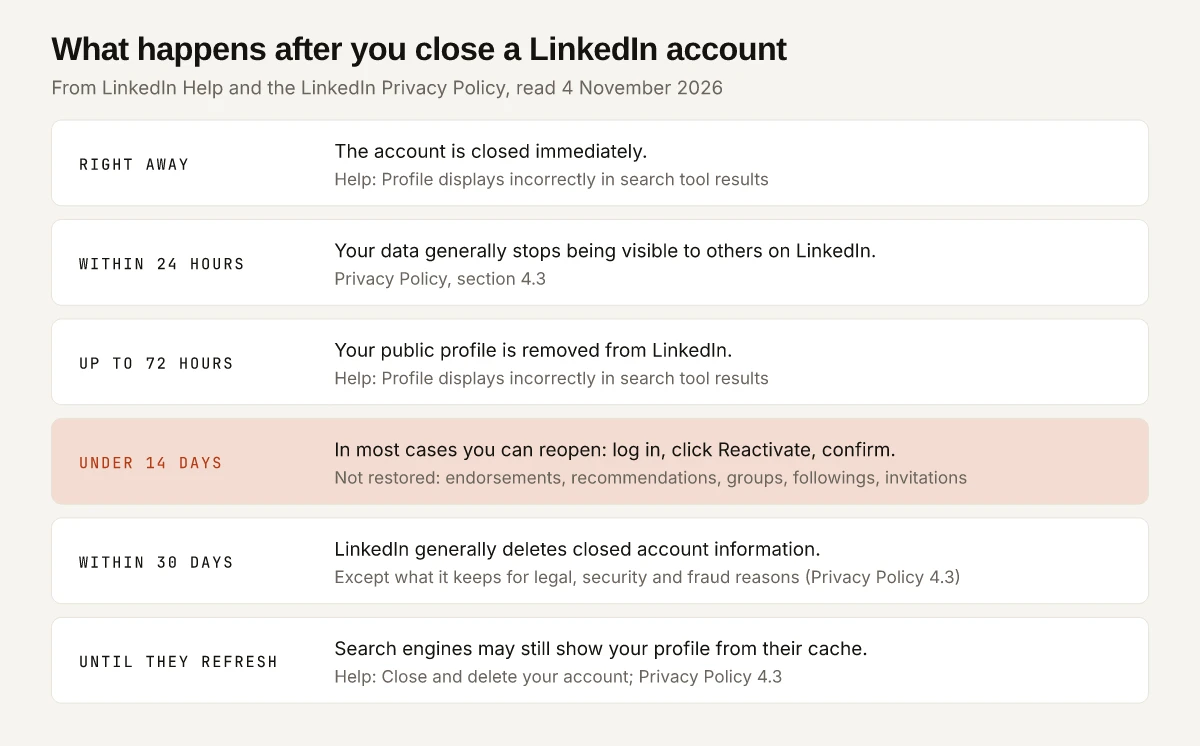
LinkedIn spreads the timing across two Help pages and the Privacy Policy. Put together:
| When | What happens | Source |
|---|---|---|
| Right away | ”If you close your LinkedIn account, it is closed immediately.” | Profile displays incorrectly in search tool results |
| Within 24 hours | ”your personal data will generally stop being visible to others on our Services within 24 hours” | Privacy Policy, section 4.3 (effective November 3, 2025) |
| Up to 72 hours | ”it may take up to 72 hours for your public profile to be removed from LinkedIn” | a1376045 |
| Under 14 days | Reopen is possible “in most cases”; after 14 days LinkedIn is “unable to reopen” | Reopen your account |
| Within 30 days | ”We generally delete closed account information within 30 days of account closure, except as noted below.” | Privacy Policy, section 4.3 |
| Until they refresh | ”Search engines like Yahoo!, Bing, and Google may still display your information temporarily” | Close and delete your account |
Two things do not leave with you, according to the Privacy Policy:
- What you shared with other people: “Information you have shared with others (e.g., through InMail, updates or group posts) will remain visible after you close your account”, and group content from closed accounts “will show an unknown user as the source”.
- What LinkedIn must keep: data needed for legal obligations, security, fraud prevention or disputes, “e.g., if we have restricted your account”, plus de-personalised information.
The Help page and the policy word messages differently. The Help page says closing deletes “your messages”, while the policy says what you sent through InMail stays visible. I read them together as: your own access goes, and the other person’s copy can stay.
For Google results, LinkedIn’s search-tool page says it “does not control how or when these search tools refresh their results”, and it points to Google’s Refresh Outdated Content tool for a public profile that is “significantly different from the previous version”. LinkedIn names it for changed profiles and does not say how it handles a closed one, so treat it as the place to ask Google, not a guarantee.
Can You Reopen a Closed LinkedIn Account?
Yes, in most cases, if it has been closed less than 14 days; LinkedIn’s Reopen your account page (“Last updated: 2 years ago”) says it is “unable to reopen accounts closed for more than 14 days”. The steps:
- On the login page, enter the email address registered to your LinkedIn account and your password, then click Sign In. Or click the link in the original account closure email; if it does not work, it sends you to the login page.
- Click Reactivate.
- Confirm in the email LinkedIn sends you.
What comes back and what does not:
| Comes back | Lost even after reopening |
|---|---|
| ”you’ll get access to all your connections” | Endorsements and recommendations |
| Group memberships | |
| Followings (Top Voices, Companies, etc.) | |
| Ignored and pending invitations |
Recommendations are the costly line. Someone else wrote each one, and reopening does not restore them, so if you might return, use the option LinkedIn offers “as an alternative to closing it”: hibernation.
How to Hibernate a LinkedIn Account Instead
LinkedIn’s pages use “close” and “hibernate” for the member account. The hibernation page (“Last updated: 2 years ago”) uses “deactivating” once, for a LinkedIn Learning or Recruiter license, and the close and reopen pages do not use the word. So if you searched for a way to deactivate LinkedIn temporarily, hibernation is the feature. The page lists desktop steps only:
- Click your profile photo at the top of your LinkedIn homepage and select Settings & Privacy.
- Select Hibernate account under Account management.
- Select the option that describes why you’re hibernating your account.
- Enter your password and click Hibernate account.
LinkedIn may ask you to finish other tasks first, which “could include paying balances, reassigning group admin roles, or deactivating a LinkedIn Learning or Recruiter license”, then click Refresh to clear them from the list.
How a Hibernated Account Looks to Others
| Part of your account | While hibernated |
|---|---|
| Profile | ”won’t be visible to anyone, even your connections” |
| Search | Not in searches on LinkedIn, “This includes searches on other LinkedIn products like Recruiter.” |
| Posts and comments | Stay, identified as “A LinkedIn member”; your photo is “replaced by a generic icon” |
| Messages | Stay, with you shown as “A LinkedIn member” |
| Recommendations and endorsements you gave | Stay, identified as “A LinkedIn member” until you’re back online |
Hibernation Cancels Premium Immediately
What the hibernation page says about paid plans:
- Premium: “your subscription will be automatically cancelled immediately when you hibernate your account”, and “Any promotional pricing you previously had may no longer be honored.”
- Apple billing: hibernating cancels the plan with LinkedIn, “However, you’ll have to cancel the subscription directly with Apple to complete the cancellation and prevent future billing.” Apple’s cancel page has the steps.
- LinkedIn Sales Solutions (LSS) licences “will stay active when you reactivate your account, unless an admin revokes access.”
Closing makes you cancel Premium yourself first, and an ordinary cancellation runs to the end of the billing cycle. Hibernating cancels it the day you hibernate. If you want to keep Premium through a break, hibernation is the wrong tool.
How Long Can You Hibernate a LinkedIn Account?
The hibernation page, read on 4 November 2026, states no maximum length; the only hibernation time limit it gives is the 24-hour minimum. To end hibernation, “log in with your credentials 24 hours after you hibernated the account”. Before then you cannot log in at all. After reactivating, LinkedIn says a mismatch in your connection and follower counts “should resolve within 48 hours”.
Keep the Account: Smaller Changes LinkedIn Documents
Some reasons to leave have a narrower fix:
| If what you want is | Do this instead |
|---|---|
| To stop paying | Cancel Premium only. The close page itself says you can “cancel the Premium access, but still keep your free Basic account”. If you are still on a free trial, the trial’s cancel rules differ: it ends the moment you cancel |
| Fewer emails | Change the frequency in the Notifications section of Settings & Privacy |
| To look at profiles without being seen | Switch your profile-viewing setting, as in my notes on LinkedIn private mode |
| To stop recruiters seeing a job search | Turn off or narrow Open to Work, covered in my guide to who sees Open to Work |
| A break from LinkedIn altogether | Hibernate, as above |
Delete a LinkedIn Account You Cannot Log Into
Every close flow above ends with your password, so a locked-out account has to be recovered first. The close page sends you to two Help pages:
- Reset your password: click Forgot password? on the sign-in page and enter an email address or phone number on the account; LinkedIn sends a code.
- No access to email address: if you have no access to any email or phone on the account, LinkedIn verifies your identity, which includes “providing an image of a valid government issued ID”.
If the account you want gone is an old duplicate, the duplicate-accounts page covers both merging and closing it. A merge carries over only “the connections and email address of the account you want to close”, and LinkedIn says you cannot merge an account with zero connections or more than 30k connections.
Choose the Exit Before You Delete Your LinkedIn Account
On every device, how to delete LinkedIn account access comes down to five or six steps ending in your password. The decision that matters is whether you want the endorsements, recommendations and groups back someday, because closing does not return them, even if you reopen inside 14 days. Hibernate if the answer might be yes, and cancel Premium if money is the reason. If you are closing, download your data archive and clear Premium, groups and licences first.
Frequently Asked Questions
Can I reopen my LinkedIn account after deleting it?
In most cases, if it has been closed less than 14 days. LinkedIn Help says to log in or use the link in the account closure email, click Reactivate and confirm by email. You get your connections back, but not endorsements, recommendations, group memberships, followings, or ignored and pending invitations.
What is the difference between hibernating and deleting a LinkedIn account?
Hibernating hides your profile from everyone, including your connections, and keeps your posts, comments and messages under the name A LinkedIn member; you can log back in 24 hours later. Closing deletes the account, and LinkedIn can reopen it, in most cases, only if it was closed less than 14 days ago, without your endorsements, recommendations, groups and followings.
How long can you hibernate a LinkedIn account?
LinkedIn's hibernation page, read on 4 November 2026, gives no maximum length. It sets only a minimum: you can reactivate by logging in 24 hours after you hibernated the account.
Can I delete my LinkedIn account if I have Premium?
Not until the Premium membership is resolved. LinkedIn's close-account page says members with a premium membership, a LinkedIn group they own or a premium account license have to resolve those first. Hibernating is different: it cancels Premium immediately, though an Apple-billed plan must also be cancelled with Apple.
How do I deactivate my LinkedIn account temporarily?
LinkedIn calls this hibernation. From Settings & Privacy, select Hibernate account under Account management, pick a reason, enter your password and click Hibernate account. Your profile disappears from LinkedIn until you log back in, which you can do 24 hours later.