Claude Code Keeps Asking for Permission? How to Stop It
Claude Code keeps asking for permission because of its mode or a narrow saved rule. Match your case in the terminal, VS Code or PowerShell to a check and a fix.
In Manual and acceptEdits modes, the prompt Claude Code shows before a web fetch offers three answers, quoted from Anthropic’s tools reference: “Yes”, “Yes, and don’t ask again for <domain>” and “No, and tell Claude what to do differently”. The first “approves this fetch only. The next WebFetch call prompts again, even for the same domain.” The second saves an allow rule for that one domain, so Claude Code keeps asking for permission as soon as the work reaches a site you have not approved.
I use Claude Code in VS Code on Windows 11 for research and to build this site, and on 30 September 2026 I counted the permission rules on that machine: 678 allow rules across three settings files, 427 of them approving a single web domain each. Anthropic’s engineering blog puts a number on how often people say yes: “Claude Code users approve 93% of permission prompts” (How we built Claude Code auto mode, 25 March 2026).
If 93% of prompts end in yes anyway, approving them one domain or one command at a time is the slowest way to reach the same answer, so I treat a repeat prompt as a mode question before a rule question. Check the mode, then where the mode came from, then the rules. Every fix on this page is checked against Anthropic’s documentation as of September 2026, for Claude Code v2.1.283 or later.
Why Claude Code Keeps Asking for Permission
Claude Code repeats a permission prompt for one of two reasons: a permission mode that asks before acting, or a saved rule that is narrower than the next request. The usual causes are Manual mode, auto mode unavailable for your model or organization, a VS Code setting that picks the starting mode, and a rule saved for one command or one domain.
| Cause | How to check | Fix |
|---|---|---|
| The session runs in Manual mode | The terminal status bar reads “manual mode on”, or the VS Code mode indicator reads Manual | Press Shift+Tab to cycle modes, or pick Auto from the VS Code mode indicator; to stop it recurring, set defaultMode to auto in ~/.claude/settings.json and remove a default value from the project’s .claude settings files (a managed value needs your admin) |
| Auto mode is unavailable | Auto is missing from the Shift+Tab cycle and from the VS Code indicator | Switch to a supported model, remove disableAutoMode from your own settings files (a managed one stays until your admin changes it), or, if Anthropic turned auto off server-side, start a new session later |
A project file sets defaultMode to “bypassPermissions”, or to “auto” where the built-in default is Manual | The session starts in Manual with no error | Move auto to ~/.claude/settings.json; start bypass mode with its flag, inside a container or VM |
| VS Code chose its own starting mode | claudeCode.initialPermissionMode is set in your VS Code user settings | Unset it, then pick Auto once from the mode indicator |
| The desktop app session runs in Manual | The mode selector next to the send button reads Manual | Pick Auto there; the pick is remembered per folder and outranks defaultMode for that folder |
| A saved rule is narrower than the new command | /permissions lists every rule and the file it came from | Put the * after the subcommand, as in Bash(npm run *) |
| File-edit approvals ended with the session | Edits prompt again in every new session | Switch to acceptEdits or auto mode, or add an Edit(...) allow rule |
| An ask rule outranks your allow rule | An ask rule in /permissions matches the command | Remove the ask rule if you added it; a managed one stays |
| The command went through the PowerShell tool | The prompt is for the PowerShell tool, not Bash, and PowerShell prompts don’t offer “Yes, and switch to auto mode” | Add PowerShell(...) rules, or change mode from the indicator |
| Web fetches are approved one domain at a time | The prompt offers “don’t ask again” for a single domain | Use auto mode, or a wildcard such as WebFetch(domain:*.example.com) |
| MCP tools are approved one tool at a time | /permissions lists rules such as mcp__server__tool | Allow the whole server with mcp__server or mcp__server__*; an mcp__* allow rule is skipped |
| A read falls outside the working directories | The path is outside the folder the session started in | Add the folder with /add-dir or permissions.additionalDirectories |
| A write targets a protected path | The path is inside .claude, .git, .vscode or another protected folder | Answer the prompt; allow rules never pre-approve these writes |
| Auto mode paused after repeated blocks | Blocked actions appear under Recently denied in /permissions | Approve the prompted action, and auto mode resumes |
Sources: permission modes, configure permissions, settings files and precedence, the VS Code guide and the desktop guide, all read on 30 September 2026.
678 Allow Rules, 427 of Them WebFetch Approvals
The “Web fetches are approved one domain at a time” row is the one this machine shows most. This is the permissions allowlist from the Claude Code setup behind this site, counted read-only from its three settings files on 30 September 2026, on a machine running Claude Code v2.1.283 or later.
| File | Scope | Allow rules | WebFetch rules | Additional directories |
|---|---|---|---|---|
~/.claude/settings.json | User: every project on this machine | 516 | 382 | 7 |
.claude/settings.json | Shared project | 105 | 17 | 3 |
.claude/settings.local.json | Project local | 57 | 28 | 0 |
| All three files | 678 | 427 | 10 |
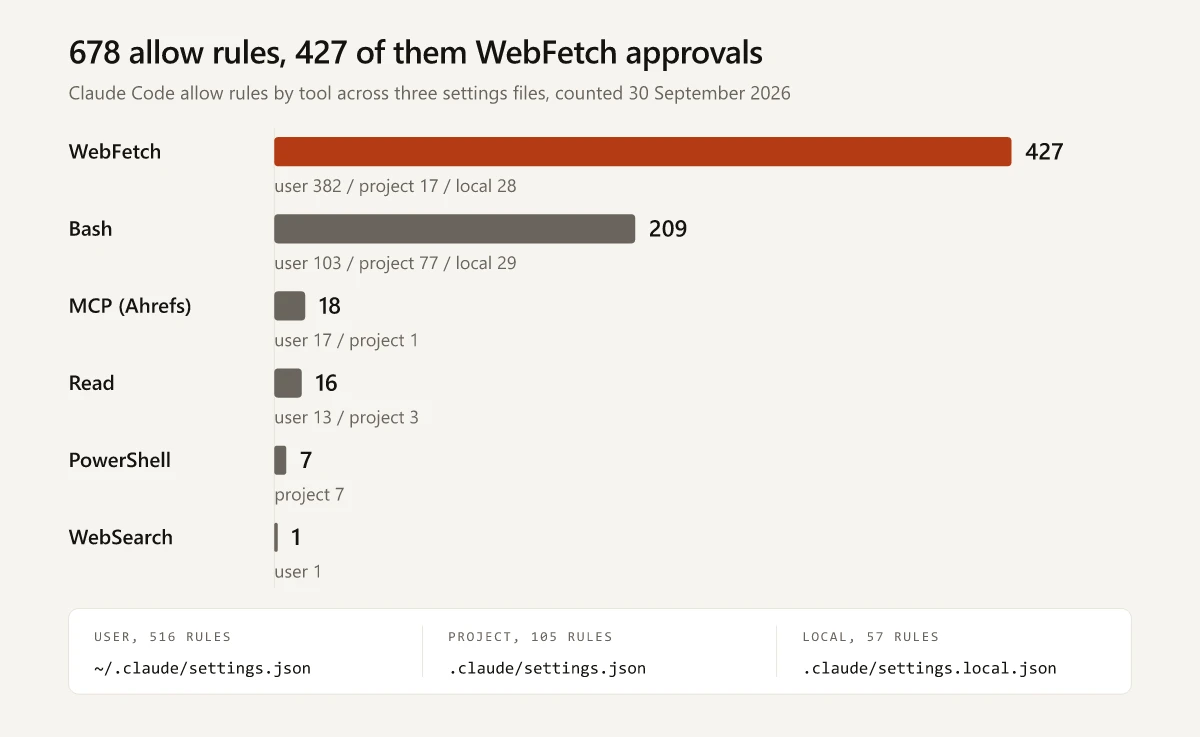
What the split shows:
- 427 of the 678 rules, 63%, each approve one web domain. Research and site-building keep reaching new domains, and under per-domain approval every new domain is one more rule.
- 382 of those 427 sit in the user file, so they apply in every project on this machine, not just this repository.
- The 209 Bash rules are spread across all three files, and the 7 PowerShell rules sit only in the project file, so they approve nothing in other projects on this machine.
- All 18 MCP rules approve single Ahrefs tools, one rule per tool; the MCP row’s fix, one
mcp__<server>rule per server, would replace them. - The 10 additional directories make reads in those folders prompt-free, while edits there still follow the permission mode.
- None of the three files sets
defaultMode.
Move Research Sessions to Auto Mode
In auto mode the WebFetch prompt is skipped. The settings reference says that before actions “such as shell commands and network requests run, a background classifier checks that they align with your request”, and the classifier’s defaults allow “Read-only HTTP requests”. Where a site spreads across subdomains, WebFetch(domain:*.example.com) covers every subdomain but not example.com itself, so the bare domain needs a rule of its own.
The one-line alternative is a bare WebFetch allow rule, which pre-approves fetches to every domain and also takes them out of the classifier’s review: in auto mode’s decision order, actions that match an allow rule “resolve immediately”. Auto mode without that rule is the setup that removes the prompt and still checks each fetch.
Add the Deny and Ask Rules This Setup Lacks
None of the three files has a deny or ask rule yet, and that is the gap I would close before adding anything else. Every push to main on this site is a production deploy, and auto mode “allows pushes to any branch of the repository you’re working in, including the default branch” by default. The documented fix is a human checkpoint written as an ask rule, next to the docs’ own deny example for .env files:
{
  "permissions": {
    "ask": ["Bash(git push *)", "PowerShell(git push *)"],
    "deny": ["Read(./.env)", "Read(./.env.*)"]
  }
}
Put it in .claude/settings.json to apply it for everyone who clones the repository, or in ~/.claude/settings.json to apply it in every project on your machine.
Content-scoped ask rules like these “always force a permission prompt, even in auto mode”. On Windows the PowerShell rule matters as much as the Bash one, because a push Claude sends through the PowerShell tool never matches a Bash rule. The docs also name the limit: a push written another way, such as git -C <dir> push, does not match the rule, and a PreToolUse hook is the documented way to inspect the full command text. This setup has no hooks configured, so the ask rule is the lighter first step.
Check the Mode and Where It Came From
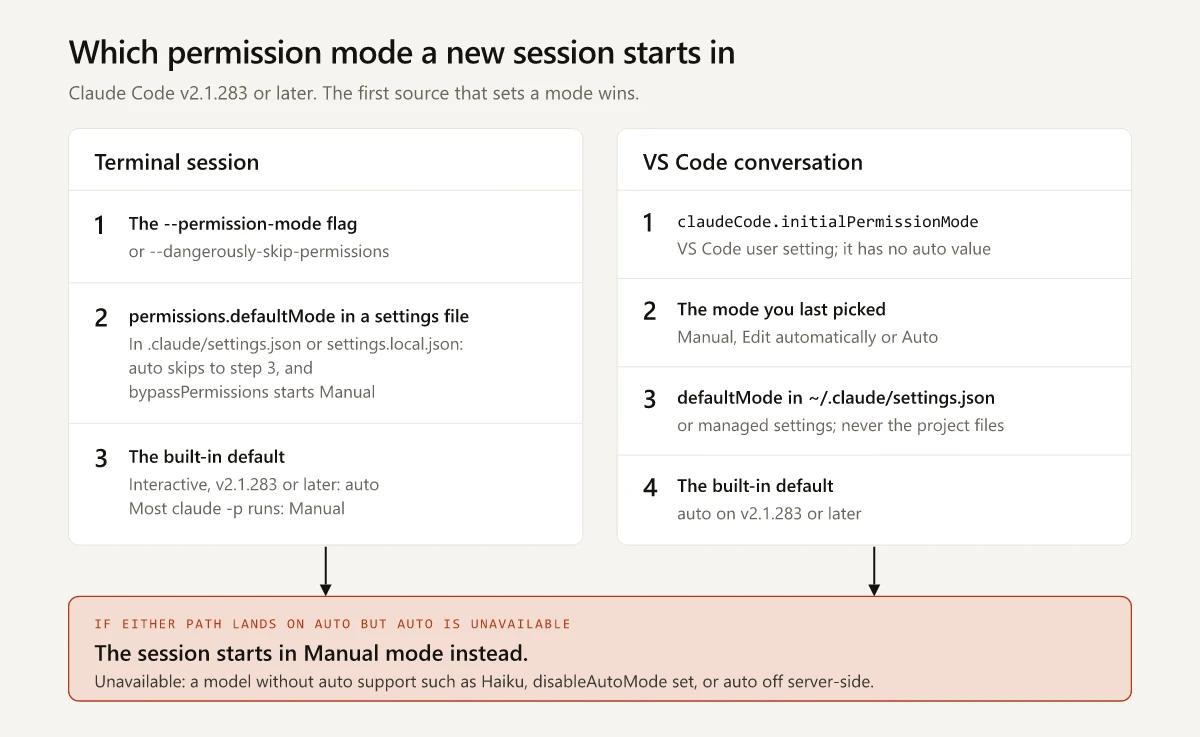
Every session runs in one permission mode, shown in the terminal status bar or in the mode indicator at the bottom of the VS Code prompt box. Shift+Tab cycles it in the terminal, and the other shortcuts are in my Claude Code commands cheat sheet. “Modes set the baseline,” in the words of the available modes section, and rules layer on top. When a terminal session starts, Claude Code takes its mode from the first of these that applies:
- The
--permission-modeflag, or--dangerously-skip-permissions permissions.defaultModein a settings file- The built-in default
The permission modes page now opens with: “With Claude Code v2.1.283 or later, auto mode is the built-in starting permission mode for interactive terminal and VS Code sessions. On earlier versions, it’s the built-in starting permission mode only on Pro, Max, and Team plans.” The v2.1.284 release notes (28 September) extended the change to interactive terminal and VS Code sessions “on every plan and provider”, so on v2.1.283 itself, read the status bar to see which mode you got. Some sessions still start in another mode:
claude -pruns and Agent SDK sessions start in Manual (default), except-pand Python Agent SDK sessions on third-party providers or with telemetry off, which v2.1.285 (29 September) moved to auto.- A settings file that sets
disableAutoModeto “disable” makes Manual the built-in default. - The first session after an install or upgrade can pick its mode before its feature flags arrive; the docs add that “your next session matches the table.”
- A
defaultModeother than auto in~/.claude/settings.jsonwins over the built-in default. On Pro, Max and Team plans, and from v2.1.285 on third-party providers and with telemetry off, Claude Code asks once whether to change it to auto, provided no other settings file sets a mode, and keeps your value if you decline.
The settings-file step carries an exception that fails without an error. If you set “auto” in .claude/settings.json or .claude/settings.local.json, the docs say “the value doesn’t take effect, and Claude Code then uses the built-in default rather than a defaultMode from ~/.claude/settings.json.” In an interactive session on a current version that default is auto, so what you lose is your user-level defaultMode; where the built-in default is Manual, as in most claude -p runs, the session starts in Manual. A bypassPermissions value in those two files does not take effect either, and “the session starts in Manual mode.” Move an auto value to ~/.claude/settings.json or to managed settings, and keep bypassPermissions for a container or VM.
If Auto Mode Is Unavailable
When the flag, a settings file or the built-in default selects auto but auto mode is unavailable, the session starts in Manual. The auto mode requirements, as of September 2026:
- Plan: all plans.
- Model on the Anthropic API and Claude Platform on AWS: Claude Opus 4.6 or later, Sonnet 4.6 or later, or a Fable model. On Amazon Bedrock, Google Cloud’s Agent Platform and Microsoft Foundry, only Sonnet 5 or later, Opus 4.7 or later and the Fable models. Haiku is not supported on any provider.
- Organization: on Team and Enterprise, admins can turn auto mode off by setting
permissions.disableAutoModeto “disable” in managed settings. - Server side: Anthropic can turn auto mode off, and a session that received that answer “keeps auto mode off until the session ends, so start a new session later.”
When auto mode stays off, for example under an organization’s disableAutoMode, the common setups table offers a way to “iterate locally with fewer prompts, without a classifier”: Manual mode plus the Bash sandbox in auto-allow mode, which you turn on by running /sandbox and selecting auto-allow. It covers sandboxed Bash commands only, so web fetches still prompt, and deny rules and ask rules that name a command, such as Bash(git push *), still apply. The table lists that sandbox for macOS, Linux and WSL2 only, so on native Windows without auto mode, the remaining levers are allow rules and acceptEdits mode for file edits and common filesystem commands.
Does Auto Mode Still Ask for Permission?
Yes. These are the documented cases you are most likely to hit, from when auto mode falls back and the sections around it:
- An ask rule matches the action.
- Claude reads a path outside the working directories with Read, Grep or Glob. The prompt returns on later reads until you pick one of its saved answers, such as “Yes, and keep allowing any reads outside the working directories”.
- A tool needs your input, such as
AskUserQuestionor an MCP tool markedrequiresUserInteraction. - An
rmorrmdirtargets a critical path such as your home folder. The terminal shows a prompt with a two-minute countdown, and the VS Code chat panel denies the command. - The classifier keeps blocking: “if the classifier blocks an action 3 times in a row or 20 times total, auto mode pauses and Claude Code resumes prompting.”
Claude Code Keeps Asking for Permission in VS Code
The extension keeps its own starting-mode list, one of the differences from the CLI covered in Claude Code in VS Code vs the terminal. Per the VS Code tab of the permission modes page, a new conversation starts in the first of these that applies:
claudeCode.initialPermissionModein your VS Code user settings- The mode you last picked from the mode indicator, if it was Manual, Edit automatically or Auto
permissions.defaultModefrom managed settings or~/.claude/settings.json- The built-in default for your plan, provider and organization settings
The docs say “The extension never reads a project’s .claude/settings.json or .claude/settings.local.json for the starting permission mode,” so a defaultMode such as plan committed to the repo changes terminal sessions and does nothing in the extension. claudeCode.initialPermissionMode accepts default, manual, acceptEdits, plan or bypassPermissions, with no auto value. To start in Auto, leave it unset and pick Auto from the indicator once, and step 2 carries that pick forward. VS Code reads the setting from your user settings only and ignores workspace values.
More VS Code behavior that affects prompts:
- When a prompt option saves a rule, its label names where the approval is saved, such as “all projects” or “this session”, and the Left and Right arrow keys change the destination. The settings troubleshooting notes add that the extension can save to the project’s shared file, “which changes the rule for everyone”, while the CLI writes only to your local file.
- Type
/and choose Permissions under Customize to see every rule grouped into Allow, Ask and Deny, and to add or remove rules in your user, project or local file. This needs v2.1.269 or later.
Claude Code Permission Prompts in PowerShell Need Their Own Rules
On Windows, once the PowerShell tool is on, “Claude treats PowerShell as the primary shell”, and that changes what your rules match:
- Rules name a tool (rule syntax):
Bash(npm run *)matches Bash tool calls, so the same command sent through the PowerShell tool needsPowerShell(npm run *). PowerShell rules take the same shape as Bash rules, match case-insensitively and cover aliases, soPowerShell(Get-ChildItem *)also matchesgci,lsanddir. - A compound command splits at
|,;and, on PowerShell 7 or later,&&and||, and a rule must match every part. - Bash prompts in Manual and acceptEdits mode offer “Yes, and switch to auto mode” when auto mode is available, and “PowerShell tool prompts don’t offer the option.” Switch from the mode indicator or with Shift+Tab.
- acceptEdits approves
Set-Content,Add-Content,Clear-ContentandRemove-Itemon paths inside your working directories, but a positional argument containing a quote character, such asSet-Content .\notes.txt "It's done", still prompts. Pass the text through-Valueinstead.
Saved approvals also stay in the starting folder on Windows. The settings docs list Windows among the cases where .claude/settings.local.json “stays with .claude/settings.json” instead of moving to the repository root, and that file is read from the folder a session starts in. A “don’t ask again” saved in a session opened on a subfolder does not reach a session opened at the repository root.
This site is built in VS Code on Windows 11 with Git Bash and PowerShell both available, and its project settings file holds 7 PowerShell rules next to 77 Bash rules. Whether to run Claude Code natively, with Git Bash or inside WSL 2, where the Bash sandbox runs, is a separate choice; Claude Code on WSL vs Windows weighs it and explains when the PowerShell tool turns on.
Saved Approvals Are Narrower Than They Look
What “Yes, and don’t ask again” keeps depends on the tool. From the permission system table:
| Tool | Prompts in Manual mode | What “Yes, and don’t ask again” keeps |
|---|---|---|
| File reads and Grep | No, inside the working and additional directories | Not applicable |
| Bash commands | Yes, except a built-in set of read-only commands | A rule per repository and command |
| File edits and writes | Yes | An approval that lasts until the session ends |
| WebFetch | Yes, except a built-in set of documentation domains | A rule per repository and domain |
| WebSearch | Yes | A rule per repository |
In the CLI, saved rules land in .claude/settings.local.json (the VS Code card saves to whichever file you pick), and a rule that looks right can still miss:
- Compound commands: approving one “saves a separate rule for each subcommand that requires approval”, up to 5, and each subcommand has to match a rule on its own (compound commands).
- Wildcard position: Claude Code matches everything before the first
*as written, soBash(git log *)allows onlygit logcommands whileBash(git *)allows every git command. A rule with no*matches one exact command. - Wrappers:
timeout,niceandnohupare stripped before matching, butnpxanddocker execare not, so a rule has to name the runner and the inner command together. - Commands the parser cannot read: Claude Code asks for approval on a command it cannot fully parse instead of treating it as read-only, and anything over 10,000 characters always prompts.
- Rules that never match: a path rule written for
Write,NotebookEdit,GloborMultiEditis accepted and never consulted, so writeEdit(...)orRead(...)instead. A malformed rule is skipped with a Settings Warning, andclaude doctorlists what was rejected. - Workspace trust: allow rules and
additionalDirectoriesin a project’s.claude/settings.jsonapply only after you accept the trust dialog for that folder, so a fresh clone keeps prompting until you do.
Some prompts offer only a one-time approval. The docs explain that Claude Code shows the saving options “only when the prompt can show you everything they would allow”, so add those rules yourself in /permissions.
Instructions do not change any of this. The permissions page says rules are “enforced by Claude Code, not by the model”, and a line in CLAUDE.md or auto memory only shapes what Claude tries to do, as covered in how Claude Code memory loads. To change what runs without a prompt, use /permissions, a rule in a settings file, a permission mode or a PreToolUse hook.
Claude Code Permissions: Modes, Rules and Precedence
Claude Code permissions have two layers: one permission mode for the whole session, and allow, ask and deny rules in settings files that apply on top of it (configure permissions).
The Six Permission Modes
| Mode | Terminal status bar | VS Code label | Runs without asking | Docs’ fit |
|---|---|---|---|---|
default, also manual | manual mode on | Manual | Reads only | Reviewing every action yourself, sensitive work |
acceptEdits | accept edits on | Edit automatically | Reads, file edits and common filesystem commands | Iterating on code you’re reviewing |
plan | plan mode on | Plan | Reads, plus classifier-approved commands when auto mode is available | Exploring a codebase before changing it |
auto | auto mode on | Auto | Everything, with background safety checks | Long tasks, reducing prompt fatigue |
dontAsk | don’t ask on | None listed | Reads and pre-approved tools; anything that would prompt is denied | Locked-down CI and scripts |
bypassPermissions | bypass permissions on | Bypass permissions | Everything | Isolated containers and VMs only |
Deny, Then Ask, Then Allow
Per the docs, “Rules are evaluated in order: deny, then ask, then allow,” and “rule specificity doesn’t change the order.” A deny rule for Bash(aws *) blocks aws s3 ls even when a narrower allow rule names it, and an ask rule prompts even when a more specific allow rule matches. Deny rules hold in every mode, including bypassPermissions, where allow rules have no effect.
A bare Bash allow rule, the same as Bash(*), matches every Bash command. Auto mode drops it on entry, along with PowerShell(*), wildcarded interpreters such as Bash(python*) and package-manager run commands, and restores them when you leave auto mode.
Settings File Precedence
Permission rules follow the deny, ask, allow order above whichever file holds them. The settings docs say that when you set “the same list key, such as permissions.allow, in more than one file, Claude Code combines the lists”, and per the permissions page, a user-level deny blocks a project-level allow, and a project-level deny blocks a user-level allow. File order decides single-value keys such as defaultMode, where the level higher in this list wins, per the settings precedence order:
- Managed settings, deployed by your organization
- Command line arguments, for one session
.claude/settings.local.json: you, in this project.claude/settings.json: everyone in the project~/.claude/settings.json: you, in every project
When Bypass Permissions Fits
bypassPermissions, started with --permission-mode bypassPermissions or the equivalent --dangerously-skip-permissions flag, “disables permission prompts and safety checks so tool calls execute immediately.” The bypassPermissions section warns: “Only use this mode in isolated environments like containers, VMs, or dev containers without internet access, where Claude Code cannot damage your host system.”
What still holds inside it:
- Ask rules still prompt, and so do tools that need your input, such as
AskUserQuestion, and anrmorrmdiraimed at a critical path such as your home folder. - On Linux and macOS it refuses to start as root or under
sudo. - In VS Code it appears in the mode indicator only after you turn on
claudeCode.allowDangerouslySkipPermissions, which the extension settings table says to “Use it only in sandboxes with no internet access.” - Administrators can block it with
permissions.disableBypassPermissionsMode, and cloud sessions ignore it when a settings file sets it.
On a machine that holds your real files, the docs point elsewhere: “For background safety checks with far fewer permission prompts, use auto mode instead.”
When Claude Code Keeps Asking for Permission, Fix the Mode First
A mode decides the default for every action in a session, while a rule covers one domain, one command pattern or one path. My 678 rules show where approving one rule at a time leads: hundreds of single-domain approvals, and a fresh prompt at the next new site.
Before you open /permissions, read the mode in the status bar or the VS Code indicator.
Frequently Asked Questions
Why does Claude Code keep asking after I choose "Yes, and don't ask again"?
That option saves a narrow rule: one Bash command pattern or one web domain, saved for one repository in the CLI or to the file you pick in VS Code, and file-edit approvals last only until the session ends. An ask rule in a project or managed settings file also outranks the allow rule it saved, and on Windows the rule lands in the folder the session started in rather than the repository root.
Why does Claude Code keep asking for permission in VS Code?
The extension takes its starting mode from the claudeCode.initialPermissionMode setting, then the mode you last picked, then defaultMode in managed settings or ~/.claude/settings.json, and it never reads a project's settings files for it. The setting has no auto value, so to start in Auto, leave it unset and pick Auto once from the mode indicator.
Why does Claude Code keep asking for permission in PowerShell?
Permission rules name one tool, so a Bash rule does not match a command sent through the PowerShell tool, which Claude treats as the primary shell once that tool is on. Add PowerShell rules next to your Bash rules. PowerShell prompts also lack the "Yes, and switch to auto mode" option, so change modes from the mode indicator or with Shift+Tab.
How do I make Claude Code allow all commands?
Use auto mode, where a classifier reviews actions instead of asking you; in current versions it is the built-in starting mode for interactive terminal and VS Code sessions. A bare Bash allow rule in ~/.claude/settings.json matches every Bash command, though auto mode drops blanket Bash and PowerShell rules while it is on. Anthropic recommends bypassPermissions only for isolated containers and VMs.
Is --dangerously-skip-permissions safe to use?
Only in an isolated environment. Anthropic's docs say to use it in containers, VMs or dev containers without internet access, where Claude Code cannot damage your host system, and they note that the mode offers no protection against prompt injection or unintended actions.