Claude Code in VS Code vs Terminal: Features and Settings
Claude Code in VS Code vs terminal: what only the extension or the CLI can do, which settings files both read, and why MCP servers in settings.json never load.
Of the two main ways to run Claude Code inside VS Code, only the extension’s chat panel withholds text you select in a gitignored file, such as a .env file holding API keys: by default Claude gets that file’s path at most. Only the CLI takes a shell command typed after !, such as ! npm test, runs it without Claude interpreting or approving it, and adds the output to the conversation; the chat panel has no ! shortcut. Differences like these two decide most of the Claude Code in VS Code vs terminal choice. Both are documented in Anthropic’s VS Code guide and its interactive mode reference as of September 2026.
The extension’s panel runs its own bundled copy of the CLI, so the two surfaces differ mainly in the interface, and the two copies can run different versions. I build and maintain this site with the Claude Code extension in VS Code on Windows 11, and from that setup the surface is the smaller decision and the settings file the bigger one.
Both surfaces read the same settings files, so switching surface cannot rescue a setting that sits in the wrong file. My own user settings file lists two MCP servers, and Claude Code reads neither from it: the Ahrefs tools in my sessions come from a separate entry in ~/.claude.json.
Claude Code in VS Code vs Terminal: Which Should You Use?
Use the VS Code extension to accept or reject Claude’s edits one change at a time in Manual mode, comment on plans inline and keep conversations open in tabs; run claude in the integrated terminal for the full command set, the ! shortcut, tab completion and /config. Both read ~/.claude/settings.json and share conversation history.
Checked on 30 September 2026 against the extension vs CLI section of the VS Code guide and the pages it links, for Claude Code v2.1.283 or later:
| Capability | VS Code extension (chat panel) | CLI in the integrated terminal |
|---|---|---|
| Built-in commands and skills | A subset; type / to see yours | All of them |
| Shell commands from the prompt | No !; @terminal:name pulls in a terminal’s output | ! runs a command and adds its output |
| Tab completion | No | Yes |
/config settings menu | Not opened; use the extension’s settings or a settings file | Yes |
| Reviewing an edit in Manual mode | A diff with per-change Accept and Reject buttons (v2.1.275+) | VS Code’s diff viewer while connected; diffTool can keep it in the terminal |
| Plans | Mode indicator or /plan (v2.1.280+); comment inline on the Markdown plan | Shift+Tab or /plan |
| Rewind (checkpoints) | Hover a message: fork, rewind code, or both | /rewind, or Esc twice on an empty prompt |
| Selection in a gitignored or excluded file | Withheld by default; Claude gets the path at most | Sent whatever the file; a Read deny rule blocks it |
| Pasting a long brief | Pasted text stays visible in the prompt box | A large paste collapses to a placeholder |
| Parallel conversations | Tabs, windows and a sessions list with groups and filters | claude in a second terminal tab, or agent view (claude agents, research preview) |
| Saving a “don’t ask again” approval | You pick the file, including the shared project file | Your local settings file only |
| Remote Control | /remote-control or /rc; no name argument or QR code | Also claude remote-control server mode, --name and a QR code |
| MCP servers | /mcp dialog; adds and removes servers from v2.1.261 | claude mcp add, or /mcp |
| Where it comes from | Bundled in the extension; claude is not added to your PATH | The standalone install |
The extension also has an in-between option: turn on Use Terminal (claudeCode.useTerminal) or run Claude Code: Open in Terminal from the Command Palette, and it opens the CLI-style interface in place of the chat panel. Anthropic’s guide does not say which of the CLI-only rows above that mode changes.
Which permission mode each surface starts in, and how to cut repeat prompts, is covered in why Claude Code keeps asking for permission. The commands from the CLI’s full set that a marketer is most likely to reach for are in my Claude Code commands cheat sheet, which links Anthropic’s complete table.
Two Settings Layers: VS Code’s and Claude Code’s
Anthropic’s VS Code guide splits configuration in two (configure settings):
- “Extension settings in VS Code: control the extension’s behavior within VS Code”
- “Claude Code settings in
~/.claude/settings.json: shared between the extension and CLI”
Anthropic’s settings docs add that the terminal, the VS Code and JetBrains extensions and the desktop app “all read the same settings files”. The diagram maps which surface reads which layer, along with the one-session launch flags that exist only when you start claude yourself.
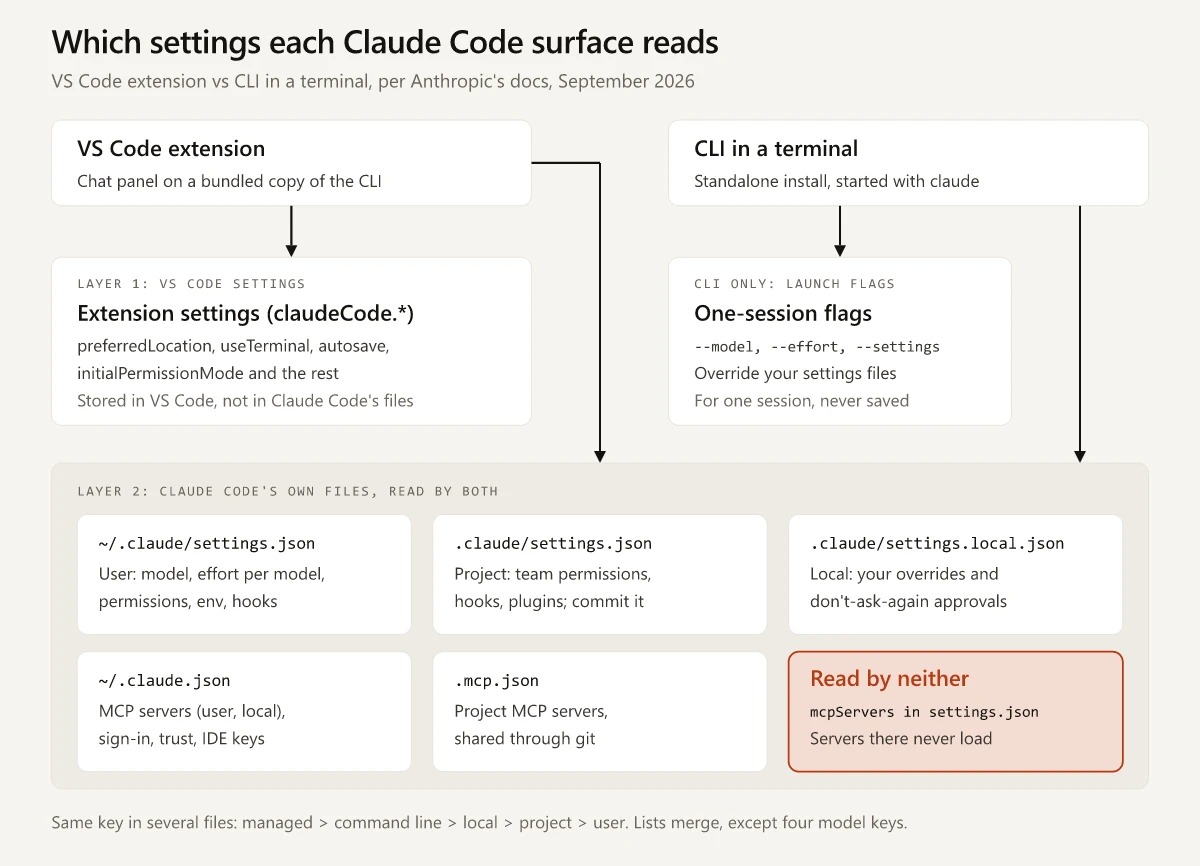
Two user-level files share the name settings.json. VS Code keeps its own user settings, the extension’s included, in %APPDATA%\Code\User\settings.json on Windows (VS Code settings docs). Claude Code’s user settings file is ~/.claude/settings.json, which on Windows means %USERPROFILE%\.claude\settings.json.
Layer 1: Claude Code VS Code Extension Settings
Open them with Ctrl+, (Cmd+, on Mac), then Extensions, then Claude Code. Each ID starts with claudeCode., and the defaults come from the extension settings table:
| Setting | Default | What it controls |
|---|---|---|
preferredLocation | panel | Where Claude opens: sidebar (right) or panel (a new tab) |
useTerminal | false | Opens the CLI-style interface (terminal mode) instead of the graphical panel |
autosave | true | Saves files before Claude reads or writes them |
attachOpenFile | true | Adds the file open in the editor to your messages (v2.1.271 or later) |
respectGitIgnore | true | Leaves .gitignore patterns out of file searches and selection context |
environmentVariables | [] | Environment variables for the Claude process the extension starts |
claudeProcessWrapper | unset | The executable that launches the Claude process, such as a separately installed claude binary |
initialPermissionMode and allowDangerouslySkipPermissions | unset and false | The starting permission mode, and whether Bypass permissions appears in the mode selector, which the docs say to use only in sandboxes with no internet access |
The docs steer shared configuration out of this layer: next to environmentVariables they say “Use Claude Code settings instead for shared config.”
Layer 2: Claude Code Settings Files Both Surfaces Read
| File | Applies to | What goes in it | Who writes it |
|---|---|---|---|
~/.claude/settings.json | You, in every project | Default model, effort per model, permission rules, env, hooks, Remote Control at startup | You, plus /model, /effort and the extension’s model picker |
.claude/settings.json | Everyone in the project, once committed | Team permissions, hooks, plugins | You or your team |
.claude/settings.local.json | You, in this project | Personal overrides and “Yes, and don’t ask again” approvals | You and Claude Code |
~/.claude.json | You | Sign-in, MCP servers at user and local scope, trust decisions, global keys such as autoConnectIde and diffTool | Claude Code itself, through /config, claude mcp add and the /mcp dialog; the docs say you don’t need to edit it |
.mcp.json at the project root | Everyone in the project, once committed | Project-scoped MCP servers | claude mcp add --scope project, or you |
Sources: settings files and who they affect, MCP installation scopes and the global config keys, which Claude Code ignores anywhere except ~/.claude.json.
When a key appears in more than one file, Claude Code uses the value from the highest level that sets it: managed settings, then command-line flags, then .claude/settings.local.json, then .claude/settings.json, then your user settings file. Lists merge across files instead of overriding, except four model keys with their own rules: fallbackModel, modelPicker, an availableModels list set in managed settings, and modelSettings (settings precedence).
Adding "$schema": "https://json.schemastore.org/claude-code-settings.json" to the top of ~/.claude/settings.json gives you autocomplete and inline validation in VS Code. The docs warn the schema “can lag behind the newest CLI releases”, so a warning on a newly documented key is not proof of an error.
My Settings Map as of 30 September 2026
This is layer 2 on my machine, with Claude Code v2.1.283 or later. The rest of my setup, from slash commands to auto memory, is in the Claude Code setup behind this site.
| File | Key | My value | What it does |
|---|---|---|---|
~/.claude/settings.json | model | "opus" | New sessions start on the latest Opus, which the model aliases table maps to Opus 5.5 on the Anthropic API |
~/.claude/settings.json | modelSettings | xhigh for claude-opus-5, medium for claude-opus-5-5 | One saved effort level per model |
~/.claude/settings.json | remoteControlAtStartup | true | Every new interactive session connects to Remote Control on its own |
~/.claude/settings.json | agentPushNotifEnabled | true | Lets Claude send a push notification to a phone signed in to the Claude app; the settings reference says pushes arrive while Remote Control is connected |
~/.claude/settings.json | mcpServers | Figma and Ahrefs entries | Nothing: settings.json does not read this key |
~/.claude.json | top-level mcpServers | Ahrefs, "type": "http" | A user-scope server, and the source of the Ahrefs tools in my sessions |
~/.claude.json, this repo’s entry | mcpServers | None | No local-scope servers for this project |
.mcp.json | None | No file | No project-scope servers |
~/.claude/settings.json, .claude/settings.json and .claude/settings.local.json | permissions | Allow rules in all three files | Pre-approved commands, fetch domains and MCP tools, counted per file in the permissions guide linked above |
| Any settings file | hooks | None | I do not use Claude Code hooks |
My sessions run with Git Bash and PowerShell as shells; Windows install routes and shells are compared in Claude Code on WSL vs native Windows.
Where Claude Code Reads MCP Servers From
Anthropic’s MCP docs list three scopes for a server you add yourself (scope hierarchy and precedence):
| Scope | Stored in | Loads in |
|---|---|---|
Local, the default for claude mcp add | ~/.claude.json, under the project’s path | That project only |
| Project | .mcp.json at the project root | That project, for everyone who has the file, after a one-time approval |
| User | ~/.claude.json, at the top level | Every project on your machine |
When one server name appears in more than one scope, local beats project and project beats user. Plugin-provided servers and claude.ai connectors rank below all three.
~/.claude/settings.json is missing from that table. The troubleshooting table on Anthropic’s debug your configuration page lists the symptom “MCP servers added under mcpServers in settings.json never appear” with the cause “settings.json does not read an mcpServers key”. The VS Code guide’s settings section points the other way, naming “allowed commands, environment variables, hooks, and MCP servers” as what that file is for. The MCP keys your user, project or local settings file does accept approve or restrict servers, such as enableAllProjectMcpServers, allowedMcpServers and deniedMcpServers.
My user settings file has exactly this problem: its mcpServers block holds Figma and Ahrefs entries, both written as launch commands, and no Figma tools load in my sessions.
To move a server out of the settings file:
- See what loaded:
/mcpin the chat panel, orclaude mcp listin the terminal, which shows each server’s health status. - With the standalone CLI installed, re-add each entry with
claude mcp add-json <name> '<json>' --scope user, passing the object insidemcpServersrather than the wrapper (add servers from JSON). An entry with aurland notypeneeds atypesuch as"http"added first, since Claude Code reads an entry with notypeas a stdio server. The same page’s tip reads “Make sure the JSON is properly escaped in your shell”; its examples wrap the JSON in single quotes, which Git Bash passes through as written. On Windows, VS Code’s integrated terminal opens PowerShell by default (terminal profiles); if the command rejects the JSON there, switch the profile to Git Bash with Terminal: Select Default Profile, or add the server from the/mcpdialog in step 3. - Or add it from the chat panel’s
/mcpdialog, which from v2.1.261 saves to the same configuration asclaude mcp add(MCP in the VS Code guide). A guide that says servers can be added only from the terminal is out of date for v2.1.261 and later. - Delete the old block from
settings.json, so the file stops listing servers that never load. - Start a new conversation and check that the server shows Connected in
/mcp. The VS Code guide says changes from the dialog or the terminal “take effect in conversations you start afterwards.”
How to Change the Model in the Claude Code VS Code Extension
In the chat panel, click the model name at the bottom of the prompt box, or open the / command menu and choose Switch model. When the model supports effort levels, the picker also shows an Effort row. Per the guide’s prompt box section, “When you pick a level other than max, Claude Code saves it for the current model as your default, under modelSettings in your user settings; max applies to the current session only.” The model name button and the Effort row need v2.1.257 or later.
In the terminal, the same choices look like this, per the model configuration docs:
| What you want | Command | Saved for new sessions? |
|---|---|---|
| Switch model and make it your default | /model opus, or Enter in the /model picker | Yes, as model in ~/.claude/settings.json |
| Switch model for this session only | s on a row of the /model picker | No |
| Set effort | /effort high, or the slider in /model | Yes, per model in modelSettings, except max |
| One launch only | claude --model sonnet --effort low | No |
Here are the lines of my ~/.claude/settings.json that set the model, effort and Remote Control for both surfaces, with the other keys left out:
{
  "model": "opus",
  "modelSettings": {
    "claude-opus-5": { "effortLevel": "xhigh" },
    "claude-opus-5-5": { "effortLevel": "medium" }
  },
  "remoteControlAtStartup": true
}
What those lines do, according to the effort level docs and the modelSettings entry:
- The panel and the terminal both start new sessions on the model
opusresolves to, shown in the map above. - Claude Code resolves
modelSettingsone model at a time. A new session on Opus 5.5 starts atmedium, the same level Opus 5.5 uses when nothing is saved for it, and thexhighentry applies only in a session running Opus 5. - Saving per model keeps an old level from following you to a new model, which matches the docs’ advice: “When you move from Opus 5 to Opus 5.5, start at
mediumrather than carrying over the level you used on Opus 5.” In Anthropic’s testing, “Opus 5.5 atmediummatches or exceeds Opus 5 athighon coding and knowledge-work evaluations.” - A top-level
effortLevelin your user settings file is the older format, and the docs say it “doesn’t count for Opus 5.5”. - A conversation you reopen with
claude --resumekeeps the model it was using, per the sessions docs, so it does not pick up a default you changed since.
Which model to run for which job, and what each costs per job, is in Claude Sonnet vs Opus vs Haiku.
How to Run Claude Code in VS Code’s Integrated Terminal
The chat panel needs only the extension: install Claude Code from the Extensions view (Ctrl+Shift+X, or Cmd+Shift+X on Mac), open a file and click the Spark icon in the editor toolbar, per the install section of Anthropic’s VS Code guide. The terminal route takes more steps:
- Install the standalone CLI from Anthropic’s setup page. The extension bundles a private copy of the CLI for its chat panel, and installing it “does not put
claudeon your shell PATH.” - Open the integrated terminal with
Ctrl+`(Cmd+`on Mac) and runclaude. Per the guide’s run CLI in VS Code section, the CLI “automatically integrates with your IDE for features like diff viewing and diagnostic sharing.” It connects through a local MCP server namedidethat the extension runs and/mcphides. - Run
/terminal-setuponce so that Shift+Enter adds a new line instead of sending. The terminal configuration docs say that in VS Code it also turns off the integrated terminal’s GPU acceleration to prevent garbled text. - From a terminal outside VS Code, run
/ideto connect to the editor, or turn on Auto-connect to IDE (external terminal) in/config, which savesautoConnectIdeto~/.claude.json. - Proposed edits open in VS Code’s diff viewer while the CLI is connected, because
diffTooldefaults to"auto". To keep them in the terminal, set Diff tool to terminal in/config; that row appears only while the CLI is connected to VS Code. - To carry on a panel conversation, run
claude --resumeand pick it from the list. The same guide says “The extension and CLI share the same conversation history.” - Check both version numbers, because they come from separate copies:
claude --versionin the terminal, and/statusin the panel for the build a conversation runs.
On 30 September 2026, claude --version on my machine printed 2.1.283, while the newest extension build installed was 2.1.285. A feature with a version floor can reach one surface first: Sonnet 5.5 needs Claude Code v2.1.284 or later, so a 2.1.283 CLI cannot run it.
Running claude inside a VS Code terminal also reinstalls the extension if you removed it. To stop that, turn off Auto-install IDE extension in /config (the autoInstallIdeExtension key).
Claude Code in VS Code vs Terminal: Choose the Surface, Then the File
The surface is the choice you can change mid-task, since claude --resume carries a panel conversation into the terminal. The file decides whether a setting applies at all, as the mcpServers block in my user settings file shows.
Open ~/.claude/settings.json and search it for mcpServers: every server listed there has to move to ~/.claude.json or .mcp.json, using the steps above, before it loads.
Frequently Asked Questions
Is Claude Code better in VS Code or in the terminal?
Neither wins outright. As of September 2026 the VS Code extension's chat panel offers per-change Accept and Reject buttons in Manual-mode diffs, inline comments on plans and conversation tabs, while only the CLI has the full command set, the ! shell shortcut, tab completion and the /config menu. Both read the same settings files and share conversation history.
How do I change the model in the Claude Code VS Code extension?
Click the model name at the bottom of the prompt box, or pick Switch model from the / command menu. If the model supports effort levels, the picker also shows an Effort row, and any level except max is saved for that model under modelSettings in ~/.claude/settings.json.
Where are the Claude Code VS Code extension settings stored?
The extension's own settings, such as preferredLocation and useTerminal, are VS Code settings under Extensions, then Claude Code. Settings shared with the CLI, such as the default model and permission rules, live in ~/.claude/settings.json and the project's .claude folder, and MCP servers live in ~/.claude.json or .mcp.json.
How do I use Claude Code in VS Code?
Install the Claude Code extension, open a file and click the Spark icon in the editor toolbar to open the chat panel. For the CLI-style interface, turn on Use Terminal in the extension's settings, or install the standalone CLI and run claude in the integrated terminal, since the extension does not add claude to your PATH.
Why do MCP servers in my Claude Code settings.json not load?
Anthropic's troubleshooting docs say settings.json does not read an mcpServers key. Add the server with claude mcp add or the /mcp dialog, which save local- and user-scope servers to ~/.claude.json (use --scope user to load it in every project), or put team servers in .mcp.json at the project root.