Google Business Profile Verification Without Video: Options
Google picks your verification method, but you can change what it offers. Every non-video route on Google's Help pages, with conditions and timings, November 2026.
Say a mobile bike mechanic runs her business from home. She visits customers, repairs bikes at their door, has no shopfront and no branded van yet. She creates a Business Profile, taps Get verified, and the only option on the screen is a business video. Her search for Google Business Profile verification without video is the right question, and Google’s Help Center answers it.
Google decides which methods a profile sees. Its verification Help page says verification methods “are automatically determined by Google and can’t be changed”, and that the options “depend on your business type, public info, region or opening hours.” There is no setting that swaps the video for a postcard. Everything below comes from Google’s own Help pages, fetched on 4 November 2026; Help pages change, so treat each method and condition as current as of November 2026.
That still leaves room to act. Two of those four inputs are details the owner controls, Google tells you to “try the available options for your Business Profile”, and the same Help page lists two cases in which Google can verify a profile instantly that are not among the Get verified options it describes. One of them is a website verified in Google Search Console. I read four published video verification guides on 4 November 2026, Search Engine Journal’s among them, and none of them mentions Search Console. You cannot pick the method, but you can change what Google offers.
Google Business Profile Verification Without Video: The Routes Google Lists
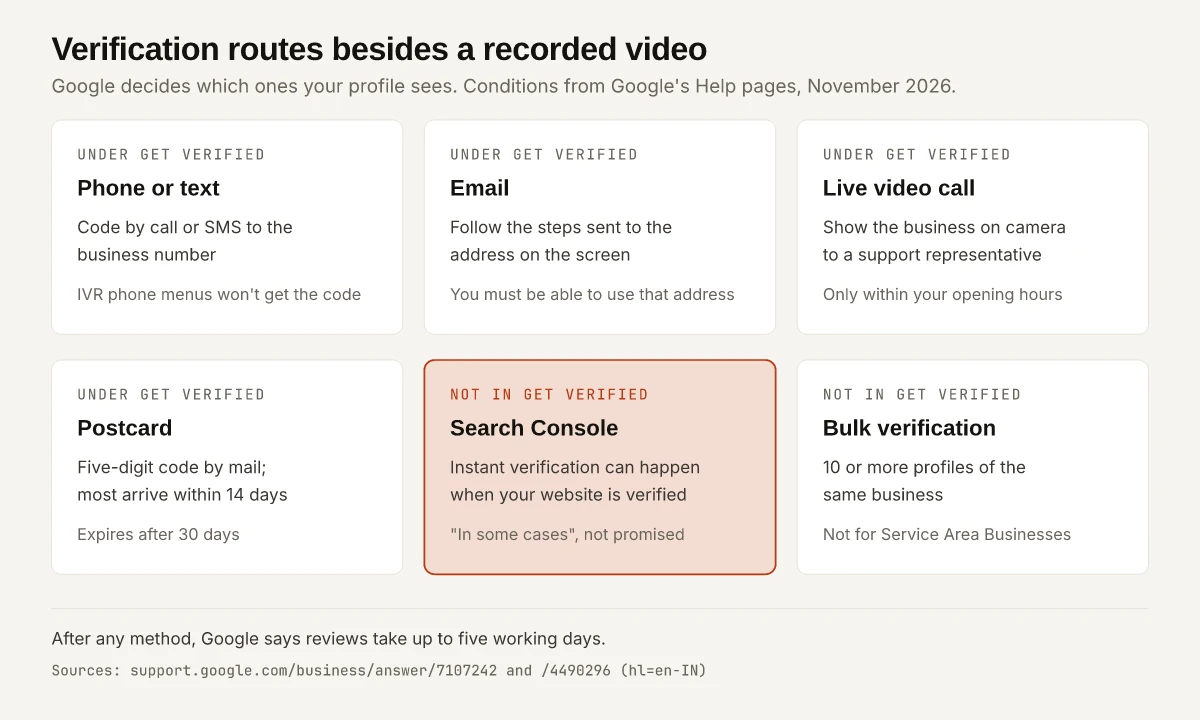
Google’s Help Center names these routes besides recording a video:
- Phone or text (SMS) code
- Live video call with a Google support representative
- Mail (a postcard with a five-digit code)
- Instant verification, in some cases, when you verify your website with Google Search Console
- Bulk verification, for businesses with 10 or more locations
| Route | When Google offers it | How long | What breaks it |
|---|---|---|---|
| Phone or text | When it appears under Get verified | Code arrives by call or SMS | ”Interactive voice response (IVR) systems won’t get the code” |
| When it appears under Get verified | Follow the steps in the email | You can’t use the address shown on the verification screen | |
| Live video call | ”May not be available for all businesses”; “only available within the opening hours of your location” | One call with a support representative | Calling outside your listed opening hours |
| Postcard | ”Isn’t available for all businesses" | "Most codes arrive within 14 days”; codes “expire after 30 days” | Editing name, address or category, or requesting a new code |
| Search Console | Not listed under Get verified; Google says instant verification “can happen” | Instant, when it happens | Google does not promise it |
| Bulk | 10 or more profiles of the same business, not a Service Area Business | Google reviews the account; it may ask for more | Agencies with several businesses in one account can’t use it |
Sources: Verify your business on Google for phone through Search Console, and Verify Business Profiles in bulk for bulk. After any method, Google says “verification reviews take up to five working days”, and “on rare occasions, reviews may take longer.”
A live video call still puts a camera on the business, so it is no escape for someone who cannot show the premises. The difference is that a support representative is on the call with you, while a recording is reviewed after you upload it.
Can You Choose Your Verification Method?
No. Google’s Help page says verification methods “are automatically determined by Google and can’t be changed”, and adds that “in some cases, you may need to verify your business with more than one method.”
What you can change is the information Google bases the offer on. Google names four inputs:
| Input Google names | Is it yours to change? | What to check |
|---|---|---|
| Business type | Yes | Shopfront, Service Area Business or hybrid, set to match how you serve customers |
| Opening hours | Yes | Accurate hours, because a live video call is only offered inside them |
| Region | No | Where the business is |
| Public info | Not directly | Google’s page does not define it |
On business type, Google’s video verification page is direct: “If you don’t serve customers at your business location, do not add your business address to your Business Profile.” A home-based mechanic who visits customers is a Service Area Business by Google’s own definition, which names “a locksmith or a plumber” as examples. Setting the type correctly is accuracy, and it also changes what the video has to show (covered further down).
Then work through what the screen offers, in this order:
- Re-open Get verified and read every option. Google says “if your Business Profile shows multiple verification options, you can try other verification methods.”
- If a live video call is listed, start it during the opening hours on the profile.
- If a postcard is listed, confirm the postal address before you request it, and change nothing on the profile until the code arrives.
- If nothing works, use the contact-support link on Google’s verification page. Google’s video FAQ asks you to try the available methods first, because “this makes it easier for us to provide assistance.”
Verify with Search Console: Google’s Instant Path
Google’s verification page has a short section that none of the four video guides I read covers. After the five-working-day line, it says “In some cases, Google verifies a profile instantly”, and lists two cases:
- “You verify your website with Google Search Console.”
- “You use bulk verification.”
“Some cases” and “can happen” mean this is a possibility Google lists, not a promised route, and Google does not list it among the Get verified options. Google’s page also does not say which Search Console property type counts or whether the site must be the one listed on the profile. My reading, which Google does not spell out, is to add the business website to the profile and verify that same site in Search Console while signed in to the Google Account that manages the profile.
To verify a site in Search Console, Google’s ownership verification Help page lists:
| Search Console method | What it needs |
|---|---|
| HTML file upload | Uploading a file to your site’s root; URL-prefix properties only |
| HTML tag | Editing the HTML source of your homepage |
| Google Analytics tracking code | A tracking code on the page for an Analytics account you can access |
| Google Tag Manager | A Tag Manager snippet on the page for an account you can access |
| Google Sites or Blogger account | The recommended method for that platform |
| Domain name provider | A DNS record; the only way to verify a Domain property |
The DNS route has its own wait: Google says a manually added record “can take up to two or three days” before your provider serves it. A small business on Wix, Squarespace or WordPress should check its host’s Search Console instructions first, which Google’s page also recommends.
If the profile verifies instantly, the problem is solved. If it does not, go back to the methods on the Get verified screen.
Bulk Verification Is for Chains
Bulk verification is the second instant case on Google’s list, and it rarely fits a reader searching for a way around a video. Google’s bulk verification page sets these conditions:
- The spreadsheet must hold 10 or more profiles from the same business, and duplicate, suspended or disabled profiles don’t count toward the minimum.
- “Agencies with more than one business in one account can’t bulk verify.”
- “Your business isn’t a Service Area Business.”
- The spreadsheet has to include every profile you manage, because Google wants “evidence of the size of your business.”
The same page warns: “You may need to confirm your business existence with video verification.” A chain can still end up filming.
Phone, Email, Live Video Call and Postcard: The Conditions
Under Get verified, each of these methods works only when one condition Google states is met.
Phone or Text
Google says to make sure you “can answer your business phone number or receive text messages”, and that IVR systems won’t get the code. A business line that answers with an automated phone menu is the case Google rules out. Select Get verified, then Phone or SMS, and enter the code on the profile.
The only condition Google states is that you can use the email address shown on the verification screen. Select Get verified, then Email, and follow the steps in the message.
Live Video Call
Google says it “may not be available for all businesses” and is “only available within the opening hours of your location.” Be at the business and ready to show what Google lists:
| Show | Google’s examples |
|---|---|
| Your current location | Outside signs, nearby businesses or a street sign |
| Your business or equipment | Products, branded equipment, marketing materials or tools |
| Proof you manage the business | Employee-only areas, a cash register, kitchen or storage room, non-sensitive documents, or your keys opening the facility |
The call starts as a text chat: select Get verified, then Live video call, choose a language and select Start call. A support representative then helps you join the video call.
Postcard
Google says postcard verification “isn’t available for all businesses.” When it is, the same page sets the rules that keep the code working:
- Most codes arrive within 14 days.
- Do not edit the business name, address or category while you wait, or “the code that we sent you won’t work.”
- Do not request a new code, because Google invalidates the one in the mail. Codes expire after 30 days.
Google Business Profile Video Verification: What the Video Must Show
If video is the only option left after all of the above, plan the recording before you start. Google’s video verification page says pre-recorded videos aren’t allowed, and the video must be:
- “An unedited, unique and complete recording with no breaks”
- “At least 30 seconds long”
- “Recorded and uploaded from a mobile device through your Business Profile”
It must not include bank account, tax or ID numbers, private information about you or others, or “other people’s faces.”
What to film depends on the business type you set:
| Requirement | Shopfront or hybrid | Service Area Business |
|---|---|---|
| Location | Street signs, building numbers, nearby businesses | Street signs and landmarks near the business address; a home-based business can film its “immediate neighbourhood” |
| Proof the business exists | The business name on a permanent fixture, matching the profile name | Professional tools, equipment, products, workspace, business cards or branded apparel |
| Proof of management | Opening a cash register, kitchen or storage room, or using a point-of-sale system | Performing a service or unlocking a branded van; or a business permit, invoice or utility bill in the profile’s name |
The Service Area column is what helps the bike mechanic: no van and no shop sign, but her tools, a repair in progress and an invoice in the business name fit what Google lists.
On the phone, the flow is Get verified, possibly your phone number, then Business video, Start recording, review, Try again if needed, and Upload video. You can delete the video afterwards under Business Profile settings, Advanced settings, Video uploads, Delete videos.
Common Advice vs Google’s Help Text
Four published guides on video verification, read on 4 November 2026, give advice that Google’s Help pages do not support. Where they disagree, follow Google:
| Guide | What the guide says | What Google’s Help page says |
|---|---|---|
| Search Engine Journal | ”The video should be short (approximately two minutes) and to the point." | "At least 30 seconds long”, with no upper limit or recommended length on the video page |
| Repli360 help centre | ”The video should be 2-3 minutes, no more than 5 minutes." | "At least 30 seconds long”, with no upper limit |
| Repli360 help centre | ”Use the Google Chrome browser to complete the video verification process." | "Recorded and uploaded from a mobile device through your Business Profile”; the page does not mention Chrome |
| Wiremo | ”The recording option only appears inside the Google Maps app." | "Recorded and uploaded from a mobile device through your Business Profile”; the page names no app |
| Wiremo | ”Google says most successful videos run 1 to 2 minutes." | "At least 30 seconds long”; the page gives no recommended length |
| Supple Digital | ”The postcard usually takes between five to seven business days to arrive at your address." | "Most codes arrive within 14 days” (verification page) |
None of this advice will necessarily fail you: a two-minute video is longer than 30 seconds. The risk is planning around a limit Google never set, such as cutting a recording short to stay under a cap that isn’t on Google’s page.
Google Business Profile Verification Time, Status and Re-Verification
The status on the profile tells you which problem you have:
| What you see | What Google says it means | What to do |
|---|---|---|
| Waiting after any method | Reviews take up to five working days, rarely longer | Wait for Google’s confirmation email |
| Get verified appears again | ”Google couldn’t completely verify your business” | Re-verify, and try other methods if several are shown |
| Review issues | Your video “wasn’t accepted” | Read the reasons, then record again with everything from the first video plus what was missing |
| Video fails to upload | ”In some cases, videos fail to upload on the first try” | Upload it again |
| Asked for more info | Business details were likely updated recently | Select Get verified and re-verify |
Google’s rejection examples include “Business name not visible on shop front”, “No nearby area shown” and “Missing proof of authorisation to operate the business.”
Re-verification can also come later. Google’s video FAQ says “changes to your business info may require re-verification”, and Google’s business info Help page names a new address and a name change among them. If a rename is coming, schedule the profile edit early, as the rebranding rollout plan sets out.
One case has no route at all. Google says a business that “operates online-only”, such as an e-commerce shop with a virtual shopfront and no in-person service, is “not eligible for a Business Profile and can’t be verified.”
After Google Business Profile Verification Without Video
Verification is step one in the local SEO checklist for the map pack, and categories, description, photos and Posts come after it. Reviews are the next lever once the profile is live, and how Google reviews affect local rankings covers that part. If you are comparing agencies instead, some Indian SEO packages list Google Business Profile setup as a line item, which the SEO price lists for small businesses in India show plan by plan.
For Google Business Profile verification without video, the order is: correct the business type and opening hours, try every method on the Get verified screen, verify your website in Search Console, and contact support only after that. If video is still the only option, film the Service Area or shopfront checklist above in one take of at least 30 seconds.
Frequently Asked Questions
Can I verify my Google Business Profile without a video?
Only if Google offers you another method. Google's Help Center lists phone or text, email, live video call and postcard alongside video recording, says the methods are determined automatically and can't be changed, and also says that in some cases it verifies a profile instantly, such as when you verify your website with Google Search Console.
How long does Google Business Profile verification take?
Google says verification reviews take up to five working days, and on rare occasions longer. A postcard adds its own wait: Google says most codes arrive within 14 days, and the code expires after 30 days.
Why is my Google Business Profile video verification not working?
A 'Review issues' notification means Google did not accept the video. Open it, read the reasons Google gives, then record a new video that includes everything from the first one plus what was missing. If the upload itself fails, Google's advice is to upload it again.
Can I verify a Google Business Profile with Search Console?
Google lists verifying your website with Google Search Console as one case in which it can verify a profile instantly. Google's page does not list it among the Get verified options and does not promise it, so keep trying the methods your profile shows.
Can an online-only business get a Google Business Profile?
No. Google's video verification page says a business that operates online-only and offers no in-person services is not eligible for a Business Profile and can't be verified.