LinkedIn Verification With DigiLocker: Steps and Fixes
LinkedIn verification with DigiLocker needs an India profile location, an Indian IP, the app and a matching name. The steps, the fixes and what LinkedIn keeps.
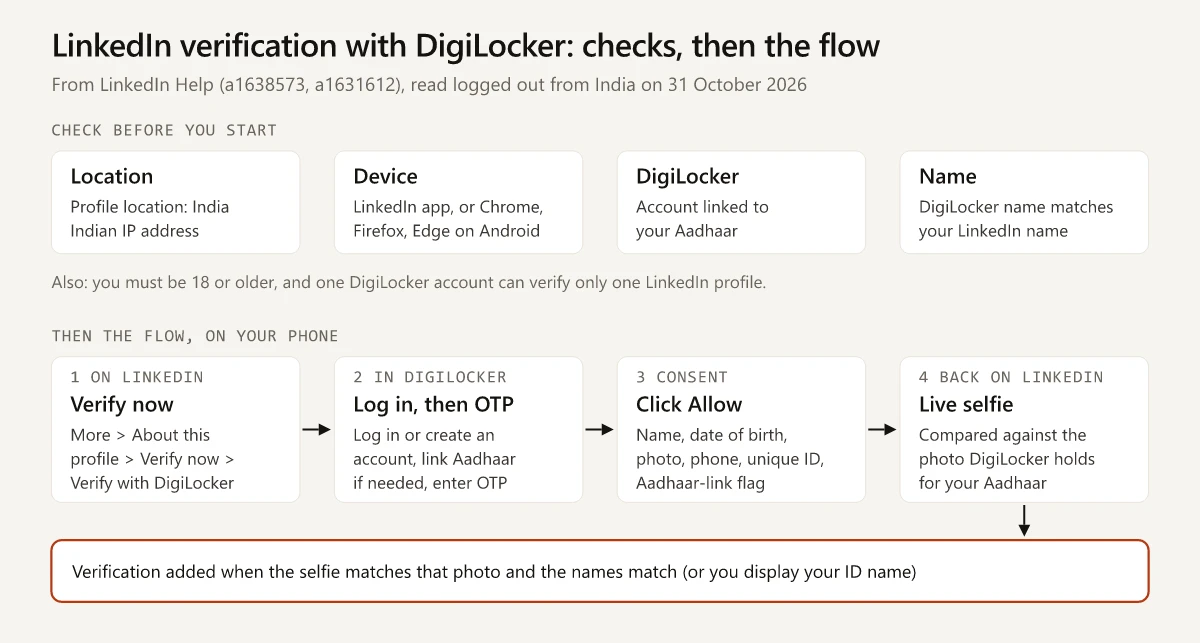
LinkedIn Help sets five conditions for LinkedIn verification with DigiLocker across its DigiLocker and troubleshooting pages: you must be 18 or older, your profile location must be India and you must be logged in from an Indian IP address, you must use the LinkedIn app or Chrome, Firefox or Edge on an Android phone, your DigiLocker account must be linked to your Aadhaar, and the name in DigiLocker must match the name on your LinkedIn profile. This is for members in India who want the identity verification badge, which LinkedIn says costs nothing to add, and LinkedIn’s help pages list no other identity route for a profile located in India.
Six of the eight causes on LinkedIn’s DigiLocker troubleshooting page can be checked before you start; only the selfie and the consent screen happen during the flow, so I would run the checklist before the steps. And any guide that tells you to tap “Verify with Aadhaar” or names HyperVerge is following the June 2023 launch coverage; today’s help pages have no such button and name no partner for India.
How to Verify Your LinkedIn Account With DigiLocker
These are the steps on LinkedIn’s DigiLocker verification page, read logged out from India on 31 October 2026 (labelled “Last updated: 2 months ago”), in its order and with its button names. Recheck the page if your screens differ:
- Install the LinkedIn app (Android or iOS). On a computer browser, LinkedIn shows a QR code instead, which you scan with your phone.
- Go to your LinkedIn profile.
- Tap More (or the More icon), then About this profile, then Verify now.
- Tap Verify your identity with DigiLocker.
- Select Verify with DigiLocker. LinkedIn notes that one DigiLocker account can verify only one LinkedIn profile.
- In DigiLocker, log in to your account or create one. If your Aadhaar is not linked, link it from the DigiLocker dashboard. Enter the OTP sent to the mobile number registered with DigiLocker.
- Click Allow to let DigiLocker share your name, date of birth, the photo it holds for your Aadhaar, your phone number, a unique identifier and confirmation that the account is linked to an Aadhaar.
- Back in LinkedIn, take a live selfie. LinkedIn compares it with the DigiLocker photo.
- When the selfie and the photo match, and the DigiLocker name matches your LinkedIn name, the verification is added to your profile.
Completing step 9 also enrols you in two-factor authentication, which LinkedIn says you can switch off at any time (turn two-factor authentication on or off). And the badge can be removed later from Settings, where LinkedIn warns that “deletion is permanent and cannot be restored” and you would have to verify again.
One label differs between LinkedIn’s own pages: the steps page says “Click Allow” at the consent screen, while the troubleshooting page says to click “Yes, share” at the end of DigiLocker’s process. They appear to describe the same consent step (the 2023 launch steps called the button “Yes, Share with LinkedIn”), and the troubleshooting page says no verification is added unless you grant it.
LinkedIn Verification DigiLocker Not Working? Causes and Fixes
LinkedIn’s troubleshooting page lists eight causes. Here is each one with LinkedIn’s wording and the fix it points to:
| Cause (LinkedIn’s heading) | What LinkedIn Help says | What to do |
|---|---|---|
| Location | ”The location on your LinkedIn profile must be India. You must also be currently logged in with an IP address in India.” | Set India as your profile location, then retry from an Indian network. A VPN or roaming connection that exits abroad fails the IP rule (my inference from that rule) |
| Age limit | ”You must be 18 years old.” | No workaround |
| Duplicate account | After a verification on a duplicate account you closed or merged, “you will need to wait at least 365 days before you can verify your account with the same method.” | Wait out the 365 days, or use a workplace or education route meanwhile |
| DigiLocker account | Your DigiLocker account “must be connected to an Aadhaar” | Link Aadhaar from the DigiLocker dashboard, as the steps page says, then retry |
| Name doesn’t match | The DigiLocker name must match your LinkedIn name, including any secondary-language profile | Edit your LinkedIn name, or display your ID name (next sections) |
| Selfie image | Your face must be “visible, well-lit, and free from glare” | Follow the selfie checklist below |
| Devices and platforms | Not available “on web browsers on a computer”; a QR code appears instead | Use the app, or Chrome, Firefox or Edge on Android, and update the app |
| Data sharing is declined | No verification unless you grant DigiLocker permission to share your data | Restart and approve the sharing (Allow or Yes, share) |
For problems inside DigiLocker itself, LinkedIn’s page sends you to DigiLocker’s Help Center. The DigiLocker site is where you link Aadhaar before you retry.
LinkedIn’s selfie troubleshooting page (last updated two years ago) gives the photo rules:
- Use natural or balanced light, and avoid backlighting that shadows your face.
- Stand in front of a plain, light-coloured wall.
- Look straight at the camera with your head upright and centred.
- Take off sunglasses and hats, and turn off filters or effects.
- Keep your whole face visible, hair away from it.
- Hold the phone steady, or rest it and use a timer.
- Be ready to move your head or blink if the liveness check asks.
The selfie is matched against the photo DigiLocker holds for your Aadhaar. None of the DigiLocker pages mentions your LinkedIn profile picture, so a profile picture made from an AI prompt is not part of this check on LinkedIn’s wording; the live selfie is.
Can You Verify LinkedIn on a Laptop?
Not in the laptop browser itself. LinkedIn Help says “The verification process is not available on web browsers on a computer” and shows a QR code that you scan with your phone, so a laptop can start the flow but your phone finishes it.
On the phone, the supported options are the LinkedIn app on iOS or Android, and Chrome, Firefox or Microsoft Edge on Android. The page names no iPhone browser, so on an iPhone use the app.
When Your LinkedIn Name Does Not Match Your Aadhaar Name
A name mismatch does not end the process. LinkedIn’s DigiLocker page says that if the names differ “you may still be able to obtain an identity verification” and links to its ID-name help page, which offers that route: show your legal name next to your LinkedIn name. What that page says:
- Your legal name “will appear in parenthesis” after your LinkedIn name; it does not replace it.
- It shows on any secondary-language profile too.
- It is visible to logged-in members only, not on public profiles, to logged-out visitors or in public search results.
- “Your ID name is view-only and cannot be changed or updated.”
- “Deleting your ID name will remove both your legal name and your identity verification.”
If you see a message that the verification “couldn’t be added yet”, the page’s steps are to select “Display your ID name as an additional name on your profile”, then “Display ID name”. The ID-name page was last updated two years ago, so the DigiLocker page’s link to it is the current pointer.
My advice is to keep the name field to your name. Credentials and taglines belong in the headline, which has a 220-character limit of its own, and a name field reading “Priya Sharma, MBA” would not match the name DigiLocker holds.
The same goes for certifications: they have their own Licenses & certifications section, and my guide to adding a certificate on LinkedIn maps which profile section fits each one.
Is LinkedIn DigiLocker Verification Safe? What Is Shared, Used and Kept
LinkedIn says it keeps only your name and a unique identifier after a successful check, and deletes your photo, date of birth, gender and biometric data; whether that is safe enough is your call. Here is the DigiLocker page field by field:
| Field DigiLocker shares | What LinkedIn says it is used for | Kept or deleted, per LinkedIn |
|---|---|---|
| Name | Matched against your LinkedIn name, and every secondary-language profile | Kept: “LinkedIn will only store your name and unique identifier for security purposes” |
| Unique identifier | Not described beyond that line | Kept, same line |
| Date of birth | ”LinkedIn only uses this information to check that you are 18 or older” | Deleted: not stored, “deleted promptly after the verification” |
| Aadhaar photo, your selfie and biometric data | Processed “to ensure they match” | Deleted per LinkedIn: “does not store your photo, date of birth, gender, and other biometric information” (the page does not name the selfie separately) |
| Phone number | Automatic enrolment in two-factor authentication | Not named in either the kept line or the deleted line |
| Confirmation that DigiLocker is linked to Aadhaar | Listed as shared; the use section does not say | Not named in either line |
| Gender (DigiLocker asks for consent to share it) | “LinkedIn does not process, use or store this information" | "deleted immediately” |
LinkedIn’s verifications overview adds that data held by its verification partners “is deleted according to the applicable trusted partner’s privacy policy”. The DigiLocker page adds these lines:
- If an attempt fails, LinkedIn “may also temporarily retain data about why you were unable to do so”.
- “LinkedIn may display the country that issued your ID (i.e., India) on your profile.”
- “Adding a verification is optional”, and the information used to verify “will not be shared and is not displayed”.
One editing slip on the page: the use section opens “your data is used in 3 ways” and then lists four items (photo, name, date of birth, phone number). The retention lines above are unaffected by it.
What Others See After Verification
The same overview page says the badge is an icon next to your name, visible to members who are logged in, and that verification comes “with no additional cost”. Clicking it shows your active verifications, not your ID; for what other members see when you view their profiles, see how LinkedIn’s private mode works.
The same page claims “verified members naturally see 60% more profile views and 50% more engagement on average”. That is LinkedIn’s own figure, and the page gives no method or date for it. Profile views also count something different from search appearances, a split covered in search appearances vs profile views on LinkedIn.
Verification also comes up for job seekers: LinkedIn’s Easy Apply limits page says a member who thinks their account was flagged for inauthentic activity by mistake can verify it to increase the limit, which my Easy Apply guide covers.
The 2023 Aadhaar Flow vs the DigiLocker Flow Today
Much of the coverage still online dates from the June 2023 launch (Business Standard, Inc42, Business Today). Business Today’s 7 June 2023 report, which quotes LinkedIn India’s blog post, set out the steps of that time. Here they are against the help page read on 31 October 2026:
| Item | June 2023 (Business Today) | October 2026 (LinkedIn Help) |
|---|---|---|
| Button on LinkedIn | ”Verify with Aadhaar” in About this profile | Verify now, then “Verify your identity with DigiLocker”, then “Verify with DigiLocker” |
| What you enter | Your Aadhaar number on the DigiLocker screen, then an OTP | Log in to DigiLocker or create an account, link Aadhaar if needed, then an OTP |
| Who runs the check | ”performed by HyperVerge, a third-party identity verification service, that leverages DigiLocker” | The DigiLocker page names no partner; the overview says identity checks are done by “one of LinkedIn’s verification partners” without naming India’s |
| DigiLocker account | Created for you automatically if you had none | You may need to create one yourself |
| Eligibility stated | ”a valid Aadhaar number and an India phone number” | 18+, profile location India, Indian IP, the app or Chrome, Firefox or Edge on Android, Aadhaar-linked DigiLocker, matching name |
| Data LinkedIn receives | Name, city (state and country) and year of birth | Name, date of birth, Aadhaar photo, phone number, unique identifier, Aadhaar-link confirmation |
| Two-factor authentication | Not mentioned | Automatic enrolment, can be switched off |
Treat the 2023 steps as a record of the launch. If a video or article shows a “Verify with Aadhaar” button, today’s help page does not describe one.
LinkedIn Verification Without DigiLocker: The Routes LinkedIn Lists
The DigiLocker page’s own fallback is to open your profile, tap the More icon, go to Verifications and review what is offered, with the note that “The availability of verification methods may vary.” The overview page lists these, and a newer help page adds verifications by your network:
| Route | What it verifies | Who can use it, per LinkedIn |
|---|---|---|
| Persona | Identity | Members whose profile location is a supported country, with a supported government ID, in most countries an NFC-enabled passport (Persona page, updated three weeks ago). India is not on its country list as of 31 October 2026 |
| CLEAR | Identity | U.S., Canada and Mexico only |
| Work email | Workplace | ”members working at select companies”; the code expires after 15 minutes (work email page) |
| Microsoft Entra Verified ID | Workplace | Companies that have set it up for LinkedIn |
| LinkedIn Learning licence from your employer | Workplace | Companies included in workplace verification |
| LinkedIn Recruiter licence | Workplace (Verified Recruiter label) | Assigned Recruiter roles at companies with the Recruiter subscription |
| LinkedIn Learning licence from your college | Educational institution | Institutions included in education verification |
| Verifications by your network (LinkedIn Help) | Workplace or education | Confirmed by eligible 1st-degree connections who overlapped with you; LinkedIn says identity verifications are not supported this way |
So for a profile located in India, DigiLocker is the identity route; the rest confirm where you work or study, not who you are.
Check Five Things Before You Start LinkedIn Verification With DigiLocker
Six of LinkedIn’s eight failure causes can be checked in advance: the five conditions at the top of this post plus the duplicate-account wait. Do the account fixes first (link Aadhaar in DigiLocker, align your LinkedIn name with the DigiLocker name, set India as your profile location), and the session fixes last (open the LinkedIn app on an Indian network) just before you tap Verify now. The age rule has no fix. If a closed or merged duplicate account carried a verification, LinkedIn’s wait of at least 365 days applies first. Then open your profile and tap More.
Frequently Asked Questions
How do I verify my LinkedIn account with DigiLocker?
On the LinkedIn app, open your profile, tap More, then About this profile, then Verify now, tap Verify your identity with DigiLocker, then Verify with DigiLocker. Log in to DigiLocker, enter the OTP, allow the data sharing, then take a live selfie that LinkedIn compares with your DigiLocker photo.
Why is LinkedIn DigiLocker verification not working?
LinkedIn Help lists eight causes: profile location or IP not in India, being under 18, a verification on a closed or merged duplicate account (wait at least 365 days), a DigiLocker account not linked to Aadhaar, a name mismatch, an unclear selfie, a computer browser, and declining the data sharing.
Is LinkedIn DigiLocker verification safe?
That is your call, but LinkedIn Help states the terms: after a successful check LinkedIn says it stores only your name and a unique identifier, and deletes your photo, date of birth, gender and biometric data promptly. Verifications are optional and can be removed in Settings.
Can I verify LinkedIn on a laptop?
Not in the laptop browser. LinkedIn Help says DigiLocker verification is not available on web browsers on a computer and shows a QR code to scan with your phone, where you finish in the LinkedIn app or in Chrome, Firefox or Edge on Android.
What does LinkedIn keep after DigiLocker verification?
LinkedIn Help says it keeps your name and a unique identifier for security purposes. It may also show the country that issued your ID, India, on your profile, and may temporarily keep data about why a failed attempt failed.