LinkedIn Private Mode: What Others See, Free vs Premium
LinkedIn private mode lists you as LinkedIn Member, costs a free account its own viewer history, and gets two different answers on Premium from LinkedIn Help.
When someone views your profile in LinkedIn private mode, LinkedIn Help says they appear in your Who’s Viewed Your Profile section as “LinkedIn Member - This person is viewing profiles in private mode”, and that “No other information about you will be shared with the member whose profile you viewed.” On a free account, the private-mode viewer pays for that with their own list: LinkedIn’s visibility settings page says a Basic member “must choose Your name and headline if you want to see the viewer history on your own Who’s Viewed Your Profile page.”
So I read private mode as a trade whose price depends on the account. On a free account the price is fixed and documented: no viewer history while you browse privately. On Premium, LinkedIn’s Help pages give two different answers about what you keep, and where they disagree, I would trust what your own viewer list shows after you switch, not either page.
What Is LinkedIn Private Mode?
LinkedIn private mode is one of three settings for how you appear on profiles you view. The person you viewed sees only “LinkedIn Member” in their Who’s Viewed Your Profile list. On a free account, choosing it also removes your own viewer history; on Premium, one LinkedIn Help page says you keep the list.
To turn it on from a desktop browser, the steps on the visibility settings page are:
- Click the Me icon at the top of your LinkedIn homepage.
- Select Settings & Privacy from the dropdown.
- Click Visibility on the left pane.
- Under Visibility of your profile & network, click Visibility when viewing other profiles.
- Select Private mode. LinkedIn says “Your changes will be saved automatically.”
The same menu turns it off: pick Your name and headline in step 5.
The Three Viewing Modes and What the Profile Owner Sees
LinkedIn’s visibility settings page opens with the rule: “There are three ways we show information on Who’s Viewed Your Profile. Based on the profile viewer’s privacy settings, you’ll see one of these”. The mode belongs to the viewer, and it decides two things at once: what the other person sees about you, and what you can still see about your own viewers.
| Mode, as LinkedIn labels it | What the profile owner sees | Your own Who’s Viewed Your Profile on a free account | Your own Who’s Viewed Your Profile on Premium |
|---|---|---|---|
| Your name and headline | ”The viewer’s name, headline, location, and industry” (a568195) | “Three most recent viewers in the last 90 days” (a548046) | “Full list of viewers for up to 365 days” (a548046) |
| Private profile characteristics (LinkedIn’s prose also says semi-private mode) | “semi-private profile characteristics such as job title, company, school, and industry”, with examples such as “Someone at Accenture” (a568195) | None: the missing-history page says you won’t see Who’s viewed your profile on a Basic account if you browse “in semi-private or private mode” (a568149) | No Help page states whether the list stays; a548046’s tip to set viewing to “public” would apply here too (a548046) |
| Private mode | ”LinkedIn Member”, with “No other information about you” shared (a567226) | None, by the same rule on a568149 and the Basic note on a568195 | The list stays, per a567226: “With a Premium account, you can browse in private mode and still see the list of people who viewed your profile in the last 90 days” |
Every quote in this post was read logged out on 25 October 2026, and LinkedIn renames these menus, so here are each Help page’s own “last updated” notes from that day: a568195 “4 weeks ago”, a567226 “3 months ago”, a548046 “2 months ago”, a568149 “6 months ago”.
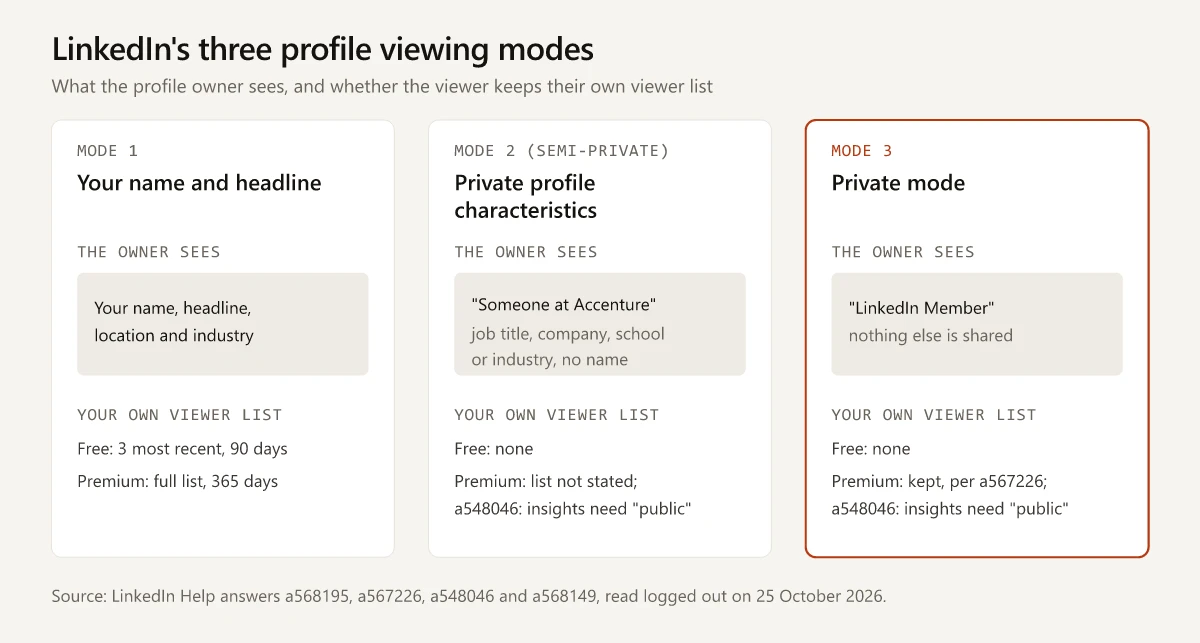
What the table means in practice:
- On a free account, private profile characteristics costs what private mode costs: a568149 names both in the same rule.
- The description a semi-private viewer shows is not fixed. LinkedIn says “We might vary the information we show to protect members’ privacy”, and its own examples range from “VP of Marketing in Internet Industry” to “Someone at Accenture”.
- Your headline is part of what Your name and headline shows the other person (a568195), so keep it within LinkedIn’s 220-character headline limit.
Can LinkedIn Premium See Who Viewed in Private Mode?
No. The visibility settings page says “You can’t view the names of members who’ve chosen to view your profile in private mode, even if you have a Premium account.”
The missing-history page extends that to the middle setting: “Even if you have a Premium account, you won’t see the names of viewers who choose to browse in private mode or private profile characteristics.” What a Premium member sees instead depends on the mode:
- A private-mode viewer shows as LinkedIn Member, with nothing else.
- A semi-private viewer shows as a description. LinkedIn’s Premium subscriber insights page (last updated “2 months ago”) says “If you see just a description of a profile without a name and a picture, that profile visitor viewed your profile in semi-private mode.”
LinkedIn’s Premium Career compare page lists “Browse profiles anonymously” under Who’s viewed your profile, next to “See a list of viewers, trends, and insights for the past 365 days”, and shows the free column as “Limited”. Whether Premium keeps both while you browse privately is where LinkedIn’s Help pages disagree. For what that plan costs from India, see the rupee prices I found for LinkedIn Premium by source, and for routes that cost nothing, the free Premium trial and partner offers I compared. If you are weighing whether to keep paying, a cancelled paid plan stays active until the end of the current billing cycle, as my walkthrough of cancelling Premium by billing channel shows from LinkedIn Help.
LinkedIn Private Mode on Premium: Two Help Pages Disagree
LinkedIn’s Help pages do not agree on what a Premium member keeps while browsing privately. Side by side, as read on 25 October 2026:
| Browse profiles in private and semi-private mode (a567226) | Who’s viewed your profile differences between basic accounts and Premium accounts (a548046) | |
|---|---|---|
| Last updated | ”3 months ago" | "2 months ago” |
| What it says | ”With a Premium account, you can browse in private mode and still see the list of people who viewed your profile in the last 90 days. This isn’t possible with a Basic (free) account." | "If you don’t see any profile viewers, check your Private Mode settings. To access viewer insights, make sure your profile viewing options are set to public.” |
| Account it addresses | Premium, by name | Both, in a tip under a table comparing Basic and Premium |
| Setting it names | Private mode | ”public”, which is not one of the three option labels on the settings page |
Read literally, the first page says a Premium member in private mode keeps the list, and the second says anyone who wants viewer insights should not browse privately. One reading reconciles them: a567226 talks about the list and a548046 about insights, which a548046’s own table treats as separate rows (“Viewer list” and “Viewer insights available”). Neither page says that split exists, so I would not rely on it.
The 90 days on a567226 is not a third answer, because a548046 gives Premium a date filter with a “default 90 days, extendable to 365”. And on names, a567226 agrees with the visibility settings page: “even with a Premium account, you can’t view the names of private mode viewers of your own profile.”
The practical check follows from the disagreement. If you are on Premium and switch to private mode, open your own Who’s Viewed Your Profile page afterwards and check three things: whether the viewer list still loads, whether the insights panels (where viewers work, how they found you) still show, and whether the date filter still reaches 365 days. If any of them is gone, the a548046 tip is the one describing your account.
LinkedIn Private Mode on Mobile, and the Setting’s Other Names
The mobile path on the visibility settings page uses the same labels as desktop:
- Tap your profile photo.
- Tap Settings & Privacy.
- Tap Visibility.
- Under Visibility of your profile & network, tap Visibility when viewing other profiles.
- Select Your name and headline, Private profile characteristics, or Private mode. The change saves automatically.
The name you will see in other guides is “profile viewing options”, and LinkedIn’s own prose uses it too: a568195 says “You can control who can see if you’ve viewed their profile by updating your profile viewing options from the Settings & Privacy page”, and a567226 calls it “your browsing mode”. The menu item both Help pages tell you to click is Visibility when viewing other profiles, so search the settings page for that phrase if the other one finds nothing.
| Name you may read | Where it appears | What it refers to |
|---|---|---|
| Visibility when viewing other profiles | The step lists on a568195 and a567226 | The menu item you click |
| Profile viewing options | Prose on a568195 and the tip on a548046 | The same setting |
| Browsing mode | a567226 (“To change your browsing mode”) | The same setting |
| Semi-private mode | a567226 and a516745 | The option labelled Private profile characteristics |
| Browse profiles anonymously | The Who’s viewed your profile row on the Premium Career compare page | Private mode with your own viewer list kept, which is what Premium adds (private mode itself is free) |
What Private Mode Does Not Cover
Some gaps are documented, and some are only missing from the pages:
- Search suggestions count as views. The visibility settings page says that selecting a member’s name in search suggestions opens their mini profile, and “This is treated as a profile view that may result in a notification being sent to the member whose profile you viewed, depending on your settings.” Set the mode before you search.
- Earlier views. None of the five Help pages above says whether switching to private mode changes how a view you already made is shown, so do not assume it hides one retroactively.
- Other reasons a list looks empty. Private mode is one reason a viewer’s name is missing; my breakdown of why profile views show zero or no names covers the rest, such as no views in 90 days or a blocked member.
- Third-party tools that claim to reveal anonymous profile viewers are outside LinkedIn’s settings. LinkedIn’s User Agreement, effective 3 November 2025, says members agree not to use software, scripts or “browser plugins and add-ons or any other technology” to “scrape or copy the Services”, so a tool that promises more than these three modes may break those terms.
Which Viewing Mode to Choose
The costs below come only from the Help pages quoted above:
| Your situation | Mode to choose | What it costs you |
|---|---|---|
| Free account, you want to keep seeing who viewed you | Your name and headline | The other person sees your name, headline, location and industry |
| Free account, you need a view to leave no trace beyond “LinkedIn Member” | Private mode, then switch back | Your viewer history while it is on; after you switch back, a568149 says a Basic account sees the three most recent viewers in the last 90 days, but no Help page says whether visits from the private-mode period are among them |
| Free account, tempted by the middle setting | Your name and headline, or Private mode | Private profile characteristics removes your history like private mode and still shows a description of you |
| Premium, you want privacy and your list | Private mode, then check your list and insights | Possibly viewer insights, if a548046’s tip applies to your account |
| Job seeking, you want a recruiter to notice the visit | Your name and headline | Privacy on that visit |
LinkedIn private mode is the right setting when the visit matters more than your own viewer list, and on a free account it always costs that list. If you are on Premium, switch, then open Who’s Viewed Your Profile and confirm the list and insights are still there.
Frequently Asked Questions
Can someone see that I viewed their LinkedIn profile in private mode?
No. LinkedIn Help says a private-mode viewer appears in the other person's Who's Viewed Your Profile list as LinkedIn Member, and that no other information about the viewer is shared with the member whose profile was viewed.
Can LinkedIn Premium see private mode viewers?
No. LinkedIn's visibility settings page says you can't view the names of members who viewed your profile in private mode, even with a Premium account, and its missing-history page says the same for viewers browsing with private profile characteristics.
How do I turn on private mode on LinkedIn mobile?
Tap your profile photo, tap Settings & Privacy, tap Visibility, then under Visibility of your profile & network tap Visibility when viewing other profiles and select Private mode. LinkedIn says the change saves automatically.
Does private mode hide me from Who's Viewed Your Profile?
From the other person's list, yes: you appear only as LinkedIn Member. On a Basic (free) account it also costs you your own list, because LinkedIn Help says a free member must choose Your name and headline to see the viewer history on their own Who's Viewed Your Profile page.
What is the difference between private mode and private profile characteristics on LinkedIn?
Private profile characteristics, which LinkedIn also calls semi-private mode, shows the other person a description such as job title, company, school or industry without your name. Private mode shows only LinkedIn Member and shares nothing else.