How to Add Resume to LinkedIn and Who Gets to See It
How to add resume to LinkedIn by route: saved for Easy Apply, Featured on your profile or in a post, who can see each file, the 2MB rule and how to delete it.
You add your resume to your LinkedIn profile, start an Easy Apply application, and expect LinkedIn to attach that file. It won’t: LinkedIn’s Upload your resume to LinkedIn page says “You won’t be able to use the resume uploaded to your profile for job applications.” The reverse surprises people too. A resume saved for applications goes to the hirer of each job you apply to, and recruiters searching resume data “will not have access to your full resume unless you provide it to them directly”, per LinkedIn’s resume sharing page. So how to add resume to LinkedIn depends first on who should be able to open the file. Where you upload it decides who sees it, and I would pick the route by its audience before worrying about the file.
How to Add Resume to LinkedIn in Five Steps
This is the route for job applications: the resume is stored in your job settings and reusable at every Easy Apply. LinkedIn’s steps, from the upload page (a510363) and the resume sharing page (a1327213):
- Click the Jobs tab, then click Preferences.
- Click Resumes and application data. The Job Application Settings page, with its Upload button under the Resume section, is the other way in.
- Click Upload resume and pick a Word or PDF file. LinkedIn recommends less than 2MB.
- Decide whether to leave Share resume data with recruiters on (the recruiters section below explains it).
- On any Easy Apply job, pick that resume under the Resume section and click Submit application.
To show the resume to people who visit your profile instead, use the Featured section steps further down. Each route reaches a different audience, which the next table sets out.
Four Places to Add a Resume on LinkedIn, and Who Sees Each
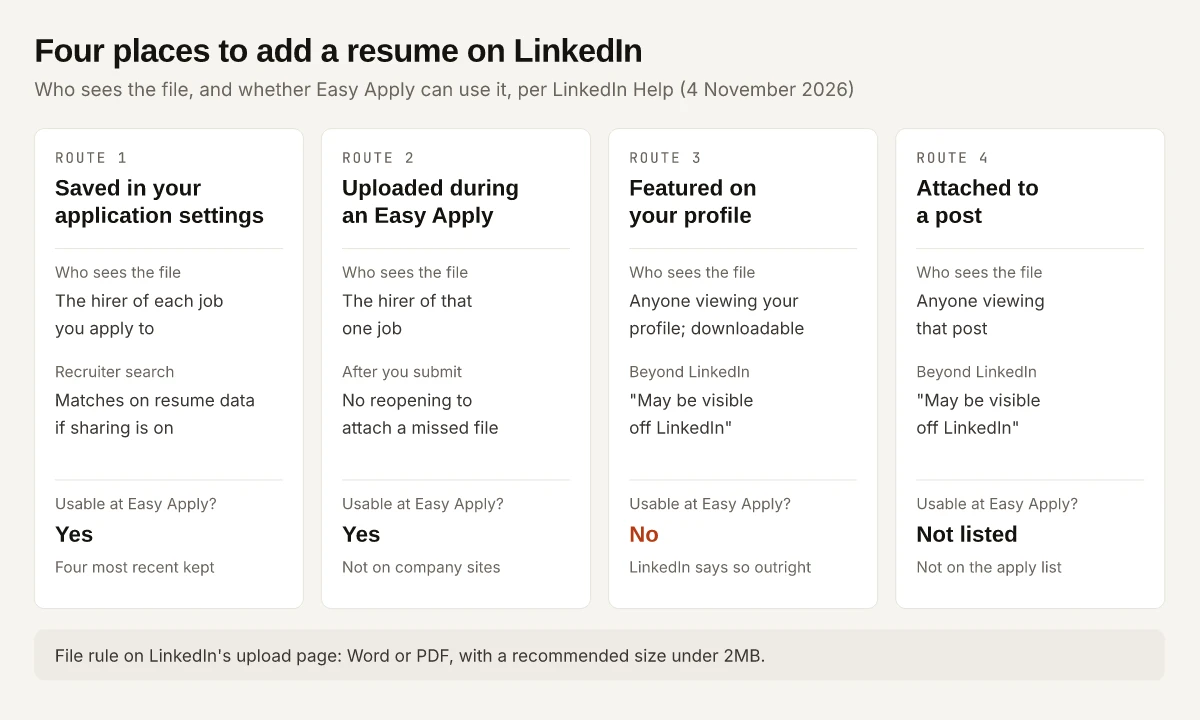
LinkedIn’s Visibility and usage of your uploaded resume page and the upload page together describe four places a resume can live:
| Route | Where in LinkedIn | Who sees the file | Usable for job applications? | Source |
|---|---|---|---|---|
| 1. Saved for applications | Job Application Settings, or Jobs, Preferences, Resumes and application data | The hirer of each job you apply to; recruiters can find you through its data only if sharing is on | Yes: “We’ll store your four most recently uploaded resumes on LinkedIn, allowing you to reuse them for future job applications” | a510363, a1327213 |
| 2. Uploaded during an Easy Apply | The Resume (optional) step of the application | ”If you upload your resume while applying for a job on LinkedIn, it’ll be shared with that hirer” | Yes, and a506429 says LinkedIn saves a copy when you upload | a506429 |
| 3. Featured on your profile | The Featured section, as uploaded media | ”Anyone viewing your profile”, and “Viewers will have the option to download it directly from your profile page” | No: “You won’t be able to use the resume uploaded to your profile for job applications” | a506429, a510363 |
| 4. Attached to a post | A document in a LinkedIn post | ”Anyone viewing your profile or that post” | Not one of the upload methods a510363 lists for applications | a506429 |
The warning that separates routes 3 and 4 from the first two is one sentence on a506429: a resume posted “as a media attachment to your LinkedIn profile or in a LinkedIn post, it will be visible to anyone viewing your profile or that post and may be visible off LinkedIn.”
Pick a Resume Route by Your Goal
Pick by what you want the file to do. Each row applies a rule from the Help page in its last column:
| Your goal | Route | Why, from LinkedIn Help |
|---|---|---|
| Apply faster with Easy Apply | 1, saved for applications | Four recent resumes stay available to “reuse them for future job applications” (a510363) |
| Apply to one job right now | 2, upload during the application | Under Resume (optional), select Upload resume (a510363) |
| Be found by recruiters without posting the file | 1, with Share resume data with recruiters on | Your profile can appear in recruiter searches that match your saved resumes’ data, without the full file (a1327213) |
| Let your network read or download it | 3, Featured | Viewers can download it from your profile page (a510363) |
| Tell your network you are looking | 4, a post, or the Open to Work feature | A post reaches “anyone viewing” it (a506429); Open to Work is a separate feature with its own three audiences |
| Keep the file away from your current employer | 1, with recruiter sharing off, and no profile or post copy | Profile and post copies are visible to anyone viewing them (a506429) |
| Apply on a company website | The company’s own form | With an Apply button instead of Easy Apply you are routed off LinkedIn and “will be unable to use a resume previously uploaded on LinkedIn” (a512405) |
Upload Your Resume During an Easy Apply Application
LinkedIn’s steps (a510363) work “from your computer or mobile device”:
- Search for a job.
- Click or tap a job title to view details.
- Click or tap the Easy Apply button. If you see Apply instead, LinkedIn says “you’ll be routed to that company’s website or job board to continue the application process.”
- Complete the required fields.
- Under Resume (optional), select Upload resume.
- Click or tap Submit application.
Read these rules before step 6, because one of them cannot be undone:
- If you aren’t logged in to LinkedIn, “uploading a resume is mandatory”.
- If you submit without a resume, “you can’t reopen your application to attach your resume or reapply for the same job post.” LinkedIn’s fallback is an InMail to the job poster, if they provided contact information in the posting.
- If the file won’t attach, LinkedIn’s advice is to try a different browser.
- To reuse a stored resume, the same Resume section lets you “select a recent resume or upload one” (a512405), on LinkedIn.com and the mobile app.
Easy Apply has rules of its own beyond the resume, including a daily limit LinkedIn gives no number for, and my guide to LinkedIn Easy Apply sets them out.
What LinkedIn Premium adds to job search, and what each plan costs in India, is in my LinkedIn Premium price breakdown.
How to Add Resume to LinkedIn Profile Through the Featured Section
The upload page says you can “showcase your resume on your profile” by uploading the document, without naming a section, and lists LinkedIn’s Featured samples page among its related tasks. That page lists media you can upload, “for example your images, documents, presentations, and videos.”
On desktop (a550399):
- Click the Me icon at the top of your LinkedIn homepage, then View Profile.
- Click the Add profile section button in your introduction section.
- Click the Recommended dropdown, then Add Featured.
- Click the Add icon on the upper right of the Featured page.
- Select the type of work sample (uploaded media covers documents) and follow the prompts.
- Click Save or Done.
In the LinkedIn app: tap your profile photo, then View profile, tap Add section, tap Recommended and select Add featured, select the type of work sample, then tap Save or Done.
LinkedIn’s Featured section FAQs add the visibility rules for anything you put there:
| Question | LinkedIn’s answer (a552452) |
|---|---|
| Who can see it? | Your profile visibility settings apply to the Featured section |
| Can logged-out visitors see it? | No: “the viewer must have a LinkedIn account and must be logged in to LinkedIn” |
| Does it show in search? | ”The content included in your Featured section will not be discoverable through search” |
| How many items? | ”You can add an unlimited number of items to the Featured section. However, only 400 items will be displayed” |
| Which item shows first? | ”By default, newly featured content will show up first” |
The logged-in rule and a506429’s “may be visible off LinkedIn” warning read like a conflict. My reading of the two pages together: the FAQ governs who can view the section, while a510363 lets every viewer download the file, and a downloaded copy is no longer under LinkedIn’s settings. The Featured section also holds portfolio samples, and my product marketing portfolio guide covers what to show if a resume alone undersells your work.
A certificate PDF can sit in Featured the same way, while its details belong in Licenses & certifications, as my guide to adding a certificate on LinkedIn sets out.
Sharing Your Resume in a LinkedIn Post
A post reaches anyone who opens it: a506429 says the file “will be visible to anyone viewing your profile or that post”. LinkedIn’s document posts page adds two rules that matter for a resume:
- “Members who can view your post will be able to download your document as a PDF.”
- “You can edit the description of your document or remove the post after it’s uploaded, but you can’t change or edit the document in the post.”
A typo in a posted resume therefore means removing the post and posting again. File types and page limits for document posts are in my LinkedIn post size guide. To add the post to your Featured section as well, the Featured FAQ says to click the More icon at the top right of the post.
Add Resume to LinkedIn for Recruiters: The Resume Sharing Setting
Recruiter visibility comes from a setting rather than from a public upload. LinkedIn’s Share and manage your resumes with recruiters page (a1327213, linked in the intro) describes it:
| Detail | LinkedIn’s words (a1327213) |
|---|---|
| What it does | ”your profile will appear in search results when recruiters search for skills, experiences, education, and accomplishments that match data found in resumes that you’ve saved over the past 2 years” |
| What it needs | ”You must have at least one saved resume to enable this feature” |
| What recruiters get | They “will not have access to your full resume unless you provide it to them directly, including by applying for a job” |
| When it switches on | After you apply for a job, “you’ll be presented with a prompt to share your resume data with all recruiters, and the Share resume data with recruiters toggle will be turned on” |
| Where to turn it off | The prompt, the Job application settings page, or Jobs, Preferences, Resumes and application data |
| Language | ”This feature is available only in English” |
Two labels differ across LinkedIn’s own pages: a1327213 calls the toggle “Share resume data with recruiters”, while a506429 calls it “Share resume data with hirers”. Look for either on your settings page.
The page also says LinkedIn takes steps to hide shared resume data from LinkedIn Recruiter users at your current company, keyed on the job marked “I am currently working here”, “however, we can’t guarantee complete privacy.” Open to Work’s Recruiters only option uses the same current-company rule, and my Open to Work visibility guide explains how that match works and where it misses.
What LinkedIn Does With a Saved Resume
Saving a resume for applications also gives LinkedIn data to use. From a506429, last updated a year before I read it:
| Use | LinkedIn’s words |
|---|---|
| Storage | ”we’ll save a copy and retain your four most recently uploaded resumes” |
| Job recommendations | ”recommending and ranking jobs you might be interested in” |
| Other personalisation | LinkedIn Learning courses, profile update suggestions, feed posts, connections or companies to follow |
| Inferred data | ”we may infer data about you, such as your skills, interests and experiences from your saved resumes” |
| Generative AI features | Saved resume data in “AI-powered features that show you how well you match the qualifications of a particular role” |
| AI model improvement | ”Your saved resume data may also contribute to improvements in our AI models”, subject to your settings |
| Hirer features | Unless you turn off the hirer-sharing setting, your resume data feeds “features that allow hirers to see how you match their job qualifications” |
The page names two opt-outs: you “can opt-out of saving resumes in your resume settings”, and a data-for-AI-improvement setting (linked from a506429) where you can opt out of your information being used to improve content-generating AI models.
Before any upload, this checklist covers what those pages leave to you:
- Remove your phone number and home address from any copy you put in Featured or in a post, because anyone who views it can download it.
- Check the recruiter-sharing toggle after each Easy Apply, since applying turns it on.
- Delete resumes you no longer use, so the four stored files are the ones you want reused.
- Decide on the AI improvement setting before your first save rather than after.
File Format, Size and the Other Rules
| Rule | What LinkedIn says | Source |
|---|---|---|
| File format | ”the file format must be either Microsoft Word or PDF” | a510363 |
| File size | ”We recommend a file size less than 2MB” | a510363 |
| Stored resumes | Your four most recently uploaded | a510363, a506429 |
| Recruiter search window | Data from resumes saved over the past 2 years | a1327213 |
| Featured items | Unlimited, with 400 displayed | a552452 |
The size line is where third-party guides drift. HireQuotient’s guide, published in 2024, tells readers to keep the file “under 5MB”; LinkedIn’s own page recommends less than 2MB.
How to Delete a Resume From LinkedIn
For a resume saved for applications (a510363):
- Go to the Job Application Settings page or the Resumes and application data page.
- Click the ellipsis (…) to the right of the resume.
- Select Delete.
LinkedIn adds: “Previously submitted applications will not be affected.” The section on a510363 is headed “Delete a resume from your profile”, yet its steps point to those two settings pages, so for a file in Featured use the Featured steps instead.
For a resume in your Featured section (a550399): click the Me icon, then View profile, scroll to Featured, click the Edit icon, then pick one of these:
- Remove from featured unpins it, and the FAQ says you’ll still find the content in your Activity section.
- Delete removes it from the Featured section and your profile. LinkedIn warns that a removed work sample “can’t be restored”.
For a resume in a post, remove the post itself; the document page’s rule above means there is no way to swap the file in place.
No Resume Yet? Two Ways LinkedIn Builds One
a510363 offers two ways to create a resume from your profile:
| Option | What LinkedIn says | Limits |
|---|---|---|
| Save your profile as a PDF | ”You can download your entire profile as a PDF in a resume format” | Desktop only; English profiles and language setting only; 200 PDF downloads a month, counting other members’ profiles (a541960) |
| LinkedIn Resume Builder | ”You can use LinkedIn Resume Builder to create and download a custom resume" | "Resume Builder feature is not currently available to all LinkedIn members” |
To save the PDF on desktop (a541960): click the Me icon, click your Profile card, click the More or Resources button in the introduction section, and select Save to PDF. The page was updated a week before I read it and adds that the feature “may not be accessible to all members”.
LinkedIn’s standalone Resume Builder Help page (answer a551182) returned a 404 Not Found when I requested it on 4 November 2026, while a510363 still describes the feature. If your account does not show it, the PDF route is the one LinkedIn documents in full. The PDF is built from your profile, so update the profile first, starting with the headline, which has its own 220-character limit.
LinkedIn Help Sources and Last-Updated Dates
Every LinkedIn step and quote in this guide comes from LinkedIn Help pages read logged out on 4 November 2026. I describe no signed-in screen, and button labels can change, so check each label against what your account shows. Each page’s own “Last updated” note, as shown that day:
| LinkedIn Help page | Last updated |
|---|---|
| Upload your resume to LinkedIn (a510363) | 7 months ago |
| Visibility and usage of your uploaded resume (a506429) | 1 year ago |
| Share and manage your resumes with recruiters (a1327213) | 3 years ago |
| Reuse a recently used resume for a job application (a512405) | 4 years ago |
| Manage featured samples of your work (a550399) | 3 years ago |
| Featured section on your profile FAQs (a552452) | 8 months ago |
| Upload and share documents on LinkedIn (a518909) | 3 years ago |
| Save a profile as a PDF (a541960) | 1 week ago |
Choose the Audience Before You Add Your Resume to LinkedIn
How to add resume to LinkedIn comes down to the audience you pick: hirers you apply to, recruiters who search, or anyone who opens your profile or post. If you only want faster applications, save the file under Resumes and application data and keep the public copies off. If you want your network to read it, strip your phone number and address first, then add it to Featured.
Frequently Asked Questions
Can recruiters see my resume on LinkedIn?
Only in part, unless you send it. With the Share resume data with recruiters setting on, LinkedIn says your profile can appear in recruiter searches that match data in resumes you saved over the past 2 years, but recruiters will not have access to your full resume unless you provide it, for example by applying to their job.
How do I add my resume to LinkedIn without posting it?
Save it for job applications instead: go to the Jobs tab, click Preferences, then Resumes and application data, and click Upload resume. LinkedIn stores your four most recently uploaded resumes for reuse, and its visible-to-anyone warning applies to resumes attached to your profile or to a post.
What file format and size does LinkedIn accept for a resume?
LinkedIn's upload page says the file format must be Microsoft Word or PDF and recommends a file size less than 2MB, as of November 2026.
How do I delete a resume from LinkedIn?
For a saved application resume, open the Job Application Settings page or Resumes and application data, click the ellipsis next to the resume and select Delete; LinkedIn says previously submitted applications are not affected. A resume in your Featured section is deleted from the Featured page's Edit view, and LinkedIn says a removed work sample can't be restored.
Can I add a resume on the LinkedIn app?
Yes, in two ways LinkedIn documents: upload it during an Easy Apply application from your mobile device, or add it to your Featured section from the app's Add section menu. Save to PDF, which turns your profile into a resume, is not available on the mobile app.