Looker Studio Data Set Configuration Error (Now Data Studio)
Fix the Looker Studio data set configuration error, now shown in Data Studio: what each line under the banner means, which credentials to pick and the first fix.
Search for the Looker Studio data set configuration error or the Data Studio data set configuration error and you are looking at the same banner from the same product. Google renamed Looker Studio back to Data Studio in April 2026, moved the product to datastudio.google.com, and its help pages now live on docs.cloud.google.com. The banner itself carries no product name: Google’s troubleshooting guide lists it as “Data set configuration error”.
What the rename left alone matters more for the fix. The guide files that banner with six other data source messages under a single list of six fixes, so the banner tells you almost nothing about which fix comes first. The line printed under it does, and that line is where this troubleshooter starts.
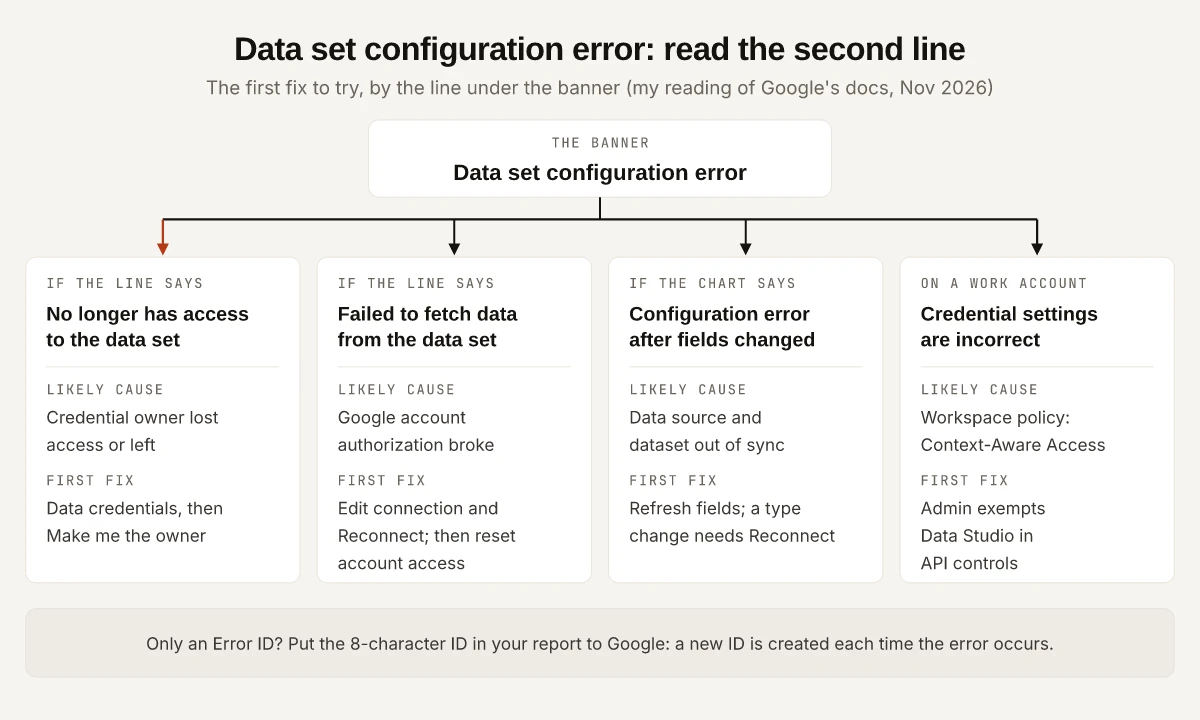
Short answer: a data set configuration error means a chart could not read its data source. Read the sentence under the banner first. By my reading of Google’s pages, “No longer has access” points to credentials, “Failed to fetch data” to your Google account connection, column changes to Refresh fields, and a work account to admin policy.
Looker Studio vs Data Studio: What the Rename Changed
Google’s welcome page (last updated 26 October 2026) says the product name “returned to its original name: Data Studio” in April 2026, and Google’s Cloud blog post Looker Studio is Data Studio is dated 10 April 2026.
| Item | Before April 2026 | As of November 2026 |
|---|---|---|
| Product name | Looker Studio | Data Studio |
| Product URL | lookerstudio.google.com | datastudio.google.com (the old domain answered a 301 to it when I requested it on 4 November 2026) |
| Help pages | support.google.com/looker-studio | docs.cloud.google.com/data-studio (support.google.com/looker-studio returned a 404 on 4 November 2026) |
| Existing reports | - | ”You don’t need to update your reports for this change” (welcome page) |
| Office proxies | - | IT may need to add the new domain to the ACL (welcome page) |
| The error banner | Data set configuration error | Data set configuration error |
| Google’s fix list | - | Six shared steps for seven data source messages |
One rename effect can stop reports loading at all: if your company restricts external sites, the welcome page says your IT administrator will need to add the new domain to the ACL, and the fixes below assume that is done.
Looker Studio Data Set Configuration Error: Message, Cause and First Fix
The Google docs pages I read name the banner but do not print the sentences that appear under it. The two below are quoted from threads on Google’s developer forum, where users pasted them: “The data source no longer has access to the underlying data set. Please contact the data source owner to fix it.” (August 2024) and “Failed to fetch data from the underlying data set” on the Search Console connector (April 2025). Neither thread has an accepted answer.
The cause column is my reading of Google’s own pages, read on 4 November 2026. I have not reproduced these errors.
| What you see | Likely cause (my reading) | First fix | Google page |
|---|---|---|---|
| ”The data source no longer has access to the underlying data set. Please contact the data source owner” | The data source uses owner’s credentials and that owner lost access to the data, revoked their credentials or left | Edit the data source, click Data credentials, select Make me the owner, or ask the credential owner to reconnect | Data credentials |
| The same line in a copied report | The copy skipped an embedded data source that runs on someone else’s owner’s credentials | Select the broken charts and, on the Setup tab, replace their data source with one you own (a report-level data source applies only to new charts) | Embedded data sources, Replace the data source |
| ”Failed to fetch data from the underlying data set” on a Google connector (Search Console, GA4, Sheets) | Google does not say; I would suspect Data Studio’s authorization to your Google Account first | Edit the data source, click EDIT CONNECTION, then RECONNECT; if that fails, remove and reconnect Data Studio’s access to your account | Edit the data source connection |
| A chart configuration error after columns were added, removed or renamed | The data source and the dataset are out of sync | Edit the data source and click REFRESH FIELDS, then APPLY; a field type change needs a reconnect instead | Refresh data source fields |
| A broken report built on an uploaded Excel or CSV file | Uploaded files belong to the person who uploaded them | The new owner uploads the file again and replaces the data source in the report | Upload CSV files |
| ”Credential settings are incorrect” on a work account | Context-Aware Access rules in Google Workspace blocked the request | A Workspace admin exempts Data Studio under Security > Access and data control > API controls | Data credentials |
Three details from those pages change which fix you pick:
- Refresh fields does not detect “field types or aggregations” changed in the dataset. The refresh page says you need to reconnect the data source to see those, and that charts using a removed or renamed field “will show a configuration error”.
- Reconnecting can change who owns the credentials. The connection page says that if fields or the dataset change, “you become the new credentials owner”.
- The Excel connector lists only files you uploaded yourself, “not spreadsheets uploaded by other members of your organization” (Excel connector page), and Google’s transfer page says CSV upload data sources “must be recreated by the new owner”.
The Seven Messages Google Groups Together
Google’s troubleshooting guide (last updated 26 October 2026) lists these as data source and connection errors: Missing data source, Data set configuration error, No data set access, Data source not attached, Data source needs to be added, The underlying data has changed, and Database connection error. It gives one list of steps for all seven:
- Edit the broken component and add the correct data source.
- Refresh the data source fields.
- Reconnect the data source.
- Remove the broken data source from the report, and then add it back.
- Create a new data source to verify whether a clean connection works.
- Revoke and restore Data Studio’s access to your Google Account.
By my reading, step 5 is the quickest test in the list. A new data source on the same property, made with your own account, tells a broken data source apart from broken access on your own account: if the new one loads, the old data source is the problem. BigQuery and Looker connector errors have their own pages, linked from the same guide.
Owner’s, Viewer’s or Service Account Credentials
The “no longer has access” line asks you to contact the data source owner, which makes it a credentials question, so pick the credential type on purpose. Google’s data credentials page defines three types, and the table maps them to the situations a reporting team runs into.
| Situation | Use | What Google’s docs say |
|---|---|---|
| A client or manager views a Search Console or GA4 report without access to the property | Owner’s credentials | Viewers see the data through the credential owner’s authorization; Google’s credentials overview says to “be sure that you trust” the people you share it with |
| Each viewer may see only data they can already open | Viewer’s credentials | Anyone without their own access “won’t be able to view the data”; hyperlinks and images in dimensions are not rendered |
| GA4 reports hit quota errors | Owner’s credentials | Owner credentials “allow multiple report viewers to share the same cached data without consuming new quota tokens” (troubleshooting guide) |
| Your organization blocks owner’s credentials, or scheduled emails fail behind VPC Service Controls | Service account credentials | Available only for BigQuery data sources, only in Google Workspace or Cloud Identity organizations, set up by an administrator |
| BigQuery external tables linked to Google Sheets | Service account credentials | Google says owner’s credentials “may not work correctly” here and recommends a service account |
Whichever type you pick:
- Editors of a data source can change its credentials or select Make me the owner, and Google warns that “changing data source credentials may cause people who don’t have access to the underlying dataset to see errors in reports”.
- Revoking credentials stops a data source from reading data “as you”. Data sources that use your credentials “continue to retrieve data even if you can no longer edit the data source”. Google also says the credential owner can be a different person from the data source owner, so check whose credentials the data source runs on before you ask anyone to reconnect.
Fix the Data Set Configuration Error on the Search Console Connector
The Search Console connector has one precondition that is easy to miss. Google’s connector page says to “make sure that you are signed in to Data Studio and Search Console with the same Google Account, and that you have at least view permission on the property”. With two Google accounts signed in to one browser, check which one Data Studio is using.
In order:
- Open Search Console with the same Google Account you use in Data Studio and confirm the property is listed.
- Edit the data source, click EDIT CONNECTION, pick the same site and table (Site Impression or URL Impression), and click RECONNECT.
- If the error stays, remove Data Studio under your Google Account’s third-party connections, then create a new Search Console data source to grant access again. Google’s account access page warns that removal “will disable all the data sources you’ve created using Google product connectors”, and also says you won’t lose any reports or data sources when you remove and reconnect.
- If you share the report, set its credentials with the table above.
The connector’s field list (Site Impression vs URL Impression tables, the blank anonymized row) is covered in my Search Console branded queries guide, including the Data Studio calculated field that splits brand from non-brand. If the charts load and the numbers look low rather than broken, that is a reporting question for my post on why Search Console impressions drop, and no connector fix will change it.
GA4 Data Sources: Check Token Usage First
A GA4 report that breaks under heavy use may be hitting GA4 Data API quotas, which show their own messages, such as “This property has issued too many requests in the last hour.” Google’s troubleshooting guide gives the check:
- Edit the report.
- Right-click the report canvas and select Google Analytics token usage for the whole report, or right-click one chart for that chart.
- Read which charts use the most tokens; a green checkmark means the chart loaded from memory without consuming tokens.
Google’s fixes include switching to owner’s credentials, merging duplicate GA4 data sources into one, cutting the number of charts, and exporting GA4 data to BigQuery. If the dashboard you are repairing tracks AI referrals, the GA4 AI Assistant channel is a row in GA4’s default channel group, so check it in GA4 before blaming the connector.
When the Data Source Owner Has Left
“Contact the data source owner” assumes the owner is still there. Google’s pages describe what to do when they are not, depending on whether ownership was handed over.
| What happened | What to do | Source |
|---|---|---|
| The owner shared and transferred the data source before leaving | The new owner claims it: click “need to be fixed” in the message bar, then FIX IT on each data source shown as “Ownership changed”, then EDIT CONNECTION and RECONNECT | Complete ownership transfer |
| The owner’s Workspace account was deleted without a transfer | A Workspace admin restores the account and transfers its Data Studio assets during deletion; on the no-cost version, assets of deleted users are permanently deleted after 20 days | Transfer ownership |
| The data source was a CSV upload | It cannot be transferred; the new owner recreates it | Transfer ownership (same page) |
Google’s transfer page adds that a transfer keeps the data credentials intact, so data sources on owner’s credentials keep providing data as they did before, until the new owner reconnects with their own. Unclaimed data sources “will continue to work, but will show editors a message”, and Google says such reports “may stop working until the data sources are claimed”.
Before You Report It to Google
If every fix above fails, Google’s guide asks for a description, steps to reproduce, the error message and a test report. Two parts of that list save time:
- Error ID. Google calls it an 8-character alphanumeric ID and says a new one “is created each time the error occurs”, so copy the ID from the attempt you describe.
- Test report. Copy the report and delete every page, chart and filter not needed to reproduce the error. Google’s isolation tip for bad data is to hide half the rows with a filter and keep halving until you find the broken record.
If the report is the monthly dashboard behind an SEO report built on the free Search Console, GA4 and Data Studio stack, note which data source broke, when, and whose credentials it runs on after the fix, so the next person who inherits the report knows who to ask.
Read the Line Under a Looker Studio Data Set Configuration Error
The Looker Studio data set configuration error and the Data Studio one are the same banner with the same fixes, and as of November 2026 Google’s guide still files it with six other messages under one list. Read the sentence under the banner before you click anything. Then open Data credentials on that data source and write down whose credentials it uses.
Frequently Asked Questions
Is Looker Studio now called Data Studio?
Yes. In April 2026 Google returned the product to its original name, Data Studio. The product URL is datastudio.google.com, lookerstudio.google.com redirects there, and Google says existing reports need no update.
What does data set configuration error mean in Looker Studio?
A chart could not get data from its data source. Google's troubleshooting guide lists it with six other data source errors and says these come from missing data credentials, broken configurations, deleted data sources or revoked access permissions. The line printed under the banner narrows it down.
How do I fix 'the data source no longer has access to the underlying data set'?
Edit the data source, click Data credentials and select Make me the owner if you can edit the data source and have your own access to the data. If you cannot, ask the current credential owner to reconnect it, or have the new owner claim it after an ownership transfer.
Why does the Search Console connector show a data set configuration error?
Check that you are signed in to Data Studio and Search Console with the same Google Account and have at least view permission on the property. Then reconnect the data source, and if that fails, remove and reconnect Data Studio's access to your Google Account.
Should a shared Data Studio report use owner's or viewer's credentials?
Use owner's credentials when viewers have no access to the underlying data, such as a client report built on your Search Console property. Use viewer's credentials when each person must see only data they can already open. Service account credentials work only for BigQuery data sources in managed organizations.