Prompt for LinkedIn Profile Picture: Keep Your Real Face
A copy-paste prompt for a LinkedIn profile picture in Gemini or ChatGPT that keeps your real face, plus LinkedIn's likeness rule and what happens to your selfie.
A prompt for LinkedIn profile picture edits needs five parts: an identity lock, framing, attire, background and lighting. The identity lock is the part that goes missing: of the three prompt guides I read for this post on 31 October 2026, Lorka AI’s and nanobanana.im’s print prompts with no line asking the model to keep the face in your uploaded photo, so nothing in the prompt itself asks for your face back. Digit’s guide is the exception, with “preserving the subject’s exact facial features, structure, and likeness” in its prompt.
I would never leave the identity lock to chance, and LinkedIn’s own rules are the reason: its Professional Community Policies forbid a profile photo that “is not your likeness”. So every prompt below starts with your face and changes only the clothes, the backdrop and the light.
I write a Nano Banana image prompt for each of my LinkedIn posts, but those are still lifes with no people in them. The prompts here are prompts to try, built from what Google’s and OpenAI’s help pages say their image tools do, and I make no claim about how any output will look.
Copy this, attach one clear, front-facing photo of yourself, and send it:
Edit the attached photo of me into a LinkedIn profile picture.

1. Identity lock: Keep my face exactly as it is in the photo - same face shape, eyes, eye colour, nose, lips, skin tone, hairline, facial hair, glasses and age. The result must still look like me.
2. Framing: Square 1:1 image, head and shoulders, face centred, a little space above my head, camera at eye level, looking straight at the lens.
3. Attire: Plain navy blazer over a plain white shirt, no logos or patterns.
4. Background: Plain light grey studio backdrop, softly out of focus, nothing behind my head.
5. Lighting: Soft, even light from the front and slightly to one side, natural skin texture, true-to-life colour.

Do not: change my face, slim or age me, smooth my skin, whiten my teeth, change my eye colour, or add jewellery, text, a logo or a watermark.
The Five Parts of a Prompt for LinkedIn Profile Picture
Each numbered line in the base prompt settles one decision the image model would otherwise make for you. The order matters less than having all five; I put the identity lock first so it is the first instruction the model reads.
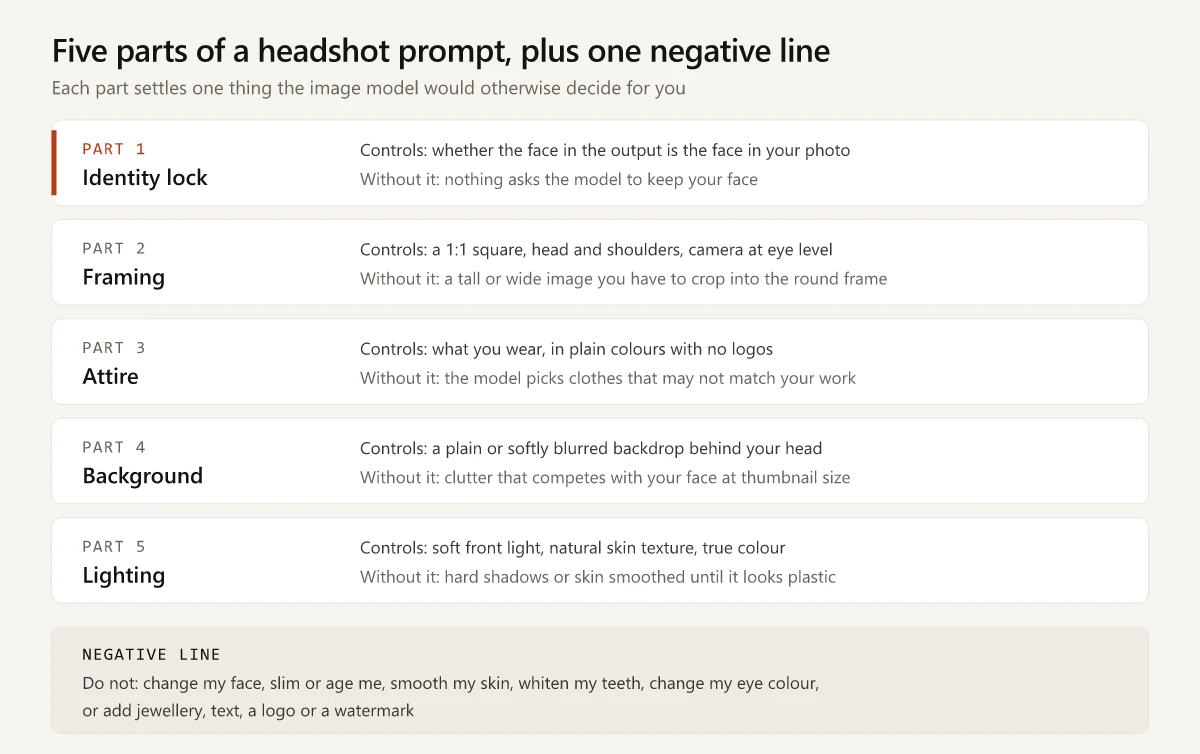
| Part | What it controls | Edit it when |
|---|---|---|
| Identity lock | Whether the output keeps the face in your photo | Never remove it; add features the model keeps changing, such as a scar, a beard or glasses |
| Framing | Shape, crop and camera angle | Your photo was taken from below or too close |
| Attire | Clothes, colours, no logos | Your field dresses differently (see the variants below) |
| Background | What sits behind your head | You want a colour, an office blur or an outdoor look |
| Lighting | Shadows, skin texture, colour | The result looks flat, harsh or over-smoothed |
| Negative line | The changes you refuse | You spot a new unwanted change in a draft |
Framing is square because the photo shows in a round frame on your profile, and the banner behind it has its own geometry, mapped in my LinkedIn banner safe zone guide. A tall 9:16 image, the ratio Digit’s prompt asks for, keeps only 56% of its height when you crop it to a square (9 / 16 = 0.5625), so the crop can cut off the top of the head or the chin.
Prompt Variants by Look and Tool
Each variant below swaps one or two lines of the base prompt and leaves the identity lock alone. Copy the base, then replace only the line named in the middle column.
| Variant | Replace this line | With |
|---|---|---|
| For men | 3. Attire | Navy or charcoal suit jacket over a light blue shirt, no tie, no logos. Keep my beard or stubble exactly as it is in the photo. |
| For women | 3. Attire | Tailored blazer in a solid colour over a plain top, no logos. Keep my hairstyle, earrings and makeup level as they are in the photo. |
| Indian formal | 3. Attire | Solid-colour kurta with a Nehru jacket, or a solid-colour cotton saree with a plain border, no busy prints. |
| Plain background | 4. Background | Flat solid off-white background, evenly lit, no texture, no shadow behind me. |
| Brand-colour background | 4. Background | Flat solid background in muted dark teal, evenly lit, no texture. |
| Corporate | 3 and 4 | Charcoal suit, white shirt, plain tie. Background: softly blurred modern office with grey and glass tones. |
| Startup | 3 and 4 | Plain crew-neck t-shirt or open-collar shirt under an unstructured jacket. Background: softly blurred bright workspace, no readable screens or text. |
| Outdoor | 4 and 5 | Background: softly blurred green trees. Lighting: soft late-afternoon daylight from one side, no harsh sun on the face. |
On gender: the identity lock already says “keep my face exactly as it is”, so the men’s and women’s variants change clothes and grooming details only. Adding words like “handsome” or “beautiful” invites the model to idealise your features, which works against line 1.
Gemini Version
Google’s image help page suggests starting a prompt “with words like draw, generate, and create” and naming a style such as “photorealistic”. The Gemini version changes only the opening line:
Create a photorealistic LinkedIn profile picture from the attached photo of me.Keep lines 1 to 5 and the negative line as they are. Google’s image help page names no aspect ratio control, so line 2 asks for “Square 1:1” in words; if the result comes back another shape, crop it to a square before you upload.
ChatGPT Version
OpenAI’s Images in ChatGPT help article says you can “Use the aspect ratio picker to choose a different aspect ratio, or include your desired aspect ratio in your prompt”, and that “If you want the edit to apply to a specific area, include that area in your prompt.” So set the picker to square, keep the base prompt, and for a later change name the area:
Change only the background to a plain off-white backdrop. Do not change my face, hair or clothes.The same article warns that the editor’s “Highlights are not always precise, and edits may extend beyond the area you selected”, which is why that follow-up still restates the face rule. The constraint lines work like the constraint-setting technique in my ChatGPT prompts for marketing, applied to an image.
Is an AI Profile Picture Allowed on LinkedIn?
LinkedIn has no rule against an AI-edited profile photo, as long as the photo is still your likeness: its rules do not mention AI-generated or AI-edited photos, and the test they set is likeness. The Professional Community Policies say: “Do not use an image of someone else, or any other image that is not your likeness, for your profile photo.”
The quotes below are LinkedIn’s wording on 31 October 2026; LinkedIn may change it, so recheck a page before you rely on a line.
| LinkedIn page | What it says | Section |
|---|---|---|
| Professional Community Policies | ”We require you to use your true identity on LinkedIn, provide accurate information about yourself or your organization, and only share information that is real and authentic.” | Be Trustworthy |
| Professional Community Policies | The likeness line quoted above | Do not create a fake profile or falsify information about yourself |
| Professional Community Policies | ”Do not share synthetic or manipulated media that depicts a person saying something they did not say or doing something they did not do without clearly disclosing the fake or altered nature of the material.” | Do not share false or misleading content |
| User Agreement, effective 3 November 2025 | ”Use your real name on your profile” | 8.1 Dos |
| User Agreement | Do not “Create a false identity on LinkedIn, misrepresent your identity” | 8.2 Don’ts |
| Profile photo help page | ”Adding a profile photo increases the credibility of your profile as it allows people to see who you are when you send invitations to connect.” | Introduction |
Read together, the test is whether the photo shows you. A headshot that keeps your face and changes your jacket and backdrop passes it on the policy’s own wording. A face the model invented, a celebrity lookalike or a colleague’s photo does not.
What the pages leave open: none of them says how much retouching is too much, and none requires you to label an edited profile photo. The synthetic-media line covers depicting “a person saying something they did not say or doing something they did not do”, which is written about shared content, and LinkedIn does not apply it to profile photos in so many words.
LinkedIn does look at uploads, though. Its trust and safety blog said on 25 October 2022 that a deep-learning model “proactively checks profile photo uploads to determine if the image is AI-generated”, aimed at fake accounts whose photos “do not correspond to real people”. Its Account restrictions help page adds: “We may remove certain parts of your profile, such as photos, if they don’t comply with our policies.” Neither page says whether an edited photo of your real face gets flagged. The identity badge is a separate check: in LinkedIn’s DigiLocker verification for members in India, the live selfie you take is compared with the photo DigiLocker holds.
Two vendor rules point the same way. Google’s Gemini Apps Privacy Hub says “Get permission before recording people in a Live chat, or using their faces or voices in Gemini”, and OpenAI’s usage policies (in both the 29 October 2025 version and the update that takes effect on 20 November 2026) bar the “use of someone’s likeness, including their photorealistic image or voice, without their consent in ways that could confuse authenticity”. Make a headshot of yourself, not of a teammate who asked you to “just do mine too” without uploading their own photo.
Your Uploaded Selfie: Storage, Training and the Off Switch
Both vendors handle an uploaded photo under the same settings as the rest of your chat. Google’s privacy hub says that when you add an image to a prompt, “Google uses this information just like any other prompt”. OpenAI’s consumer data page says that “depending on a user’s settings, we may use the user’s prompts, the model’s responses, and other content such as images and files to improve model performance.”
These are the settings each vendor names, as their pages read on 31 October 2026:
| Question | Gemini (personal Google Account) | ChatGPT (Free, Plus or Pro personal workspace) |
|---|---|---|
| The setting that decides training use | Keep Activity in Gemini Apps Activity | Improve the model for everyone in Settings, Data controls |
| Default | Activity “is auto-deleted after 18 months”; you can pick 3 or 36 months or no auto-delete | ”data sharing is enabled by default” |
| With the setting on | Activity is used to “provide, develop, and improve its services (including training generative AI models)”, with human reviewers | Content can be used to improve models, per your settings |
| Human review | ”Data reviewed by service providers is disconnected from your account and saved for 3 years” | Not stated on the data controls page |
| With the setting off | Future chats “won’t be used to train our AI models, unless you choose to send Google feedback”, and are kept for 72 hours | Saved chats stay in history; turning the setting off “does not delete or hide saved chats”; OpenAI adds that with thumbs up or down feedback, “the entire conversation associated with that feedback may be used to train OpenAI models” |
| A chat that is not kept | Temporary chats: “not used to train Google’s AI models”, kept with your account for 72 hours | Temporary chat: “not used to improve OpenAI models”, “may be retained for up to 30 days for safety purposes” |
Sources: the Gemini Apps Privacy Hub (linked above) and OpenAI’s Data controls in ChatGPT article. OpenAI’s default line names Free, Plus and Pro; ChatGPT Go, which the same page lists for data export, is not named in it.
If you would rather your face did not go into a training set, the lowest-effort route on either tool is a temporary chat, or turning the setting off before you upload. Deleting a Gemini chat later does not reach copies a reviewer already saw: Google says those “aren’t deleted because they aren’t connected to your Google Account” and are kept for up to 3 years.
Gemini also offers an avatar. Its help page says “You can record your face and voice to create your avatar”, that it “lets you create custom images or [sic] yourself without the need to upload a photo each time”, and that “You can share your avatar so that friends, family, and collaborators can include your likeness in images they create”. Read that last line before you share one.
Gemini and ChatGPT Model Settings for a Headshot
In Gemini the image model follows the chat model you pick, and Google’s image help page spells out the mapping. In ChatGPT, ChatGPT Images is on every plan, and Images with thinking is added on Plus, Pro and Business.
| Tool | Setting | What the vendor’s help says |
|---|---|---|
| Gemini | Flash-Lite | Uses Nano Banana 2 Lite, which “isn’t designed for multiple image references or for multiple edits” |
| Gemini | Flash or Pro | Uses Nano Banana 2, which “can accept multiple reference images” and lists “Character consistency” among its features |
| Gemini | Pro, then More, then Redo with Pro | Nano Banana Pro, “Available with a Google AI Plan”; Google says it has “higher consistency” |
| Gemini | Download | ”at 2K resolution with a Google AI plan or at 1K without an AI plan” |
| Gemini | Age | ”To generate and edit images, you must be 18 or over” |
| ChatGPT | ChatGPT Images | ”available on all tiers”; the help article calls the current model ChatGPT Images 2.5 |
| ChatGPT | Images with thinking | ”available on Plus, Pro, and Business” |
For a headshot in Gemini, set the model to Flash or Pro rather than Flash-Lite, since a headshot often takes a second or third edit. Check your model menu first: Google’s plans page, read from India on 31 October 2026, lists “Access to our Flash-Lite model” for the free tier and adds “Access to our Flash model” from Google AI Plus, which does not match the help article’s mapping above. If Flash-Lite is the only model you see, upload the original photo again for each change instead of stacking edits. The model lineup, the paid-plan models and the per-image API prices are compared in Nano Banana 2 vs Pro, and Google’s pages there disagree on which model a paid plan gets by default, so check the help page on the day you generate.
Prompt for LinkedIn Profile Picture Without Changing Face: Fix Table
When a draft does not look like you, read the symptom, then add the line in the last column to the base prompt or send it as a follow-up. The causes are my reading of how these prompts go wrong, not vendor statements, except where a vendor page is linked.
| Symptom | Likely cause | Line to add or send |
|---|---|---|
| A different face shape or jawline | No identity lock, or the lock is too vague | ”Keep my exact face shape and jawline from the photo. Do not reshape, slim or widen my face.” |
| Skin looks plastic or airbrushed | Words like “flawless”, “8k” or “beauty” in the prompt | ”Keep natural skin texture, pores and small marks. No beauty filter, no smoothing.” |
| Eyes or eye colour changed | The lock did not name the eyes | ”Keep my eye shape, eye colour and eyebrows exactly as in the photo.” |
| Looks younger or thinner than you | ”Professional” read as “idealised" | "Keep my age and build as in the photo. Do not make me look younger or thinner.” |
| Smile or teeth changed | The prompt asked for a “confident smile" | "Keep my expression and teeth as they are in the photo.” |
| Glasses, beard or hairline changed | The model treated them as styling | ”Keep my glasses, facial hair and hairline unchanged.” |
| Face gets worse with each edit | Edits stacking on edits, or Gemini set to Flash-Lite (see the settings table) | Start a new chat, upload the original photo again and paste the full prompt |
| Head or chin cut off in the crop | Tall or wide output cropped to a circle | ”Square 1:1, head and shoulders, face centred, top of the head fully in frame.” |
| Busy or distracting background | No background line, or “modern office” with no blur | ”Plain, softly blurred backdrop. No people, screens, text or logos behind me.” |
| Face looks pasted onto the body | Lighting on the face and the scene do not match | ”Match the light on my face to the background: soft light from the front left.” |
| Edit spilled outside the area you chose | ChatGPT’s editor: highlights “are not always precise" | "Change only the background. Do not change my face, hair or clothes.” |
If three rounds of fixes still do not give you your own face, the photo you uploaded is usually the problem: try a sharper, front-facing photo with even light and nothing covering your face.
Check the Draft Before You Upload It
Before the draft replaces your current photo:
- Put the draft and your original side by side at the size LinkedIn shows them, and ask someone who sees you every week whether it looks like you.
- Check the ears, the hairline and the edges of glasses, which are easy to miss at full size.
- Download the full-size file (Gemini: hover and select “Download full size”; ChatGPT: open it from Images and select Save).
- Upload through your profile: LinkedIn’s profile photo help page says to click the Me icon, View profile, then the camera icon (or your current photo), then Upload photo, where you can crop, adjust and set who can see it, then Save photo.
The photo sits above the headline, so it is worth updating both together; LinkedIn’s 220-character headline limit has the rules for that line. A profile photo also counts toward profile completeness, covered in my post on search appearances vs profile views.
Start Your Prompt for LinkedIn Profile Picture With the Identity Lock
Lines 3 to 5 are yours to change one at a time. Line 1 is the one LinkedIn’s rules settle, since the policy asks for an image that is your likeness, so write the identity lock first and keep it in every version.
Open Gemini or ChatGPT, attach a clear photo, and paste the base prompt for LinkedIn profile picture edits with line 1 untouched.
Frequently Asked Questions
What is a good prompt for a LinkedIn profile picture?
One that covers five parts: an identity lock that tells the model to keep the face in your attached photo, framing (1:1, head and shoulders), attire, a plain background and soft lighting, followed by a negative line such as 'do not change my face, slim or age me, or smooth my skin'. The full copy-paste version is at the top of this post.
How do I keep my face the same in an AI headshot?
Start the prompt with an identity-lock line that asks the model to edit the attached photo and keep your face shape, eyes, nose, skin tone, hairline and age. Upload one clear, front-facing photo, and if a later edit drifts, start a new chat from the original photo. In Gemini, Google says Nano Banana 2 Lite, used when the model is set to Flash-Lite, isn't designed for multiple edits, so set the model to Flash or Pro if your plan offers them (Google's plans page lists Flash from Google AI Plus).
Is it okay to use an AI-generated profile picture on LinkedIn?
LinkedIn's rules do not mention AI profile photos. Its Professional Community Policies say: 'Do not use an image of someone else, or any other image that is not your likeness, for your profile photo.' A generated face that is not yours is exactly what that line rules out.
Which is better for a LinkedIn headshot, Gemini or ChatGPT?
Neither Google nor OpenAI publishes a headshot comparison, and I have not run one. Both accept an uploaded photo: Gemini's image help article says Flash and Pro use Nano Banana 2 and that downloads are 1K without a Google AI plan, though Google's plans page lists only Flash-Lite for the free tier, while OpenAI says ChatGPT Images is on all tiers and has an aspect ratio picker. The base prompt in this post works in both with one line changed.
Does Gemini keep the photos I upload?
Google's Gemini Apps Privacy Hub says uploaded images are used just like any other prompt. With Keep Activity on, activity is auto-deleted after 18 months by default and can be used to improve Google services, including training generative AI models; chats seen by human reviewers are kept for up to three years. With Keep Activity off, future chats are kept for 72 hours.