Astro AdSense Setup: Loader, Ad Units and View Transitions
An Astro AdSense setup from a live site: the loader, ads.txt, in-article units placed by a rehype plugin, and what Astro's client router does to ad scripts.
Stack Overflow’s “How to Add AdSense in Astro JS Sites?” was asked on 1 July 2024, and when I pulled it from the Stack Exchange API on 10 October 2026 it had 996 views and 0 answers. This post answers it with the Astro AdSense setup on swapbiswas.com, the site I moved off WordPress and now build and deploy from one repo in Claude Code.
The AdSense setup itself is five short steps, and Astro changes how Google’s code behaves: it bundles a bare <script> in a component and includes it once per page, its client router in version 5.18.0 skips an inline script whose text has already run, and its head swap deletes any script you created at runtime. Google’s ad code assumes every page view loads a fresh document. Keep Google’s loader tag as AdSense prints it, and drop the push snippet Google prints beside each unit, because under the client router one listener on astro:page-load does that job on every page.
Astro AdSense Setup in Five Steps
- Put Google’s loader tag once in the head of the layout every page shares.
- Save
ads.txtinpublic/, so it is served from the site root. - Build each unit’s
<ins>markup in one function, used by anAdUnitcomponent and by a rehype plugin. - Push every unit from one inline script that listens for
astro:page-load, which<ClientRouter />fires; without the router, run the push loop once at the end of the body. - Give every unit a reserved
min-heightin a global stylesheet.
The snippets use placeholder IDs: ca-pub-XXXXXXXXXXXXXXXX for the publisher and 1234567890 for the slot. If your visitors include people in the EEA, the UK or Switzerland, Google’s consent management requirements say AdSense publishers “are required to use a consent management platform (CMP) that has been certified by Google” when serving them personalized ads; that setup is outside this post.
1. Put the Loader Once in the Shared Head
Google’s code placement page says to paste the AdSense code “between the <head> and </head> tags of your site” and recommends it “on every page across your site”. In Astro, that is the layout every page uses:
---
// src/layouts/BaseLayout.astro
import { ClientRouter } from 'astro:transitions';
---
<html lang="en">
  <head>
    <script
      is:inline
      async
      src="https://pagead2.googlesyndication.com/pagead/js/adsbygoogle.js?client=ca-pub-XXXXXXXXXXXXXXXX"
      crossorigin="anonymous"></script>
    <ClientRouter />
  </head>
  <body>
    <slot />
  </body>
</html>
Astro’s scripts guide says it “will not process a <script> tag if it has any attribute other than src”, so this tag ships as written, and is:inline makes that explicit.
This site differs in one way. Its loader is created by a short inline script that runs only on the production hostname, so local and preview builds never request ads, and on the dev server each unit shows as an empty reserved box, which is enough to check spacing. It went into the head on 22 April 2026, a date that also sits in the deploy log I checked against a Search Console impressions drop. The client router removes a head script created at runtime, so this site re-appends the loader after every soft navigation; the router section below shows the mechanism.
2. Save ads.txt in the Public Folder
google.com, pub-XXXXXXXXXXXXXXXX, DIRECT, f08c47fec0942fa0Save that line, with your own publisher ID, as public/ads.txt. Astro’s project structure docs say files in public/ “will be copied into the build folder untouched”, so the file is served at /ads.txt, the root location Google’s ads.txt guide asks for. Google calls ads.txt “not mandatory, but it’s highly recommended”, and says changes can take a few days to show in AdSense, or up to a month on a site that makes few ad requests. After a deploy, open /ads.txt on your live domain in a browser; Google’s guide says that if the file displays, “it’s likely that AdSense will successfully find it”. This site’s file is that one line.
3. Build Unit Markup in One Function
// src/config/ads.mjs
export const AD_CLIENT = 'ca-pub-XXXXXXXXXXXXXXXX';

export const AD_SLOTS = {
  inArticle: { slot: '1234567890', format: 'rectangle', variant: 'rect' },
};

export function adUnitHtml(name, slots = AD_SLOTS) {
  const unit = slots[name];
  // No valid slot id, no markup: an unconfigured unit renders nothing.
  if (!unit || !/^[0-9]{8,12}$/.test(String(unit.slot))) return '';
  return (
    `<div class="ad-slot ad-slot--${unit.variant}">` +
    `<ins class="adsbygoogle" style="display:block" data-ad-client="${AD_CLIENT}"` +
    ` data-ad-slot="${unit.slot}" data-ad-format="${unit.format}"` +
    ` data-full-width-responsive="false"></ins></div>`
  );
}
---
// src/components/AdUnit.astro
import { adUnitHtml } from '../config/ads.mjs';
const html = adUnitHtml(Astro.props.name);
---
{html && <Fragment set:html={html} />}Templates place units with <AdUnit name="inArticle" />, and the rehype plugin in the next section calls the same function, so a unit placed by hand and a unit placed inside a post cannot drift apart. Compared with Google’s ad unit code, the markup carries no second copy of the loader and no push <script>. Read Google’s list of acceptable ad code modifications before you change Google’s markup.
4. Push Every Unit From One Page-Load Listener
Google’s ad unit code ends each unit with (adsbygoogle = window.adsbygoogle || []).push({}); in its own <script>. Pasted into an Astro component, that line goes wrong in one of two ways:
| How the push is pasted | What Astro does with it | What happens to the ads |
|---|---|---|
Bare <script>, no attributes | Bundles it as a module; per the scripts guide, “the script will only be included once” per page | A single push shared by all the units on the page, where Google’s code prints one push per unit |
<script is:inline> | Prints it beside every unit; the 5.18.0 router skips it on later pages, because the same text already ran | Units on the second page of a visit get no push |
The replacement goes at the end of the layout’s <body>:
<script is:inline>
  (function () {
    if (window.__adsInit) return; // the guide's check for code that may run twice
    window.__adsInit = true;
    document.addEventListener('astro:page-load', function () {
      var units = document.querySelectorAll('.ad-slot > ins.adsbygoogle:not([data-ad-pushed])');
      for (var i = 0; i < units.length; i++) {
        units[i].setAttribute('data-ad-pushed', '1');
        (window.adsbygoogle = window.adsbygoogle || []).push({});
      }
    });
  })();
</script>
Astro’s view transitions guide says of astro:page-load: “The <ClientRouter /> component fires this event both on initial page navigation for a pre-rendered page and on any subsequent navigation”. With <ClientRouter /> in the layout, as in step 1, one listener covers the first page and every page after it. In the 5.18.0 source, the only code that dispatches astro:page-load is the router module that <ClientRouter /> loads, so on a page without the router the listener never runs: there, drop the addEventListener wrapper and run the same loop once at the end of the body. The selector only touches units your own markup wrapped, and leaves any <ins> that Auto ads inserts to Google’s code. This site’s version also waits until each unit nears the viewport before it pushes.
To keep Google’s push snippet instead, the same guide documents an opt-out: “To force inline scripts to re-execute after every transition, add the data-astro-rerun property.”
The first Stack Overflow question reports: “The anchor ads and vignette ads are working fine, but display ads are not showing up.” Its code follows the unit with an is:inline script whose src is ../lib/ads.js, the spot where Google’s code puts the push, and the scripts guide keeps is:inline src for files that live “inside of public/ or on a CDN”. An inline tag is printed “exactly as written”, so the browser resolves that path against the page URL, and unless a file sits at that public path, the script never loads. Anchor and vignette ads are Auto ads formats, and Google calls the loader the snippet “you put on your site to get Auto ads” (About the AdSense code), while a display unit waits for its push, which would explain the split.
5. Reserve Height for Every Unit
/* src/styles/global.css: global, not scoped */
.ad-slot--rect ins.adsbygoogle { min-height: 280px; }
.ad-slot--banner ins.adsbygoogle { min-height: 100px; }
Astro’s styling guide says scoped styles “only apply to HTML written inside of that same component”, and markup injected with set:html or by a rehype plugin was never written inside it, so the rules go in a global stylesheet. The reserve is a min-height rather than a height, because Google’s responsive ad guidance says responsive ads “should not be placed inside containers with a fixed or limited height, as they may be taller on some devices or browsers”. Images get the same treatment from a build step that writes width and height into every Markdown image, which my SEO audit of this repo checked across the whole build. The 280px and 100px figures come from Google’s size guide, in the section on unfilled units below.
In-Article Units From a Rehype Plugin
A second question, “Inserting AdSense in Markdown Content”, with 267 views by 10 October 2026, wants units between the paragraphs of MDX posts, and its only answer, which the asker has not accepted, imports an ad component into each MDX file. This site places them at build time instead, with no marker in any Markdown file. A rehype plugin checks every top-level h2 in a post and inserts a unit before the first one that passes the rules:
// astro.config.mjs
import { defineConfig } from 'astro/config';
import rehypeAdSlots from './src/lib/rehype-ad-slots.mjs';
// IN_ARTICLE_PLAN and UNSAFE_BEFORE_TAGS are arrays exported from ads.mjs, holding the rules in the table below
import { AD_SLOTS, IN_ARTICLE_PLAN, UNSAFE_BEFORE_TAGS } from './src/config/ads.mjs';

export default defineConfig({
  markdown: {
    rehypePlugins: [
      [rehypeAdSlots, { plan: IN_ARTICLE_PLAN, slots: AD_SLOTS, unsafeBefore: UNSAFE_BEFORE_TAGS }],
    ],
  },
});| Rule | First unit | Second unit |
|---|---|---|
| Prose words above the h2 | 600 or more | 1,800 or more |
| Prose words below it | 500 or more | 500 or more |
| Distance from the first unit | Not applicable | At least 4 h2s further down |
| Block directly above the unit | Not a code block, image, figure, list, table, blockquote or raw HTML | Same |
The word counts, the h2 gap and the list of blocked tags come from src/config/ads.mjs; the raw-HTML check and the check for a block that holds an image live in the plugin itself.
Words inside code blocks count as zero, so a long code sample cannot carry a post past the gate. In Astro 5.18.0’s Markdown pipeline (@astrojs/markdown-remark/dist/index.js), user rehype plugins run after syntax highlighting and before rehype-raw. Code is already a <pre> the neighbour rule can see, and the unit goes in as a raw HTML string that becomes real elements further down the pipeline. The units therefore ship inside the static HTML, the same build-time output that separates an Astro page from a client-rendered vibe-coded site in search.
These are display units set to rectangle, not Google’s In-article format, whose setup page says “The height of an In-article ad is automatically adjusted by AdSense”. A min-height reserve only sets a floor, and AdSense sets an In-article unit’s height itself, so no fixed reserve can be sure to hold it.
I counted the in-article units, by element, in a build of commit 0a69a3f made on 10 October 2026, which holds 209 posts:
| In-article units | Posts | Share of 209 |
|---|---|---|
| One | 136 | 65% |
| Two | 54 | 26% |
| None | 19 | 9% |
That is 244 in-article units, and all 209 posts also carry the end-of-post unit. Rebuilding the rule check from the same HTML for the 19 with none:
- 11 fail the word rules. Six have fewer than 1,100 words of prose in total, the minimum the first unit needs. Five are longer but have no h2 inside the window, like a post of about 2,600 words whose middle 1,800 sit under one h2 and its h3s.
- 8 fail the neighbour rule. Each has h2s that pass the word rules, but every one sits directly under a list, a table, an image or a code block.
In the same build, 278 of the 1,091 top-level lists in post bodies contain a link, and every image inside a post opens a lightbox on click. Google’s ad placement policies say “Be careful when placing links” and buttons near ads, because they “might lead to accidental clicks”. The rule goes beyond links: it blocks a unit under any list, including the 813 without a link, and under any code block, table or blockquote, because an ad directly under one of those reads as part of it. The cost is 8 posts with no in-article unit.
Pass the Placement Rules as Plugin Options
A placement rule edited inside the plugin file does not reach the next build: Astro reuses the cached HTML of every post whose Markdown did not change, for as long as the previous build’s cache is in place. Astro 5.18.0 keeps rendered Markdown in a data-store.json file, which astro build writes to the cache directory (node_modules/.astro/ by default) and the dev server writes to .astro/ (getDataStoreFile() in content-layer.ts). In the 5.18.0 source:
- The glob loader skips re-rendering a post whose file digest is unchanged, and returns early without a log line (loaders/glob.ts).
- On a normal build, the content layer clears the whole store only when the content config, the Astro version or an
astro-config-digestchanges (content-layer.ts). - That digest is
safeStringify()over the Astro config minusvite,integrationsandadapter, andsafeStringify()isJSON.stringifywith a replacer (utils.ts), which writes a function inside an array asnull.
Run Astro 5.18.0’s own safeStringify() on a rule kept inside the plugin and on the same rule passed as an option, before and after one edit:
rule inside the plugin, before and after the edit:
{"markdown":{"rehypePlugins":[null]}}
{"markdown":{"rehypePlugins":[null]}}

rule passed as an option, before and after the same edit:
{"markdown":{"rehypePlugins":[[null,{"unsafeBefore":["pre","table"]}]]}}
{"markdown":{"rehypePlugins":[[null,{"unsafeBefore":["pre","table","blockquote"]}]]}}
Pass the plan, the slot table and the neighbour list as options, as above, and an edit changes the digest: Astro logs “Astro config changed”, clears the store and re-renders every post. A change to the plugin’s algorithm still needs a clean cache: deleting .astro/ clears only the dev server’s copy, and the 5.18.0 CLI describes astro build --force as “Clear the content layer and content collection cache, forcing a full rebuild.”
What Astro’s Client Router Does to AdSense Scripts
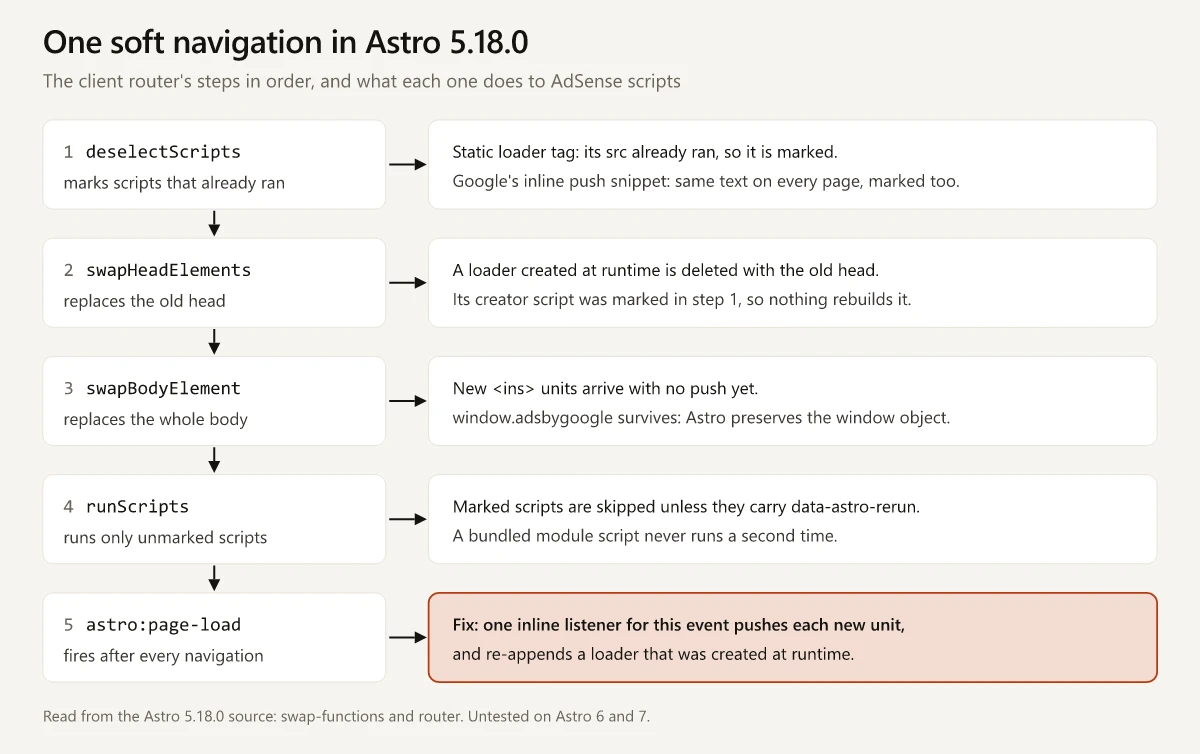
The client router is the component behind Astro view transitions. The router behaviour in this section is read from Astro 5.18.0, the version installed on this site, in swap-functions.ts at the astro@5.18.0 tag and the router file beside it. On a soft navigation the router marks the scripts that already ran, swaps the head, replaces the body, runs only unmarked scripts and fires astro:page-load.
| Script | What the 5.18.0 router does on a soft navigation | Effect on AdSense |
|---|---|---|
| Loader as a static tag in the layout head | Removes the old head, appends the new page’s identical tag and marks it as run, since its src already ran | The tag is back in the head and the library stays loaded; it does not run a second time |
| Loader created by a script at runtime, as on this site | Removes it with the old head; the script that created it has the same text on every page, so it is marked and skipped | No loader element from the second page on, so this site re-appends it on astro:page-load |
One is:inline listener for astro:page-load | Registered once; the event fires after every navigation | Every new unit gets a push |
Google’s inline push snippet and a bundled push script behave as the step 4 table shows, and the guide adds that bundled scripts are “only ever executed once”, so a bundled push never runs on a later page.
Removing the loader element does not unload the library: Astro’s guide says a check for global state “works because window is preserved”, so window.adsbygoogle survives and pushes from the listener keep working. None of the AdSense Help pages linked in this post mention client-side navigation, and none says whether Auto ads keeps placing ads on later pages once its loader element is gone. The nearest line, on About the AdSense code, says Auto ads running through ad unit code “may not work correctly for ad unit code that is used dynamically”. This site re-appends the element on astro:page-load rather than rely on it.
Astro’s guide words the head swap and the inline-script rule more loosely than the code. It describes the head swap with “Scripts are left in if they exist on the new page”, and says inline scripts “have the potential to be re-executed during a user’s visit to a site if they exist on a page that is visited multiple times”. In the 5.18.0 source, detectScriptExecuted keys each script by its resolved src or its text, in a Set that is never cleared, so an inline script with unchanged text runs once per visit unless it carries data-astro-rerun. Ad code that survives both readings guards its global state and pushes from an event listener, never from a script it expects to re-run.
This site still imports ViewTransitions, which the installed 5.18.0 types mark “@deprecated The ViewTransitions component has been renamed to ClientRouter”. Astro’s v6 upgrade guide says “Astro 6.0 removes the <ViewTransitions /> component entirely”, and the v7 upgrade guide removes constants such as TRANSITION_PAGE_LOAD and says to use “the lifecycle event names directly”, as the listener above does with 'astro:page-load'. The npm registry listed Astro 7.3.8 as the latest release on 10 October 2026, and nothing in this section has been tested on Astro 6 or 7. The samples above already import ClientRouter, the name that works on 5 and the only one left on 6 and 7.
AdSense Auto Ads vs Manual Ad Units on One Page
Run both on one page: manual units where a fixed position and a held space matter, such as inside posts, and Auto ads for the rest, kept off the top of the page. Google’s About Auto ads says Auto ads “analyze your pages and find new places to show ads based on your layout, content, and existing Google ads”. On this site that means Auto ads, rectangle units inside and at the end of blog posts, and horizontal banners on the blog index and on tool pages. The controls for the mix sit in the AdSense dashboard, under Ads and then Edit next to your site:
| Control | What Google says it does |
|---|---|
| Excluded areas | Keeps in-page Auto ads out of an area you pick in a preview; “Excluded areas only apply to in-page Auto ads”, the areas are CSS selectors that can stop working if your element IDs change, and settings take up to an hour to apply |
| Page exclusions | Stops Auto ads on one URL or a whole section; URLs with fragments or parameters are not supported |
| Maximum number of ads on a page | A slider for how many in-page Auto ads a page can show |
| Minimum distance between ads on a page | A slider for the space between in-page ads |
| Allow Google to optimize existing ads | Lets Google “optimize your existing ad units and your Auto ads together” |
Rows 3 to 5 are settings on Google’s Auto ads settings page, linked in row 3.
Start with Excluded areas. Google’s own example is a site that might “not want to show ads immediately below the header on your pages”, which is the case manual units cannot cover: nothing can reserve space for a unit you did not place.
Fencing Auto Ads With an Undocumented Attribute
On blog posts this site fences Auto ads in the markup itself, in place since 3 October 2026. A data-no-auto-ads attribute set to all sits on the site nav, the breadcrumb, the reading-progress bar, the post header and the table of contents; before sits on each wrapper from the nav down to the hero image; and inside sits on the footer blocks. It keeps Auto ads from inserting units in those places. Before you copy it:
- It is undocumented: it appears on none of the AdSense Help pages linked in this post, About Auto ads and Excluded areas included, and Excluded areas remains the supported control.
- On this site it worked as of October 2026. The
adsbygoogle.jsfile Google served to a logged-out request from India on 10 October 2026 reads it withgetAttribute("data-no-auto-ads"), splits the value on|and checks forall,before,afterandinside. - Nothing Google publishes commits to the attribute, so it can stop working without notice.
Unfilled AdSense Units and Reserved Height
AdSense writes a data-ad-status attribute on the <ins> “After an ad unit has finished requesting an ad” (Google’s data-ad-status page):
data-ad-status | Google’s description |
|---|---|
filled | ”An ad was returned to the ad unit and is now showing.” |
unfilled | ”No ads were returned and the ad unit is empty.” |
unfill-optimized | ”No ads were returned and the ad unit is now optimized by AdSense.” |
Google’s own handling is careful: “We only collapse ad units when they are not going to cause page reflow, meaning only ad units outside of the viewport are collapsed.” Its CSS recipe for hiding unfilled units, ins.adsbygoogle[data-ad-status="unfilled"] { display: none !important; }, applies wherever the unit is, on screen included. This site takes the JavaScript route the same page mentions, a MutationObserver on data-ad-status, with rules stricter than Google’s in one direction:
- An unfilled unit loses its label at once.
- It collapses only when it is entirely below the viewport, so the only content that moves is content the reader has not reached.
- A unit the reader has already scrolled past stays as blank reserved space.
unfill-optimizedis left alone, because AdSense filled the space itself.- No unit starts hidden, since Google says “We also don’t recommend loading AdSense ad units as initially hidden”.
The reserves come from Google’s guide to ad sizes:
| Units | data-ad-format | Reserve | Built around |
|---|---|---|---|
| Inside and at the end of blog posts | rectangle | 280px | 336x280, the “large rectangle” |
| Blog index and tool pages | horizontal | 100px | 320x100, the “large mobile banner”, and 728x90, the “leaderboard” |
The reserve is never released when an ad fills: a 300x250 creative leaves 30px of blank space in a 280px box, and this site prefers that to moving the article up after the ad lands. Google’s own pages limit how far the numbers can be trusted. Its responsive tag parameters page heads the shape setting “Specify a general shape (desktop only)”, and the sizes guide also lists a 970x250 “billboard” and a 970x90 unit that “expands to 970x415”. Neither page maps a data-ad-format shape to a list of sizes, so treat each reserve as the tallest creative you expect and check what your units receive. Units here also set data-full-width-responsive="false" to stay inside the column; Google recommends "true" and says "false" may “decrease your potential earnings”.
Test Your Astro AdSense Setup on a Second Page
Two of the behaviours above appear only after a soft navigation: a loader created at runtime disappears with the old head, and an inline push snippet stops running. A hard reload of one page proves neither. The test for an Astro AdSense setup is a second page: open a post, click through to another, and check in DevTools that one adsbygoogle.js script sits in the head and that every unit on the new page carries the data-ad-pushed mark the listener sets. A unit without the mark got no push. Leave Google’s loader tag untouched and replace only the per-unit push snippets. Start with the astro:page-load listener.
Frequently Asked Questions
How do I add Google AdSense to an Astro site?
Put Google's loader tag once in the head of the layout every page shares, save ads.txt in public/, build each unit's ins markup in one function that a component and any rehype plugin share, and push every unit from one inline script: on astro:page-load if the layout uses ClientRouter, or once at the end of the body if it does not. Give each unit a min-height so its space is held before the ad arrives.
Where does ads.txt go in an Astro project?
In the public/ folder. Astro copies public/ into the build untouched, so public/ads.txt is served at /ads.txt on your domain, the root location Google's ads.txt guide asks for.
Does AdSense work with Astro view transitions?
It can on Astro 5.18.0: replace Google's inline push snippet with one astro:page-load listener (or add data-astro-rerun to it), and, if you create the loader from a script, re-append it after each navigation, because the head swap removes the element. Astro 6 removed the ViewTransitions component in favour of ClientRouter, and this setup is untested on Astro 6 and 7.
Should I use AdSense Auto ads or manual ad units?
Both can run on one page. This site uses manual units where an ad's position and reserved space matter, such as inside posts, and Auto ads for the rest. Excluded areas, set in the AdSense dashboard, keep in-page Auto ads out of the parts of a page you choose, though not overlay formats such as anchor ads.
How do I insert AdSense ads into Markdown posts in Astro?
Either import an ad component into each MDX file, or register a rehype plugin that inserts the unit's HTML before a qualifying h2 at build time. This site uses the plugin, with word-count and neighbour rules, so no Markdown file carries an ad marker.