How to Tag Someone on LinkedIn (and Why a Tag Fails)
How to tag someone on LinkedIn in a post, comment or photo, per LinkedIn Help, plus a fix table for failed tags: mention settings, non-connections and edits.
How to tag someone on LinkedIn: type @, start typing their name and pick them from the list, per LinkedIn Help’s mentions page. The same page names the clearest case where that fails: a member who turned mentions off, and LinkedIn then tells you “the member can’t be mentioned.”
On desktop:
- Click Start a post, or Comment under someone’s post.
- Type @ and begin typing the name.
- Click the person’s name in the list.
- Click Post.
When the tag does not appear, retyping the name does not change the rule that blocked it; the symptom on screen tells you which rule that was. Each failure has a cause on a LinkedIn Help page, but the mention rules, the edit rules, the photo-tag cap, the Page-post cap, the opt-out setting and the removal rules sit on six different answers. The troubleshooter table below collects them with each answer’s ID.
How to Tag Someone on LinkedIn on Desktop and Mobile
LinkedIn calls a tag in text a mention and a tag on an image a photo tag. The mentions page gives both paths:
| Step | Desktop | Mobile app |
|---|---|---|
| 1 | From your homepage, click Start a post, or click Comment at the bottom of someone else’s post | Tap Post in the navigation bar |
| 2 | Type ”@” and begin typing a name | Tap the @ icon on your keyboard |
| 3 | Click the name of the person or people you want from the list, and keep typing | Tap the name, and keep typing |
| 4 | Click Post | Tap Post |
Three details from the same page decide whether the tag lands on the right person:
- Common names: “type their company in addition to their name, for example, ‘Jane Doe LinkedIn’.”
- Notifications: “After you select someone from the list and finish your post, that person will receive email and app notifications of the mention.”
- Connections: “LinkedIn members don’t need to be your connection in order to mention you or be mentioned by you.” The limit on that rule is the second row of the table below.
The name shows as a link in the published post, and LinkedIn Help says viewers can click it to open the person’s profile.
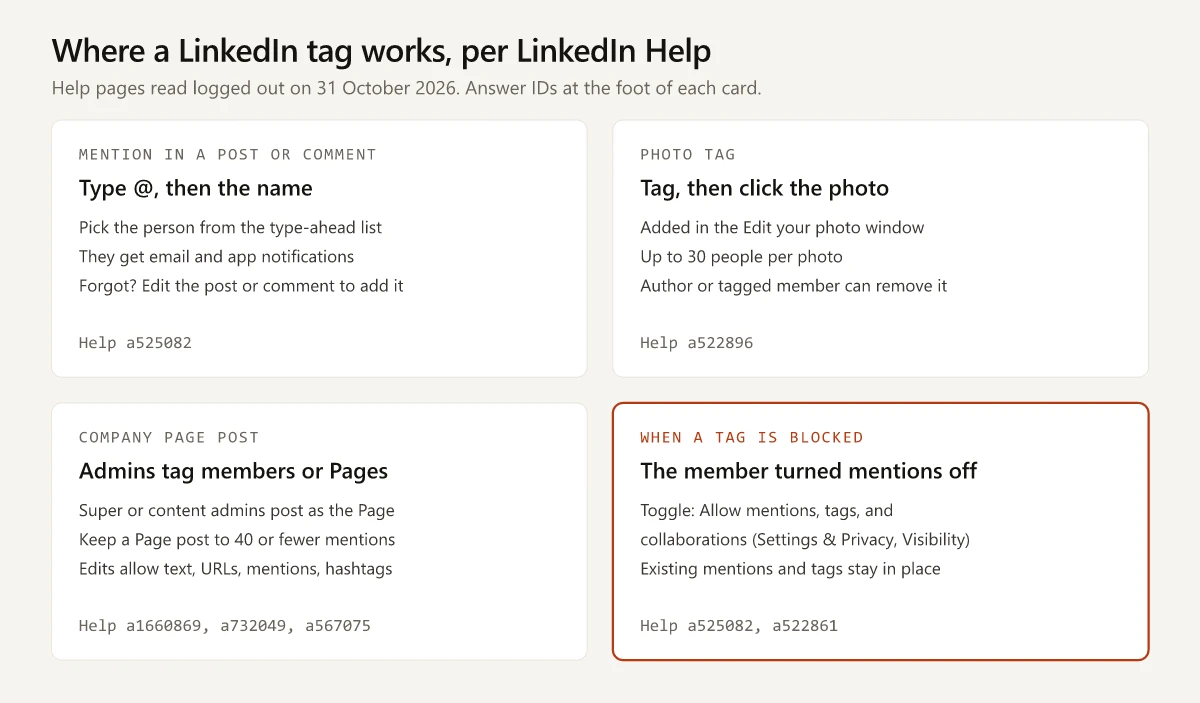
LinkedIn Tag Not Working: Symptom, Cause and Fix
Most rows quote the cause as LinkedIn Help stated it when I read the pages logged out from an Indian connection on 31 October 2026; rows three and five are my paraphrase. The last column is the Help answer ID, so you can open the page and check whether LinkedIn has changed it since.
| What you see | Cause, per LinkedIn Help | What to do | Help answer |
|---|---|---|---|
| A notice that the member can’t be mentioned | ”Some members might have their setting turned off for mentions” | Help offers no way around it from your side. Write the name as plain text, or message the person | a525082, a522861 |
| A person you are not connected with will not tag | ”we may limit your ability to mention members you’re not connected with” | Help gives no workaround for this limit. Write the name as plain text, or message the person | a525082 |
| The list shows the wrong person with the same name | Common names need more to match on | Type the company too, as in ‘Jane Doe LinkedIn’ | a525082 |
| You posted and forgot the tag | Mentions can be added later: “You can edit your posts and comments to add a mention” | More icon, Edit post, add the @mention, Save. The post then shows Edited | a525082, a522811 |
| You want to tag a face in a photo you already posted | Help describes photo tags only in the upload flow, and “Only the text in a post can be edited” | Add a text @mention by editing, or delete the post and create a new one with the tags | a522896, a522811 |
| One photo needs more people than it allows | ”You can tag up to 30 people per photo” | Split the group across more than one photo in the same post | a522896 |
| A Company Page post errors when you publish | ”Make sure your post has 40 or fewer mentions” | Cut mentions to 40 or fewer | a732049 |
| Your own Company Page will not come up after @ | “check your Page name to ensure that there isn’t an extra space in it” | Fix the Page name, then try the mention again | a732049 |
| A tag you made now shows as plain text | The member removed it: “Your name stays in plain text, but the link to your profile is removed” | Leave it. Help does not say whether you are told when a mention is removed; for photo tags it says “The member who tagged you won’t be notified” | a524346 |
Two rows rest on wording LinkedIn hedges. “May limit” in row two means LinkedIn does not promise a non-connection mention will fail or work, and the Help page publishes no rule for when the limit applies. Row five is my reading of two pages together: the photo page’s steps run through the Edit your photo window at upload, and the only after-posting actions it lists are removals: “As an author, you can remove tags after you post”, and a tagged member can remove their own tag.
To check whether someone counts as a connection for row two, look at the degree beside their name: 1st means you are connected, and what 2nd, 3rd and out of network mean on LinkedIn covers everyone else.
How to Tag a Company on LinkedIn
LinkedIn’s mentions page for member posts talks only about people, so the company case comes from other Help pages. Each one documents Page mentions in a different place:
| Where you are writing | What LinkedIn Help says | Help answer |
|---|---|---|
| Repost with your thoughts | You can ‘use ”@” to mention people, companies, or schools’ in your commentary | a525047 |
| A LinkedIn article | ”You can type ’@’ to mention another member or a LinkedIn Page in your article”, and “The mentioned member/page will be notified of the mention” | a522427 |
| A post made as your Page (super or content admin) | “You can tag members or other Pages in your post” | a1660869 |
| Editing a Page post | ”edits can only be made to text, URLs, mentions, and hashtags in your page post” | a567075 |
The keystroke is the same as for a person: @, then the Page’s name, then the Page in the list. For an ordinary member post, no Help page I read gives the steps, though the Page posts FAQ refers to “member posts that mention your organization”. I would use the same @ flow and confirm the Page shows as a link before posting. If it is your own Page that will not appear, the a732049 extra-space check applies.
How to Tag Someone in a LinkedIn Comment
The comment path is step 1 of the mentions page: click Comment at the bottom of someone else’s post, type @ and the name, and pick from the list. LinkedIn Help says mentioned members “get notified about the post or comment.”
To add a mention to a comment you already left, LinkedIn’s edit-comments page gives four steps:
- Locate the comment.
- Click the More icon to the right of the comment.
- Click the Edit icon and make the changes.
- Click Save Changes. The comment then shows “(edited)”.
Tagging people only to push a post into more feeds runs into the same LinkedIn Spam page lines that I quote against comment-for-reach in my breakdown of CFBR on LinkedIn, including its rule on content designed to inflate engagement.
How to Tag Someone on LinkedIn After Posting
A text mention can be added to a live post. The Edit a shared post page gives the path:
| Step | Desktop | Mobile app |
|---|---|---|
| 1 | Locate the post | Locate the post |
| 2 | Click the More icon in the upper-right corner | Tap the More icon in the upper-right corner |
| 3 | Click Edit post and type @ plus the name | Tap Edit post and type @ plus the name |
| 4 | Click Save | Tap Save |
What changes after an edit, per that page and the mentions page:
- “The word Edited will appear next to your post to indicate that edits have been made.”
- Photos, articles, documents and videos in the post “can’t be replaced”, and to change them “you must delete your post and create a new one.”
- The mentions page says a person is notified after “you select someone from the list and finish your post”. It does not say whether a mention added by editing sends the same notification, so if the person needs to know, message them as well.
For a post made as a Company Page, the Page posts FAQ allows edits to “text, URLs, mentions, and hashtags”, so a Page admin adds a missed mention the same way.
How to Tag Someone in a LinkedIn Photo
The photo tag page reads “Last updated: 4 years ago”, so check its labels against your screen. Its desktop steps:
- At the top of your homepage, click Photo in the share box and select the images.
- Click Tag in the Edit your photo pop-up window, then click anywhere on the photo.
- Type the member’s name and click it to add the tag.
- Repeat for more people, up to 30 people per photo. For several photos, scroll to each image in the same window.
- Click Done, add your text, choose who sees the post, and click Post.
On mobile, tap the Tag icon on the image, tap the photo, type the name and tap it. Like mentions, photo tags do not need a connection: “LinkedIn members don’t need to be your connection for you to tag them.” The tagged person gets “a notification and an email letting them know they were tagged, unless they turned off this notification setting.”
Two people can take a tag off later: the author (“you can remove tags after you post”) and the tagged member (“you can remove tags of yourself on a post”). The upload step also checks image size and ratio; those limits are in my sourced LinkedIn image and video specs.
How to Stop People Tagging You on LinkedIn
One switch covers mentions, photo tags and post collaborations. The steps on the mentions, tags and collaborations settings page (last updated “1 month ago”):
| Step | Desktop | Mobile app |
|---|---|---|
| 1 | Click the Me icon at the top of your homepage | Tap your profile photo |
| 2 | Select Settings & Privacy | Tap Settings & Privacy |
| 3 | Click Visibility on the left pane | Tap Visibility |
| 4 | Under Visibility of your LinkedIn activity, click Mentions, tags, and collaborations | Same section, tap Mentions, tags, and collaborations |
| 5 | Turn the Allow mentions, tags, and collaborations toggle Off | Same toggle |
With the toggle off, LinkedIn says “members can’t collaborate with you on posts or mention or tag you in new posts, comments, or photos. Existing mentions and tags aren’t affected.” The settings page names the collaboration feature and does not describe it further.
For the tags already out there, the remove-a-mention page gives two routes:
- A mention in a post or comment: More icon, Remove mention, then Remove in the confirmation window.
- A photo tag: the Tag icon on the photo, the trash icon next to your name in the Tagged window, then Remove.
The same Visibility menu holds the profile-viewing setting, a separate control from mentions; how that one works is in my LinkedIn private mode breakdown.
How to Tag Someone on LinkedIn When the First Try Fails
Read the symptom first: a “can’t be mentioned” notice is the other person’s setting and nothing you type changes it, while a forgotten tag on a text post is one edit away and a forgotten photo tag has no documented after-posting route. A missing name for someone outside your network may be LinkedIn’s “may limit” rule, which Help gives no fix for; if the name is common, try the company after it.
If you tagged people hoping the post would travel, compare its numbers with impression benchmarks for your follower band. LinkedIn renames these menus, so when a step stops matching your screen, reopen its answer ID in the troubleshooter table.
Frequently Asked Questions
How do I tag someone in a LinkedIn post?
Click Start a post on your LinkedIn homepage, type @ and begin typing the person's name, click their name in the list LinkedIn suggests, then click Post. LinkedIn Help says the person gets email and app notifications of the mention.
How do I tag a company on LinkedIn?
Type @ followed by the company Page's name and pick the Page from the list. LinkedIn Help documents Page mentions in reposts with your thoughts, in articles and in posts made as a Page, and says a mentioned Page is notified when you mention it in an article.
Can I tag someone after posting on LinkedIn?
Yes, as a text mention. LinkedIn Help says you can edit your posts and comments to add a mention: open the More menu on the post, choose Edit post, type @ and the name, and save. Help's photo-tag steps run only through the upload flow, and it says only the text of a member post can be edited.
Why can't I tag someone on LinkedIn?
LinkedIn's mentions page gives two reasons: the member may have turned off mentions and tags in their settings, in which case LinkedIn tells you they can't be mentioned, and LinkedIn may limit your ability to mention members you are not connected with. For a common name, add the person's company after their name. For a Page post, Help adds a cap of 40 mentions.
How do I stop people tagging me on LinkedIn?
Go to Me, Settings & Privacy, Visibility, then Mentions, tags, and collaborations under Visibility of your LinkedIn activity, and turn the Allow mentions, tags, and collaborations toggle off. LinkedIn Help says existing mentions and tags are not affected, so remove those one by one.