LinkedIn Easy Apply: What It Is and the Limits LinkedIn Sets
LinkedIn Easy Apply by LinkedIn's own rules: what it sends, when to use the company site instead, a daily limit with no published number, and why you can't undo it.
LinkedIn Easy Apply lets you finish a job application without leaving LinkedIn, and one exception matters more than the time it saves. LinkedIn’s Apply for jobs on LinkedIn page says: “You cannot edit or withdraw an application once submitted through LinkedIn.” A wrong screening answer or the wrong resume stays as you sent it, and the fix LinkedIn offers is to “contact the job poster via InMail.”
That rule sits beside two more on LinkedIn’s Help pages: a daily limit and a speed limit. LinkedIn’s Easy Apply limits page gives the daily limit no number, while auto-apply tool vendors print daily figures such as 50, 60 and 100. I would plan an Easy Apply search around what LinkedIn’s own Help pages state, and read every published daily number as a vendor’s estimate.
What Is Easy Apply on LinkedIn?
Easy Apply is a job-post button that lets you submit an application “without leaving LinkedIn.com” (a512353); “Depending on the employer’s settings”, a job shows either Easy Apply or an Apply button that routes you “to that company’s website or job board” (a512388).
| Easy Apply | Apply (company site) | |
|---|---|---|
| Where you finish | Popup screens on LinkedIn, then Review and Submit (a512388) | The company’s website or job board (a512388) |
| What LinkedIn adds | Your primary email and “your full LinkedIn profile” (a507694) | Whatever the company’s own form asks for |
| Edit or withdraw later | No; contact the poster via InMail (a512388) | LinkedIn’s rule covers applications “submitted through LinkedIn” |
| Daily and speed limits | Yes (a8068422) | The limits apply to “Easy Apply submissions” |
| Updates when the poster looks | View and resume-download updates for Easy Apply jobs hosted on LinkedIn (a508716) | Responsiveness data “is unavailable” when the process runs outside LinkedIn (a1661038) |
To see only Easy Apply jobs in search results, LinkedIn’s job search filters page lists an Easy Apply filter: “You can filter for jobs where you can apply directly on LinkedIn.”
How to Use LinkedIn Easy Apply, Step by Step
Two conditions come first on a512388: “You must be signed in to your LinkedIn account”, and you need “a desktop browser or the LinkedIn mobile app”. The desktop steps, combining LinkedIn’s job search page with a512388, as of November 2026:
- Click the Jobs icon at the top of your LinkedIn homepage and describe the job you want in the search bar.
- Turn on the Easy Apply filter on the results page.
- Click the job title to view details.
- Click the Easy Apply button at the top.
- Enter the required information in the popup screens.
- Click Review to review the application.
- Click Submit application. On iOS and Android, the last button is Submit.
Step 6 is your last chance to change anything, because of the no-edit rule above. The resume step reuses files saved in your job application settings; where to upload them, and who can see each copy, is in my guide to adding a resume to LinkedIn.
Some Premium members also see a Mark job as a top choice checkbox during the application. LinkedIn’s Top Choice page says it is “available only to a select group of LinkedIn Premium subscribers”, that “a limited number of Easy Apply jobs are eligible”, and that a subscriber can mark up to three jobs a month. Whether Premium earns its price is covered in my guide to LinkedIn Premium cost in India and when it is worth paying.
What Gets Sent With an Easy Apply Application
An Easy Apply carries more than the form you filled in. From a507694 (updated two months before I read it) and a512353:
| What goes to the employer | LinkedIn’s words | Source |
|---|---|---|
| What you enter | ”resumes, cover letters, answers to screening questions, or contact information” | a507694 |
| Your account email | ”the primary email address associated with your LinkedIn account” | a507694 |
| Your profile | ”your full LinkedIn profile” | a507694 |
| Profile skills | ”Relevant skills from your profile may be included with your application” | a512353 |
| Agency postings | ”your application may be shared with other clients of that agency if your profile matches other roles” | a512353 |
| Saved answers | LinkedIn will “pre-fill answers to screening questions that you have previously answered”; saved answers “are not automatically shared with employers” and “you are able to edit before you submit your application” | a507694 |
| US demographic questions | The hiring company may ask for voluntary self-identification information; if you let LinkedIn save it, it “won’t be shown on your profile” | a507694 |
Two rows change how I would apply. The full-profile line means your headline and About section travel with every Easy Apply, so update them before a run of applications. The agency line means that when a recruiting agency posts the job, your application can reach the agency’s other clients; if you only want that one role, contact the agency directly instead.
Easy Apply vs Apply on Company Website: Pick by Goal
The employer decides which button a job shows (a512388), so you only get a choice when the same role is also open on the company’s careers site. When you do have the choice:
| Your goal | My pick | The LinkedIn rule behind it |
|---|---|---|
| Apply to many similar roles this week | Easy Apply, spread across days | The daily limit resets “at the end of the day (UTC)” and rapid submissions trigger “a temporary pause” (a8068422) |
| Know whether the hirer opened it | Easy Apply on a LinkedIn-hosted job | You get updates when the poster views your application or downloads your resume (a508716) |
| Keep the option to correct it later | The company site, if its own system allows edits | Easy Apply rules it out: “You cannot edit or withdraw an application” (a512388) |
| Apply to one role posted by an agency | The agency’s own contact route | Easy Apply may share it “with other clients of that agency” (a512353) |
| Stand out for the role you want most | Easy Apply, tailored, with Top Choice if your Premium plan shows it | LinkedIn’s limits page advises: “Tailor your resume and LinkedIn profile” (a8068422); Top Choice is for “a select group of LinkedIn Premium subscribers” (a1462229) |
| The job only shows Apply | The company’s site | Apply routes you “to that company’s website or job board” (a512388) |
If you hit the daily limit while a job you want is still open, click Save on the job details page (a511260) and apply after the reset. Saved jobs also come out as their own file in LinkedIn’s data export, and my guide to LinkedIn saved posts lists the fields that file holds.
LinkedIn Easy Apply Limits, by LinkedIn’s Own Rules
LinkedIn says it “has introduced daily and speed limits on Easy Apply submissions” (a512353), and its limits page (a8068422, “Last updated: 1 year ago” when I read it on 4 November 2026) describes three:
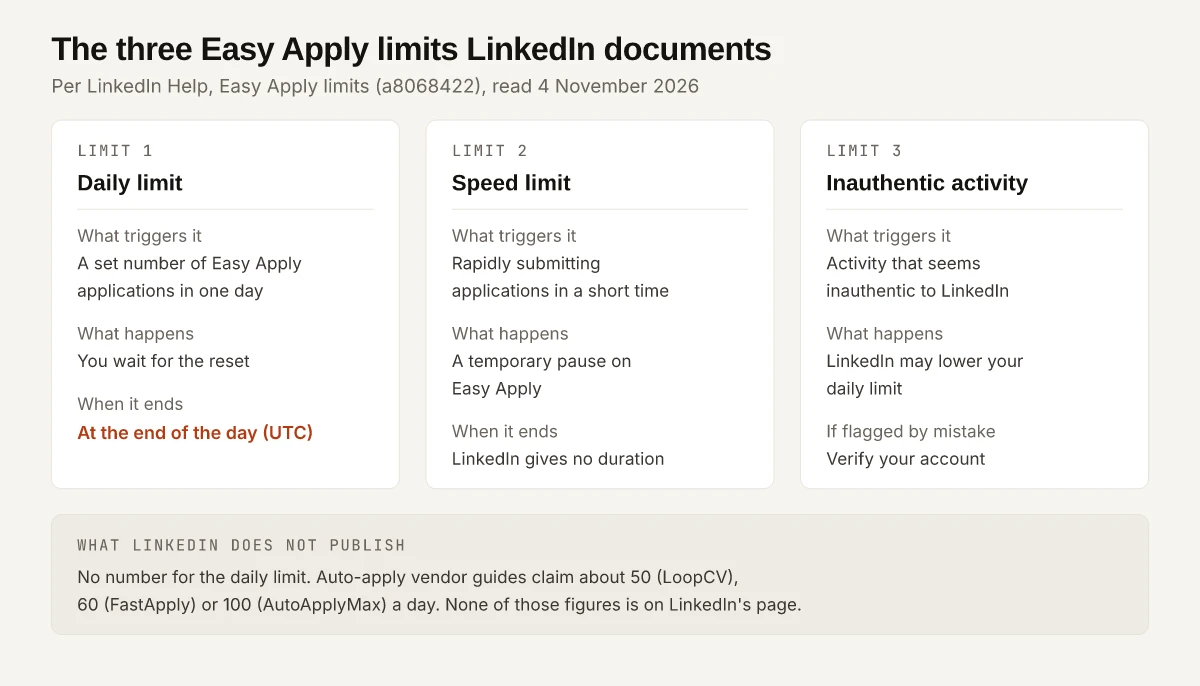
- Daily limit. “You can submit a set number of Easy Apply applications each day. If you reach this limit, you’ll need to wait until it resets at the end of the day (UTC).” LinkedIn adds that “Most members rarely exceed this limit.” By my arithmetic, the end of the UTC day is 5:30 am the next morning in India, and 7 pm in New York while Eastern Standard Time applies.
- Speed limit. “Rapidly submitting applications in a short time triggers a temporary pause on Easy Apply.” The page gives no length for the pause.
- Lowered limit. LinkedIn “may lower a member’s daily Easy Apply limit if we notice activity that seems inauthentic.” Its fix: “If you think your account was flagged by mistake, you can verify your account to increase your Easy Apply limit.” In India, one verification route is DigiLocker, and my DigiLocker verification guide covers its steps and the checks that make it fail.
The limits page does not mention Premium at all, so I would not buy Premium to raise the cap. Auto-apply bots and extensions are the activity these rules are written against: LinkedIn says the limits exist partly to “ensure fairness by curbing automation and bots” (a8068422), which is also why this guide gives no workaround.
LinkedIn’s Rules vs What Auto-Apply Guides Claim
Search results for the limit question include guides from tools that sell automated applying. Here is what three of them say, set against LinkedIn’s page, all read on 4 November 2026:
| Question | LinkedIn Help says | Third-party guides claim | What I would do |
|---|---|---|---|
| How many per day? | “a set number”, with no figure (a8068422) | “approximately 50 applications per 24-hour period” (LoopCV); “60 is the sustainable ceiling for most accounts” (FastApply); “around 100 applications per day” (AutoApplyMax) | Treat any number as one vendor’s estimate |
| When does it reset? | “at the end of the day (UTC)“ | LoopCV: “on a rolling 24-hour basis”; FastApply repeats LinkedIn’s UTC wording | Plan around the UTC day |
| Is there a speed limit? | “a temporary pause”, no length given | FastApply reports “~30 applications per day before the first cooldown screen”, labelled “not official” | Space applications out |
| Can the limit drop? | Yes, for “activity that seems inauthentic” | FastApply: “verifying your account can raise it again” | Verify if you think you were flagged by mistake |
| Does Premium raise it? | Not mentioned on the page | LoopCV: “LinkedIn Premium does not raise it”; FastApply lists a “premium subscription” among signals that “can sometimes push to 60-70” | Do not pay for Premium on this basis |
| Can you withdraw? | No (a512388) | None of the three guides mentions withdrawing | Review before you submit |
LoopCV itself says “LinkedIn has not published the exact number officially”, and FastApply says LinkedIn “doesn’t publish the number”. Both say no official number exists and then print one anyway.
Can You Edit or Withdraw an Easy Apply Application?
No: LinkedIn says “You cannot edit or withdraw an application once submitted through LinkedIn. To make changes, contact the job poster via InMail” (a512388). LinkedIn’s InMail page adds that “If you have a Basic (free) account, you must upgrade to a Premium account to use InMail message”, unless the member has Open Profile turned on; my guide to 3rd-degree connections sets out which messaging route reaches which member.
Since the Review screen is the last point of control, check these before you click Submit:
- The job title and company on the review screen match the job you meant to apply for.
- Every pre-filled screening answer is still true for this role, since saved answers carry over from earlier applications (a507694).
- The resume selected is the version written for this job.
- The poster is the employer, not a recruiting agency, if you do not want to be matched to other roles.
Easy Apply Not Working? Causes LinkedIn Documents
These are the causes LinkedIn’s own pages name, as of November 2026:
| What you see | Cause LinkedIn documents | What to do | Source |
|---|---|---|---|
| No way to apply | You are signed out: “You must be signed in” | Sign in | a512388 |
| Easy Apply fails on your device | Easy Apply needs “a desktop browser or the LinkedIn mobile app” | Switch to one of those | a512388 |
| The button reads Apply | The employer routes applications to its own site | Finish on the company’s website or job board | a512388 |
| You cannot submit more today | The daily limit | Wait until “it resets at the end of the day (UTC)“ | a8068422 |
| Easy Apply pauses after a burst | The speed limit’s “temporary pause” | Slow down and tailor the next application | a8068422 |
| Your limit seems lower than before | A lowered limit for activity that “seems inauthentic” | Verify your account if you think it was a mistake | a8068422 |
Is LinkedIn Easy Apply Worth It?
It is worth it for jobs you have read and match, and LinkedIn’s own limits page argues against volume: “the quality of your application often matters more than the number you send” (a8068422). I would not use it as a way to send more applications. LinkedIn gives job seekers these signals for deciding which jobs deserve one:
| Signal | What LinkedIn says | Source |
|---|---|---|
| Job Match | ”Every job seeker can access a match summary that highlights required and preferred qualifications” | a8068422 |
| Hirer responsiveness | Labels such as “Actively reviewing candidates” (a review of one or more applications in the past two weeks) and “Review time is typically 1 week”; “these insights do not appear on all jobs” | a1661038 |
| Application updates | A view or resume download “doesn’t guarantee that you’ll receive a message, interview, or job offer” | a508716 |
LinkedIn also uses your job preferences to suggest roles, and a511260 says you update them under Jobs, Preferences, Open to work. Who can see those preferences, including people at your current company, is the subject of my Open to Work visibility guide.
LinkedIn Help Pages Behind This Guide
Every LinkedIn rule and quote above comes from these pages, read logged out on 4 November 2026. I describe no signed-in screen, so check button labels against your own account. Each page’s own “Last updated” note that day:
| LinkedIn Help page | Last updated |
|---|---|
| Apply for jobs on LinkedIn (a512388) | 1 year ago |
| Apply to jobs directly on LinkedIn (a512353) | 1 year ago |
| Easy Apply limits (a8068422) | 1 year ago |
| How LinkedIn uses your job application information (a507694) | 2 months ago |
| What to expect after you apply for a job (a508716) | 4 years ago |
| Top Choice job on LinkedIn (a1462229) | 5 days ago |
| Hirer responsiveness insights on jobs (a1661038) | 3 weeks ago |
| Filter and sort job search results (a507441) | 7 months ago |
| Search for jobs on LinkedIn (a511260) | 7 months ago |
| Send an InMail message (a546814) | 7 months ago |
Plan LinkedIn Easy Apply Around the Rules LinkedIn Publishes
Easy Apply saves time on jobs you have already read, and LinkedIn’s limits and its no-withdraw rule both reward fewer, checked applications. Plan around the cap LinkedIn describes, which resets at the end of the UTC day and has no published number, rather than a vendor’s 50 or 100. Before each Submit, read the Review screen.
Frequently Asked Questions
What is Easy Apply on LinkedIn?
Easy Apply is a button on some LinkedIn job posts that lets you submit an application without leaving LinkedIn.com. Whether a job shows Easy Apply or Apply depends on the employer's settings, and Apply sends you to the company's website or job board.
How many Easy Apply applications can you send per day?
LinkedIn does not publish a number. Its Easy Apply limits page says you can submit a set number each day, that the limit resets at the end of the day (UTC), and that most members rarely exceed it. Figures of 50 to 100 a day come from auto-apply tool vendors, not from LinkedIn.
Can you withdraw an Easy Apply application on LinkedIn?
No. LinkedIn Help says you cannot edit or withdraw an application once submitted through LinkedIn, and that to make changes you should contact the job poster via InMail. Sending InMail needs a Premium account unless the poster has Open Profile turned on.
Does LinkedIn Premium increase the Easy Apply limit?
LinkedIn's Easy Apply limits page does not mention Premium, as of November 2026. The one way it gives to increase the limit is to verify your account, if you think your account was flagged for inauthentic activity by mistake.
Why is Easy Apply not working on LinkedIn?
The causes LinkedIn documents are being signed out, applying from somewhere other than a desktop browser or the LinkedIn app, reaching the daily limit, triggering the speed limit by applying too fast, or having your limit lowered for activity that seems inauthentic. A job showing Apply instead of Easy Apply is handled on the company's site.