Claude Code Paste Image: Windows, VS Code and SSH Fixes
Claude Code paste image methods differ by surface: Alt+V on Windows and WSL, a normal paste in the VS Code chat panel, and scp plus a file path over SSH.
Ctrl+V or Cmd+V (iTerm2) or Alt+V (Windows and WSL): that is the Claude Code paste image shortcut, word for word from the image paste row in Anthropic’s interactive mode reference. The same row says a paste that works “Inserts an [Image #N] chip at the cursor so you can reference it positionally in your prompt”, and adds: “On WSL, both Ctrl+V and Alt+V are bound; use Alt+V if your terminal intercepts Ctrl+V.” I read it on 2 October 2026, when the newest release in Anthropic’s changelog was v2.1.287; my own CLI reports v2.1.283.
Those keys belong to the platform, but a press counts only if it reaches Claude Code, and that depends on the window with focus. Windows Terminal keeps Ctrl+V for its own paste. VS Code’s integrated terminal hands Alt keys to the shell while terminal.integrated.allowMnemonics stays off. The VS Code extension’s chat panel takes an ordinary paste with no special key, and the CLI over SSH cannot read an image from your local clipboard. When a paste does nothing, check the window before you try another key.
This site is built with the Claude Code extension in VS Code on Windows 11, with Git Bash and PowerShell as the shells Claude runs commands through, so Windows and VS Code get the most room below. Every product fact in the tables comes from the vendors’ own documentation or Anthropic’s changelog, checked in October 2026; where the docs are silent, the table says so.
Claude Code Paste Image Shortcuts by Surface
Press Ctrl+V in a macOS or Linux terminal (iTerm2 also takes Cmd+V) and Alt+V on native Windows; WSL binds both keys. In the VS Code extension’s chat panel, paste into the prompt box normally. If the clipboard route fails, give Claude the file’s path, and for a session on another machine, copy the file there with scp first.
| Surface | Paste from the clipboard | Drag or attach a file | Point to a saved file |
|---|---|---|---|
| Terminal on macOS | Ctrl+V; iTerm2 also takes Cmd+V, as does the CLI in VS Code since v1.0.61 | Drag the image onto the window | Type its path in the prompt |
| Terminal on Linux | Ctrl+V | Drag the image onto the window | Type its path |
| Native Windows: PowerShell, CMD or Git Bash | Alt+V | Drag the image onto the window | Type its Windows path |
| CLI in VS Code’s integrated terminal, on Windows | Alt+V; Ctrl+V is VS Code’s own text paste | Drag the image onto the terminal | Type its path |
| WSL | Alt+V or Ctrl+V; Alt+V wherever the terminal keeps Ctrl+V | From Windows Explorer, since v2.1.157 | Type its Linux path |
| VS Code extension chat panel | Paste into the prompt box | Hold Shift while dragging | @-mention the file |
| Claude Desktop, Code tab | Not covered on Anthropic’s Desktop page; the v2.1.275 changelog entry mentions pasted images in Desktop | Drag into the prompt, or use the attachment button; the + button that holds it is not available in WSL or cloud sessions | @-mention it in local and SSH sessions |
| CLI over SSH | Not your local clipboard | Not documented | Copy it over with scp, then type the remote path |
| Remote Control, from claude.ai/code or the Claude app | Not documented | Attach a photo or file to your message | Type the path of a file on the machine running the session |
Sources: Anthropic’s Work with images steps for the drag and path columns, the Desktop guide for its row, and the sections below for the rest. Version numbers come from Anthropic’s changelog, dated in the version table further down.
To get a screenshot onto the clipboard in the first place:
- Windows 11:
Windows logo key + Shift + Sopens the Snipping Tool overlay,Ctrl+Cin Snipping Tool copies the snip, andPrint Screenplaces the whole screen in your clipboard (Microsoft’s Snipping Tool guide). - macOS: Apple’s screenshot guide says to “press Control in addition to the other keys you press to take the screenshot”, so
Control-Shift-Command-4copies a selection.
Claude Code Image Paste Not Working? Check These in Order
The CLI on another machine and the extension’s prompt box are the two cases where your platform’s key is the wrong move, so they come first.
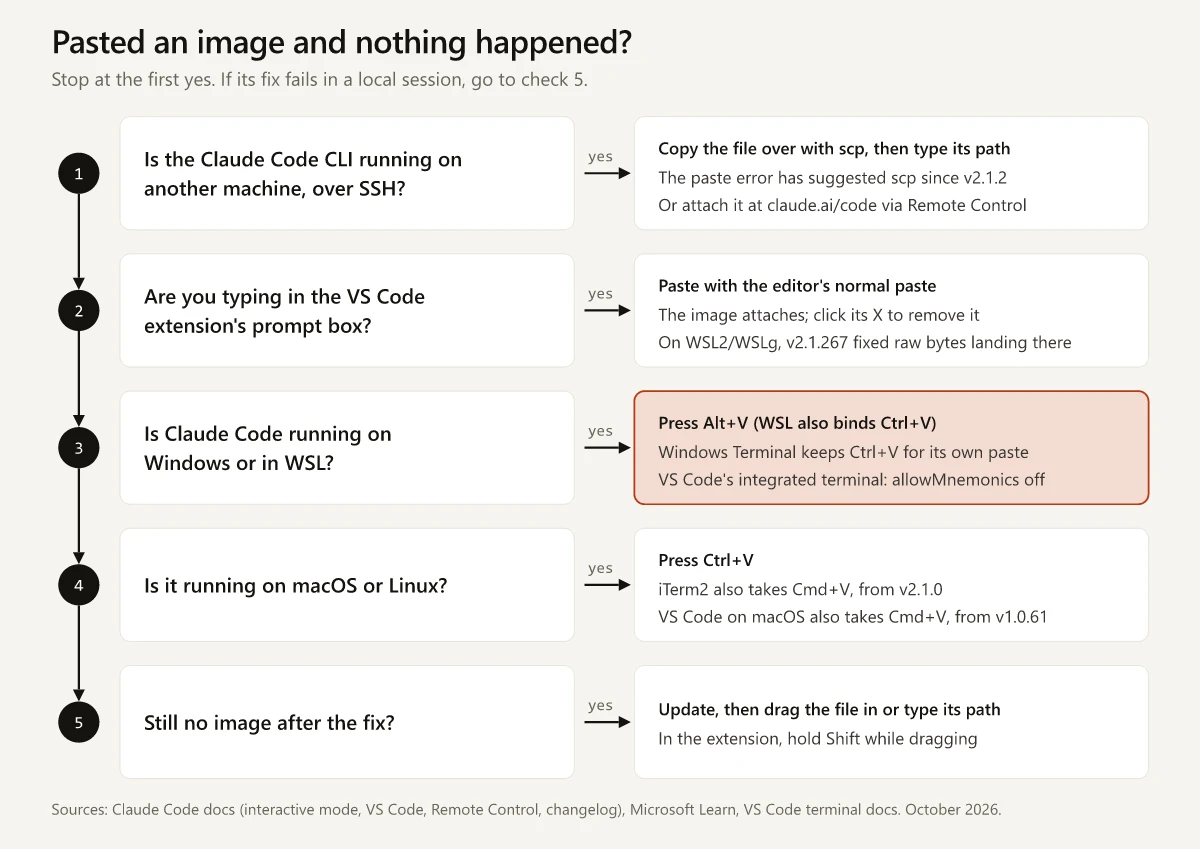
What you see after the paste narrows it down further. Each row below matches an entry in Claude Code’s CHANGELOG.md:
| What you see | What changed | What to do |
|---|---|---|
An error that suggests scp | v2.1.2 made the paste error over SSH suggest scp in place of the clipboard shortcut hint | Copy the file to the server and type its path |
”no image found” after Alt+V on Windows, with a screenshot copied | v2.1.141 fixed this error | Update Claude Code |
”No image found in clipboard” after Ctrl+V, with text copied | v2.1.181 made Ctrl+V paste the text instead | Update Claude Code |
| Nothing, after you copied the image file in Explorer or Finder rather than the picture | v0.2.75 added pasting copied image files, without naming a platform | Drag the file in or type its path |
| Nothing on Linux, with an image copied | v2.0.52 made image paste fall back to wl-paste when xclip is unavailable | Check that xclip or wl-paste is installed, or type the path |
To check which image a chip refers to, Ctrl+Click an [Image #N] reference in Claude’s reply (Cmd+Click on a Mac); the tips in Anthropic’s Work with images steps say this opens the image in your default viewer.
Claude Code Paste Image in VS Code: Chat Panel vs Terminal
VS Code gives you two places to paste an image, and they follow different rules: the extension’s chat panel has its own prompt box, while the CLI runs as a program inside the integrated terminal. Everything else that differs between the two is in my comparison of Claude Code in VS Code and the terminal.
The Extension’s Prompt Box
From the file and image section of Anthropic’s VS Code guide, plus one changelog entry:
| To do this | Do this | What the docs say |
|---|---|---|
| Attach a screenshot | Copy it, then paste into the prompt box | ”To attach an image, paste it from your clipboard into the prompt box.” |
| Attach a saved file | Hold Shift while dragging it into the prompt box | The guide says this attaches files; it does not say a dragged image becomes an image attachment |
| Point at a file in the workspace | Type @ and the file name | ”Claude reads that content and can answer questions about it” |
| Remove an attachment | Click the X on it | ”To remove an attachment from context, click the X on it.” |
| Send an image with no text | Paste it and send | Added for VS Code in v2.1.275 |
On WSL2/WSLg, update to v2.1.267 or later before you troubleshoot anything else: that release fixed a pasted screenshot “inserting raw image bytes into the chat input”, and the same entry says “the image is now attached when the clipboard provides it, otherwise the paste is ignored”. If a paste in the prompt box still does nothing on WSL, give Claude the saved screenshot’s file path instead.
The CLI in VS Code’s Integrated Terminal
Run claude in the integrated terminal and the CLI keys apply; Microsoft’s documentation adds these Windows details:
| Key | What VS Code does with it on Windows | Source |
|---|---|---|
Ctrl+V | Pastes text into the terminal; Microsoft lists Ctrl+C and Ctrl+V as the Windows copy and paste keys | VS Code terminal basics |
Alt+V | Goes to the shell, and so to Claude Code, while menu mnemonics stay off, which is the default | VS Code terminal advanced |
If Alt+V does nothing in the integrated terminal, open Settings with Ctrl+, and search for terminal.integrated.allowMnemonics. Microsoft says turning it on “will disallow any Alt key events to go to the shell”, so untick it. The same page notes the setting “does nothing on macOS”.
Claude Code on Windows 11 and WSL: Alt+V and the Ctrl+V Conflict
Native Windows: PowerShell, CMD and Git Bash
Anthropic’s keybindings reference names the action behind the shortcut chat:imagePaste, with the default “Ctrl+V (Alt+V on Windows and WSL)”. The defaults are listed by platform, and no row names a shell, so on native Windows the documented key is Alt+V whether you start claude from PowerShell, CMD or Git Bash. In Anthropic’s PowerShell tool notes, Git Bash matters as the shell behind the Bash tool, a choice about how Claude runs commands rather than which keys you press; my guide to Claude Code on WSL vs native Windows covers that choice and lists a Ctrl+V screenshot paste among its Windows errors.
Windows Terminal, which Microsoft describes as “a modern host application” for Command Prompt, PowerShell and bash under WSL (Windows Terminal overview), binds Ctrl+V, Ctrl+Shift+V and Shift+Insert to its own paste by default. Alt+V is not among the default bindings on Microsoft’s Windows Terminal actions page.
If another program on your machine claims Alt+V, add a second key for the action in ~/.claude/keybindings.json; run /keybindings to create or open the file, and the reference says changes apply without a restart. The alt+i below is only an example, so pick a key your terminal passes through:
{
  "bindings": [
    {
      "context": "Chat",
      "bindings": {
        "alt+i": "chat:imagePaste"
      }
    }
  ]
}
The rest of Claude Code’s default shortcuts are in my Claude Code commands cheat sheet.
WSL: Both Keys Are Bound
In WSL, Claude Code binds both Ctrl+V and Alt+V, and Windows Terminal is a terminal of the kind the WSL note warns about. Microsoft’s actions page says a Linux program’s Ctrl+V binding in WSL “will be blocked, with the Windows Terminal paste command taking priority”, so Alt+V is the key to press there. To hand Ctrl+V back to programs running in WSL, the same page documents { "id": null, "keys": ["ctrl+v"] } in Windows Terminal’s settings.json, which leaves Ctrl+Shift+V as the text paste.
Four of the 2026 rows in the version table below are WSL image paste fixes. Keep those dates in mind if a search turns up a third-party extension, Claude Code Image Paste (WSL), which describes itself as a way to “Paste images from clipboard into VS Code/Cursor terminal for Claude Code conversations”. Its newest version on Open VSX, 1.1.6, is dated 3 January 2026, before every WSL fix in that table. On a current Claude Code build, try Alt+V before you install a workaround.
Pasting an Image Into Claude Code Over SSH and Remote Sessions
Anthropic’s troubleshooting page puts the SSH limit in one sentence: “When Claude Code runs on a remote machine over SSH, it can’t run a clipboard tool on your local machine.” That section is about copying text out of Claude Code. For pasting an image in, the changelog entry for v2.1.2 is the matching one: pasting over SSH shows an error that suggests scp.
Ways to get an image to a remote session:
| Route | Steps | What the docs say |
|---|---|---|
| Copy the file, then give its path | Run scp ./pricing.png you@host:~/site/ on your machine, then ask about ~/site/pricing.png in the remote session | Giving Claude the path is method 3 in Anthropic’s Work with images steps (scp manual) |
| Attach it through Remote Control | Run /remote-control in the remote session, open it at claude.ai/code or in the Claude app, and attach the image | ”Claude sees attached photos directly as part of your message”; it needs a claude.ai sign-in (Remote Control) |
| A Claude Desktop SSH session | Add the host from the environment dropdown; Desktop runs Claude Code there with the app as the interface | The attachment button sits behind the + button, which the Desktop guide says “is not available in cloud or WSL sessions” |
| VS Code Remote - SSH | Copy the file into the remote workspace, then @-mention it in the chat panel | Anthropic’s VS Code guide does not cover Remote - SSH windows |
Anthropic’s tmux setup covers Shift+Enter, notifications and the progress bar, and the keybindings reference lists Ctrl+B as the tmux prefix conflict; neither section mentions image paste. A tmux session on a remote host is the SSH case above, so the scp and Remote Control routes apply. For the Remote Control route, the Remote Control page suggests starting the remote session “inside tmux or screen” so it keeps running after you disconnect from SSH, and claude.ai/code can keep sending it images. In a local tmux session where the key does nothing, the file path route does not touch the clipboard at all.
Image Paste Fixes by Version
Anthropic’s changelog page prints a date beside each version. These are the image paste entries behind the advice in this post; the page lists many more image fixes:
| Version | Date | What changed |
|---|---|---|
| 0.2.75 | 21 April 2025 | Image files can be dragged in, or copied and pasted, into the prompt |
| 1.0.61 | 25 July 2025 | CLI in VS Code on macOS: Cmd+V pastes images |
| 1.0.93 | 26 August 2025 | Windows: Alt+V added for pasting images |
| 2.0.52 | 24 November 2025 | Linux on Wayland: image paste falls back to wl-paste when xclip is unavailable |
| 2.1.0 | 7 January 2026 | iTerm2: Cmd+V pastes images, mapped to Ctrl+V |
| 2.1.2 | 9 January 2026 | Pasting over SSH shows an error that suggests scp |
| 2.1.47 | 18 February 2026 | WSL2: paste works when Windows copies images as BMP |
| 2.1.83 | 25 March 2026 | The [Image #N] chip lands at the cursor, and Claude can use a pasted image’s on-disk path for file operations |
| 2.1.97 | 8 April 2026 | Pasted and attached images are compressed to the same token budget as images the Read tool opens |
| 2.1.126 | 1 May 2026 | Images larger than 2000px are downscaled on paste instead of breaking the session |
| 2.1.136 | 8 May 2026 | WSL2: a PowerShell fallback reads the image when xclip or wl-paste cannot |
| 2.1.139 | 11 May 2026 | Pasting or dropping several images inserts every image instead of only the last |
| 2.1.141 | 13 May 2026 | Windows: Alt+V stops reporting “no image found” for a screenshot |
| 2.1.157 | 29 May 2026 | WSL: Alt+V paste and Windows 11 screenshot paste fixed, dragging from Windows Explorer added |
| 2.1.181 | 17 June 2026 | Ctrl+V with text on the clipboard pastes the text instead of reporting no image |
| 2.1.202 | 6 July 2026 | Images and files sent without a caption from the Remote Control mobile or web app are no longer dropped |
| 2.1.267 | 9 September 2026 | VS Code on WSL2/WSLg: a pasted screenshot attaches when the clipboard provides it and is ignored otherwise, instead of inserting raw bytes |
| 2.1.275 | 17 September 2026 | Pasted and attached images are saved where Claude can open them without a permission prompt, Desktop and VS Code included; VS Code can send an image with no text |
Check the version on the surface where you paste: claude --version in a terminal, /status in the chat panel (v2.1.280 or later). The chat panel runs its own bundled copy of the CLI, so it and your terminal CLI can each carry a fix the other lacks.
From v2.1.275, Claude Code saves pasted and attached images as files, in an images/ folder for each session under its temp directory, which CLAUDE_CODE_TMPDIR controls (v2.1.274 and earlier used ~/.claude/image-cache). The retention sweep deletes them after cleanupPeriodDays, 30 days by default (.claude directory reference). Since Claude can use that on-disk path for file operations, you can paste a reference screenshot and ask Claude to copy [Image #1] into the repo, such as into the refs/ folder that the example brief in my guide to building a personal website with Claude Code points to by path.
Screenshots Worth Pasting for Marketing Work
Anthropic’s own examples in its Work with images steps include “Describe the UI elements in this screenshot” and “Generate CSS to match this design mockup”. The same pattern fits the screenshots a marketer already collects:
| What you paste | What to ask | Watch for |
|---|---|---|
| A Search Console Performance chart | ”On which dates do the clicks and impressions lines change direction?” | Keep the date range and metric toggles inside the capture |
| A competitor’s pricing page | ”Turn this into a table: plan, monthly price and every limit each plan sets.” | Capture the pricing table, not the whole page |
| Two competitor homepages | ”Compare the headline and first call to action in [Image #1] and [Image #2].” | Refer to each image by its chip number |
| A search results page | ”List every result type on this page from top to bottom.” | Note when and where you searched |
| A design mockup | ”What HTML structure would recreate this component?” (Anthropic’s example) | Name the file Claude should edit |
A full-page capture is a large image, and Claude Code resizes large images before Claude sees them. The Read tool reference says Claude “may see a downscaled version of a large screenshot” and suggests asking it to “crop the region of interest first”. Pasted images are held to the same limit: since v2.1.97, pasted and attached images are compressed to the same token budget as images the Read tool opens.
A saved file reaches Claude through its path. This site’s repo keeps 2x renders of my LinkedIn banner, such as design/social-banners/primary/li-banner@2x.png at 3168 by 792 pixels, and at that width a prompt should ask for the crop first:
Read design/social-banners/primary/li-banner@2x.png, crop the headline
area with ImageMagick, and tell me whether the headline reads at half size.
Pasting and file paths cover images going into Claude Code; for images coming out, such as a diagram or that banner, my guide to what Claude Code can produce as an image covers six routes.
Check the Window Before the Key
When a Claude Code paste image shortcut does nothing, I would check the window first, the key second and the version third. Windows Terminal and VS Code’s integrated terminal each keep a paste key of their own, and the CLI over SSH cannot read an image from your local clipboard.
Copy one screenshot today and paste it into each surface you use. A terminal shows an [Image #N] chip and the extension’s prompt box shows an attachment; the surface that shows one is your route.
Frequently Asked Questions
How do I paste an image into Claude Code on Windows?
Press Alt+V in the Claude Code CLI on native Windows, the key Anthropic binds for image paste there. Windows Terminal and VS Code's integrated terminal both use Ctrl+V for their own text paste. In the VS Code extension's chat panel, paste into the prompt box with the editor's normal paste instead.
Why is image paste not working in Claude Code?
Check whether the CLI is running on another machine over SSH, whether you are in the VS Code extension's prompt box, and whether you pressed your platform's key: Alt+V on Windows and WSL, Ctrl+V on macOS and Linux. Then update, since Windows screenshot paste was fixed in v2.1.141 and WSL's in v2.1.157. Dragging the file in or typing its path skips the clipboard.
Can you paste an image into Claude Code over SSH?
Not into the CLI from your local clipboard: since v2.1.2, pasting an image over SSH shows an error that suggests scp. Copy the file to the server with scp and type its path, or attach the image at claude.ai/code if the session has Remote Control on.
How do I paste a screenshot into Claude Code in VS Code?
In the extension's chat panel, copy the screenshot and paste it into the prompt box, where it attaches as an image you can remove with its X. In the CLI inside VS Code's integrated terminal, press Alt+V on Windows and WSL, or Ctrl+V on macOS and Linux; on macOS, Cmd+V has also pasted images there since v1.0.61.
Why doesn't Ctrl+V paste an image into Claude Code in WSL?
Claude Code binds both Ctrl+V and Alt+V in WSL, but Windows Terminal's paste command takes priority over a Linux program's Ctrl+V, so press Alt+V there. To give Ctrl+V back to programs in WSL, unbind it in Windows Terminal's settings.json, which leaves Ctrl+Shift+V as the text paste.