How to Update Claude Code (and Fix It Not Updating)
See how to update Claude Code on Windows for each install method, the VS Code extension and the desktop app, and how to roll back or fix an update that won't apply.

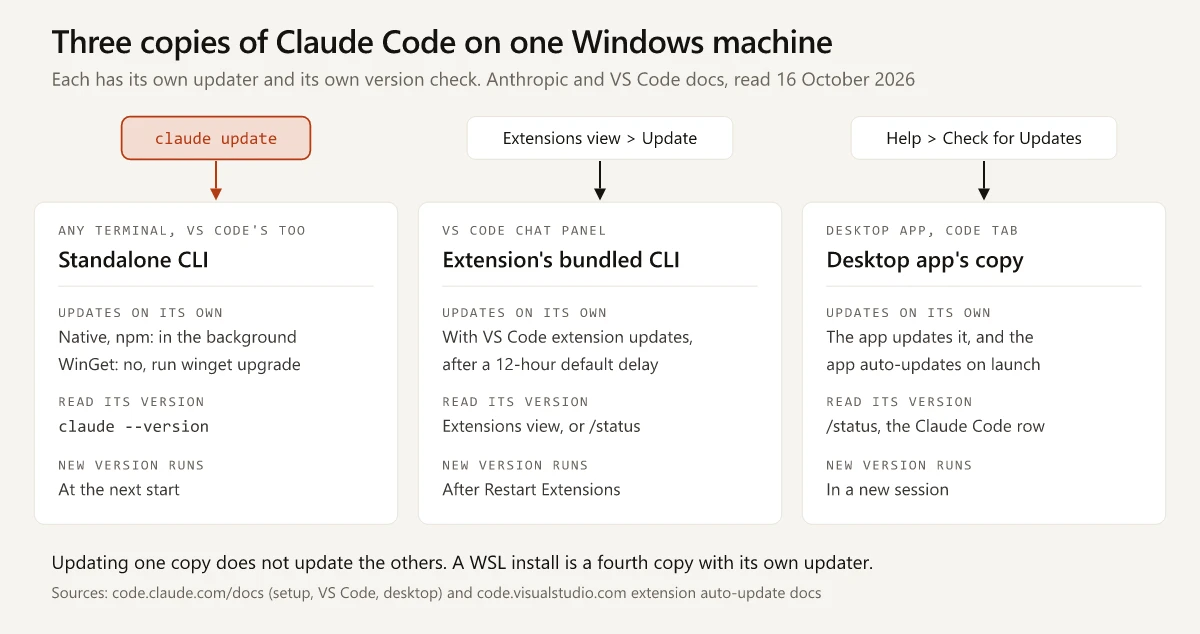
A Windows machine can run at least three separate copies of Claude Code at once: the standalone CLI that answers when you type claude, the copy the VS Code extension bundles for its chat panel, and the copy the Claude desktop app downloads for its Code tab. Each copy updates by its own route, and claude update moves the standalone CLI alone. So how to update Claude Code depends on which copy you mean.
Name the copy before you update it, and read the version back from that same copy once it has restarted. A claude --version typed into VS Code’s terminal reports the standalone CLI while the chat panel beside it runs the extension’s bundled CLI, so a check against the wrong copy makes a finished update look like a failed one.
I build this site with the Claude Code extension in VS Code on Windows 11, with Git Bash and PowerShell as shells and a standalone CLI installed beside it. Every command below was checked against Anthropic’s documentation and Microsoft’s and npm’s docs on 16 October 2026; when they change, Anthropic’s setup page is the source to follow.
How to Update Claude Code
Run claude update in a terminal to upgrade Claude Code to the newest release on your channel, then confirm it with claude --version. Native and npm installs also update in the background, switching at the next start. WinGet, Homebrew and Linux package installs need their own upgrade command; the VS Code extension and desktop app update their own copies.
| Copy and install method | Updates on its own? | Update it now | Read its version |
|---|---|---|---|
| Standalone CLI from the PowerShell or CMD installer | Yes: it checks on startup and periodically while running, installs in the background and switches at the next start | claude update | claude --version |
| Standalone CLI from WinGet | No, unless you set CLAUDE_CODE_PACKAGE_MANAGER_AUTO_UPDATE=1 | winget upgrade Anthropic.ClaudeCode, with Claude Code closed | claude --version |
| Standalone CLI from npm | Yes, while the npm global folder is writable | claude update, or npm install -g @anthropic-ai/claude-code@latest | claude --version |
| Standalone CLI from Homebrew (macOS) | No, unless you set CLAUDE_CODE_PACKAGE_MANAGER_AUTO_UPDATE=1 | brew upgrade claude-code, or brew upgrade claude-code@latest if you installed that cask | claude --version |
| Standalone CLI from apt, dnf or apk (Linux) | No: updates arrive through your normal system upgrade | The upgrade command in Anthropic’s Linux package steps | claude --version |
| The VS Code extension’s bundled CLI | Yes, through VS Code’s extension auto-update, 12 hours after the extension update is published, by default | The Update button on Claude Code in the Extensions view | The extension’s version in the Extensions view, or /status in the chat panel |
| The desktop app’s copy, in the Code tab | Yes: the app downloads and updates it, and the app auto-updates on launch | Help > Check for Updates, then start a new session | /status in a local session, the Claude Code row |
| A fourth copy on Windows: a Linux install inside WSL 2 | Yes for a native or npm install, as above; an apt, dnf or apk install follows the Linux row | claude update inside the distribution | claude --version inside the distribution |
Sources: Anthropic’s setup page, its VS Code guide and its Code tab version notes, plus Microsoft’s extension auto-update docs.
A WSL distribution keeps its own install and settings apart from Windows, which my comparison of WSL and native Windows setups maps file by file.
What the Claude Code Update Command Prints
claude update applies an update “immediately without waiting for the next background check” and ends with one of these lines, per the setup page’s manual update section:
| Output | What it means | Next step |
|---|---|---|
Successfully updated from <old version> to version <new version> | A newer version installed | Start a new session to run it |
Claude Code is up to date (<version>) | You run the newest version on your release channel | If you expected a newer one, check the channel |
Claude is up to date! | The wording for installs managed by Homebrew, WinGet or apk | On WinGet, run winget upgrade Anthropic.ClaudeCode as well: before v2.1.277, claude update could report up to date there when its version lookup failed |
The Claude Code changelog adds that since v2.1.166, claude update names the target version before it downloads, and since v2.1.153, claude doctor shows the result of your last update attempt.
Which Claude Code Copy Are You Running?
The place you typed the command decides it:
- A terminal outside VS Code, or VS Code’s integrated terminal: the standalone CLI found on your PATH, since Anthropic’s VS Code guide says the extension “does not add
claudeto your PATH”. - The VS Code chat panel: the extension’s bundled CLI.
- The Code tab in Claude Desktop, in a local session: the desktop app’s copy, since the Code tab “runs its own copy of Claude Code, which has its own version number”.
- A WSL terminal: the install inside that distribution.
To see which standalone installs exist, run these in PowerShell. where.exe, Get-Command, Test-Path and the npm list come from Anthropic’s install troubleshooting page (its conflicting installations check and its binary check), the winget list filter from Microsoft’s list reference, and claude doctor from Anthropic’s setup page:
# every claude on your PATH
where.exe claude

# the one PowerShell starts
Get-Command claude | Select-Object Source

# True means the native installer's copy is present
Test-Path "$env:USERPROFILE\.local\bin\claude.exe"

# lists an npm global install, if there is one
npm -g ls @anthropic-ai/claude-code

# WinGet's entry for Claude Code, if WinGet lists one
winget list --id Anthropic.ClaudeCode

# install health and the last update attempt
claude doctor
If where.exe lists claude in more than one folder, more than one copy is on your PATH. Two lines from the same npm folder, claude and claude.cmd, are one npm install, since npm writes more than one launcher file for each command. A Claude.exe under WindowsApps belongs to an older Claude Desktop (see the error table below). For more than one install, the troubleshooting page says to keep one and recommends the native install at %USERPROFILE%\.local\bin\claude.exe, with a removal command for each extra. Inside a session, the /doctor checkup also looks for “duplicate or leftover installs” and reports whether a newer version is available on your release channel (what /doctor checks). The rest of the built-in commands are in my Claude Code commands cheat sheet.
How to Update Claude Code on Windows
Use the block for the install method where.exe claude pointed to, and finish with claude --version in a new terminal window.
Native Installer
The PowerShell and CMD installers set up a copy that updates itself. To update it now:
claude update
claude --version
Close your other Claude Code sessions first: since v2.1.154 the in-use error tells you “to close other sessions and retry”, and since v2.1.169 the auto-updater “stops retrying within a session once claude.exe is held by another process”.
WinGet Package
winget upgrade Anthropic.ClaudeCode
claude --version
Exit every terminal session running claude before you start: Anthropic’s setup page warns that “On WinGet the upgrade may fail while Claude Code is running because Windows locks the executable.” To have Claude Code run the upgrade for you, add the opt-in variable to the env block of ~/.claude/settings.json:
{
  "env": {
    "CLAUDE_CODE_PACKAGE_MANAGER_AUTO_UPDATE": "1"
  }
}
Claude Code “then runs the upgrade in the background when a new version is available and shows a restart prompt on success”. If the locked file blocks it, Claude Code shows the manual command instead.
Global npm Package
npm install -g @anthropic-ai/claude-code@latest
claude --version- Skip
npm update -g, which “respects the semver range from the original install and may not move you to the newest release”. - If PowerShell prints
running scripts is disabled on this system, runnpm.cmdin place ofnpm, since the execution policy covers the.ps1launchers and not the.cmdones (execution policy fix). - The package asks for Node.js 22 or later, but an older Node only prints an
EBADENGINEwarning, because the native binary “doesn’t use your Node.js at runtime”. - Anthropic labels the native installer “Recommended”, and its troubleshooting page points npm users with npm-specific permission errors to it.
Update Claude Code in VS Code
The chat panel runs the copy bundled inside the extension, and Anthropic’s VS Code guide ties the two numbers together: “The extension’s version number is the Claude Code version it bundles.” Updating the chat panel means updating the extension, and VS Code applies its own rules to that, per Microsoft’s extension docs:
- VS Code “checks for extension updates and installs them automatically”, then asks you to restart the extension host with Restart Extensions.
- It waits before installing: the
extensions.autoUpdateDelaysetting defaults to 12 hours,0installs updates as soon as they are published, and the Update button “bypasses the delay”. - An extension installed from a VSIX file has auto update “disabled by default”.
- Administrators can set
extensions.autoUpdateandextensions.autoUpdateDelaythrough enterprise policies.
To update the chat panel’s copy now:
- Open the Extensions view with
Ctrl+Shift+Xand search for Claude Code, or run the Show Extension Updates command from the Command Palette. - Select Update on Claude Code.
- Select Restart Extensions when VS Code asks.
- Type
/statusin the chat panel and read the version (it needs v2.1.280 or later), or read it in the Extensions view.
The extension update leaves the terminal’s claude where it was; run claude update there too. Which features only the extension or only the CLI offers is covered in Claude Code in VS Code vs the terminal.
Update the Desktop App’s Copy
In a local session, the Code tab runs a copy that the desktop app “downloads and updates”, so it “can differ from the claude command in your terminal” (desktop version check). On Windows:
- Open Help > Check for Updates.
- Start a new session in the Code tab.
- Type
/statusand read the Claude Code row.
The same docs say the app “auto-updates on launch” on macOS and Windows, and that it can restart on its own to install an update it has downloaded.
Claude Code Not Updating: Causes and Fixes
Match the symptom to a row. Every cause and fix below comes from Anthropic’s setup page, its install troubleshooting page, its changelog, or Microsoft’s VS Code docs, as of 16 October 2026.
The Update Ran but the Version Did Not Change
| Symptom | Cause | Fix |
|---|---|---|
The “Update installed” notice appeared, or /status in an open session still shows the old number | Background updates “take effect the next time you start Claude Code” | Exit every Claude Code session, start a new one and check again |
| You never saw the “Update installed” restart notice | Before v2.1.235 the prompt footer could miss it after a background update; before v2.1.299 the fullscreen notice could sit behind the idle “/clear to save tokens” hint | Run claude doctor for the last update attempt, then restart |
| A copy you seldom open is far behind | Claude Code checks “on startup and periodically while running”, so a closed copy runs no checks | claude update, or start that copy and restart it once the update lands |
| Your version trails the newest changelog entry by about a week | The stable channel serves a version “typically about one week old” | In /config, set Auto-update channel to latest if you want each release as it ships |
You switched to stable and the version stayed put | Choosing to stay on your version during the switch “sets minimumVersion to that version” | Nothing: updates install again once stable passes that version |
claude doctor shows disabled (set by env: DISABLE_AUTOUPDATER) | The variable stops the background check | Run claude update by hand, or delete the variable from the env block |
claude update is blocked as well | DISABLE_UPDATES blocks “all update paths, including manual updates” | Delete it, unless your company set it to keep you on its version |
| A WinGet install never changes | WinGet installs “do not auto-update” by default | winget upgrade Anthropic.ClaudeCode, or the opt-in variable above |
| Claude Code announces an update that WinGet cannot find | A known issue: Claude Code “may notify you of updates before the new version is available in these package managers” | Wait and run the upgrade again later |
npm update -g finished and nothing moved | It keeps to the version range of your original install | npm install -g @anthropic-ai/claude-code@latest |
| A one-time startup notice says the npm install can’t auto-update | The npm global folder isn’t writable | claude doctor lists the fixes, or move to the native installer |
| An old version still runs after a reinstall | Another claude sits on your PATH, or the terminal opened before the PATH change; one inside VS Code “takes its PATH from the editor” | where.exe claude and keep one install (two lines from the same npm folder are one install); add %USERPROFILE%\.local\bin to your User PATH if it is missing, then reopen the terminal or VS Code |
| Updates stop at one version on a work laptop | Managed settings can set requiredMaximumVersion, and “Background auto-updates and claude update skip versions above the ceiling” | Ask IT which versions are approved |
| The chat panel runs an older version than your terminal | VS Code waits 12 hours by default before it installs a published extension update, auto-update may be off, or the extension came from a VSIX file | Select Update on Claude Code in the Extensions view, then Restart Extensions |
Sources: the setup page’s sections on auto-updates, the release channel, the minimum version and disabling auto-updates; the changelog entries for v2.1.235 and v2.1.299; the troubleshooting page’s PATH checks; the version ceiling entry in the settings reference; and Microsoft’s extension auto-update docs.
The Update Stopped With an Error
| What you see | Cause | Fix |
|---|---|---|
The connection dropped while downloading the update (attempt 3/3: aborted) | The connection closed mid-download, for example at a proxy or gateway, and the retries, “up to three attempts in total”, did not recover | Run claude update again; set HTTPS_PROXY if your network needs a proxy, or ask IT to allow downloads from downloads.claude.ai |
Download timed out: exceeded the total deadline | The download ran past 10 minutes, and Claude Code does not retry a timeout | Run it again from a faster network |
'claude' is not recognized right after an update | On Windows the update renames claude.exe aside, and the new file never moved into place | Rename the newest backup back with the command below, or rerun the PowerShell installer |
The update fails because claude.exe is in use | Another Claude Code session holds the file | Close the other sessions and retry |
claude update hangs after Checking for updates | Before v2.1.214, a folder at a shell-config path such as ~/.bashrc hung it | Update by rerunning the installer, or move that folder |
claude update or claude --version opens Claude Desktop instead | An older Claude Desktop registered a Claude.exe in WindowsApps that takes PATH priority over the CLI | Update Claude Desktop (Anthropic’s fix), then run claude update again |
npm error code ENOTEMPTY | npm could not move the existing package folder aside; earlier interrupted runs can leave .claude-code-* folders next to it | Delete the folder the npm error path line names and any .claude-code-* folders beside it, then reinstall |
Get-ChildItem "$env:USERPROFILE\.local\bin\claude.exe.old.*" | Sort-Object Name | Select-Object -Last 1 | Rename-Item -NewName claude.exe
claude --version
That rename is the troubleshooting page’s fix for a missing claude.exe. Later releases address the same failure: v2.1.217 made failed updates “restore the preserved executable automatically”, and v2.1.281 fixed a race between sessions updating at the same moment.
Check the Current Stable and Latest Versions
Releases arrive often: Anthropic’s changelog lists 12 releases dated 1 to 14 October 2026, counted on 16 October. A fix often needs a minimum version: the version table for missing skills and the notification changes dated by release pair each change with the release that shipped it.
To see which versions the npm registry’s stable and latest tags point to right now, run npm view @anthropic-ai/claude-code dist-tags. It reads the npm registry (npm view docs) and needs Node.js, but not an npm install of Claude Code; without Node.js, run /doctor in a session instead. On 16 October 2026 it printed:
{ stable: '2.1.292', latest: '2.1.301', next: '2.1.301' }- The changelog dates 2.1.292, the
stabletag, to 6 October 2026, so that version was ten days old that day, against the setup page’s “typically about one week old” for the stable channel. - The docs changelog can trail a release by hours. npm’s registry record dates 2.1.301 to 14:34 UTC on 15 October, yet the docs page’s newest entry was still 2.1.300 when I read it about five hours later, at 01:13 IST on 16 October; by 01:37 IST it listed 2.1.301, dated 15 October. The CHANGELOG.md on GitHub that the page is generated from already had 2.1.301 when I read it at 01:16 IST, so look there if
claude --versionshows a number the docs page lacks.
How to Roll Back to an Older Claude Code Version
Roll back when a release breaks something you need today. If the symptom is a slowdown, my triage for a slow Claude Code checks the release before any setting, and its fix for a release regression is an update to a newer version.
The commands, from the setup page’s specific version section and the CLI reference:
| Goal | Command | What to know |
|---|---|---|
| Move to the stable channel’s version | claude install stable | Saves stable as your channel, so later updates follow it; stable skips “releases with major regressions” |
| Install one exact version | claude install 2.1.292 | It installs the native binary, and claude --version then prints the version you passed |
The same when claude will not start | & ([scriptblock]::Create((irm https://claude.ai/install.ps1))) 2.1.292 | Anthropic’s Windows PowerShell form; the script also accepts stable or latest |
| An npm install | npm install -g @anthropic-ai/claude-code@2.1.292 | npm’s <name>@<version> form, from the npm install docs |
| A WinGet install | winget uninstall Anthropic.ClaudeCode, then winget install --id Anthropic.ClaudeCode --version 2.1.292 | winget show Anthropic.ClaudeCode --versions lists what WinGet carries, per Microsoft’s install and show references |
2.1.292 is the stable version from the check above; put the version you need in its place.
To stay on that version, turn off background updates while you wait for a fix:
{
  "env": {
    "DISABLE_AUTOUPDATER": "1"
  }
}
The setup page says native installs update in the background “to keep you on the latest version”, and this variable “only stops the background check”, so claude update still works when you are ready to move forward. Delete the line once a release fixes your problem. DISABLE_UPDATES is the stricter variable that blocks claude update and claude install too.
Reinstall Claude Code When an Update Fails
Anthropic’s uninstall steps remove the binary and leave your settings alone. Deleting configuration is a separate step, with a warning that it “will delete all your settings, allowed tools, MCP server configurations, and session history”. A clean reinstall replaces the binary only. On Windows:
- Back up your user settings and memory folder,
%USERPROFILE%\.claude, and the global config file,%USERPROFILE%\.claude.json. How Claude Code memory is stored shows where auto memory sits inside that folder. - Remove the binary for your install method, with the commands below.
- Open a new PowerShell window and run
where.exe claude.INFO: Could not find files for the given pattern(s).means noclaudeis left on your PATH. - Install with the PowerShell installer, open a new terminal, and run
claude --versionandclaude doctor.
# 1. back up
Copy-Item "$env:USERPROFILE\.claude" "$env:USERPROFILE\claude-backup" -Recurse
Copy-Item "$env:USERPROFILE\.claude.json" "$env:USERPROFILE\claude-backup.json"

# 2. remove the binary of a native install
Remove-Item -Path "$env:USERPROFILE\.local\bin\claude.exe" -Force
Remove-Item -Path "$env:USERPROFILE\.local\share\claude" -Recurse -Force
# or of a WinGet install
winget uninstall Anthropic.ClaudeCode
# or of an npm install
npm uninstall -g @anthropic-ai/claude-code

# 4. reinstall
irm https://claude.ai/install.ps1 | iex
If the installer stops with The process cannot access the file, an earlier install attempt or an antivirus scan is usually holding %USERPROFILE%\.claude\downloads. Close other installer windows, delete that folder and run the installer again (Windows install fix).
To reinstall the VS Code extension as well, remove it from the Extensions view. Running claude in a VS Code terminal installs it again unless Auto-install IDE extension is off in /config (uninstall the extension), and the setup page notes that the extension and the desktop app recreate ~/.claude the next time they run.
How to Update Claude Code Without Guessing Which Copy Moved
Each copy has its own updater, so read the version back where you updated it: claude --version in a terminal, /status in the chat panel or the Code tab. A number that did not move then points to a row in the tables above rather than to a broken install.
Run where.exe claude once today and note which install answers.
Frequently Asked Questions
How do I update Claude Code on Windows?
For an install from Anthropic's PowerShell or CMD installer or from npm, run claude update, then claude --version to confirm the number; npm installs can also use npm install -g @anthropic-ai/claude-code@latest. A WinGet install needs winget upgrade Anthropic.ClaudeCode with Claude Code closed, since Windows locks the running executable.
Does Claude Code update automatically?
Native and npm installs do: Claude Code checks on startup and periodically while running, installs updates in the background and runs them from the next start. WinGet, Homebrew, apt, dnf and apk installs do not by default. The VS Code extension updates through VS Code, and the desktop app updates its own copy.
How do I update Claude Code in VS Code?
The chat panel runs the copy bundled in the extension, so update the extension: select Update on Claude Code in the Extensions view, then Restart Extensions. VS Code auto-updates extensions after a 12-hour delay by default. A claude command in the integrated terminal is the standalone CLI and needs claude update.
Why is Claude Code not updating to the latest version?
Updates apply at the next start, the stable channel serves a version typically about one week old, DISABLE_AUTOUPDATER stops background checks, and WinGet installs do not update on their own by default. Also confirm you read the version from the copy you updated: where.exe claude lists every claude on your PATH.
How do I roll back to an older Claude Code version?
Run claude install with a version number, or claude install stable for the stable channel's version. If claude will not start, pass the version to Anthropic's PowerShell installer script. Native installs keep updating in the background unless DISABLE_AUTOUPDATER is set to 1.