Claude Import Memory: Steps, Settings Paths and Fixes
Claude import memory is three steps, but Start import sits on a different Settings page by layout. Paths, what Claude keeps or drops, and fixes, as of Nov 2026.
“Start import” is the button that begins a memory import in Claude, and Anthropic’s import and export help article gives it three homes: Settings > Your Claude in the updated Settings layout, Settings > Memory in the older layout, and Settings > Capabilities for legacy memory in the older layout, which only a small number of Team and Enterprise organizations still use. Legacy accounts also get an “Import memory to Claude” card on the home screen with a “Get started” button. So a Claude import memory guide written a few months ago can point you at a page your account no longer shows.
My reading of Anthropic’s help pages is that the import is a paste box feeding Claude’s ordinary memory, rather than a migration tool, so what survives depends on your memory experience and on how much of the paste is work context.
Every path, label and limit below comes from Anthropic’s help pages as I read them on 23 November 2026. If you are still deciding whether to switch at all, my Claude vs ChatGPT comparison covers that; this post starts after the decision.
How to Import Memory Into Claude
- Copy Anthropic’s export prompt (below) into a chat with the AI you are leaving, and copy the single code block it returns.
- Open the import flow in Claude: Settings > Your Claude, then “Start import” (Settings > Memory in the older layout; Settings > Capabilities, Memory section, on legacy memory in the older layout).
- Paste the text into the box and click “Add to memory”. Claude extracts the key information and stores it “as individual memory entries”, which you review under Manage next to Your memory.
Then check the result with the “See what Claude learned about you” button, which opens a chat with the prompt “I updated my memory. What did you learn about me?” Anthropic’s import landing page pitches the whole flow as “Import what matters in under a minute.”
Where Claude Import Memory Lives in Each Settings Layout
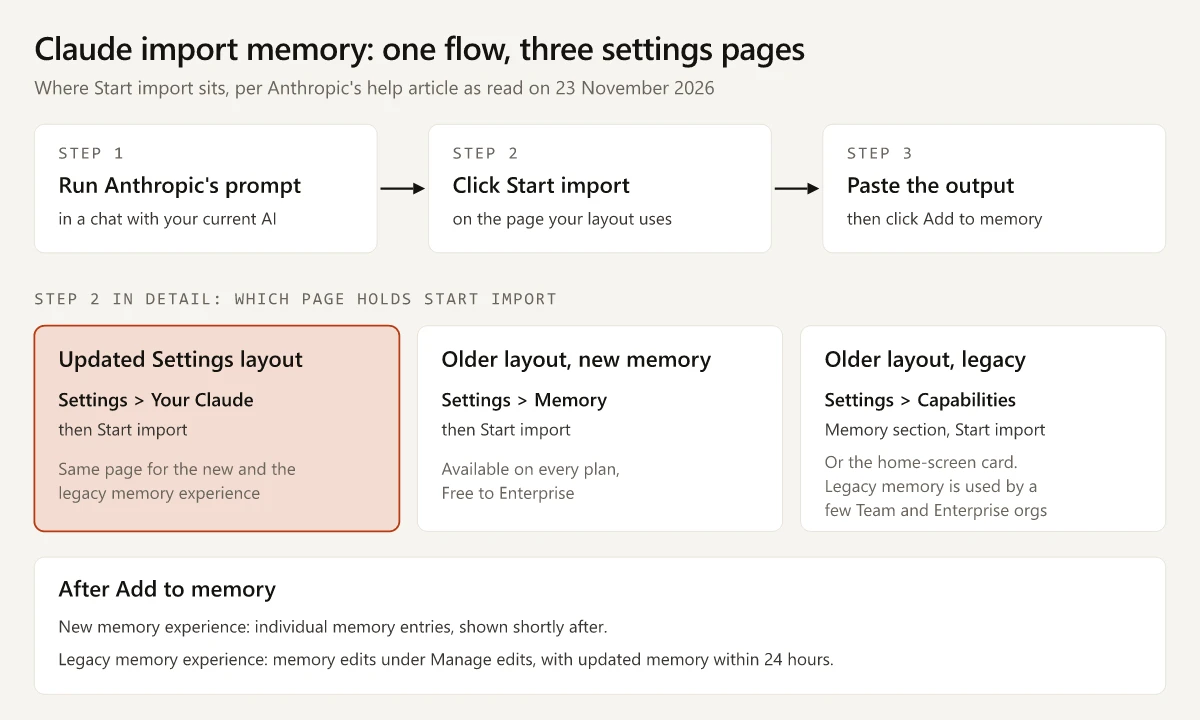 Your Claude in the updated layout, Settings > Memory in the older layout with new memory, and Settings > Capabilities in the older layout with legacy memory, which also has a home-screen card" title="Where Start import sits in Claude" width="1200" height="720" loading="lazy" decoding="async" />
Anthropic is partway through a Settings relayout, and its import article (last modified 2 November 2026, per the page’s metadata) tells you which instructions apply by what you see in Settings:
| What you see in Settings | Your memory experience | Where “Start import” is | When imported memory shows up |
|---|---|---|---|
| A “Memory from chats” setting in Settings > Your Claude (updated layout) | New | Settings > Your Claude | ”shortly after” |
| Settings > Memory (older layout) | New | Settings > Memory | ”shortly after” |
| A “Generate memory from chat history” setting in Settings > Your Claude (updated layout) | Legacy | Settings > Your Claude, Memory section, or the “Import memory to Claude” card on the home screen (“Get started”) | “within 24 hours” |
| Memory inside Settings > Capabilities (older layout) | Legacy | Settings > Capabilities, Memory section, or the “Import memory to Claude” card on the home screen (“Get started”) | “within 24 hours” |
Anthropic says the new experience “is available on all plans (Free, Pro, Max, Ultra, Team, and Enterprise)” and that only “a small number of Team and Enterprise organizations still use the legacy experience.” On a personal plan, expect one of the first two rows.
Two details in the help pages trip people up:
- The setting names are a weak tell. Anthropic’s chat search and memory article describes both experiences with a “Generate memory from chats” setting, while the import article uses “Memory from chats” for the new one and “Generate memory from chat history” for legacy. The older-layout page name (Memory vs Capabilities) is the clearer signal.
- The “Get started” buttons on Anthropic’s landing page link to
claude.ai/settings/capabilities?open_memory_import=true, a Capabilities address. If that link opens Settings without an import box, go to Settings > Your Claude yourself.
Anthropic lists the web and Claude Desktop for imports, and the mobile apps are not on that list, so run the import from a browser or the desktop app.
Anthropic’s Export Prompt for Your Current AI
Step 1 happens outside Claude. Anthropic recommends this prompt and says “It’s written specifically to help you get all of your context in one chat.” It is reproduced from the help article, with its one dash typed as a plain hyphen:
I'm moving to another service and need to export my data. List every memory you have stored about me, as well as any context you've learned about me from past conversations. Output everything in a single code block so I can easily copy it. Format each entry as: [date saved, if available] - memory content. Make sure to cover all of the following - preserve my words verbatim where possible: Instructions I've given you about how to respond (tone, format, style, 'always do X', 'never do Y'). Personal details: name, location, job, family, interests. Projects, goals, and recurring topics. Tools, languages, and frameworks I use. Preferences and corrections I've made to your behavior. Any other stored context not covered above. Do not summarize, group, or omit any entries. After the code block, confirm whether that is the complete set or if any remain.How to get a better export out of it:
- Read the last line of the reply. The prompt asks the old assistant to confirm whether the list is complete, so if it says entries remain, ask for the rest before you paste anything.
- Edit before you paste. Anthropic says you “can customize this prompt to exclude any sensitive information before importing into Claude”, and the same goes for the output: delete lines you do not want Claude to hold.
- Keep a copy. If the old service can generate files, Anthropic suggests asking it for a Markdown file “so you can save a copy for your records.”
- Coming from ChatGPT, compare the output with the ChatGPT memory you manage under Settings > Personalization, per OpenAI’s memories docs. Exporting your ChatGPT account data is a separate job from this prompt, and if you plan to close the old account afterwards, what deleting a ChatGPT account removes and what it leaves behind says to run that export before anything is deleted.
The landing page says to paste the prompt “into a chat with any AI provider”, so Anthropic intends it for any assistant that keeps memory about you, and the Claude side of the steps does not change.
What Claude Keeps From an Import, and What It Drops
The import feeds the same memory system as everyday chats, so the rules in Anthropic’s memory article decide what stays. As of November 2026:
| What you paste | What happens, per Anthropic |
|---|---|
| Instructions on tone, format and style | In scope: memory covers “Communication preferences and working style” |
| Role, projects and professional context | In scope: listed first among the things Claude remembers |
| Tools, languages and frameworks | In scope: “Technical preferences and coding style” |
| Personal details | People and places tied to your work are in scope (“The people and places in your work and life”); details unrelated to work may be dropped: memory “is designed to focus on work-related topics”, so Claude “may not retain imported personal details unrelated to work” |
| Health, race, ethnicity, religious beliefs, politics, gender identity | Not stored by default; saved only after you turn on “Include sensitive topics in memory”, and “Anything from before you turned it on isn’t saved retroactively” |
| Government ID numbers, criminal history, financial account numbers, immigration status | ”never saved to memory, even if you ask” |
| Your old conversations | Not moved: the import takes pasted text, not a chat archive |
Anthropic’s two pages pull against each other here: its own prompt asks for “name, location, job, family, interests”, while its memory rules say personal details unrelated to work may not be kept. If family or hobby details matter to how you want Claude to answer, add them yourself after the import (see the fixes below) rather than expecting the paste to carry them.
Does Claude Import Your Chat History?
No. Claude’s import turns pasted text into memory entries, and the import article describes no chat-history file upload. Anthropic’s data export article adds that “Exported data can’t be imported into another personal Claude account”, so a Claude export file is not a way back in either. Google’s Gemini, by contrast, documents a .zip chat-history upload of up to 5 GB alongside its memory import (Gemini import help).
Claude Import Memory Not Working? Causes and Fixes
Anthropic is direct about the limits: “Memory imports are experimental and still in active development, and at this stage, Claude may not always successfully incorporate imported memories.” The causes come from Anthropic’s import, memory and incognito articles:
| Symptom | Likely cause | Fix |
|---|---|---|
| No “Start import” where a guide said it would be | Your account shows a different Settings layout or memory experience | Find your row in the path table above |
| No import option in the phone app | Imports are listed for the web and Claude Desktop | Run it at claude.ai or in Claude Desktop |
| Imported memory not visible yet | Legacy memory updates “within 24 hours”; the new experience “shortly after” | Wait, then check Manage next to Your memory (legacy: “Manage edits”) |
| Family, hobbies or other personal facts missing | Memory focuses on work, so personal details unrelated to work may be dropped | Add them in the “Tell Claude what to change or remove” box under Manage next to Your memory, or ask Claude in chat (legacy: add them as an edit under Manage, or under “View and manage memory” in Settings > Capabilities) |
| Health, religion or politics entries missing | Sensitive topics are off by default | Turn on “Include sensitive topics in memory” in Settings > Your Claude, then add them again |
| Some ordinary work entries missing | The feature is experimental and may not incorporate everything | Compare with your saved export and add what is missing |
| Memory off or unavailable on a Team or Enterprise account | An owner controls memory for the organization; in organizations created before 31 October 2026 (Pacific Time), memory starts off for each member. HIPAA-enabled, government-platform and Claude for Teachers organizations never start with memory on, and Enterprise members with a Custom role need memory in one of their custom roles | Turn on memory in Settings > Your Claude; if it is off for the organization, ask an owner (Organization settings > Capabilities) |
| Claude ignores imported context in one chat | The chat was started with “Memory” off in the ”+” menu, or is an incognito chat, which “won’t use Claude’s existing memory” | Start a new chat with memory on, and set the ”+” menu Memory toggle before you send your first message |
| Claude ignores imported context inside a project | Each project has its own memory, and a project with “Use account memory” off is kept fully separate | Test the import in a chat outside projects, or turn “Use account memory” back on for that project |
Project memory works differently from the account memory the import fills, and my breakdown of what a Claude project loads compared with a skill covers how project memory sits next to project instructions and knowledge.
How to Export Your Claude Memory
The same article covers the other direction, for a backup or a move away from Claude:
- Go to Settings > Your Claude and select “Manage” next to Your memory (older layout: Settings > Memory; legacy older layout: Settings > Capabilities, then “View and manage memory”).
- Or ask Claude in any chat, using Anthropic’s wording: “Write out your memories of me verbatim, exactly as they appear in your memory.”
- Paste the result into a local file, or into the other assistant’s import flow.
Where it goes next depends on the other service. Google documents a memory import for Gemini at Settings, then “Import memory to Gemini”, using a prompt Gemini supplies, and Google says it is not available in the EEA, Switzerland or the United Kingdom, or on work and school accounts, per the same Gemini help page. Moving skills is a different job: OpenAI’s import of Claude Code skills into ChatGPT and Codex has its own steps.
For a full archive, Anthropic’s data export runs from Settings > Privacy > “Export data” on the web or Claude Desktop, not the phone apps, and the memory article says “All memory data is included in data exports.” The emailed download link “will expire 24 hours after it’s created, and it may work only once”, so download the file as soon as it arrives.
Plans, Platforms and the Memory It Is Not
- Plans: imports cost nothing extra and work on Free, Pro, Max, Ultra, Team and Enterprise; my dated Claude plan lineup has what each tier costs.
- Default: memory is on by default for Free, Pro, Max and Ultra on the web, Claude Desktop and Claude Mobile, per Anthropic’s memory article.
- Claude Code: the memory in Claude Code is a separate set of markdown files on your own machine, and my guide to CLAUDE.md and auto memory covers it. The app import fills your Claude account memory, not these local files.
- Turning it off: “Pause memory” keeps what Claude has but stops it using or adding memory, while “Reset memory” “Permanently deletes all memories including project memories.” Pick pause if you only want a break.
Check What Survived Your Claude Import Memory Run
Treat a Claude import memory run as a paste followed by a review. Click “See what Claude learned about you”, read the answer against the export you saved, and add whatever work context is missing through the “Tell Claude what to change or remove” box (on legacy memory, as an edit). Anthropic labels the feature experimental and is still changing its Settings layout. Recheck the path table against its help article before you follow any guide, including this one. Start with your saved export file and Manage next to Your memory side by side.
Frequently Asked Questions
How do I import my ChatGPT memory into Claude?
Paste Anthropic's export prompt into a ChatGPT chat and copy the code block it returns. In Claude, open Settings > Your Claude (Settings > Memory in the older layout), select Start import, paste the text and click Add to memory. Claude stores it as individual memory entries you can review.
Why is my Claude memory import not working?
Anthropic calls memory imports experimental and says Claude may not always incorporate imported memories. Claude's memory focuses on work, so personal details unrelated to work may be dropped, and legacy accounts can wait up to 24 hours. Add missing items with the 'Tell Claude what to change or remove' box or by asking in chat; on legacy memory, add them as an edit.
Is Claude's memory import free?
Yes. As of November 2026, Anthropic says memory imports are available on the Free, Pro, Max, Ultra, Team and Enterprise plans, on the web and Claude Desktop. On Team and Enterprise plans, an owner can turn memory off for the whole organization.
Can Claude import my chat history from ChatGPT?
No. Claude's import takes pasted text that becomes memory entries, and Anthropic's import article describes no chat-history file upload. Your old conversations stay with the old service.
How do I export my memory from Claude?
Go to Settings > Your Claude and select Manage next to Your memory, or ask Claude in a chat: 'Write out your memories of me verbatim, exactly as they appear in your memory.' Copy the result into a local file or into the other assistant's import flow.