How to Add Skills on LinkedIn: Steps and the 100-Skill Limit
How to add skills on LinkedIn, from LinkedIn Help: desktop and app steps, reordering, removing, endorsements, and why the real limit is 100 skills, not 50.
LinkedIn’s Help Center puts the cap at 100 skills. LinkedIn’s own Talent Blog, in an April 2024 post on listing skills, told readers they could post “up to 50”. Guides on how to add skills on LinkedIn still print that figure: ResumeEdge’s 2021 guide says 50, and so does an itsourcecode tutorial published on 14 July 2026. The Help Center adds a line none of those guides mentions: skills associated with roles in your Experience section are not included in the 100.
The click path takes a minute; the order of your skills deserves more thought. LinkedIn’s Display order of skills page says “You can only reorder the Education and Skills sections on your profile”. I would treat 100 as a ceiling and spend the effort deciding which skills sit at the top. Every step below, and every LinkedIn quote, comes from LinkedIn pages I read logged out on 17 November 2026; the quotes from other guides are dated where they appear.
How to Add Skills on LinkedIn on Desktop
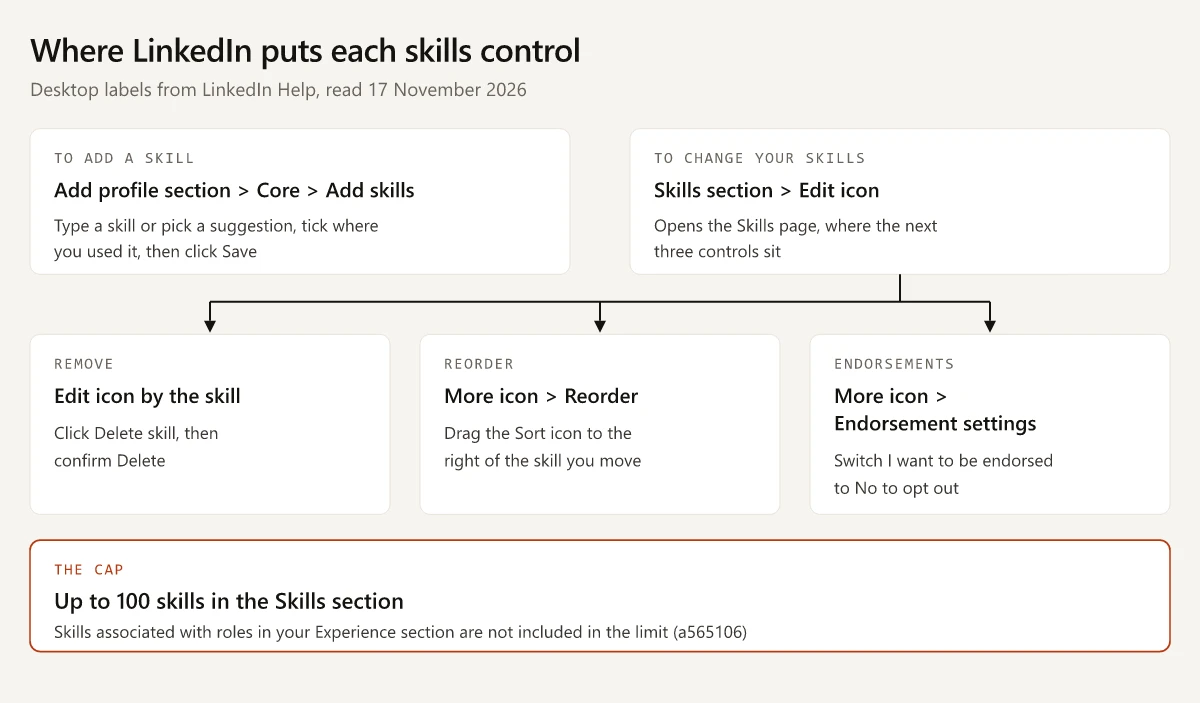
LinkedIn’s Add and remove skills on your profile page gives these desktop steps:
- Click the Me icon at the top of your LinkedIn homepage, then View Profile.
- Click the Add profile section button in your introduction section.
- Click Core and select Add skills from the dropdown.
- In the Add skill pop-up window, type the name of a skill and select it from the dropdown list, or select one from Suggested based on your profile.
- Select the checkboxes that show where you put the skill to use. A further checkbox lets you follow the skill’s collaborative articles page.
- Click Save.
For more than one skill, LinkedIn’s instruction is to “Repeat the above steps to add more skills to your profile.” LinkedIn’s April 2024 Talent Blog post said members would be “choosing from over 41,000 skill titles”, and the Help page’s steps have you select each skill from the dropdown as you type.
A profile with no skills shows no Skills section at all. The Help page says so directly: “If you don’t have any skills listed on your profile, the Skills section won’t appear.”
LinkedIn renames menus, and two of its own pages already disagree on the first step: the add-skills page says View Profile, while the display-order page, updated more recently, says to click your Profile card. Match each label to what your screen shows.
How to Add Skills on LinkedIn in the Mobile App
The same Help page (a549047) has a Mobile tab with these steps:
- Tap your profile picture, then tap View profile.
- Tap Add section in your introduction section.
- Tap Core and select Add skills.
- On the Skill page, type the name of a skill and select it from the dropdown list, or pick one from Suggested based on your profile.
- Select the checkboxes that show where you put the skill to use.
- Tap Save, and repeat for each further skill.
How Many Skills Can You Add on LinkedIn?
You can add up to 100 skills to the Skills section. LinkedIn’s Skill endorsements page adds: “The 100-skill limit applies only to the Skills section. Skills associated with roles in your Experience section aren’t included in this limit.” Three Help pages state the 100 figure; the guides below state 50 or no number at all. LinkedIn Learning certificates can add skills too, and a profile already over 100 cannot take more; adding a LinkedIn certificate walks through that flow.
| Question | What guides say | What LinkedIn Help says (read 17 Nov 2026) |
|---|---|---|
| Skill cap | ResumeEdge (27 Sep 2021): “up to 50 skills to display”; itsourcecode (14 Jul 2026): “LinkedIn allows up to 50 skills per profile”; LinkedIn Talent Blog (4 Apr 2024): “up to 50 skills”; Layerpath’s guide: no number | ”You can add up to 100 skills to your profile” (a549047); “a maximum of 100 skills” (a568137, a565106) |
| Do Experience-linked skills count? | None of the four says | ”Skills associated with roles in your Experience section aren’t included in this limit” (a565106) |
| How do you put a skill first? | itsourcecode: “Click on a skill to pin it to Top 3” | More icon, then Reorder, then drag the Sort icon (a568137); none of the Help pages I read uses the word “pin” |
| How many is ideal? | itsourcecode: “Sweet spot: 20-35 skills” | No number. “Adding more keywords to your profile doesn’t automatically improve your appearance in search results” (LinkedIn’s search relevance page) |
| Skill assessments | itsourcecode describes assessment badges | None of the Help pages I read for this guide mentions assessments |
| Do you need to click Save? | itsourcecode: “LinkedIn saves automatically after each addition” | A selected skill “is automatically added to your list of skills”, and the steps still end with Click Save (a549047) |
The Talent Blog post that says 50 also says, “According to LinkedIn data, members who list at least one skill, receive up to 2x more profile views and connection requests and up to 4x more messages.” That is LinkedIn’s claim about listing one skill; it says nothing about listing 100.
How many is too many? LinkedIn publishes the cap and a warning rather than a target. The search relevance page recommends “Avoiding ‘keyword stuffing’” and says a profile that “appears overly optimized” may be “impacted by spam detection systems”. I would add the skills you could defend in an interview and stop there. LinkedIn’s other advice on showing up in people search is in my search appearances guide.
How to Reorder Skills on LinkedIn
The display-order page (a568137), last updated two weeks before I read it, gives these desktop steps:
- Click the Me icon at the top of your LinkedIn homepage.
- Click your Profile card from the dropdown.
- Scroll down to the Skills section and click the Edit icon.
- Click the More icon on the upper right of the Skills page.
- Click Reorder from the dropdown.
- In the pop-up window, click and drag the Sort icon to the right of the skill you want to move.
On the app: tap your profile photo in the upper-left corner, tap your Profile card on the navigation panel, scroll to Skills, tap the Edit icon, tap the More icon, tap Reorder, then tap and hold the Reorder icon next to a skill and drag it into place.
Categories change what reordering can do. The same page lists the rules:
- “You must have more than three skills listed in your Skills section for your skills to be categorized.”
- Skills are grouped into Industry Knowledge, Tools & Technologies and Interpersonal Skills.
- “You can’t take a skill from one category and place it in a different category.”
Endorsements move skills too. LinkedIn’s Hide or show a skill endorsement page says “Hiding individual endorsements can alter the display order of your skills”, and hiding all endorsements of a skill “may move” it to the bottom of the list. If you hide endorsements, check your skill order afterwards and use Reorder again if a skill has moved.
How to Add Top Skills to Your LinkedIn About Section
LinkedIn’s Talent Blog describes a second place for skills. Its April 2024 post says “you can highlight up to five skills that you think really define you in the About section”, and gives the steps: “Open the About section and click on the pencil. The Top Skills will be preloaded with five based on the rest of your profile but you can choose any five that you deem most important.”
None of the LinkedIn Help pages I read on 17 November 2026 describes Top Skills. LinkedIn’s own Edit the About section page, last updated two years before I read it, describes only an Edit icon, a textbox and Save, with no Top Skills step. Treat the blog’s steps as dated and check the About editor on your own screen. My rule for the five: pick them from skills already on your list, and put the same five at the top of the Skills section with Reorder, so a visitor sees one consistent set. For a skill that matters to every visitor, the headline is the other place it fits, within LinkedIn’s 220-character headline limit.
How to Remove a Skill on LinkedIn
From the add-and-remove page (a549047), on desktop:
- Click the Me icon, then View Profile.
- Scroll to the Skills section and click the Edit icon.
- In the Skills page, click the Edit icon to the right of the skill you want to delete.
- Click Delete skill on the lower left, then confirm Delete.
On the app, tap your profile picture, tap View profile, scroll to Skills, tap the Edit icon, tap the Edit icon to the right of the skill, then tap Delete skill at the bottom of the page and confirm Delete.
None of the LinkedIn pages I read says what a plain delete does to a skill’s endorsements. The endorsements page says only that removing a skill and adding it again in another language “will permanently delete all the associated endorsements” (see the table below), so delete a skill only when you are sure you no longer want it.
Skill Endorsements: Who Gives Them and How to Switch Them Off
LinkedIn’s endorsements page (a565106) says skills “can be validated by 1st-degree connections”, that endorsements are “different than recommendations”, and that “You don’t need to request a skill endorsement to receive one.” If the degrees are unclear, see what 1st, 2nd and 3rd mean on LinkedIn.
| What you want | LinkedIn’s steps or answer | Source |
|---|---|---|
| Hide one person’s endorsement | Profile card, Skills section, click the skill’s name, then switch the toggle next to that member On or Off | a563082 |
| Stop all endorsements | Skills section Edit icon, More icon, Endorsement settings, switch I want to be endorsed to No, then Close | Opt out of endorsements (a565123) |
| What opting out does | It will “Prevent your connections from endorsing you” and “Hide all of your endorsements”, and stops endorsement suggestions on your profile and on profiles you view | a565123 |
| How long opting out takes | ”It could take several minutes” to leave all endorsement suggestions | a565123 |
| Change a skill’s language | Remove the skill and add it again; “This will permanently delete all the associated endorsements” | a565106 |
Closing your account also costs you endorsements: under LinkedIn’s account-closure rules, a reopened account comes back without them. Removing a connection also withdraws the endorsements between you, and LinkedIn Help says they are not restored if you reconnect, as covered in removing a LinkedIn connection.
Where Language Skills Go on LinkedIn
For Spanish, Hindi or French, LinkedIn has a separate section. LinkedIn’s Your LinkedIn profile page lists Languages (“Languages you understand or speak”) as its own profile section, apart from Skills. I would list spoken languages there rather than as skills.
LinkedIn Pages Behind This Guide
Each page’s “Last updated” note on 17 November 2026:
| Page | Last updated |
|---|---|
| Add and remove skills on your profile (a549047) | 9 months ago |
| Display order of skills (a568137) | 2 weeks ago |
| Skill endorsements (a565106) | 9 months ago |
| Hide or show a skill endorsement (a563082) | 5 days ago |
| Opt out of endorsements (a565123) | 5 days ago |
| Your LinkedIn profile (a564064) | 2 weeks ago |
| Search relevance for people search (a524188) | 7 months ago |
| Edit the About section on your profile (a553140) | 2 years ago |
| LinkedIn Talent Blog, skills on your profile | Dated 4 April 2024 |
Add Skills on LinkedIn, Then Put the Right Ones First
How to add skills on LinkedIn comes down to one path, Add profile section, Core, Add skills, repeated per skill, with room for 100 in the Skills section and more tied to Experience roles. Guides still print 50, but the number matters less than the order, which is the part you control: after hiding any endorsements you do not want, check the order, then open the Skills section’s More icon and use Reorder to put your five strongest skills at the top.
Frequently Asked Questions
How many skills can you add on LinkedIn?
Up to 100. LinkedIn's Help Center says you can add up to 100 skills to your profile, and its endorsements page adds that the limit applies only to the Skills section: skills associated with roles in your Experience section are not included.
How do I add skills on the LinkedIn app?
Tap your profile picture, tap View profile, tap Add section in your introduction section, then tap Core and select Add skills. Type a skill or pick a suggestion, tick where you used it, and tap Save.
How do I reorder skills on LinkedIn?
On desktop, open your profile, click the Edit icon in the Skills section, click the More icon on the upper right of the Skills page, choose Reorder and drag the Sort icon next to a skill. LinkedIn's Help page says you can only reorder the Education and Skills sections on your profile.
Why is my skills section not showing on LinkedIn?
LinkedIn Help says the Skills section won't appear if you have no skills listed. Add your first skill from Add profile section, then Core, then Add skills, and the section appears on your profile.
How do I add top skills to the About section on LinkedIn?
LinkedIn's Talent Blog, in an April 2024 post, says to open the About section, click the pencil and choose up to five Top Skills, which LinkedIn preloads from the rest of your profile. None of the LinkedIn Help pages read for this guide on 17 November 2026 describes the feature.