How to Schedule a Post on LinkedIn and Find It Later
Learn how to schedule a post on LinkedIn from desktop, the app or a Page, per LinkedIn Help, and where to find, edit or reschedule it before it goes live.
Where does a LinkedIn post go after you click Schedule, and how do you get it back to fix a typo? LinkedIn Help answers both questions on separate pages for your own profile and for a company Page, and the two sets give different lead times. Here is how to schedule a post on LinkedIn from your profile on desktop, per LinkedIn’s Schedule posts page:
- Click Start a post at the top of your LinkedIn homepage.
- Type the post in the What do you want to talk about? field.
- Click the Clock icon in the lower-right corner.
- Pick a date and time between 10 minutes and 3 months from now, then click Next.
- Click Schedule.
Getting the post into the queue is the simple half. Coming back to it depends on who posted: your queue opens from the same Clock icon, while a Page’s queue opens from Page posts in the admin view and comes with a one-hour minimum. I would decide who is posting, you or the Page, before writing a word, because that choice sets the window, the list you will search later and the post types allowed.
Every LinkedIn quote below comes from Help pages I read logged out, from India, on 17 November 2026. Help pages change, so the tables give each answer ID for a recheck.
How to Schedule a Post on LinkedIn on Desktop and Phone
The Schedule posts page (“Last updated: 1 month ago” when I read it) gives both paths:
| Step | Desktop | Mobile app |
|---|---|---|
| 1 | Click Start a post at the top of your homepage; the Create a post pop-up window appears | Tap Post in the navigation bar; the Share post pop-up window appears |
| 2 | Type in the What do you want to talk about? field | Type in the Share your thoughts… field |
| 3 | Click the Clock icon in the lower-right corner | Tap the Clock icon in the upper-right corner |
| 4 | In the Schedule post pop-up window, select the date and time | In the Schedule pop-up window, select the date and time |
| 5 | Click Next; the date and time show above the post | Tap Next; the date and time show above the post |
| 6 | Click Schedule; a post scheduled confirmation appears | Tap Schedule |
The same page adds these notes on timing:
- Window: “You can schedule a post between 10 minutes and 3 months from the current time.”
- Exact times: “You can enter a specific time instead of selecting one of the 30-minute increments from the dropdown.”
- Time zone: “Scheduled times are converted to UTC based on your device’s time zone settings.” If your laptop is set to a different zone from the audience you have in mind, check the zone before you click Next.
Changed your mind before clicking Schedule? Click Edit next to the time above the post, then Clear time (in the app, tap Edit, then Clear). LinkedIn says “The schedule details are no longer available”, and you can post it at once or click the Close icon to discard it.
LinkedIn’s general Post and share updates page (a528176) lists the same Clock icon as an optional step in the regular posting flow, “to schedule your post to go live at a specific date and time.” Prepare any image, video or document first; the size and ratio limits LinkedIn checks at upload are in my sourced LinkedIn post size reference.
How to Schedule a Post on LinkedIn as a Company Page
LinkedIn’s steps for a Page post start from the Page admin view. Post and share updates (a528176) adds that a Page admin can also share as the Page from the homepage composer (in the app, tap your name and choose the Page), but no Help page says which scheduled list a post made that way appears in. LinkedIn’s Schedule a LinkedIn Page post page limits it to a “super admin or a content admin of a Page”, and sets a longer minimum: “You can schedule a post anywhere between an hour from the current time to three months in advance.”
| Step | Desktop | Mobile app |
|---|---|---|
| 1 | Go to your Page’s super admin or content admin view | Same |
| 2 | Click Page posts in the left menu | Tap Dashboard in the upper-left corner, then select Page posts |
| 3 | Click Start a post | Tap Post in the upper-right corner |
| 4 | Click the Clock icon in the lower right; the Schedule post dialog opens | Tap the Clock icon in the upper-right corner; the Schedule dialog opens |
| 5 | Select a date and time (“The time is based on your location”), then click Next | Same, then tap Next |
| 6 | Finish the post and click Schedule | Finish the post and tap Schedule in the upper-right corner |
The Page Help pages show this icon without naming it; their markup uses the same clock glyph the profile page calls the Clock icon. One more rule in LinkedIn’s Page Help matters before you plan a campaign around a scheduled post: “You cannot promote a scheduled post using the Browse existing content option in Campaign Manager until the post is published on your Page.” The post types a Page cannot schedule are in the table further down.
Where to Find Scheduled Posts on LinkedIn
Your scheduled posts open from the Clock icon. LinkedIn says that when posts are waiting, “the Clock icon displays a badge displaying the number of scheduled posts”, which makes it a quick check that a post is in the queue. Your scheduled posts are not in LinkedIn saved posts, which holds other people’s posts you bookmark.
From your profile, per the Schedule posts page: on desktop, click Start a post, the Clock icon, then View all scheduled posts; in the app, tap Post, the Clock icon, then View all. On desktop the list opens on a page LinkedIn calls Scheduled posts, with a preview of each post.
From a Page, per the Reschedule a scheduled LinkedIn Page post page: Page admin view, Page posts, Start a post, the Clock icon, then View all scheduled posts (View all in the app). The Page overview, Scheduled posts for LinkedIn Pages, adds that admins “can also view, edit, reschedule, and delete posts that are scheduled by other Page admins”, so a Page’s list can hold posts you did not schedule yourself.
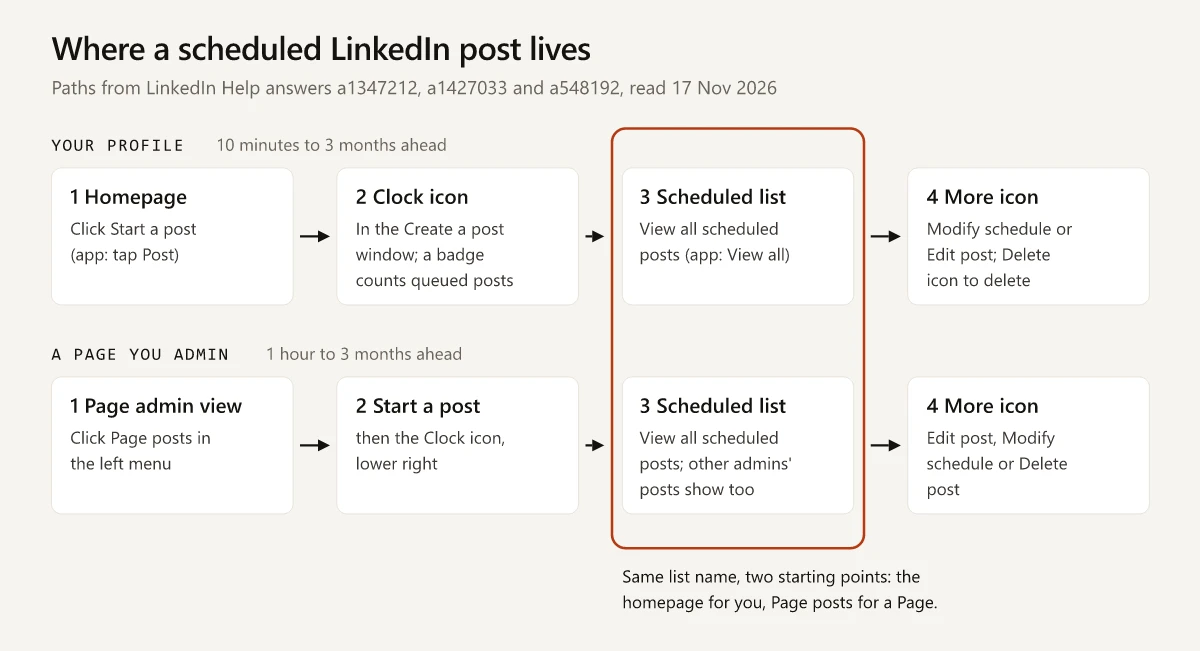
The profile page gives two positions for the Clock icon. The scheduling steps put the Clock icon “in the lower-right corner”, while the viewing steps on the same page put it “on the lower-left of the Create a post pop-up window”. If the icon is not where you expect, look at the other corner of the composer before you assume the post is gone.
Edit, Reschedule or Delete a Scheduled LinkedIn Post
LinkedIn’s pages name one control for both changes: the More icon on the post, then Modify schedule or Edit post. To cancel a scheduled post, delete it: the Help pages name no separate Cancel option. If the text you change includes an @mention, my guide to tagging someone on LinkedIn covers why one can fail. The table compares what each surface lets you do, cell by cell from the Help pages; a cell that reads “Help page does not say” means I found no line on it.
| What you want | Your profile, desktop | Your profile, app | A Page (desktop and app) |
|---|---|---|---|
| Undo before scheduling | Edit next to the time, then Clear time | Edit, then Clear | Help page does not say |
| Open the list | Clock icon, View all scheduled posts | Clock icon, View all | Clock icon, View all scheduled posts (View all in the app) |
| Change the text | More icon, Edit post | More icon, Edit post | More icon, Edit post; also “the visibility settings of the post”, comment control and brand partnership (a9599594) |
| Change the time | More icon, Modify schedule | More icon, Modify schedule | More icon, Modify schedule, a new date and time, Next, Schedule |
| Delete | Delete icon next to the post, then Delete in the Delete scheduled post? window | Delete icon, then Delete | More icon, Delete post, Delete; “You cannot recover a deleted post” (a1424039) |
| Publish early | Help page does not say | Help page does not say | The Post now option |
Two lines in that table change what I would do. The Page delete page offers a tip: “If you would like to change the date and time of a scheduled post, you can reschedule the post instead of deleting the post.” Since a deleted Page post cannot be recovered, Modify schedule is the safer move whenever the only problem is the time. For your own profile, the Help page lists no Post now option, so Modify schedule is the documented way to bring a post forward.
Which LinkedIn Posts You Cannot Schedule
The profile page and the Page pages publish different lists. Where the profile page is silent, the table says “Not listed”, which means LinkedIn neither allows nor rules it out on that page.
| Post type | Your profile (a1347212) | A Page (a1419179, a548192) |
|---|---|---|
| Events | Not supported | Can’t schedule |
| Jobs | Not supported | Can’t schedule |
| Service posts | Not listed | Can’t schedule |
| Polls | Not listed | Can’t schedule |
| Multiple photos | Not listed | Can’t schedule |
| Reshares | Not listed | Can’t schedule |
| Newsletter articles | Not listed | Can be scheduled: “a post or newsletter article” |
Buffer’s scheduling guide says “events, jobs, and services posts can’t be scheduled natively on any device”. On 17 November 2026 the profile page listed only events and jobs, and service posts appeared on the Page list. The profile page does not mention service posts at all, so for a profile post LinkedIn Help neither confirms nor rules out Buffer’s extra item.
Document posts, often called carousels, are not named on either scheduling page. Newsletter editions and standalone articles are a different format from feed posts, and my LinkedIn newsletter vs article comparison covers how they differ.
LinkedIn Scheduled Post Not Showing or Disappeared: Causes and Fixes
Each row pairs the symptom with the likeliest cause and the Help line it rests on, quoted where the wording matters.
| What you see | Likely cause (Help line it rests on) | What to do | Source |
|---|---|---|---|
| A Page post you scheduled is not in your Clock icon list | The scheduled list Help documents for a Page is the one in the Page admin view: “Click Page posts in the left menu” | Open the Page admin view, Page posts, Start a post, the Clock icon, View all scheduled posts | a1419179, a1427033 |
| A Page post you did not schedule is in the list | Page admins can see and change posts that other Page admins scheduled | Check with the admin who scheduled it before you edit or delete it | a548192 |
| Posts scheduled by an admin you removed now sit with you | ”any posts scheduled by that admin is automatically transferred to the admin who removed them from the Page” | Review those posts’ times and text before they go out | a548192 |
| The post went live at the wrong hour | Your device’s time zone differs from the one you meant; Help: times “are converted to UTC based on your device’s time zone settings” | Check your device’s time zone before you schedule, then use Modify schedule on the rest of the queue | a1347212 |
| LinkedIn will not take the time you picked | The time may be outside the window Help states: 10 minutes to 3 months for you, an hour to three months for a Page | Move the time inside the window for the identity posting | a1347212, a1419179 |
| There is no way to schedule this post | The type is excluded: events and jobs for you; events, multiple photos, reshares, polls, jobs and service posts for a Page | Post it now, or change it to a type the list allows | a1347212, a1419179 |
| A scheduled Page post is missing from Campaign Manager | Browse existing content in Campaign Manager cannot promote a scheduled post until it is published on the Page | Wait until it is live, then promote it | a1419179 |
| A post queued in another app is not in the list | The app may keep its own queue; Buffer’s guide: “If you used Buffer, head to your Queue” | Open the queue in the app you used | Buffer |
| A deleted Page post cannot be found | ”You cannot recover a deleted post” | Write it again and schedule it fresh | a1424039 |
If the post did go out and the numbers look low, compare the result against LinkedIn impression benchmarks by follower count before you move the time.
Scheduled Post, Draft or Another App
LinkedIn’s composer offers two ways to hold a post back, and the a528176 page names both:
| Option | What LinkedIn Help says | Use it when |
|---|---|---|
| Scheduled post | ”If you’d like your post to go live at a later time, you can schedule it in advance and manage your scheduled posts from the post composer.” | The text is final and the time is fixed |
| Draft | ”you can save your post as a draft and continue editing it later, including from another device.” For a Page, the saved draft is under Start a post on the Page posts screen (a567075) | The text still needs work, or the time depends on something else |
Buffer’s guide points users of its tool to Buffer’s own Queue, not LinkedIn’s list (Buffer); check the queue in whichever app you used. The a528176 Help page carries one line any posting setup should know: “If we detect excessive post creation that indicates inauthentic activity, or the use of an automation tool, we may limit the visibility of those posts.” The page does not define “automation tool” or name any scheduling app, so it does not settle whether a given app counts. It also says LinkedIn “may limit how many posts a member or a LinkedIn Page can make in a certain time period” and gives no number. LinkedIn’s Account restrictions page also names third-party software that automates activity on LinkedIn’s website as one of four causes of an account restriction, and what to do if your LinkedIn account is restricted sets out the route back for each.
I post on LinkedIn several times a week, and my drafts start outside LinkedIn: a markdown file in my site’s repo holds each post’s text, UTM link and image prompt. A post saved or scheduled inside LinkedIn is managed from the composer screens above.
Before You Schedule a Post on LinkedIn, Pick the Identity First
The steps for how to schedule a post on LinkedIn are short, and the identity you post as decides where you look for the post later. Several rows in the troubleshooter turn on which identity posted (the list, the window and the excluded types), and the first is a post scheduled as a Page and looked for in your own list. Choose who is posting before you open the composer: your profile gives you a 10-minute minimum and a list under your homepage Clock icon, while a Page gives you a one-hour minimum, a shared list that Help documents under Page posts and a longer list of excluded post types. Bookmark answer a1347212 for your profile or a1419179 for a Page before your next scheduled post.
Frequently Asked Questions
How far in advance can you schedule a post on LinkedIn?
Up to 3 months. LinkedIn's Schedule posts page sets a window of 10 minutes to 3 months from the current time for your own posts, while its Page scheduling page sets an hour to three months for posts made as a LinkedIn Page.
Where do I find my scheduled posts on LinkedIn?
Click Start a post on your homepage, click the Clock icon, then click View all scheduled posts; in the app, tap Post, the Clock icon, then View all. For a Page, go to Page posts in the Page admin view, click Start a post, click the Clock icon, then View all scheduled posts.
Can I edit a scheduled post on LinkedIn?
Yes. Open your scheduled posts, click the More icon on the post, and choose Edit post to change it or Modify schedule to change the time. LinkedIn Help says a Page admin can also change a scheduled post's visibility, comment settings and brand partnership label.
Can you schedule a LinkedIn post on the app?
Yes. Tap Post in the navigation bar, write the post, tap the Clock icon in the upper-right corner, pick a date and time, tap Next, then tap Schedule. The 10-minute to 3-month window is the same as on desktop.
Can you schedule a carousel post on LinkedIn?
LinkedIn Help does not say. Neither scheduling page names document posts, often called carousels. The Page scheduling page lists multiple photos among the types you can't schedule, and the page for your own posts lists only events and jobs as unsupported.