YouTube Post Image Size: What YouTube Publishes vs Guides
YouTube post image size from YouTube Help: up to 10 images, 16 MB each, JPG, PNG, GIF or WEBP, 1:1 suggested, and no pixel size. Five guides checked against it.
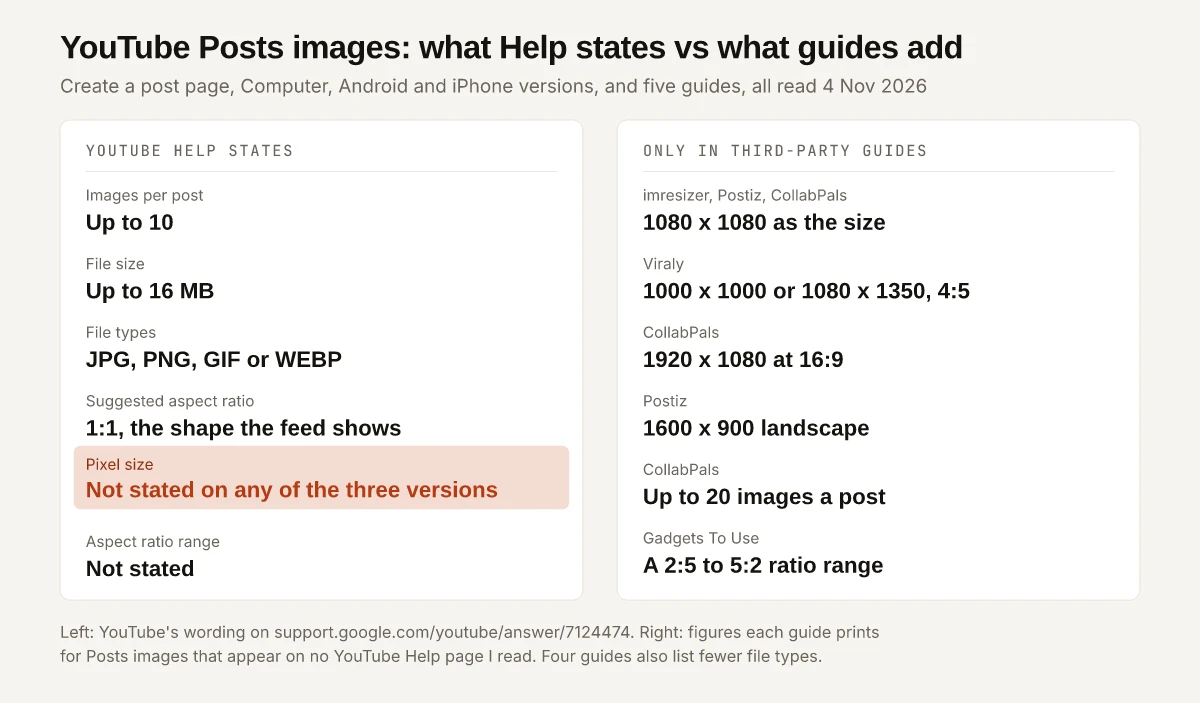
The YouTube post image size guides I read print pixel figures: 1080 x 1080 at imresizer, Postiz and CollabPals, 1000 x 1000 or 1080 x 1350 at Viraly, and 1920 x 1080 as CollabPals’ second option. YouTube’s Posts help page, as of November 2026, does not state a pixel size, a minimum resolution or an aspect-ratio range for Posts images. Its Create a post page sets these image guidelines instead:
- Images per post: up to 10.
- File size: up to 16 MB.
- File types: JPG, PNG, GIF or WEBP.
- Suggested aspect ratio: 1:1, “because that’s how images are shown in the feed”.
- Pixel size: not published, and no minimum or maximum ratio either.
I would design a Posts image to those four published lines and treat every pixel figure as one guide’s choice. A square file in one of the four formats, at any pixel size that keeps it under 16 MB, meets every size and format line on YouTube’s page. The guides’ extra figures, from 4:5 and 16:9 to “up to 20 images” and a 2:5 to 5:2 range, appear on none of the YouTube Help pages I read.
YouTube Post Image Size on YouTube’s Create a Post Page
YouTube’s Help Center splits Create a post into Computer, Android and iPhone & iPad versions. I read all three on 4 November 2026. The image guidelines are word for word the same on each, and none of the three shows an update date.
| Guideline | YouTube’s wording, as of November 2026 |
|---|---|
| Images per post | ”You can choose to upload up to 10 images with your post.” |
| File size | ”Size: Up to 16 MB” |
| File types | ”File types: JPG, PNG, GIF, or WEBP” |
| Aspect ratio | ”Suggested aspect ratio: We suggest 1:1 ratio because that’s how images are shown in the feed. Viewers can see the full image by clicking to expand it.” |
| Content rules | Images “must follow YouTube Community Guidelines”; if they do not, “your post may be removed and a strike may be applied to the channel” |
The Android version of the page and the iPhone version add “Only use images that you have permission to use” and link Dream Screen for generating post images in the app. The Computer and iPhone versions say “You can also add music, text, stickers, and filters to your image post through the YouTube App.”
This page covers Posts images only. Thumbnails, channel banners and profile pictures are separate uploads, not covered here.
Is There a YouTube Community Post Image Size in Pixels?
No. YouTube’s Posts help page, as of November 2026, does not state a pixel size, a minimum resolution or an aspect-ratio range on its Computer, Android or iPhone version. I searched the article text of each version, the iPhone & iPad version included, and of the Learn about posts page covered below, for “pixel”, “px”, “resolution”, “dimension”, “width”, “height”, “1080”, “2:5”, “5:2” and “4:5”, and found none of them in the text. Matches in the raw page source, such as “pixel” and “resolution”, sit inside CSS rules and script code.
The 1:1 line is the one piece of shape guidance on the page. By its wording the feed shows an image square, and a viewer sees “the full image” only after clicking to expand it. The page does not say which part of a wider or taller image the square view keeps, so a square file is the only shape whose feed view the page fully describes.
Export settings that follow the page:
- A 1:1 canvas.
- Any pixel size that keeps the file at or under 16 MB. 1080 x 1080, the size three of the five guides below print, is a convenient default, chosen because the guides use it.
- Any of JPG, PNG, GIF or WEBP. The page ranks none of them. Four of the five guides list file types for posts, and none of the four includes WEBP.
- Up to 10 images in one post.
A Posts image is a file you upload, so the og:image tags in my OG image size guide play no part in it; those set the card a platform builds from a shared link. If you resize one creative for LinkedIn too, LinkedIn does publish a ratio range and a recommended width, and my LinkedIn post size reference traces each of those figures to LinkedIn’s own Help pages.
YouTube Post Image Size Guides Checked Against YouTube Help
I read five YouTube image size guides on 4 November 2026. The dates are the ones each page shows or carries in its metadata:
- Viraly’s YouTube image size guide by Elena Ristovska, published 31 October 2025 and updated 29 January 2026
- CollabPals’ YouTube image size guide, a tool page modified 29 September 2026
- imresizer’s YouTube Image Sizes 2026 guide by the imresizer Team, published 25 March 2026
- Postiz’s YouTube Photo Resizer, a tool page modified 21 April 2026
- Gadgets To Use on the community post aspect ratio error by Mitash Arora, 8 January 2026
None of the five links a support.google.com page. Each column below is one page’s figures for Posts images, set against YouTube’s:
| Figure | YouTube Help | Viraly | CollabPals | imresizer | Postiz | Gadgets To Use |
|---|---|---|---|---|---|---|
| Images per post | Up to 10 | Not given | ”up to 20” | Not given | Not given | Not given |
| File size | Up to 16 MB | 16 MB | 16 MB | Not given | Not given | Under 16 MB |
| File types | JPG, PNG, GIF, WEBP | JPG, PNG, GIF | JPG, PNG, GIF | Not given | JPG, PNG | JPG or PNG |
| Aspect ratio | 1:1 suggested | 1:1 or 4:5 | 1:1, or 16:9 | 1:1 | Square, or a landscape option | 16:9 or 1:1 as “commonly accepted” |
| Pixel size | None stated | 1000 x 1000 or 1080 x 1350 | 1080 x 1080 or 1920 x 1080 | 1080 x 1080 | 1080 x 1080, or 1600 x 900 | A 1200 px width, as a workaround |
| Ratio range | None stated | None | None | None | None | 2:5 to 5:2 |
Sorted by how each figure compares with YouTube’s page:
- Agrees: the 16 MB limit at Viraly, CollabPals and Gadgets To Use, and 1:1 as the first or only shape at Viraly, CollabPals, imresizer and Postiz.
- Contradicts: CollabPals’ “You can include up to 20 images per post” against YouTube’s 10, and Gadgets To Use’s “YouTube clearly states” for a ratio range the page does not state.
- On no YouTube page I read: every pixel size in the table, Viraly’s 4:5, CollabPals’ 16:9 at 1920 x 1080 and Postiz’s 1600 x 900.
- Narrower than YouTube: four guides list fewer file types than YouTube’s four, and imresizer lists none for posts.
Postiz’s page also says “YouTube publishes specific size guidelines for each asset type”. For Posts images, the Help page I read prints a file size and a suggested ratio, with no size in pixels. LinkedIn leaves the same kind of gap on banners, where its Help page gives no safe zone and nine guides’ safe-zone figures disagree with one another.
The 2:5 to 5:2 Ratio Range: A Reported Upload Limit
Of the five guides, only Gadgets To Use prints a ratio range. Its article said on 8 January 2026 that “Another thing YouTube clearly states is that the aspect ratio should be between 2:5 and 5:2.” None of the three Create a post pages I read contains 2:5, 5:2 or any ratio range, so the range is that article’s report.
What the article reports:
- An error reading “Image(s) exceed aspect ratio limit” when an image is “exactly 2:5 or 5:2 or even under that limit”.
- A workaround: “keeping the width 1200, ensure that the height is more than 480 so that it’s under 5:2.”
- The same error from the mobile app: “the issue persists even when you try to upload the image through the mobile app.”
If you follow that report, the arithmetic at the article’s 1200 px width runs like this. The heights are my calculation, not YouTube figures:
| Ratio (width:height) | Height at 1200 px wide | Against the reported range |
|---|---|---|
| 5:2 | 480 | The wide boundary; the workaround keeps the height above it |
| 16:9 | 675 | Inside |
| 1:1 | 1200 | YouTube’s suggested shape |
| 4:5 | 1500 | Inside |
| 2:5 | 3000 | The tall boundary |
I ran no upload test, so I cannot confirm where the limit sits today. A square file avoids the question, because 1:1 sits well inside the reported range and is the one shape YouTube’s page suggests.
Image Polls, Quizzes and Other Posts Limits
The Computer version of Create a post and the two app versions set these limits, in YouTube’s wording where quoted:
| Feature | YouTube’s limit |
|---|---|
| Image poll | Up to 4 images as answers, with captions “within 36 characters” |
| Text poll | Up to 4 answers, “within 65 characters each” |
| Quiz | Up to 4 answers, “up to 80 characters each or up to 30 characters if an image is added”; explanations “500 characters max”; one correct answer |
| Music on an image post (app) | “up to 15 seconds of music, which will play when the post appears in the Shorts feed”; it “cannot be edited or added after posting” |
| Expiry (app) | Tap the hourglass to set a post “to expire in 24 hours” |
| Scheduling | A date, time and time zone; the iPhone page says scheduling, rich editing and expiration “are not yet available on Android tablets or iPads” |
| Posts per day | ”We limit how many posts a channel can create in a 24-hour period”; after a “limit reached” error, “try again in 24 hours”. No number is given |
Poll and quiz images get no pixel size on any of these pages either. Threads polls are tighter: Meta’s API allows 2 to 4 options of 1 to 25 characters each, per the Threads post and poll limits. Video titles, descriptions and tags have their own limits, set out with their sources in what YouTube states for each character limit.
Where Post Images Show and Who Can Post
The Learn about posts page lists the places: “on the Posts shelf in the Home tab or in the Posts tab”, and “Posts may also show up on their homepage and Subscriptions feed, and image posts may additionally show on the Shorts feed.” The page does not say how a square image is framed in the vertical Shorts feed.
The same page says posts are not available if “You’re using a supervised account” or if the channel is set as “Made for Kids”, whose Posts tab “will only be visible to you”. It adds that “Access to posts can change based on your channel role” and “Posts are not currently available in Germany.”
YouTube Posts vs YouTube Communities
YouTube’s Help text now calls the feature Posts and its tab the Posts tab, while the video embedded at the top of both articles is still titled “YouTube Community Posts” and Postiz still writes “Community tab”. A Community is a different feature. The Communities on YouTube page describes a subscriber space where “Posts that you or your viewers create from your Community are shared only to your Community, and will not show on the Posts tab for viewers.” To start one, the page says you need existing access to posts, to be over 16 on a channel that is not a supervised experience, an audience not set as made for kids, and a channel that is not a VEVO channel.
AI Image Tools for Posts
YouTube’s Optimize text & image posts page says its post tools are “currently only available in English on the YouTube mobile app”. It describes two image tools, and neither section gives an output size:
| Tool | What the page says | Where it is available |
|---|---|---|
| Dream Screen | ”an experimental generative AI feature” that generates images from text prompts for posts | Australia, Canada, New Zealand and the United States; on iOS, iPhone only |
| AI image editing | Edits a post image from a text prompt; users “Must be 18 years of age or older” | Canada, India, New Zealand and the United States, on mobile devices |
Export a Square Image Under 16 MB
The YouTube post image size figures with a YouTube source are 10 images, 16 MB, four file types and a 1:1 suggestion, and the pixel count is yours to pick. When a guide prints 4:5, 16:9, 20 images or a 2:5 to 5:2 range, look for the YouTube page behind it; for the five guides above, there was none.
If a launch plan already budgets YouTube thumbnails, as the social media assets line in my product launch checklist does, add the square Posts image as its own line, because it is a separate upload with separate limits. If the same launch goes out as an Instagram reel, its caption takes up to 5 hashtags under Instagram’s December 2025 rule. YouTube’s Create a post page carries no update date, so reopen it before each campaign and check the four guideline lines against your export preset.
Frequently Asked Questions
What is the YouTube community post image size?
YouTube publishes no pixel size for it. Its Create a post Help page, as of November 2026, allows up to 10 images per post, up to 16 MB each, in JPG, PNG, GIF or WEBP, and suggests a 1:1 ratio because that is how the feed shows images.
What aspect ratio should a YouTube post image be?
1:1. YouTube's Help page suggests a square because the feed shows images that way, and viewers can click to expand the image to see all of it. The 2:5 to 5:2 range comes from a January 2026 Gadgets To Use report of an upload error, not from YouTube's page.
How many images can you add to a YouTube post?
Up to 10, per YouTube's Create a post page. An image poll is separate: it takes up to 4 images as answers, each with a caption of up to 36 characters.
Can you post a GIF or WEBP in a YouTube community post?
Yes. YouTube's Help page lists JPG, PNG, GIF and WEBP as the file types for image posts and lets you select animated GIFs from your computer or phone, up to 16 MB per file.
Is a YouTube community post the same as a YouTube Community?
No. A post goes to your channel's Posts tab and can appear in feeds, while a Community is a separate subscriber space. YouTube's Communities page says posts created there are shared only to that Community and do not show on the Posts tab.