Claude Styles Migrating to Skills: Where Yours Went
Anthropic's deleted help article explains Claude styles migrating to skills: custom styles arrive disabled, three presets were removed and Learning became a skill.
Anthropic’s help article “Styles are moving to skills” returns a 404 as of October 2026, and its instructions survive in a Wayback Machine capture dated 10 July 2026. That migration article was Anthropic’s own account of Claude styles migrating to skills. On 2 October 2026, none of the 358 English articles in the help center’s sitemap explained the change, and the styles feature appeared in one line: an incognito chats FAQ question that still lists “custom styles” as profile information.
Rebuilding a style you made yourself is wasted work: the migration article says it was moved for you, and it sits disabled in Customize > Skills. Only Concise, Formal and Explanatory, the presets Anthropic removed, need rebuilding, and each fits in a short skill file you can copy from this page.
What Happened to Claude Styles?
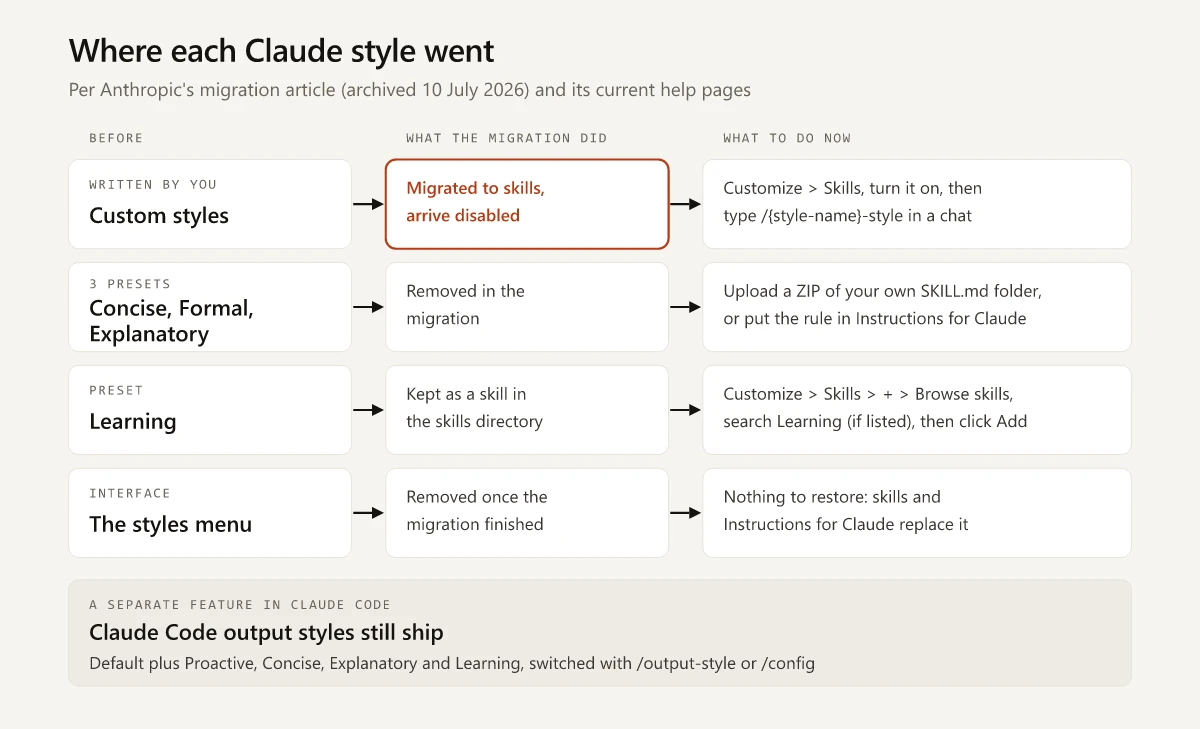
Anthropic replaced the Claude app’s styles with skills in 2026. Custom styles were migrated automatically and arrive disabled: turn them on in Customize > Skills, then type /{style-name}-style, per the migration article. Concise, Explanatory and Formal were removed, Learning became a directory skill, and the styles menu disappears once migration completes. Claude Code’s output styles are separate and still exist.
| Old style | What the migration did | What to use now | Where to set it |
|---|---|---|---|
| Your custom styles | Migrated to skills automatically, disabled by default | The migrated skill, called with /{style-name}-style | Customize > Skills, then its toggle |
| Concise: “Shorter and more direct responses” | Removed | The concise-answers skill below, or one line in Instructions for Claude | Customize > Skills, or Settings |
| Formal: “Clear and polished responses” | Removed | The formal-writing skill below, or Instructions for Claude | Customize > Skills, or Settings |
| Explanatory: “Educational responses for learning new concepts” | Removed | The explain-step-by-step skill below, or Instructions for Claude | Customize > Skills, or Settings |
| Learning | Kept as a skill | The Learning skill from the directory, if it is still listed | Customize > Skills > + > Browse skills |
| Normal: “Default responses from Claude” | Not mentioned in the migration article | Nothing to set | None |
| The styles menu | Removed once migration completes | Skills and Instructions for Claude | None |
Sources: the 10 July 2026 capture of the migration article linked above, and the quoted preset descriptions from the old styles article, archived 18 May 2026.
Claude Styles Migrating to Skills: What Anthropic’s Archived Article Said
Quoted from the 10 July 2026 capture:
- Custom styles: “Any custom styles you’ve created will be migrated to skills automatically.” And: “These skills will be disabled by default, so go to Customize > Skills to enable any of the migrated styles you want to use.”
- Presets: “The Concise, Explanatory, and Formal default styles will no longer be available after the migration. The Learning style is being preserved as a skill.”
- The menu: “Once the migration is complete, the styles menu will no longer appear in Claude.” Until then, existing styles stayed available alongside the new skills.
The disabled-by-default rule arrived in an edit. The version captured on 30 May 2026 said migrated styles would be available as skills and that “If you have more than 30 skills after the migration, the overflow skills will be disabled to prevent your prompt from bloating.” A later edit replaced that sentence with the disabled-by-default rule, and every capture from 2 June to 10 July carries it.
The dates below come from the Wayback Machine’s capture index for article 10181068, Anthropic’s own pages and one Engadget report:
| Date | What the record shows |
|---|---|
| 26 Nov 2024 | Anthropic launches styles with Formal, Concise and Explanatory presets plus custom styles built from your writing samples (launch post, archived; its live URL now returns 404) |
| 14 Aug 2025 | Learning appears in the style dropdown for Claude.ai users, after being limited to Claude for Education (Engadget) |
| Nov 2025 and Mar 2026 | The old styles article lists four presets, Normal, Concise, Formal and Explanatory, without Learning, in a capture from 18 Nov 2025 and in its 16 Mar 2026 version, captured 18 May 2026 |
| By 28 May 2026 | Article 10181068 reads “Styles are moving to skills” (last modified 28 May, captured 30 May) |
| 1 Jun 2026 | The article is edited: migrated styles arrive disabled by default |
| 10 Jul 2026 | Latest capture of the article while it was live |
| 8 Sep 2026 | The Wayback Machine logs a 404 at an older address of the article |
| 2 Oct 2026 | The article’s current and former addresses all return 404 |
Claude for Education, named in the 14 Aug 2025 row, is a plan an institution buys for its students, faculty and staff, and I cover what that leaves an individual student in India separately.
How to Find and Turn On Your Migrated Claude Styles
If your Claude styles are missing, check the skills list before you rebuild anything. These steps combine the migration article with two current Anthropic articles, Use skills in Claude and Browse skills, connectors, and plugins in one directory, as of October 2026:
- Make sure skills can run. On Free, Pro and Max, open Settings > Capabilities and turn on Code execution and file creation; the Use skills article’s troubleshooting gives this setting as the fix when the Skills section is not visible. On Team plans skills are on by default at the organization level; on Team and Enterprise, an owner can confirm that Code execution and file creation and Skills are both enabled in Organization settings > Plugins & skills, under the Policy tab.
- Click Customize in the left sidebar, then the Skills tab. The migrated styles are listed there as skills.
- Turn on each style you want. They arrive disabled, and per the Use skills article, “Disabled skills won’t be available to Claude.”
- In a chat, type the style’s command:
/{style-name}-style.
When the Skills section is still missing after step 1, or the skills in it are greyed out, my guide to skills that do not show up lists the cause and fix under each heading of Anthropic’s skills troubleshooting. If a style you made is not in the list, the migration article gives no recovery step; rebuild it as a skill from the files below.
Per the migration article, each command is built from the style’s name by lowercasing the letters, replacing spaces with hyphens, removing punctuation, emoji and accent marks, and adding -style to the end. A command that runs past the length limit is trimmed, and when two styles would produce the same command, one of them gets a number. No live English help article documented this naming rule on 2 October 2026, so the migration article is the reference for it.
| Style name | Command |
|---|---|
| concise pirate (the article’s own example) | /concise-pirate-style |
| Q3 Board Memo! (the same rules, applied) | /q3-board-memo-style |
Once turned on, a migrated style is an enabled skill on your account, and the Use skills article says enabled skills also load in Claude Code in the terminal when you sign in with the same account (v2.1.273 or later). The Claude Code skills docs add that a synced skill runs as /anthropic-skills:<name>, or as /<name> while no other command uses that name.
How to Get the Learning Style Back as a Skill
Learning is the preset the migration article says was preserved. In its 2025 report, Engadget described the Learning style as a “Socratic approach” that guides you toward your own solution instead of handing over the answer. The migration article’s steps, with the last button label updated from the current directory article:
- Go to Customize > Skills.
- Click ”+”, then “Browse skills” to open the directory.
- Search for “Learning”.
- Click “Add”. The current directory article uses that label, where the migration article said ”+” or “Install”.
The directory article adds that a skill installed this way “appears in Customize > Skills and is enabled by default,” and that “Skills you install from the directory are view-only.” To change how Learning behaves, it says to download a copy, edit it and upload it as your own. The directory article lists no individual skills, so whether Learning is still offered can be confirmed only inside the app.
Copy-Paste Skills for the Removed Concise, Formal and Explanatory Styles
I wrote these three skills for this post. They are not copies of Anthropic’s preset instructions: each body turns Anthropic’s one-line description of the preset into rules Claude can follow. They stay inside Anthropic’s upload rules:
- The frontmatter holds only
nameanddescription, each name is lowercase with hyphens and matches its folder, and each description stays under the 200-character cap in Anthropic’s How to create custom skills article. My guide to what a Claude skill is lists the six fields a claude.ai upload accepts and the other naming rules. - Each description names the requests that should fire it, since Anthropic’s article says “Claude uses this to determine when to invoke your skill.”
The Concise replacement, for “Shorter and more direct responses”:
---
name: concise-answers
description: Short, direct replies that lead with the answer and skip preamble and recaps. Use when the user asks for concise, brief or to-the-point answers, or names this skill.
---

# Concise answers

Apply these rules to every reply in the conversation until the user asks for detail.

1. Put the answer in the first sentence.
2. Cut greetings, restated questions, closing summaries and offers of more help.
3. Use one short paragraph or up to five bullets. Use a table only for a comparison.
4. Keep numbers, names, warnings and caveats that change a decision.
5. When the user asks for more detail, give it in full, then return to this length.
The Formal replacement, for “Clear and polished responses”:
---
name: formal-writing
description: Clear, polished, professional replies for client emails, reports and proposals. Use when the user asks for a formal, professional or polished tone, or names this skill.
---

# Formal writing

Apply these rules to every reply in the conversation until the user asks for a different tone.

1. Write complete sentences with standard grammar and punctuation.
2. No slang, emoji, exclamation marks or jokes. Avoid contractions.
3. State the purpose of the message in the opening sentence.
4. Use the reader's own names for their company, products and job titles.
5. Keep one idea per paragraph. Add headings to anything longer than a page.
6. Close with the next step or the decision needed, not a pleasantry.
The Explanatory replacement, for “Educational responses for learning new concepts”:
---
name: explain-step-by-step
description: Teaches a concept step by step with a plain definition, an example and a check question. Use when the user wants to learn or understand something, or names this skill.
---

# Explain step by step

Use this structure for each new concept the user asks about in this conversation.

1. Open with a one-sentence definition in plain words.
2. Give one concrete example from the user's own field.
3. Break the idea into numbered steps, one idea per step.
4. Define each technical term the first time it appears.
5. End with one question the user can answer to check their understanding.
To install one in the Claude app, per Anthropic’s Use skills and How to create custom skills articles:
- Save the file as
SKILL.mdinside a folder with the skill’s name, such asconcise-answers/. - Zip the folder so that the folder itself sits at the root of the ZIP.
- In Customize > Skills, click ”+”, then ”+ Create skill”, then “Upload a skill”, and pick the ZIP.
- Check that its toggle is on, then ask for it by name. When Claude does not pick a skill up on its own, Anthropic’s troubleshooting suggests a request like “Use my brand guidelines skill to create a presentation.”
How skill-creator can draft and test one of these for you is in my Claude skill guide linked above.
How to Create a Custom Style in Claude Now: A Write-Like-Me Skill
Anthropic’s 2024 launch post named “a marketer crafting specific brand guidelines” among the people styles were for, and the old styles article’s first method was uploading writing samples so that “Claude will analyze your writing and generate a matching style.” A style you built that way migrated with the rest. Anthropic’s What are skills? article now lists “customize Claude to match your work style” among the jobs custom skills can do.
If you would rather rebuild it around the samples you write today, keep them in a reference file that the skill reads before drafting:
write-like-me/
  SKILL.md
  references/
    samples.md    3 to 5 pieces you wrote, each under a heading naming its channel
---
name: write-like-me
description: Drafts posts, emails and page copy in the user's voice, matched to their writing samples. Use when the user asks for writing in their voice or for their LinkedIn, newsletter or blog.
---
# Write like me
1. Read references/samples.md before drafting.
2. Match the samples on sentence length, how paragraphs open, use of "I",
punctuation habits and how much evidence each claim carries.
3. Pick the sample closest to the requested channel and follow its structure,
not its wording or topics.
4. Never add facts, numbers or stories that are not in the request or the samples.
Leave a [bracketed gap] where a fact is missing.
5. After the draft, list the three phrases that sound least like the samples
and suggest a rewrite for each.Rule 4 is there for marketing copy, where a confident draft in your voice can carry a customer number nobody gave it. For checking a draft rather than writing one, the brand-voice-check example in my Claude skill guide pairs a banned-phrase script with written voice rules. For ready-made options, my vetted list of Claude marketing skills names the copy libraries worth a look, and if writing is the main job you give Claude, my Claude vs ChatGPT comparison compares how the two handle copy.
Skills or Instructions for Claude as the Replacement
The migration article offered one alternative to skills: “Instructions apply to all your conversations and can describe the same tone, format, and approach guidance you would have set with a style.” Anthropic’s current personalization article does not mention styles; it says skills can “Adjust the tone and format of Claude’s responses” and “Apply communication patterns based on your own writing or preferences.” Which to use depends on how you used styles:
- One style for everything: write it into Instructions for Claude (click your initials, then Settings).
- Different styles for different jobs: one skill per style, turned on in Customize > Skills and asked for by name.
- A voice for one client or product: project instructions, which apply only to chats inside that project. For a whole marketing kit, see how I sort assets between project instructions, knowledge and skills.
Claude Code Output Styles Still Exist
Claude Code has a separate feature called output styles, and it still ships. As of October 2026, Anthropic’s output styles docs list a Default style plus four built-in ones:
| Output style | What it changes |
|---|---|
| Default | No style instructions; Claude works from Claude Code’s standard software engineering prompt |
| Proactive | Starts work right away and makes reasonable assumptions on routine decisions instead of asking |
| Concise | Leads with the result and leaves out preamble, narration and recaps (v2.1.237 or later) |
| Explanatory | Adds short Insight blocks that explain the choices behind the code it writes |
| Learning | Adds the same Insight blocks and leaves small pieces of code, marked TODO(human), for you to write |
How to set one, from the same page:
- Run
/output-style <style>, such as/output-style concise(v2.1.269 or later), or run/configand pick Output style. Both save the choice to.claude/settings.local.json. - In the VS Code extension, type
/and pick Output styles (v2.1.257 or later). - Or set
"outputStyle": "Explanatory"in a settings file. The value is case-sensitive, so a lowercaseexplanatorygives you the Default style, while the/output-stylecommand ignores case. - For your own, save a Markdown file in
~/.claude/output-stylesor.claude/output-styleswith optionalname,descriptionandkeep-coding-instructionsfields (force-for-pluginapplies to plugin styles only). A custom style drops Claude Code’s software engineering instructions unlesskeep-coding-instructionsistrue. Leave the field out for a writing-assistant style, and set it totruewhen Claude should keep coding the same way.
Per the Claude Code changelog, output styles shipped in v1.0.81 with Explanatory and Learning, were deprecated in v2.0.30 and came back in v2.0.32 “based on community feedback.” The /output-style command was deprecated in favor of /config in v2.1.73 and added again in v2.1.269. Its row sits in the extending section of my Claude Code commands cheat sheet.
The docs page also compares output styles with CLAUDE.md, skills, hooks and subagents: an output style shapes every response in a session, while a skill loads only when you invoke it or a task matches. In Claude Code, a voice you want everywhere is an output style, and a voice for one kind of task is a skill.
I build this site with Claude Code, and my sessions run the Default style: on 2 October 2026, neither the project’s two settings files nor my user settings file set outputStyle, and there was no output-styles folder at either level. The rest of that configuration is in the Claude Code setup behind this site.
Claude Styles: Learning vs Explanatory
The answer depends on which product you mean:
| Claude app (claude.ai) | Claude Code | |
|---|---|---|
| Explanatory | Removed in the 2026 migration; rebuild it with the explain-step-by-step skill above | Built-in output style: Insight blocks explain Claude’s choices, and the explanations stay out of your files |
| Learning | Kept as a directory skill, per the migration article; Engadget described the style as guiding you toward your own answer | Built-in output style: the same Insight blocks, plus TODO(human) gaps where Claude stops and waits for your code |
Claude Styles Migrating to Skills: Start in Customize > Skills
With Claude styles migrating to skills, a style you made is already in your account: turn it on in Customize > Skills and call it with the /{style-name}-style command from the migration article. Rebuild only Concise, Formal or Explanatory, and look for Learning in the directory if you used it. Check your skills list before you write a single new instruction.
Frequently Asked Questions
Why did my Claude styles disappear?
Anthropic replaced styles with skills in 2026. Its help article, since deleted, said custom styles would be migrated to skills automatically and arrive disabled, and that the styles menu would disappear once the migration finished. Turn yours on in Customize > Skills.
How do I use my old custom style in Claude?
Turn the migrated skill on in Customize > Skills. Anthropic's archived help article said to then type /{style-name}-style in a chat, with the name lowercased, spaces turned into hyphens, punctuation and emoji dropped and -style added, so a style called 'concise pirate' becomes /concise-pirate-style.
How do I create a custom style in Claude now?
Write a skill: a folder holding a SKILL.md file with a name, a description of up to 200 characters and your tone rules, zipped and uploaded under Customize > Skills. For a tone you want in every conversation, add it to Instructions for Claude in Settings instead.
What is the difference between the Learning and Explanatory styles in Claude?
In the Claude app, the 2026 migration removed Explanatory, and Anthropic's archived help article said Learning would be kept as a skill you add from the skills directory. In Claude Code both are output styles: Explanatory adds short Insight blocks on Claude's choices, and Learning adds the same blocks and leaves small pieces of code for you to write.
Are Claude Code output styles deprecated?
No. Claude Code deprecated output styles in version 2.0.30 and restored them in 2.0.32. As of October 2026, Anthropic's docs list Default plus four built-in styles, Proactive, Concise, Explanatory and Learning, which you switch with /output-style or /config.