How to Add LinkedIn to Resume So the Link Still Works
How to add LinkedIn to resume in Word, Google Docs, Canva or Overleaf: where the URL goes, how to link it, and the exports that leave the link dead in your PDF.
Canva will let you put a clickable LinkedIn link on your resume and then lose it at the download step, depending on the format you pick. Its Add hyperlinks Help Center page says “Hyperlinks will only work if you download your design as a PDF (except flattened PDFs)”, and that image formats like JPG and PNG “do not support hyperlinks regardless of the image source.” Word for Mac has its own version: Microsoft’s PDF conversion page warns that with Best for printing, “the hyperlinks may not convert correctly.” So how to add LinkedIn to resume files is two jobs: putting the link in, and making sure the export keeps it clickable.
I read each editor’s own help page, logged out, on 23 November 2026, and wrote the steps below from them. My view after reading them: a LinkedIn link on a resume earns its place only if it still works in the exact file the recruiter opens, so I would add it in the editor you already use and then click it in the exported PDF before the file goes anywhere.
This guide is about putting your LinkedIn URL on a resume file. To upload a resume file to LinkedIn instead, for Easy Apply or your Featured section, my guide to adding a resume to LinkedIn covers each route and who sees the file.
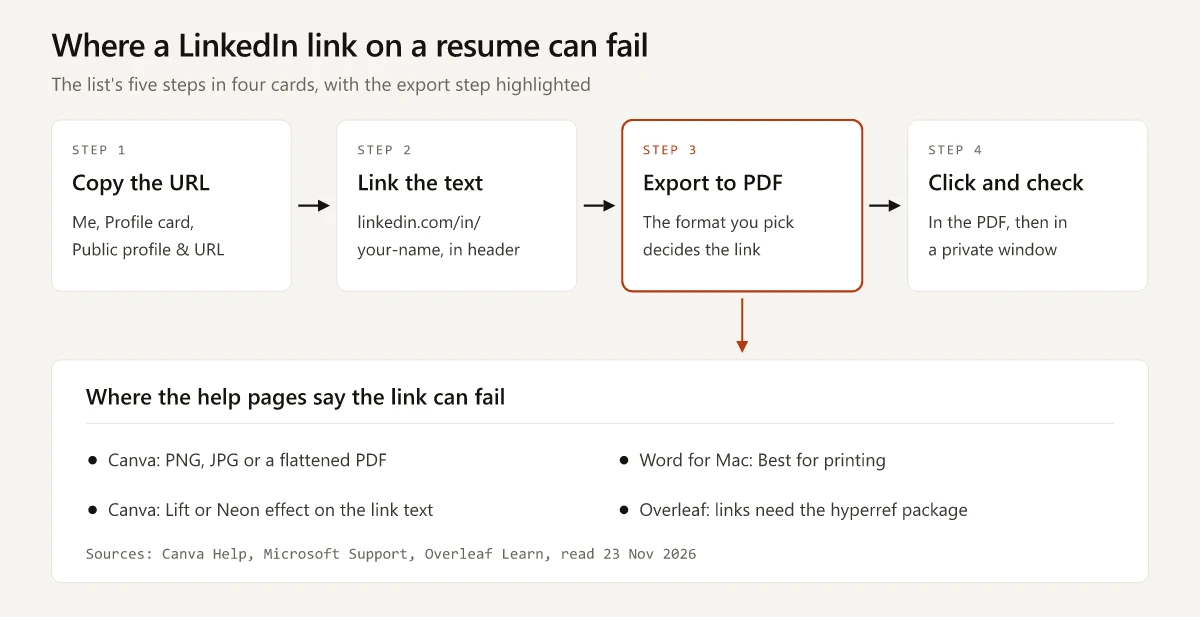
How to Add LinkedIn to Resume in Five Steps
- Copy your profile URL. On desktop, LinkedIn’s Manage your public profile URL page puts it behind the Me icon, your Profile card, then the Edit icon next to Public profile & URL on the right pane. If the URL is long or hard to read, shorten it with a custom URL first. For the app and mobile-browser paths to the same URL, see how to share your LinkedIn profile link.
- Write the short form. Monster’s LinkedIn resume guide (Megan Dawkins, updated 23 April 2026) advises leaving out “https://www”, so the text reads
linkedin.com/in/your-name. - Put it in the contact header, after your phone number and email, which is where Monster places it.
- Link the text in your editor. Each editor’s steps are in the table and sections below.
- Export a PDF and click the link in it, then open the same URL in a private browser window.
Where to Put LinkedIn on a Resume
The header is the standard place, on the same line as the rest of your contact details. A header line in the shape Monster recommends:
Your Name
+91 98xxx xxxxx | your.name@email.com | linkedin.com/in/your-name
Monster also says the URL should “visually match the rest of your contact information in font size and spacing.” Two choices are left to you, and the file’s destination decides both:
| Where the resume goes | Visible text | Clickable? | Basis |
|---|---|---|---|
| Emailed or uploaded as a PDF | linkedin.com/in/your-name | Yes | Monster: a clickable URL “is a nice convenience for employers” on digital submissions |
| Printed for an interview or job fair | linkedin.com/in/your-name | No need | Monster: “Remove hyperlink formatting for printed resumes” |
| LaTeX resume you will also print | The URL itself, via \url{} | Yes | Overleaf calls \url “useful if you will print the document” |
| Canva design posted as an image | Typed URL only | No | Canva: links do not work in JPG or PNG files |
The rule I take from that table: make the visible text the URL itself, never a bare word like “LinkedIn”. A word-only link is useless on paper and useless in any file where the link did not survive, while a written-out URL can still be typed in.
How to Add LinkedIn Link in Resume, Editor by Editor
Each row below draws on the editor’s own help pages, read on 23 November 2026, and the Word for Mac row says where Microsoft’s link page stops. Menu labels change, so match them against your screen.
| Editor | How to link the text | What the help page says about export | Source |
|---|---|---|---|
| Word (Windows) | Select the text, Insert, Link (or right-click, Link), type the URL in Address | PDF via File, Save a Copy (or Save As), then PDF | Microsoft: hyperlinks, PDF page above |
| Word for Mac | Microsoft’s hyperlink page does not mention Mac; match its Insert, Link labels on your screen | With Best for printing, “the hyperlinks may not convert correctly. This is a known issue in Word for Mac.” | Microsoft PDF page |
| Google Docs (computer) | Highlight the text, Insert, Link, fill Text and Link, Apply | The link page does not mention PDF | Google Docs Help |
| Google Docs app | Tap Edit, highlight the text, Create (Android) or Insert (iPhone), Link, Done | Not covered on the link page | Google Docs Help, Android and iPhone tabs |
| Canva | Highlight the text, More icon, Link, enter the URL, press Enter | PDF only, “except flattened PDFs”; Lift and Neon text effects break links in downloaded PDFs | Canva Add hyperlinks, text effects page |
| Overleaf (LaTeX) | \usepackage{hyperref}, then \href{URL}{text} or \url{URL} | Links are built for PDF reading; hyperref “usually” has to be the last package imported | Overleaf Learn: Hyperlinks |
Microsoft Word
From Microsoft’s Create or edit a hyperlink page:
- Select the text you typed for your LinkedIn URL.
- On the ribbon’s Insert tab, select Link, or right-click the text and click Link.
- In the Insert Hyperlink box, enter your full profile URL in the Address box. If there is no Address box, select Existing File or Web Page under Link to.
- Leave Text to display as the short URL you typed.
The same page says Word also converts an address into a link when you press Enter or the spacebar straight after typing it. Step 4 matters because Word lets the display text and the address differ: a resume can show the right URL and send clicks to a wrong one, and only a click in the finished file shows it.
To export on Windows, Microsoft’s PDF page gives File, Save a Copy (or Save As for an unsaved file), Browse, then PDF from the drop-down list. On a Mac it is File, Save As or Save a copy, File Format, then PDF, and that is where the Best for printing warning applies.
Google Docs on a Computer
From Google’s Work with links & bookmarks page:
- Highlight the text you want to link.
- Click Insert, then Link.
- Under “Text,” keep your short URL; under “Link,” enter the full profile URL.
- Click Apply.
The page mentions Ctrl + K (Cmd + K on a Mac) for Insert link, in a tip written for Sheets.
Google Docs on a Phone
The same Help page has separate Android and iPhone tabs, and they differ by one button:
| Step | Android | iPhone |
|---|---|---|
| 1 | Open the doc, tap Edit | Open the doc, tap Edit |
| 2 | Highlight the text | Highlight the text |
| 3 | Top right, tap Create | Top right, tap Insert |
| 4 | Tap Link, fill “Text” and “Link” | Tap Link, fill “Text” and “Link” |
| 5 | Tap Done | Tap Done |
Canva
From Canva’s Add hyperlinks page, desktop tab:
- Select the text box with your URL.
- Double-click it and highlight the URL text (Canva marks this step optional; without it, the link goes on the selected element).
- Select the More icon on the floating toolbar, then Link.
- Enter your profile URL and press Enter.
- Download the design as a PDF, and leave it unflattened.
If the URL text uses the Lift or Neon effect, Canva’s text effects page says “hyperlinks aren’t working for text with effects on downloaded PDFs” and that its engineers are working on a fix. Its workaround for Lift is to add the Curve effect with the curve value set to 0. For Neon, duplicate the text box, set the copy’s effect to None, add the link to the copy, set its transparency to 1 and place it over the original.
Overleaf and LaTeX
Overleaf’s Hyperlinks article gives the commands. A resume header line built from them:
\usepackage{hyperref}   % in the preamble, usually the last package
\hypersetup{colorlinks=true, urlcolor=cyan}

\href{https://www.linkedin.com/in/your-name}{linkedin.com/in/your-name}
% or show the address itself:
\url{https://www.linkedin.com/in/your-name}
\href takes the link first and the visible text second. Overleaf says colorlinks=true colours links; its reference table gives magenta as the default for web links (red is for internal links), so set urlcolor to pick the colour. It also says \url prints links in a monospaced font unless you add \urlstyle{same}.
Why the LinkedIn Link on Your Resume Is Not Working
Match what you see in the PDF to a row:
| What you see | Likely cause | Fix | Source |
|---|---|---|---|
| Canva link not clickable | Downloaded as PNG or JPG, or as a flattened PDF | Download as PDF without flattening | Canva Add hyperlinks |
| Canva link dead on styled text | Lift or Neon effect on the link text | Canva’s Curve-0 or duplicate-text workaround | Canva text effects page |
| Word for Mac PDF link dead | Best for printing chosen at export | Export again with the other PDF option, not Best for printing | Microsoft PDF page |
| No working link in the Overleaf PDF | hyperref not loaded | Add \usepackage{hyperref}, usually as the last package | Overleaf Hyperlinks |
| Link opens a Profile Not Found page | The resume holds an old custom URL | Copy the current URL from Public profile & URL | LinkedIn a542685 |
| Link opens the wrong page | Display text and link address differ | Edit the address so the two match | Microsoft hyperlink page |
On the Profile Not Found row, LinkedIn’s page says “If you navigate to a previously claimed custom public profile URL, you may see a page that reads Profile Not Found.” What happens to an old URL in the months after a change is covered in the custom URL guide linked in step 1. If you cannot sign in to copy the current URL, LinkedIn offers no phone number to call, and LinkedIn’s customer service routes by account type include the one for a locked-out account.
Canva’s page adds one more case: “Social media platforms (such as Facebook, Instagram, LinkedIn, etc.) do not support the hyperlink functionality on posts nor PDF uploads.” A Canva resume posted to LinkedIn as a document loses its clickable links, whatever the export setting.
Check the LinkedIn Link After You Export
Monster’s guide ends its own link advice with “Always double-check that your URL works after exporting.” These are the checks I would run on the final file, in this order:
- Open the exported PDF itself, not the editor, and click the LinkedIn link.
- Copy the URL from the PDF and open it in a private or incognito window. LinkedIn’s Promoting Your Public Profile page says your public profile “is visible to people who aren’t signed in to LinkedIn”, and its public profile visibility page adds that “Not all sections of your profile can be displayed publicly.” A logged-out window shows that version.
- Print the page, or open the print preview, and read the URL off it as a stranger would type it.
While the logged-out window is open, read your headline as the recruiter will see it; the LinkedIn headline character limit covers how long it can run. If you would rather send a resume LinkedIn builds from your profile, saving your LinkedIn profile as a PDF covers the desktop steps and the monthly limit.
The LinkedIn Profile Badge Ends on 12 December 2026
If your resume lives online, as a web page or a personal site, LinkedIn’s Promoting Your Public Profile page (a517984, “Last updated: 4 weeks ago” on 23 November 2026) lists “Adding a LinkedIn View profile button to your online resume, blog, or website.” The same page opens with a notice: “The Public Profile Badge feature will no longer be available after December 12, 2026.”
I would not add the badge now. A plain text link to your profile URL, set up as in the editor steps above, needs no badge, so that date does not touch it.
How to Add LinkedIn to Resume and Check the Link
How to add LinkedIn to resume is settled at export more than in the editor: the same linked text stays clickable in a Canva PDF and does nothing in a Canva PNG. Click the link in the final PDF before every application, because the export setting, the URL itself and the link address can each break it.
Frequently Asked Questions
Where should I put my LinkedIn URL on my resume?
In the contact header at the top, after your phone number and email, which is where Monster's resume guide places it. Show a short form such as linkedin.com/in/your-name rather than the full https://www address.
Why is the LinkedIn link on my resume not working?
Most of the causes editors document are in the export. Canva says links work only in a PDF download and not in PNG, JPG or flattened PDFs, Microsoft says the Best for printing option in Word for Mac may not convert hyperlinks correctly, and an Overleaf link needs the hyperref package. A changed LinkedIn URL can also open a Profile Not Found page.
How do I add a LinkedIn link in my CV?
The same way as on a resume: copy your public profile URL from Public profile & URL on LinkedIn, type a short version in the CV header, link that text in your editor, export a PDF and click the link in the PDF before you send it.
How do I add a LinkedIn link to my resume in Canva?
Select the text box, highlight the URL text, select the More icon on the floating toolbar, select Link, enter your profile URL and press Enter. Then download the design as a PDF that is not flattened, because Canva says links do not work in image formats or flattened PDFs.
Should the LinkedIn link on my resume be a hyperlink?
For a resume sent as a PDF, yes, as long as the visible text is the URL itself, so the link still reads correctly on paper. For a printed copy, Monster advises removing the hyperlink formatting, and Overleaf describes its url command as useful if you will print the document.