How to Share LinkedIn Profile Link: 4 Routes by Device
How to share LinkedIn profile link on desktop, in the app or a phone browser: copy the URL, send it in a message, use Share via or QR, then test it logged out.
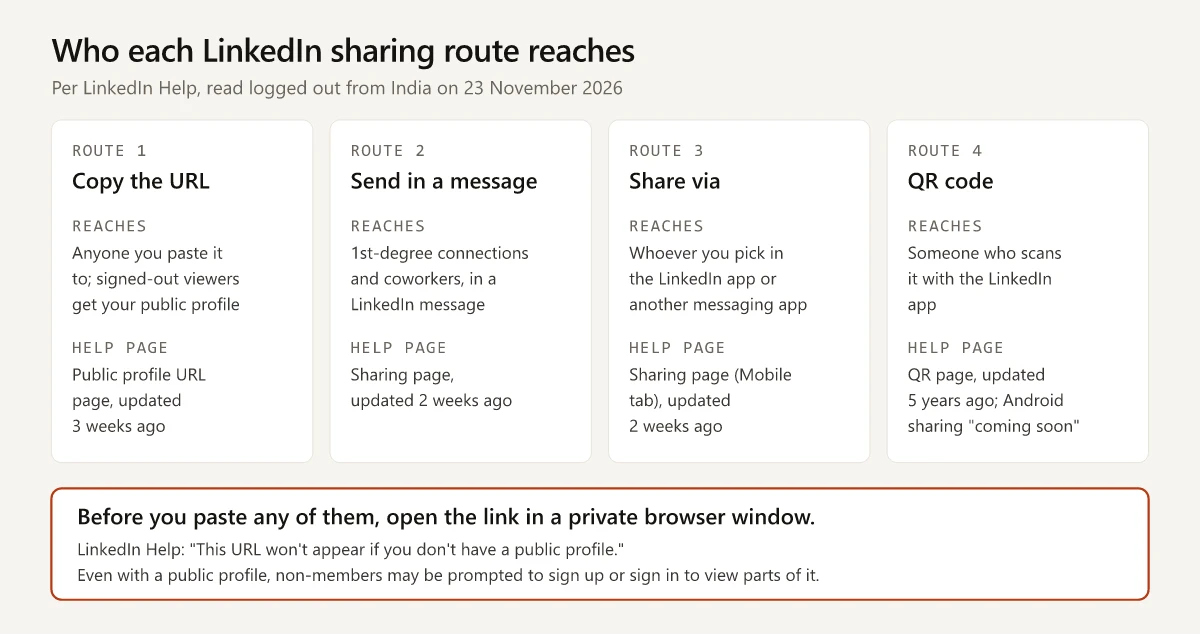
Ask how to share LinkedIn profile link and LinkedIn’s Help pages give four separate routes: copy the URL, send your profile in a LinkedIn message, use Share via in the app, or show a QR code. They sit on three Help pages that I read logged out from India on 23 November 2026, last updated anywhere from 2 weeks to 5 years before that day, and two of them point to different items in the app’s More menu.
The routes, by where you are signed in:
- Copy the URL. Desktop: Me, Profile card, then copy it from Public profile & URL on the right pane. App: profile photo, Profile card, More, Contact info, under Your Profile.
- Send profile in a message. Desktop: Profile card, Resources, Send Profile in a message. It reaches 1st-degree connections and coworkers only.
- Share via. App (LinkedIn Help documents it only on the Mobile tab): More in your introduction section, Share via, then the LinkedIn app or another messaging app.
- QR code. App only: the QR icon in the search bar, My code, then Share my code or Save to photos on iOS (Android: Save to gallery).
Anyone who opens your link while signed out of LinkedIn sees your public profile, which exists only while its visibility is on, and of the three ranking guides I compare below, one mentions that. So the step I would never skip is opening the link in a private browser window before you paste it anywhere.
Four Ways to Share Your LinkedIn Profile, by Device
Every path below is quoted from LinkedIn Help as of November 2026. Ranking guides dated 2023 to 2026 use different menu names (compared further down), so the “Last updated” stamp is part of the answer.
| Route | Desktop | App | Mobile browser | Who can open it | Help page, last updated (read 23 Nov 2026) |
|---|---|---|---|---|---|
| Copy the URL | Me, Profile card, Public profile & URL (right pane) | Profile photo, Profile card, More (next to Add section), Contact info, Your Profile | Profile photo, Contact section, under LinkedIn | Anyone you paste it to, subject to your public profile settings | Find your LinkedIn public profile URL, 3 weeks ago |
| Send profile in a message | Me, Profile card, Resources, Send Profile in a message | More (next to Add section), Send profile in a message (a tip on the URL page, a522735) | Not documented | 1st-degree connections and coworkers | Share a profile with connections and coworkers, 2 weeks ago |
| Share via | Not documented | Profile photo, Profile card, More (introduction section), Share via | Not documented | Whoever you send it to in the LinkedIn app or another messaging app | Same page, 2 weeks ago |
| QR code (My code) | Not documented | QR icon in the search bar, My code, Share my code (iOS) or Save to gallery (Android) | Not documented | Someone who scans it with the LinkedIn app | Using a LinkedIn QR Code to Connect with Members, 5 years ago |
How to Copy Your LinkedIn Profile Link on Desktop
The Desktop tab of LinkedIn’s public profile URL page:
- Click the Me icon at the top of your LinkedIn homepage.
- Click your Profile card from the dropdown.
- Find your URL under Public profile & URL on the right pane. It is “an address that starts with www.linkedin.com/in”.
- Copy it. The page’s instruction is “Copy and paste this link to share it with others.”
The address you copy is the one your profile has today, assigned or custom. If you want a shorter ending first, changing your LinkedIn URL has the steps and the rules for the old address, so I will not repeat them here. If the link is going on a resume, adding your LinkedIn URL to a resume covers the short form to type and how to keep it clickable in the exported PDF.
How to Share LinkedIn Profile Link From the App
The URL and sharing pages’ Mobile tabs do not split iPhone from Android. To read and copy the URL itself, the same Help page gives:
- Tap your profile photo in the upper-left corner.
- Tap your Profile card on the navigation panel.
- Tap the More icon next to the Add section button.
- Tap Contact info.
- Under Your Profile, find the address starting www.linkedin.com/in and copy it.
To send the profile out of the app instead, the sharing page gives a different last step:
- Tap your profile photo, then your Profile card.
- Tap the More icon in the introduction section of your profile.
- Tap Share via.
- Choose the LinkedIn mobile app “or by using another messaging application on your device”.
Each Help Page Lists a Different Item in the App’s More Menu
The URL page ends its Mobile tab with a tip: “You can also tap on the More icon next to Add section button and select Send profile in a message”. The sharing page (“Last updated: 2 weeks ago”, against the URL page’s 3 weeks) sends you through the More icon in the introduction section to Share via. Send profile in a message opens a LinkedIn message; Share via offers the LinkedIn app or another messaging app on your phone.
Sharing on WhatsApp From Your Phone
LinkedIn Help does not name WhatsApp on either page. It falls under “another messaging application on your device”, so the app route is More, Share via, then the messaging app you want. From a laptop, copy the URL from Public profile & URL and paste it into the chat.
The QR Code Route and Its 5-Year-Old Help Page
The QR code Help page showed “Last updated: 5 years ago” on 23 November 2026. Its steps:
- iOS: tap the QR code in the search bar at the top of your homepage, tap the My code tab, then tap Share my code “to share your QR code via message, email or other third-party apps” or Save to photos.
- Android: the same QR icon and MY CODE tab, with SAVE TO GALLERY, and this note: “The option to share your QR code via message, email or other third-party apps is coming soon on Android mobile devices.”
That Android line is five years old by the page’s own stamp, so read it as what the page says and check your own app for a share button. Someone who scans the code with the app is “redirected to their profile”, per the same page.
Copying Your Link From a Mobile Browser
The third tab on the URL page covers linkedin.com in a phone’s browser rather than the app:
- Tap your profile photo.
- Scroll down to the Contact section.
- Under LinkedIn, find your public profile URL. On this tab it is written as starting with https://www.linkedin.com/in.
- Copy and paste it.
The sharing page has only Desktop and Mobile tabs, so Send profile in a message and Share via have no documented phone-browser steps. In a phone browser, copying the URL is the route LinkedIn Help documents.
Send Your Profile in a LinkedIn Message
Some guides still send you to a More menu for this. LinkedIn’s sharing page now says:
- Click the Me icon, then your Profile card.
- Click the Resources button in your introduction section.
- Select Send Profile in a message. A New message window opens.
- Type the name, or several names, of the connections you want to send it to. Per the page: “Your public profile URL will populate in the text box.”
- Add a note or attach media if you want, then click Send.
The page limits this to “any of your 1st-degree connections and coworkers”. For a 2nd or 3rd-degree member, copy the URL and send it another way; what 1st, 2nd and 3rd-degree connections can do explains the degrees.
Share Someone Else’s LinkedIn Profile
The same Help page covers another member’s profile:
| Where | Steps |
|---|---|
| Desktop | Go to their profile, click More in their introduction section, select Share Profile, type the names of the connections to send it to, click Send |
| App | Go to their profile, tap the More icon in their introduction section, tap Share via, then choose the LinkedIn app or another messaging app |
On your own profile the desktop button is Resources; on another member’s profile it is More. If you want their profile as a file rather than a link, saving a LinkedIn profile as a PDF covers that desktop-only route and its monthly cap.
Why Your LinkedIn Link Does Not Open for Everyone
Your link is only as visible as your public profile. The URL page opens with “If your LinkedIn profile is set to public, it’ll have a link (URL) you can use to share your profile with others”, and its first note is: “This URL won’t appear if you don’t have a public profile.”
LinkedIn Help names these settings for what a logged-out visitor gets (your profile photo also has its own visibility setting):
| Setting | Where, per LinkedIn Help | What it changes for someone opening your link |
|---|---|---|
| Your profile’s public visibility | Desktop: Me, Profile card, Edit icon next to Public profile & URL. App: profile photo, Settings & Privacy, Visibility, Edit your public profile | Off hides your profile “from public view” (Control your public LinkedIn profile, last updated 6 days before I read it) |
| Section toggles on the same screen | Same place | Each one hides that section from your public profile; “Changes are saved automatically” |
| Public visibility limits | Your public profile settings (the note gives no separate path) | With limits on, non-members “may be prompted to sign up or sign in to LinkedIn to view parts of your public profile”; turning them off makes the profile easier for non-members to view, and the page warns it may also help unauthorized third parties and search tools collect your data |
The public profile visibility page adds: “In order to see your full profile, visitors may need to log in to their LinkedIn accounts.” A separate toggle, Off-LinkedIn Visibility, covers partner services, and LinkedIn’s off-LinkedIn visibility page says changing it “doesn’t limit visibility of your public profile”. The public profile visibility page words it differently, calling your public profile visible to non-members “subject to your off-LinkedIn visibility settings”, so if a logged-out test looks wrong, check both. The same public profile toggles decide whether Google can show your profile at all, which matters if recruiters look for you with a LinkedIn X-ray search on Google.
To test the link:
- Copy your URL by any route above.
- Open a private (incognito) window in your browser, where you are signed out.
- Paste the URL and read what loads.
- If it asks you to sign in or shows fewer sections than you expected, the settings in the table are where LinkedIn Help points.
If those settings do not explain what loads, LinkedIn has no phone line to call; LinkedIn’s customer service routes start from the Help Center chat and differ by account type.
A private browser window is a browser feature. LinkedIn’s own private mode for viewing profiles is a different setting that changes what others see when you look at their profile.
Country Codes and Other LinkedIn Link Formats
The URL page’s notes cover two formats you may run into:
- Country prefix. “Members who live in certain countries have a public profile URL that begins with a 2-letter code based on the country listed on their profile.” The only example given is Canada (ca.linkedin.com). The page names no other country, so do not assume yours has one.
- Changing country. “If you change the country listed on your profile, your public profile URL automatically changes. The old URLs will still work.”
A website link or custom button on your profile is a different object from your profile’s own address; where the old creator-mode profile link went covers that.
What Guides Say vs What LinkedIn Help Says
I read three ranking guides against the Help pages on 23 November 2026. This compares what the pages say, not app screens:
| Guide | Date shown | What it says | LinkedIn Help, 23 Nov 2026 |
|---|---|---|---|
| Candid.Technology (Kumar Hemant) | 12 June 2024 | Desktop: Me, View Profile, copy from Public profile and URL. App: three-dot button, “Share profile via message” or “Share profile via” | Desktop: Me, Profile card. App: More, then Share via, or Send profile in a message |
| TechWiser (Mehvish) | Updated 19 January 2023 (page metadata: published 4 January 2023) | “LinkedIn doesn’t offer a native service to create QR codes for profiles” | The QR page documents My code in the app |
| Zeliq (Camille Wattel) | 24 May 2026 | Desktop: “click More under your headline, then Share profile via, then Copy link to profile” | Desktop: Resources, Send Profile in a message; or copy from Public profile & URL |
Zeliq is the one guide of the three that tells readers to open the URL in an incognito window, which matches the test above. Where a guide and LinkedIn Help disagree, I go with the Help page. The URL and sharing pages were updated 3 and 2 weeks before my read; the QR page is 5 years old but still documents My code, which TechWiser says does not exist.
Pick a LinkedIn Sharing Route by Situation
| You want to | Route | Why |
|---|---|---|
| Paste your link on a resume, email signature or job form | Copy the URL | Plain text works anywhere; if you also upload a resume to LinkedIn, how saved resumes and profile resumes differ is a separate setting |
| Send it to a 1st-degree connection or coworker | Send profile in a message | The URL fills itself into the message |
| Send it on WhatsApp or another messaging app from your phone | Share via | Hands the profile to another messaging app |
| Give it to someone in person who has the LinkedIn app | QR code, My code | A scan redirects them to your profile |
| Send it to someone who is not on LinkedIn | Copy the URL, then run the private-window test | They see your public profile only |
How to Share LinkedIn Profile Link That Opens for Anyone
If you are working out how to share LinkedIn profile link so it opens for anyone, the check after the copy matters more than the route. Open the URL in a private window, fix the public profile toggle if the page hides you, then paste it into the resume or chat.
Frequently Asked Questions
How do I copy my LinkedIn profile link?
On desktop, click Me, then your Profile card, and copy the address shown under Public profile & URL on the right pane. In the app, tap your profile photo, your Profile card, the More icon next to Add section, then Contact info, and copy the URL under Your Profile.
Where is my LinkedIn URL in the app?
LinkedIn Help puts it under Contact info: tap your profile photo, tap your Profile card, tap the More icon next to the Add section button, tap Contact info and look under Your Profile. It starts with www.linkedin.com/in.
How do I share my LinkedIn profile on WhatsApp?
In the LinkedIn app, open your Profile card, tap the More icon in your introduction section and tap Share via, then choose another messaging application on your device. LinkedIn Help does not name WhatsApp; on desktop, copy the URL from Public profile & URL and paste it into the chat.
Why doesn't my LinkedIn link open for people who aren't logged in?
A logged-out visitor sees your public profile, and LinkedIn Help says the URL won't appear if you don't have a public profile. Even with one, non-members may be prompted to sign up or sign in to see parts of it, so open your link in a private browser window to check.
How do I share someone else's LinkedIn profile?
On desktop, open their profile, click More in their introduction section and select Share Profile, then type the names of the connections to send it to. In the app, tap the More icon on their profile and tap Share via.