How to Download LinkedIn Profile as PDF: Steps and Limits
How to download LinkedIn profile as PDF on desktop, what LinkedIn says about the app, and its rules: 200 PDFs a month, your own included, English only.
LinkedIn caps profile PDFs at 200 a month, and your own profile counts toward that number. “You’re limited to 200 PDF downloads per month when saving LinkedIn profiles, including both your own profile and other members’ profiles,” says LinkedIn’s Save a profile as a PDF Help page (answer a541960), which I read logged out from India on 22 November 2026 (it showed “Last updated: 2 weeks ago”). The same page adds three conditions: it gives desktop steps only and says the feature is not in the LinkedIn mobile app, the profile and the language setting must both be English, and it “may not be accessible to all members”. Once those are met, here is how to download LinkedIn profile as PDF in four clicks.
Adobe’s guide to exporting a LinkedIn profile to PDF, which shows no date, still tells readers they can download their own profile “as many times as you want” and that other members’ profiles are “limited to 100 PDF downloads per month”. LinkedIn’s page now says otherwise. I would count every save against the 200, your own included, and treat any guide that does not quote LinkedIn’s current page as out of date.
How to Download LinkedIn Profile as PDF on Desktop
The steps from LinkedIn’s Save to PDF Help page, as of November 2026:
- Click the Me icon at the top of your LinkedIn homepage.
- Click your Profile card from the dropdown (to save another member’s profile, open their profile instead).
- Click the More or Resources button in the introduction section.
- Select Save to PDF from the dropdown.
The button name depends on whose profile is open. LinkedIn’s Share a profile with connections and coworkers page, read the same day, sends you to the Resources button on your own profile and to More on another member’s. The Save to PDF page names either button as the way to Save to PDF.
LinkedIn describes the result in two places. The Save to PDF page calls it a copy of the profile “as a resume in a PDF”, and the Upload your resume to LinkedIn page says “You can download your entire profile as a PDF in a resume format.” Neither page lists the sections the file includes, so open the PDF and check it before you send it anywhere.
The Rules LinkedIn Sets on the Profile PDF
Every rule below is from a541960, read on 22 November 2026:
| Rule | LinkedIn’s words |
|---|---|
| Monthly limit | ”You’re limited to 200 PDF downloads per month when saving LinkedIn profiles, including both your own profile and other members’ profiles.” |
| Device | ”This feature is not available on the LinkedIn mobile app.” |
| Profile language | ”Profiles must be in English” |
| Language setting | ”the member’s language setting must also be English for the feature to work correctly” |
| Characters | ”The Save to PDF option currently supports only English characters.” |
| Rendering | Other language settings may cause “translation mismatches”, “resulting in improper PDF rendering” |
| Access | ”this feature may not be accessible to all members” |
Two things the page does not say: when the monthly count resets, and whether LinkedIn warns you before you reach 200. The language rule also leaves a gap. “The member’s language setting” could mean you or the person whose profile you save, and the page does not say which, so the setting you can control is your own.
How to Save Someone Else’s LinkedIn Profile as a PDF
The steps are the same as for your own profile, starting from their page:
- Go to the member’s profile.
- Click More in their introduction section.
- Select Save to PDF.
When the profile belongs to another member:
- It counts toward the same 200 a month as your own (a541960).
- The page says “Profiles must be in English” without saying whether that means your profile, theirs or both, so a profile written in another language may not save cleanly.
- Opening their profile is a profile visit. What the member sees about you depends on your profile viewing mode, which my guide to LinkedIn private mode sets out.
UPDF’s guide says the button “may not work for others’ profiles since different users have different privacy settings”. LinkedIn’s page does not mention the other member’s privacy settings, so treat that as the guide’s reading and not a documented rule.
Can You Download a LinkedIn Profile as PDF on iPhone or Android?
Not in the LinkedIn app: a541960 says “This feature is not available on the LinkedIn mobile app,” and its only steps are headed “To save a profile as a PDF from your desktop”. LinkedIn Help pages can carry a tab for each device: the introduction section page has Desktop, Mobile and Mobile Browser tabs, while the Save to PDF page gives desktop steps alone.
The phone workarounds in circulation come from third-party guides:
| Guide | Phone advice | Date on the page |
|---|---|---|
| Adobe Acrobat | ”You’ll just need to be sure you’re using an internet browser”, then tap More and Save to PDF | None shown |
| UPDF | Open LinkedIn in a phone browser, choose “Request Desktop Website”, then More and “Save as PDF” | Published 18 September 2024, modified 1 September 2025 (page metadata) |
LinkedIn Help documents neither route, so treat both as untested tips. What LinkedIn does document in the app is sharing your profile. Per a539937: tap your profile photo, tap your Profile card, tap the More icon in the introduction section, then tap Share via and pick the LinkedIn app or another messaging app. The recipient gets your profile, not a PDF; for the file itself, use a desktop browser. The other sharing routes, including Send profile in a message and the QR code, are in how to share a LinkedIn profile link by device.
What Other Guides Say vs What LinkedIn Help Says
Guides that rank for this question print different steps and limits. Here they are next to LinkedIn’s page:
| Source | Date shown | Path it gives | Monthly limit | Your own profile counts? |
|---|---|---|---|---|
| LinkedIn Help (a541960) | “Last updated: 2 weeks ago”, read 22 November 2026 | Me, Profile card, More or Resources, Save to PDF | 200 | Yes |
| Adobe Acrobat | None | Me, View Profile, More, Save To PDF | 100 for other members | No: “as many times as you want” |
| UPDF | None shown (metadata: published 18 September 2024, modified 1 September 2025) | Me, View Profile, More, Save to PDF | None stated | Not stated |
| LinkedIn For Dummies excerpt | Updated 2018-06-21 | Me, View Profile, the three dots, Save to PDF | None stated | Not stated |
| Daniel Miessler | May 17, 2017 | Me, View Profile, Save to PDF | None stated | Not stated |
LinkedIn’s newer Help pages (a541960, a539937) say Profile card in the Me dropdown, where every guide above says View Profile; LinkedIn’s own introduction-section page (a547248) still says View Profile, so expect either label. One difference changes what you do: the only limit in these guides, Adobe’s 100, does not match LinkedIn’s current page, which counts your own saves too and sets the total at 200.
LinkedIn Save to PDF Not Working? Four Checks
Run these in this order, each tied to a rule in the table above:
- On a phone? The option is not in the LinkedIn app. Open LinkedIn in a desktop browser.
- Language setting not English? Set it to English (steps below), then try again.
- Profile not in English, or broken characters in the PDF? Make your English profile the primary one (steps below) and save again; names or titles in other scripts may still render badly.
- Option stops working after heavy use? You may have reached the 200 a month. The page gives no reset date and does not say what happens at 200. If none of the four applies, the page’s “may not be accessible to all members” line is the only explanation it offers.
To set LinkedIn’s language on desktop, per Select your preferred language for LinkedIn:
- Click the Me icon, then select Settings & Privacy. Account preferences is selected by default.
- Under General preferences, click Language.
- Select the language from the dropdown. LinkedIn says the change is saved automatically.
The same page notes the mobile app uses your phone’s language and “cannot be changed on the app”.
To check your profile’s language, per Create or delete a profile in another language: click the Me icon, click your Profile card, then click the Edit icon next to Profile language on the right pane. If you have profiles in more than one language, the dropdown under Primary profile language switches which one is primary. LinkedIn says this feature “is not available on the LinkedIn mobile app” either.
Pick Your Route: Save to PDF, Data Download or Browser Print
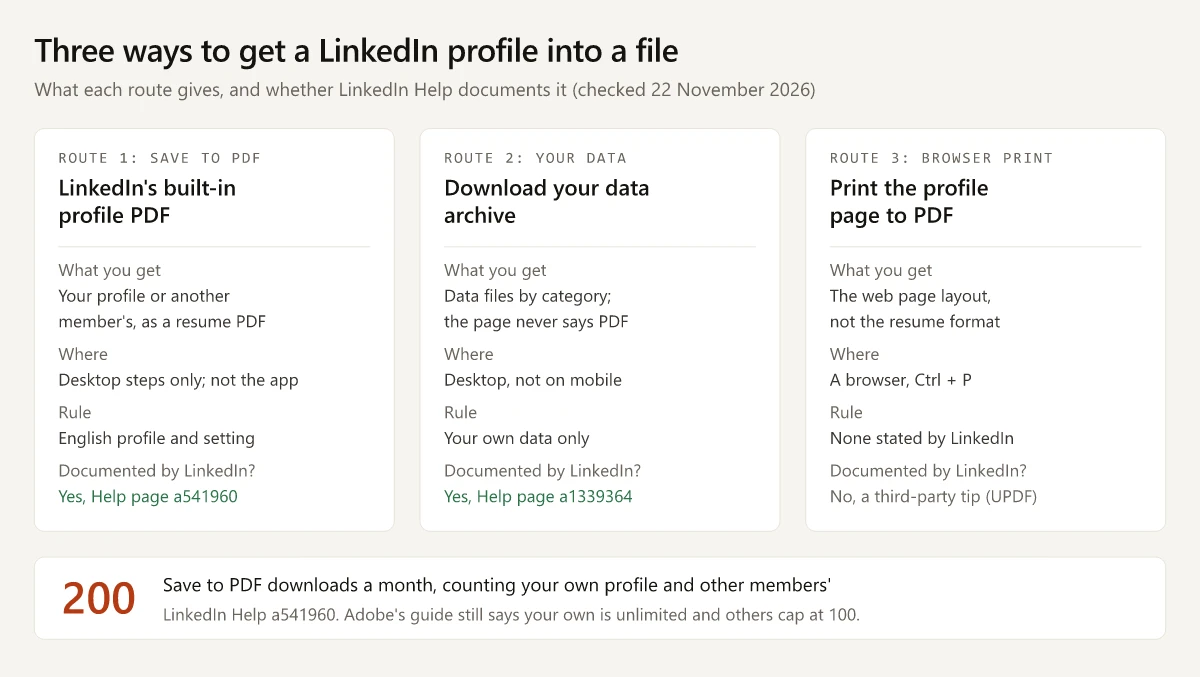
Pick by what the file is for:
- For a resume-style copy to send or keep, use Save to PDF.
- For a full record of your own account, use Download your data. LinkedIn’s Download your account data page says it “will only provide your own personal data and not that of other members” and that “This feature is currently not available on mobile”. The steps, timings and download window are in my notes on LinkedIn’s data download.
- For a page that will not save through the button, UPDF describes pressing Ctrl + P and choosing “Microsoft Print to PDF”, and says the result keeps the profile “the same way as shown on the web interface” rather than in resume format. LinkedIn does not document this route.
Update the Profile Before You Save the PDF
The PDF is built from your profile, so edits come first. LinkedIn’s introduction section page (a547248) lists the fields you can edit at the top of your profile, including name, headline, current position, education, location and industry.
- Start with the headline, which has a 220-character limit of its own.
- If the PDF is going to recruiters with an application, the file you upload and the audience it reaches are covered in my guide to adding a resume to LinkedIn.
- If you write your own resume instead, where to put your LinkedIn URL and how to keep it clickable covers the header line and each editor’s link steps.
- If you are saving a copy before closing your account, LinkedIn’s close account page says “You may want to download a copy of your data before you close your account”, and my guide to deleting a LinkedIn account covers what else to settle before you close it.
How to Download LinkedIn Profile as PDF Without Wasting the Month’s Count
That is how to download LinkedIn profile as PDF: four clicks on desktop, and one rule the guides above miss, which is that the 200-a-month limit counts your own profile. Finish your edits, set your language to English, then save from a desktop browser once. LinkedIn’s Help article a541960 showed “Last updated: 2 weeks ago” when I read it on 22 November 2026, so check that page before you count on the 200.
Frequently Asked Questions
Can I download my LinkedIn profile as a PDF on my phone?
Not in the LinkedIn app. LinkedIn Help says Save to PDF is not available on the LinkedIn mobile app and gives desktop steps only, as of November 2026. Tips to open LinkedIn in a phone browser in desktop mode come from third-party guides, and LinkedIn Help does not document them.
How many LinkedIn profiles can I save as PDF in a month?
200 PDF downloads per month, and LinkedIn Help says the count includes both your own profile and other members' profiles. Guides that say your own profile is unlimited and other members are capped at 100 do not match LinkedIn's current page.
Why is LinkedIn Save to PDF not working?
LinkedIn Help says the feature works only when the profile is in English and the language setting is English, supports only English characters, and may not be accessible to all members. Use a desktop browser and check Language under Settings & Privacy, General preferences.
Can I download someone else's LinkedIn profile as a PDF?
Yes, on desktop: go to their profile, click the More button in the introduction section and select Save to PDF. Each one counts toward the same 200-a-month limit as your own profile.
Where is the Save to PDF button on LinkedIn?
In the introduction section at the top of a profile, under the More or Resources button. LinkedIn's profile-sharing Help page uses Resources on your own profile and More on another member's profile.