How to Change LinkedIn URL and What Happens to the Old One
How to change LinkedIn URL on desktop, in the app or a mobile browser, with LinkedIn Help's rules and the six-month hold on the old link that guides disagree about.
You change your LinkedIn URL, and the old one is still printed on your resume, in your email signature and on every job application you have sent this year. Guides cannot agree on what happens to it next: HandleGrab’s guide says “Your old URL stops working immediately”, while Cleverly’s guide says LinkedIn “continues to redirect from the old URL to your profile for up to 6 months (180 days)”. How to change LinkedIn URL takes five clicks on desktop; what the old URL does afterwards decides how you should do it.
LinkedIn’s own page settles less than either guide claims. Its Manage your public profile URL Help page, which I read logged out from India on 17 November 2026 (it showed “Last updated: 2 weeks ago”), says the previous URL “is still linked to you for six months unless you unlink it” and says nothing about the old URL redirecting. I would plan the change around that six-month hold, and update every copy of the old URL as if it gives you nothing more.
The Help page has a tab for each place you might be signed in. Find yours, then go to its steps:
| Where you are | Way in to the URL setting | Where you type the new URL |
|---|---|---|
| Desktop | Me, Profile card, Public profile & URL | Under Edit your custom URL, on the right pane |
| App | Profile photo, Profile card, More, Contact info, Edit, Profile URL | Public profile settings |
| Mobile browser | Profile photo, Contact section, Edit, Profile URL | Public profile settings |
If you only need to copy or send the address you already have, how to share your LinkedIn profile link covers the four routes LinkedIn Help documents.
How to Change LinkedIn URL in Five Steps (Desktop)
- Click the Me icon at the top of your LinkedIn homepage, then click your Profile card from the dropdown.
- On your profile page, click the Edit icon next to Public profile & URL on the right pane.
- Under Edit your custom URL, click the Edit icon next to your public profile URL.
- Type or edit the last part of your new custom URL in the text box (3-100 characters, no spaces, symbols, special characters or the word LinkedIn).
- Click Save.
Those are LinkedIn’s Desktop steps from the Help page above, with its menu labels as written. The same right pane also holds the controls for your older URLs:
- See prior custom URLs that might be linked to you lists the custom URLs that “might have been previously linked to your profile (if any)”.
- unlink, next to each prior URL, releases it (the timeline below shows what that starts).
- Your assigned URL sits under the label Assigned URL cannot be changed.
The same Public profile & URL page holds your public visibility switch and section toggles, which decide whether your profile can turn up in a Google X-ray search of LinkedIn profiles.
How to Change LinkedIn URL in the App (iPhone and Android)
LinkedIn’s Help page gives one set of steps under its Mobile tab and does not split iPhone from Android:
- Tap your profile photo in the upper-left corner.
- Tap your Profile card on the navigation panel.
- Tap the More icon next to the Add section button.
- Tap Contact info, then tap the Edit icon on the upper right.
- On the Edit contact info page, tap your Profile URL. LinkedIn sends you to the Public profile settings page.
- Under Edit your custom URL, tap the Edit icon next to your public profile URL.
- Type or edit the last part of the new URL and tap Save.
The prior-URL list and the unlink control are on the same Public profile settings page in the app, reached by the same first five steps.
Changing It From a Mobile Browser
The Help page’s third tab, Mobile Browser, covers linkedin.com opened in a phone’s browser rather than the app. It is shorter: after you tap your profile photo, you scroll to the Contact section instead of opening a More menu.
- Tap your profile photo.
- Scroll to the Contact section and tap the Edit icon.
- On the Edit contact info page, tap your Profile URL to reach Public profile settings.
- Under Edit your custom URL, tap the Edit icon, type the new ending and tap Save.
LinkedIn Custom URL Rules, Quoted
Every rule here is from the same Help page (the intro and its Notes section), as of November 2026. LinkedIn edits these pages without notice, so re-read them before you plan around a number.
| Rule | LinkedIn’s words |
|---|---|
| Length and characters | ”Your custom URL can be 3-100 characters long and should not contain spaces, symbols, special characters, or the word LinkedIn.” |
| Capital letters | ”The customizable part of the URL is case insensitive, which means using JohnSmith, johnsmith, or johnSmith will all point to the same profile.” |
| One at a time | ”Custom public profile URLs are available on a first come, first serve basis. You can only have one custom public profile URL at a time.” |
| How often | ”You can change your custom public profile URL up to five times within six months.” After the fifth change, “you won’t be able to change it for another six months.” |
| Undo | ”You should be able to revert to your old URL immediately after changing.” |
| Taken names | ”We can’t make custom public profile URLs available to members upon request.” |
| Other languages | Additional language profiles share the URL, with a language field added at the end, for example “fr” for a French profile. |
LinkedIn’s advice in the same notes is to use “a variation of your name and/or your professional brand”, “since you’ll share this public profile URL with people”, and it adds that “Some job applications may also ask you for your LinkedIn public profile URL.” The same professional-brand thinking applies to the headline; what the LinkedIn headline limit is and who states it covers that field. The Help page also warns that “Changing your custom public profile URL several times may make it hard for people to find you.”
What Happens to Your Old LinkedIn URL
The Help page describes three paths, and the old URL ends up somewhere different on each:
| Path | What LinkedIn Help says | When the URL can go to someone else |
|---|---|---|
| You change it and leave the old one linked | ”the previous URL is still linked to you for six months unless you unlink it. Other members won’t be able to claim during this period.” | Not during the six months |
| You unlink the old one | ”it won’t be visible to other members for seven days, after which they can claim it.” | After seven days |
| You close your account | ”the custom public profile URL will be available after 180 days from the date of the close.” | After 180 days |
LinkedIn also says a visitor to a previously claimed custom URL “may see a page that reads Profile Not Found”, without saying when.
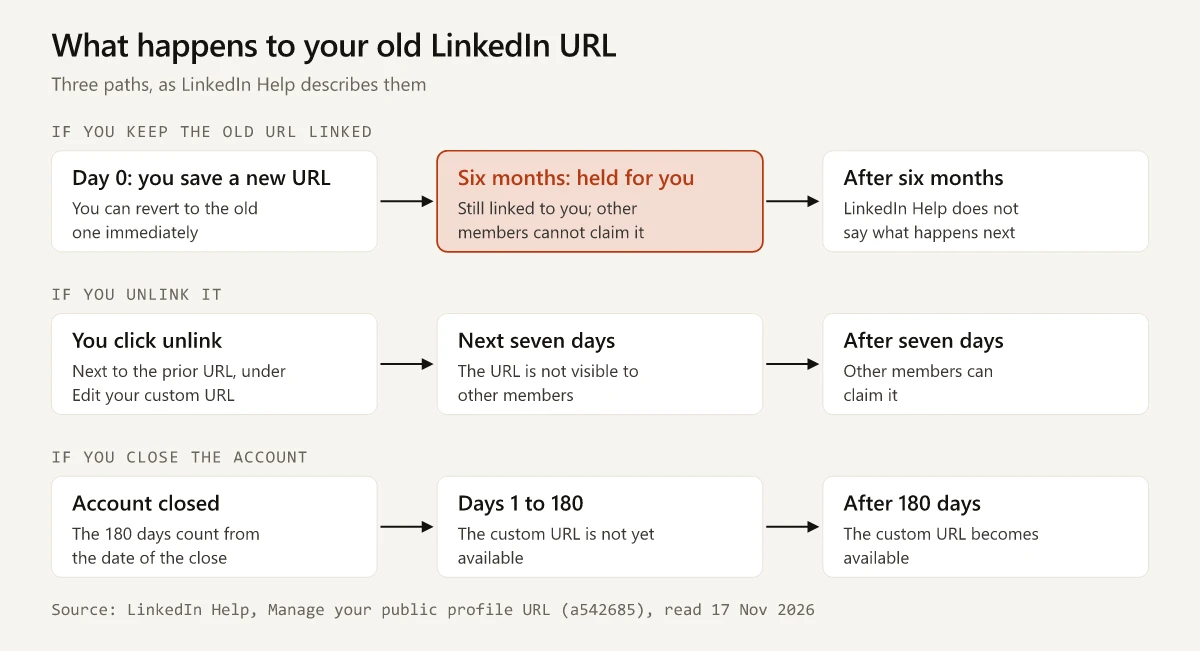
The decision rule I take from that table: do not click unlink unless you want to give the old URL away. Leaving it linked keeps it out of anyone else’s hands for six months; unlinking starts a seven-day clock after which another member can take it.
Closing an account follows its own process, and what LinkedIn removes after you close an account, and when covers it step by step. For the URL alone, the 180-day line above is the rule LinkedIn states.
What Guides Say vs What LinkedIn Help Says
I read three guides, from HandleGrab, Bitly and Cleverly, against the Help page on 17 November 2026. The disagreements:
| Topic | What a guide says | What LinkedIn Help says |
|---|---|---|
| Old URL after a change | HandleGrab: “Your old URL stops working immediately." | "still linked to you for six months unless you unlink it” |
| Old URL after a change | Bitly’s guide (Daniel Wiersema, modified 29 September 2026): “your old URL won’t automatically redirect to your new one” | The page does not say whether the old URL redirects |
| Old URL after a change | Cleverly: LinkedIn “continues to redirect from the old URL to your profile for up to 6 months (180 days)“ | Six months, and no mention of the old URL redirecting |
| Hyphens | Cleverly (“letters, numbers, and hyphens only”) and HandleGrab (“letters/numbers/hyphens only”) allow them; Bitly lists hyphens among the characters to “check for” if LinkedIn rejects your URL | ”should not contain spaces, symbols, special characters, or the word LinkedIn”, with no mention of hyphens |
“Still linked to you” and “redirects to your profile” are different promises, and only the first one is LinkedIn’s. The hyphen question has no LinkedIn answer on this page either, so the settings box is the test: type the version you want and see whether Save accepts it.
A 30-day rule also turns up in this search, and it belongs to company pages. LinkedIn’s LinkedIn Page public URL Help page says a Page’s primary URL “can’t be changed more than once in a 30-day period”. Your personal profile runs on the five-in-six-months rule above.
Can You Change Your Assigned LinkedIn URL?
LinkedIn’s Help page answers this two ways. The settings screen shows your assigned URL under the label “Assigned URL cannot be changed”. The Notes section says “A public profile URL is automatically assigned when you create your LinkedIn profile. This URL can be changed only if you update your name.”
The page does not reconcile the two lines, and I would not guess which one wins. What the page does document is the custom URL, which is the route for choosing your own ending. If it is your name rather than your address you want to edit, how to change your name on LinkedIn has the steps and what a new name means for a verification badge.
Why the Custom URL You Want Is Not Available
Custom URLs go first come, first serve, so a taken name is either in use or held by one of the timeline paths above: another member’s six-month hold, the seven-day unlink window or the 180 days after a closed account, and LinkedIn will not release it on request. Capital letters will not get you around it either: the custom part is case insensitive, so JohnSmith and johnsmith are the same URL.
If your name is taken, LinkedIn’s own suggestion is a variation of your name or professional brand. Adding a field, a city or a middle initial keeps the URL readable when someone types it from a printed resume.
Where Your Old LinkedIn URL Still Lives
The six-month hold is your window to replace the old URL everywhere you put it. The list I would work through:
| Place | Why it matters |
|---|---|
| Resume and cover letter template | LinkedIn notes that job applications may ask for the URL; an uploaded resume file still contains the link it was written with (how saved resumes and profile resumes differ) |
| Email signature | Every email you send after the change repeats the old link |
| Job-board and portfolio profiles | Each one stores its own copy |
| Personal website and other social bios | Same |
| Printed cards and printed QR codes | A printed link cannot be edited, and LinkedIn does not say the old one loads your profile, so reprint as soon as you change the URL; the six-month hold only stops someone else claiming it |
After you save, open the old URL in a private browser window. Whatever loads there is what a logged-out visitor clicking your old URL sees, which tells you more than any of the claims in the table above.
When you replace the URL on your resume, click the new link in the exported PDF before you send it, since a flattened Canva PDF or Word for Mac’s Best for printing option can leave the link dead.
One related edit is not this setting. If you want a clickable website link on your profile rather than a new profile address, that is the custom button, and where the creator-mode profile link went and who can add one now covers its paid eligibility.
How to Change LinkedIn URL Once and Keep the Old One Linked
LinkedIn promises a six-month hold on the old URL and says nothing about a redirect. Pick a custom URL you will keep, leave the old one linked and replace it on your resume, signature and profiles inside that window. Start with the resume.
Frequently Asked Questions
Can we change LinkedIn URL?
Yes. LinkedIn Help says you can change your custom public profile URL up to five times within six months, from Public profile & URL on desktop or from Contact info and then Profile URL in the app.
Does my old LinkedIn URL still work after I change it?
LinkedIn Help says the previous URL 'is still linked to you for six months unless you unlink it', and other members cannot claim it in that time. The page does not say the old link redirects, so update every place the old URL appears and check it in a private window.
How do I change my LinkedIn URL in the mobile app?
Tap your profile photo, tap your Profile card, tap the More icon next to Add section, tap Contact info, tap the Edit icon, then tap your Profile URL. On the Public profile settings page, tap the Edit icon under Edit your custom URL, type the new ending and tap Save.
Can I change my assigned LinkedIn URL?
LinkedIn shows the assigned URL under the label 'Assigned URL cannot be changed', while the notes on the same Help page say it 'can be changed only if you update your name'. A custom URL is the route LinkedIn documents for choosing your own ending.
Why is the LinkedIn custom URL I want not available?
Custom URLs are first come, first serve, a changed URL stays linked to its previous owner for six months unless they unlink it, and a closed account's URL is released after 180 days. LinkedIn says it can't make a custom URL available on request.