How to Change Name on LinkedIn, Verified or Not
How to change name on LinkedIn on desktop, iPhone or Android, what a verified badge needs before you save, and where a maiden name or a credential belongs.
A verification badge is the exception that turns a five-step edit into a decision. LinkedIn’s Verifications on your LinkedIn profile Help page says “If you change your name, you may have to re-verify to keep your verification visible on your profile”, and that the name you verify with “must match the name on your LinkedIn profile”. Without a badge, the answer to how to change name on LinkedIn is the five steps below, plus the same edit on any second-language profile.
I read every LinkedIn Help page cited here logged out from India on 17 November 2026, and I quote their menu labels as written. With a badge, my rule is to answer one question before you click Save: will the new name match the name on your government ID?
How to Change Name on LinkedIn on Desktop
These are the Desktop steps from LinkedIn’s Last name visibility page (“Last updated: 3 months ago”), as of November 2026:
- Click the Me icon at the top of your LinkedIn homepage.
- Click View Profile.
- Click the Edit icon in the top section of your profile, to the right of your picture.
- On the Edit intro pop-up window, update your name in the First Name and/or Last Name text boxes.
- Click Save.
The same page adds that you “can also update the name information you want displayed from your Public Profile page.”
Name is one of the introduction fields. LinkedIn’s Edit the Introduction section on your profile page lists it next to Profile photo, Background photo, Headline, Current position, Education, Location, Industry and Contact info, and says: “Your network won’t be notified when you make changes to the introduction section on your profile.”
Changing Your Name in the LinkedIn App or a Mobile Browser
The Last name visibility page has separate iOS and Android tabs, and for the name itself they give the same five taps. The mobile browser route is on the Introduction page’s Mobile Browser tab.
| Where you are | Steps, in LinkedIn’s words | Help page |
|---|---|---|
| iPhone app | Tap your profile picture, tap on your name, tap the Edit icon, update your name underneath First name and Last name, tap Save | Last name visibility, iOS tab |
| Android app | The same five taps as iOS | Last name visibility, Android tab |
| Mobile browser | Tap the Profile icon, tap the Edit icon in your introduction section, change Name, tap Save in the upper right corner | Edit the Introduction section, Mobile Browser tab |
The Introduction page’s own Mobile tab starts one step differently: “Tap your profile picture. Tap your profile photo again to access your profile.” From there you tap the Edit icon in your introduction section. If the first route does not match your screen, try that one.
What Changing Your LinkedIn Name Touches
This is the table I would read before saving. Each row quotes the LinkedIn Help page that covers it, with that page’s “Last updated” label on 17 November 2026.
| What it touches | What LinkedIn Help says | Page, last updated |
|---|---|---|
| Your network | ”Your network won’t be notified when you make changes to the introduction section on your profile.” | a547248, 9 months ago |
| A verification badge | ”If you change your name, you may have to re-verify to keep your verification visible on your profile.” | a1359065, 2 months ago |
| The ID check | CLEAR and DigiLocker troubleshooting pages: the name on your ID must match your LinkedIn name, and “Your verification will not be added to your LinkedIn profile unless they match.” | CLEAR and DigiLocker, 2 months ago |
| A profile in another language | ”Any updates made to your primary profile must also be made to your secondary language profiles.” The ID must also match “the name on your secondary profile”. | a570288, 4 years ago; a1457505 |
| An ID name already on your profile | ”Your ID name is view-only and cannot be changed or updated.” | a7153330, 2 years ago |
| Your public profile URL | The assigned URL “can be changed only if you update your name” | a542685, 2 weeks ago |
On the URL row, LinkedIn’s URL page says nothing about a name change editing a custom URL you already chose, so treat the address as a separate edit. Changing your LinkedIn URL and what happens to the old one covers that setting.
Changing Your Name on LinkedIn After Verification
The badge question has three outcomes, and a second-language profile adds one more edit:
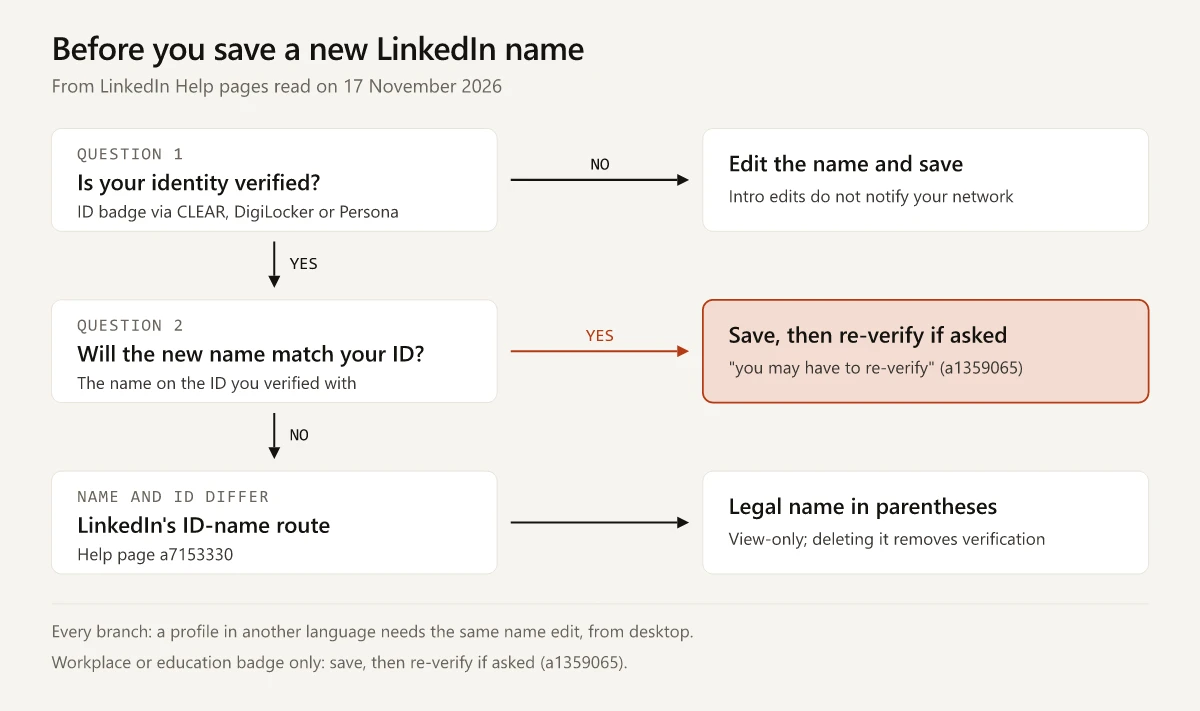
Only an identity badge involves a government ID. The verifications page says identity verification is performed by CLEAR in the U.S., Canada and Mexico, is available in India to members with DigiLocker credentials, and is performed by Persona, with “a valid NFC-enabled passport”, in “many additional countries”. The name-match rule on that page covers workplace and educational institution verifications as well, but those are confirmed with a work email, Microsoft Entra Verified ID or a LinkedIn Learning or Recruiter license, not an ID. With only those badges, save and re-verify if LinkedIn asks.
When the New Name Matches Your ID
Save, then check whether the badge is still showing. If LinkedIn asks you to verify again, the CLEAR troubleshooting page adds one limit worth knowing in advance: “If your identity verification attempts have failed, wait until the following day before attempting verification again.”
When the New Name Will Not Match Your ID
LinkedIn’s ID-name page offers a route: your legal name “will appear in parenthesis after” your LinkedIn name, visible to logged-in members. The India flow, its eight failure causes and the full ID-name rules are in my DigiLocker verification guide. The fact that matters for a name change: “Deleting your ID name will remove both your legal name and your identity verification.”
If You Have a Second-Language Profile
LinkedIn’s Edit your secondary language profile page says you manage it “only from the LinkedIn desktop experience”, and that “Any updates made to your primary profile must also be made to your secondary language profiles.” That applies whether or not you are verified, and if you are, make this edit before you re-verify. On desktop:
- Click the Me icon, then View Profile.
- Scroll down to the section you want to edit and click the Edit icon to the right of it.
- Click the Edit icon next to the individual detail you want to edit.
- In the pop-up window, click the tab for the language you want to edit.
- Make the change and click Save.
How to Change Name on LinkedIn After Marriage
A new surname is two edits: change the Last Name with the desktop or app steps above, then put the old name in the field LinkedIn built for it. Its Additional name on your profile page (“Last updated: 2 weeks ago”) describes that field as being for a “former name, maiden name, or nickname”.
Desktop steps, from that page:
- Click the Me icon at the top of your LinkedIn homepage.
- Click on your Profile card from the dropdown.
- Click the Edit icon in your introduction section.
- Enter the name in the Additional name field, under the Basic info section of the Edit intro pop-up window.
- Click the Visibility icon and choose who can see it.
- Click Save.
In the app the route is your profile photo in the upper-left corner, then your Profile card on the navigation panel, then the Edit icon. One extra step there: “Tap Done or Enter on your keyboard for the Visibility field to appear.”
The four visibility options are Only you, Your connections, Your network and All LinkedIn members. Pick All LinkedIn members if former colleagues or clients who know only the old name should see it when they open your profile; no setting makes it findable on Google.
Two limits shape that choice. The page says “Public profiles don’t display the Additional name field, so searches performed on search engines like Google or Yahoo! using this information will not yield any results.” So a Google X-ray search for LinkedIn profiles by a former name will not find you through that field. And if you are verified while your ID still carries your former name, your new LinkedIn name will not match it, which leaves LinkedIn’s ID-name route as the documented way to stay verified.
What LinkedIn Allows in the Name Field
Four LinkedIn Help pages describe the name field, and they do not agree on extras such as credentials:
| Help page | Last updated | What it says |
|---|---|---|
| Names allowed on profiles | 4 years ago | Only “the first, middle, and last names of your real or preferred professional name, plus your preferred pronouns”; no “pseudonyms, fake names, business names, associations, groups, email addresses, or special characters” |
| Practices to avoid | 3 years ago | ”The name fields of your account must reflect only your first and last name, with no extra information.” |
| Add a suffix or certifications | 1 week ago | ”LinkedIn profiles don’t have a suffix field”, so add credentials “to the Last Name field (for example, Last Name = Smith Ph.D.)” |
| Verifications on your profile | 2 months ago | The name you verify with “must match the name on your LinkedIn profile” |
The newest page invites “Smith Ph.D.” while the two older ones rule out extra information, and the verification rule compares whatever sits in Last Name with your ID, so if you are verified or plan to be, keep credentials out of Last Name. Whether a certification belongs after your name covers where they go instead, and if that is your headline, the LinkedIn headline character limit sets how much fits.
“Preferred professional name” is the other phrase to note. A preferred name such as a shortened first name is allowed, but it is also a name your ID may not carry, so a verified member who switches to it is back at the ID-name route.
Showing Only Your Last Initial
The same Last name visibility page lets you show your first name and only the first letter of your last name to anyone who is not a connection. LinkedIn sets one condition: you must have turned off your public profile.
| Where | Steps |
|---|---|
| Desktop | Me icon, Settings & Privacy, Visibility on the left rail, then under Visibility of your profile & network click Change next to Last name visibility |
| iPhone app | Profile picture, Settings, then under the Visibility tab tap Last name visibility |
| Android app | Profile picture, the Settings icon in the top right corner, then under the Visibility tab tap Last name visibility |
LinkedIn says “Your changes will be saved automatically”, that your connections “will continue to see your full first and last name”, and that anyone “can still find you by using your first and last name”. This setting controls how your name shows on your profile. What other members see when you view their profiles is a different control, covered in what LinkedIn private mode shows to the people you view.
How to Change Name on LinkedIn in the Right Order
For an unverified profile, the desktop or app steps, a Save and the same edit on any second-language profile are the whole job. For a verified one, I would work in this order:
- If you have an identity badge, compare the new name with the name on your government ID.
- Edit First Name and Last Name, then Save.
- Edit the name on any second-language profile from desktop.
- Add the former name in Additional name and set its visibility.
- Check the badge, and re-verify if LinkedIn asks.
- Decide separately whether your profile URL should change too.
LinkedIn will not notify your network about the new name, so tell the people who need to know yourself. Start with step one: the name on your ID.
Frequently Asked Questions
Does LinkedIn notify my connections when I change my name?
No. LinkedIn Help says your network won't be notified when you make changes to the introduction section of your profile, and your name is one of the introduction fields.
Can I change my name on LinkedIn after verification?
Yes, but LinkedIn Help says you may have to re-verify to keep your verification visible, and the name you verify with must match the name on your LinkedIn profile. If your ID shows a different name, LinkedIn offers to display your ID name in parentheses after your LinkedIn name.
How do I add my maiden name on LinkedIn?
Use the Additional name field under Basic info in the Edit intro window, which LinkedIn describes for a former name, maiden name or nickname, then pick who can see it. Public profiles do not display the field.
Can I put Ph.D. or MBA after my name on LinkedIn?
LinkedIn's suffix Help page says profiles have no suffix field and suggests adding credentials to the Last Name field, but its Practices to avoid page says the name fields must hold only your first and last name, and verification needs the profile name to match your ID. If you are verified or plan to be, keep credentials out of Last Name and put them in your headline.
How do I change my LinkedIn Page name?
That is a separate process for super admins. LinkedIn Help's article on changing a LinkedIn Page or Showcase Page name says a Page with a small number of associated employees can use the Edit Page option, a verified company Page must contact LinkedIn, the name is capped at 100 characters, and the page URL is not changed automatically.