How to Block Someone on LinkedIn: Steps and What They See
How to block someone on LinkedIn on desktop, iPhone or Android, per LinkedIn Help: what the blocked member still sees, how to unblock, and why Block can be missing.
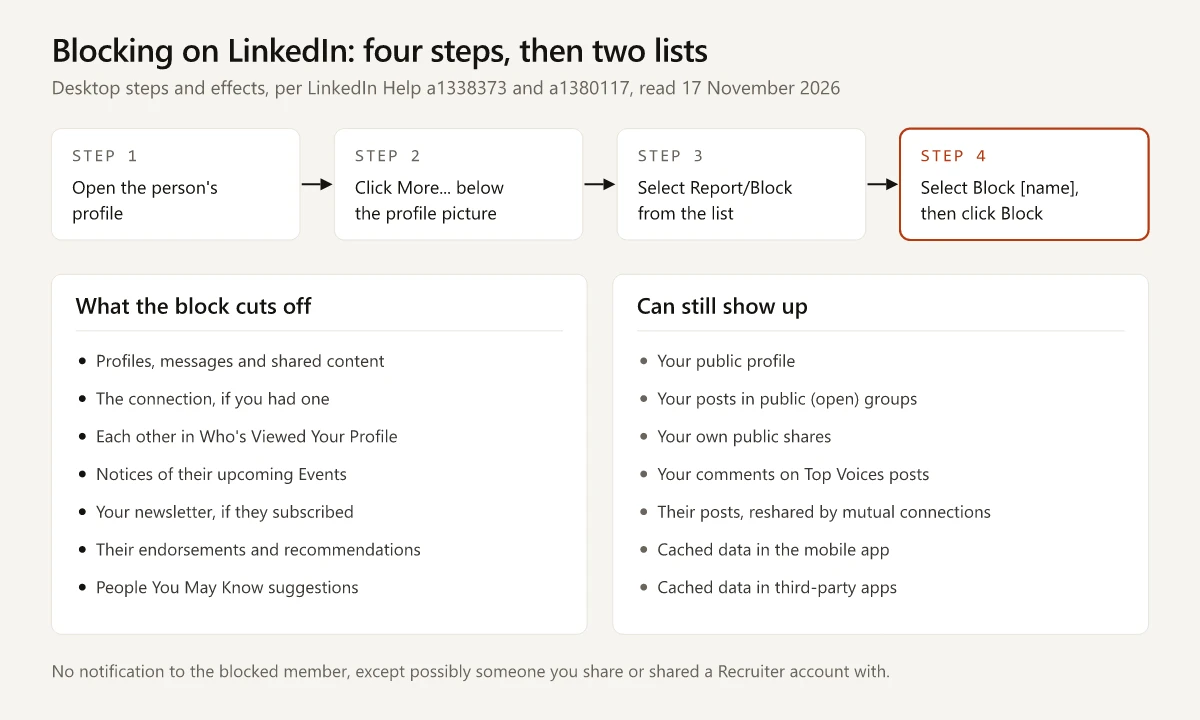
Someone you met once at a conference keeps sending messages you stopped answering weeks ago, and now they comment under every post you publish. You want them gone from your LinkedIn without a conversation about it. Here is how to block someone on LinkedIn from a desktop browser, in the four steps LinkedIn Help’s block page gives:
- Go to the profile of the person you’d like to block.
- Click the More… button below their profile picture and select Report/Block.
- Select Block [member name] in the Report or block pop-up.
- Click Block.
LinkedIn says “The blocked member won’t receive any notification of this action.” Where third-party guides fall behind is the fine print on LinkedIn’s own Help pages: the block limit, which a 2021 guide still quotes as a 1,400 cap while another calls a block permanent, the cases where the Block option is not on the menu at all, and the parts of your activity a blocked person can still see. I would trust LinkedIn’s own Help pages over any guide on those three, including this one, so every rule below carries its Help answer ID.
How to Block Someone on LinkedIn in the App or a Mobile Browser
The block page has four tabs: Desktop, iOS, Android and Mobile Browser. The tab text differs in small ways, so here they are with LinkedIn’s menu labels exactly as each tab worded them on 17 November 2026 (the page’s stamp read “Last updated: 2 months ago”):
| Step | iPhone app (iOS tab) | Android app (Android tab) | Mobile browser (Mobile Browser tab) |
|---|---|---|---|
| 1 | Go to the profile of the person you’d like to block | Go to the profile of the person you’d like to block | Go to the profile of the person you’d like to report or block |
| 2 | Tap the More icon in the top right of the screen | Tap the More icon in the top right of the screen | Tap the More icon and select Report or block |
| 3 | Tap Report or Block from the dropdown menu | Tap Report/Block from the dropdown menu | Tap Block [member name] from What do you want to do? |
| 4 | Tap Block [member’s name] | Tap Block [member’s name] | Tap Submit |
| 5 | In the confirmation pop-up window, tap Block, or the back arrow to review other options | In the confirmation pop-up window, tap Block | None listed |
The mobile browser path ends on Submit rather than a Block confirmation, so read the last screen before you tap. The menu is shared with reporting, as its name says; LinkedIn’s block page does not say that choosing Block also files a report.
What Happens When You Block Someone on LinkedIn
A block cuts both directions: neither of you can open the other’s profile, message, or see the other’s shared content. The full list is on LinkedIn’s block overview page, which read “Last updated: 2 years ago” on 17 November 2026. I have grouped it by what changes and noted the exceptions the same page gives:
| Area | What the block does | Exception or catch | Help answer |
|---|---|---|---|
| Profiles | ”You won’t be able to access each other’s profiles on LinkedIn” | Your public profile, the version search engines and logged-out visitors see, stays visible to them | a1380117 |
| Messages | ”You won’t be able to message each other on LinkedIn” | None listed | a1380117 |
| Shared content | You won’t see each other’s shared content | Mutual connections can still reshare their posts into your feed; LinkedIn says you can hide those updates | a1380117 |
| Connection | ”If you’re connected, you won’t be connected anymore” | None listed | a1380117 |
| Who’s Viewed Your Profile | You won’t see each other there | A member who viewed you before the block still counts in your viewer number, without their details | a1380117 |
| Events | You won’t be notified about their upcoming Events | An attendee can block the organizer only after leaving the event | a1380117 |
| Audio events | You can’t join one if you blocked the host or any speaker | None listed | a1380117 |
| Newsletter | A blocked subscriber to your newsletter stops receiving it | None listed | a1380117 |
| Endorsements and recommendations | LinkedIn removes any from that member | Recommendations “cannot be reinstated if you unblock them” | a1380117, a1338373 |
| Suggestions | LinkedIn stops suggesting you to each other in People You May Know and People also Viewed | None listed | a1380117 |
| Notification | The blocked member is not notified “in most cases” | Recruiter account sharers, below | a1380117, a1338373 |
LinkedIn’s own still-visible list is all public material: a blocked member “may still see information you make public, such as your public profile, content posted in public (open) group discussions, your own public shares, and comments on Top Voices posts.” Search engines index that public profile too, and a LinkedIn X-ray search reads Google’s copy of it. To shrink that list, hide the public version of your profile (one of the softer options below).
Two more catches from the same page:
- Cached data. On a phone you “may see cached data regarding the blocked member’s profile”; LinkedIn’s fix is to sign in and then sign out of the mobile app. Third-party apps that use LinkedIn’s APIs can hold cached data too, and LinkedIn says to contact that app’s developer.
- Contacts you saved. “Contact records that are stored or saved locally to your device need to be removed manually.”
The viewer-count line above is the one I have also quoted in my breakdown of why profile views show zero or no names, where a blocked member is one of several reasons a viewer’s name is missing.
Will They Know You Blocked Them on LinkedIn?
Not through a notification, with one stated exception. The two Help pages word it slightly differently:
| Help page | Notification line | Recruiter exception |
|---|---|---|
| Block or unblock a member (a1338373, updated “2 months ago”) | “The blocked member won’t receive any notification of this action." | "we reserve the right to notify this member of your block” if you currently or previously shared a LinkedIn Recruiter account with them |
| Block a member - overview (a1380117, updated “2 years ago”) | “won’t receive any notification of this action in most cases" | "we may need to let that member or the Recruiter admin know about the block in order to effectively manage that Recruiter account” |
A notification rule does not hide the effects, though: your profile stops opening for them, messaging between you stops, and the connection drops off their list. None of those Help pages mentions a “blocked” label on your profile.
Blocking Without Visiting Their Profile
LinkedIn gives no route that skips the profile. Every tab of the block page starts with “Go to the profile of the person”, and none of the five block-related Help pages linked in this post describes another way in. The visit itself is the worry, since opening a profile is a profile view.
The setting that controls how that view appears is your profile viewing mode. Switch to private mode before you open their profile and the view shows as “LinkedIn Member”; my LinkedIn private mode breakdown covers what that costs on a free account. Then block in the same sitting. LinkedIn’s overview says a member who viewed a profile “prior to any blocking” still appears in the viewer count, “but their details won’t be reflected in the viewer details.” Private mode covers the time between the visit and the block; it does not make the visit uncounted.
How to Unblock Someone on LinkedIn
Unblocking runs through your settings, not the other person’s profile, because a blocked profile does not open. The steps on a1338373 by tab:
| Step | Desktop | iOS and Android apps | Mobile browser |
|---|---|---|---|
| 1 | Click the Me icon at the top of your LinkedIn homepage | Click your profile picture at the top of your LinkedIn homepage | Tap the Profile icon in the navigation bar |
| 2 | Select Settings & Privacy | Select Settings & Privacy | Tap the Settings & Privacy icon at the upper right corner |
| 3 | In the Visibility section, select Blocking under Visibility of your profile & network | Select Visibility, then Blocking under Visibility of your profile & network | In the Visibility section, select Visibility of your LinkedIn activity |
| 4 | Find the person’s name and click Unblock | Find the person’s name and click Unblock | Find the person’s name and tap Unblock |
The mobile browser tab names a different heading in step 3 from the other three tabs. If Blocking is not under the heading the tab gives you, look under the other one.
Before you click Unblock, what the Help pages say about the aftermath:
- 48 hours to block again: “You’ll have to wait 48 hours before re-blocking the same member after unblocking.” The blocked-list page repeats it.
- Recommendations stay gone: they “cannot be reinstated if you unblock them.”
- The connection: the overview page says a block ends it, and neither the block page nor the overview says whether unblocking restores it. Check your connections list after you unblock, and send a new invitation if they are not there.
- No unblock notice is described: both pages say the blocked member gets no notification of the block (the overview adds “in most cases”), and neither says LinkedIn tells the member when you unblock them.
To see everyone you have blocked without unblocking anyone, a1335373 gives the desktop path as Me, Settings & Privacy, then the arrow next to Blocking in the Visibility section on the left rail. In the apps it reads: tap your profile picture, tap Settings, tap Visibility, tap Blocking.
LinkedIn Block Limit: No Cap, With a 2,000 Catch
LinkedIn sets no block limit. On 17 November 2026, LinkedIn’s block page read “There is no limit to how many members you can block.” Two guides in the US results for this query the same day get it wrong in different ways: one quotes a cap, the other calls a block permanent.
| Source | What it says | Date on the page |
|---|---|---|
| How-To Geek | ”You can have up to 1400 members blocked at any given time” | Published 22 November 2021 |
| Guiding Tech | ”Do note that blocking someone on LinkedIn is a permanent action” | Updated 26 August 2024 |
| LinkedIn Help a1338373 | ”There is no limit to how many members you can block." | "Last updated: 2 months ago” on 17 November 2026 |
The Guiding Tech line conflicts with LinkedIn’s own Unblock steps above. The part that does stay permanent is narrower: recommendations from the blocked member, which LinkedIn says cannot be reinstated.
The one number on LinkedIn’s page sits on the unblock side: “If you have blocked more than 2000 members, you may not be able to unblock someone you have previously blocked. You can contact support for help unblocking.” If you block in bulk to clear spam accounts, more than 2,000 blocks is where undoing one may need LinkedIn support. LinkedIn has no support phone number, and the signed-in Help Center chat that reaches its support team is set out in how to reach LinkedIn customer service.
Why Can’t I Block Someone on LinkedIn?
The Block option goes missing when you and the other member share an event or a group in which one of you has an organizer or admin role. LinkedIn’s Unable to block a member page (“Last updated: 2 years ago”) lists the cases, and the overview page adds the rest:
| What you see | Cause, per LinkedIn Help | Fix | Help answer |
|---|---|---|---|
| No Block option on their profile | They organize an event you attended or plan to attend | Leave any events they organize | a6566044 |
| No Block option on their profile | They are an admin of a Page that organized an event you attended or plan to attend | Leave events organized by Pages they admin | a6566044 |
| No Block option on their profile | You organize, or are a Page admin of, an event they attended or plan to attend | Remove them as an attendee | a6566044 |
| No Block option on their profile | They are an admin or owner of a group you belong to | Leave the group, then block | a6566044, a1380117 |
| No Block option on their profile | You own or manage a group they are in | Remove them from the group, then block | a6566044, a1380117 |
| You cannot find the member at all | They hibernated their profile, were removed for abusive behavior, blocked you, or closed their account | Nothing to block. If they hibernated or closed the account and come back, block then; if they blocked you, the block already cuts contact both ways | a1380117 |
| An anonymous viewer in your list | ”You can’t block private mode viewers of your profile at this time” | None offered | a1380117 |
A group member who wants another member blocked inside the group can ask the group’s owners or managers, per a1380117, which also says blocking “isn’t supported between a group member and a group manager.” Hibernation is one of those reasons; my guide to closing or hibernating a LinkedIn account covers how it hides a profile and when it can come back.
If you and the person are both admins of the same LinkedIn Page, the block does not hide you from each other in the admin view. LinkedIn’s Pages admin blocking page says you will still see each other’s name and admin role in the admin view, without profile pictures or links, and a super admin can remove or edit the role of a member they blocked.
Softer Options Than a Block
LinkedIn’s overview page lists lighter controls “If you’d like to limit people’s access to you”:
- Hide the public version of your profile, the one search engines and signed-out visitors see.
- Hide your profile photo.
- Change your profile display name.
- Adjust who can send you invitations.
- Turn Open Profile on or off.
- Remove a 1st-degree connection. Removing a connection on LinkedIn does not notify the person, but it withdraws any recommendations and endorsements between you.
If the problem is someone @mentioning you rather than messaging you, the toggle for that is Allow mentions, tags, and collaborations, which I walk through in my guide to tagging and stopping tags on LinkedIn. It stops new mentions from everyone, not one person, so it fits a pile-on better than a single contact.
How to Block Someone on LinkedIn in One Sitting
To block someone on LinkedIn in one pass: set private mode if the visit worries you, open their profile, block from the More menu, then check your blocked list in Settings & Privacy. If the Block option is missing, look for a shared event or group first. On 17 November 2026 LinkedIn’s block page set no limit and said unblocking may need support once you have blocked more than 2,000 members. Check any guide’s cap against answer a1338373.
Frequently Asked Questions
Will someone know if I block them on LinkedIn?
Not from a notification in most cases. LinkedIn Help says the blocked member won't receive any notification, with one exception: if you share or have shared a LinkedIn Recruiter account with them, LinkedIn reserves the right to tell that member, or the Recruiter admin, about the block.
How do I block someone on LinkedIn without viewing their profile?
LinkedIn Help gives no route that skips the profile: every block path starts with going to the person's profile. To keep that visit from showing your name, switch to private mode before you open the profile, and block in the same sitting.
How do I unblock someone on LinkedIn?
On desktop, click the Me icon, select Settings & Privacy, then in the Visibility section select Blocking under Visibility of your profile & network, find the person and click Unblock. LinkedIn says you then have to wait 48 hours before you can block the same member again.
Is there a limit to how many people you can block on LinkedIn?
No. On 17 November 2026, LinkedIn Help said there is no limit to how many members you can block. It adds that if you have blocked more than 2,000 members, you may not be able to unblock someone and may need to contact support.
Why can't I block someone on LinkedIn?
LinkedIn Help says the Block option disappears when one of you organizes (or admins the Page behind) an event the other attends or plans to attend, or owns or manages a group the other is in. Leave the event or group, or remove them from yours, then block. If you cannot find the member at all, they may have hibernated or closed their account, been removed, or blocked you.